Settings
The settings area is where you truly make Salonnare your own. The settings are grouped into clear sections. Admins see every section; a staff member only sees the sections they've been given permission for, plus My account, which is always there. Features your plan doesn't include show a lock, and features still in development show Soon.
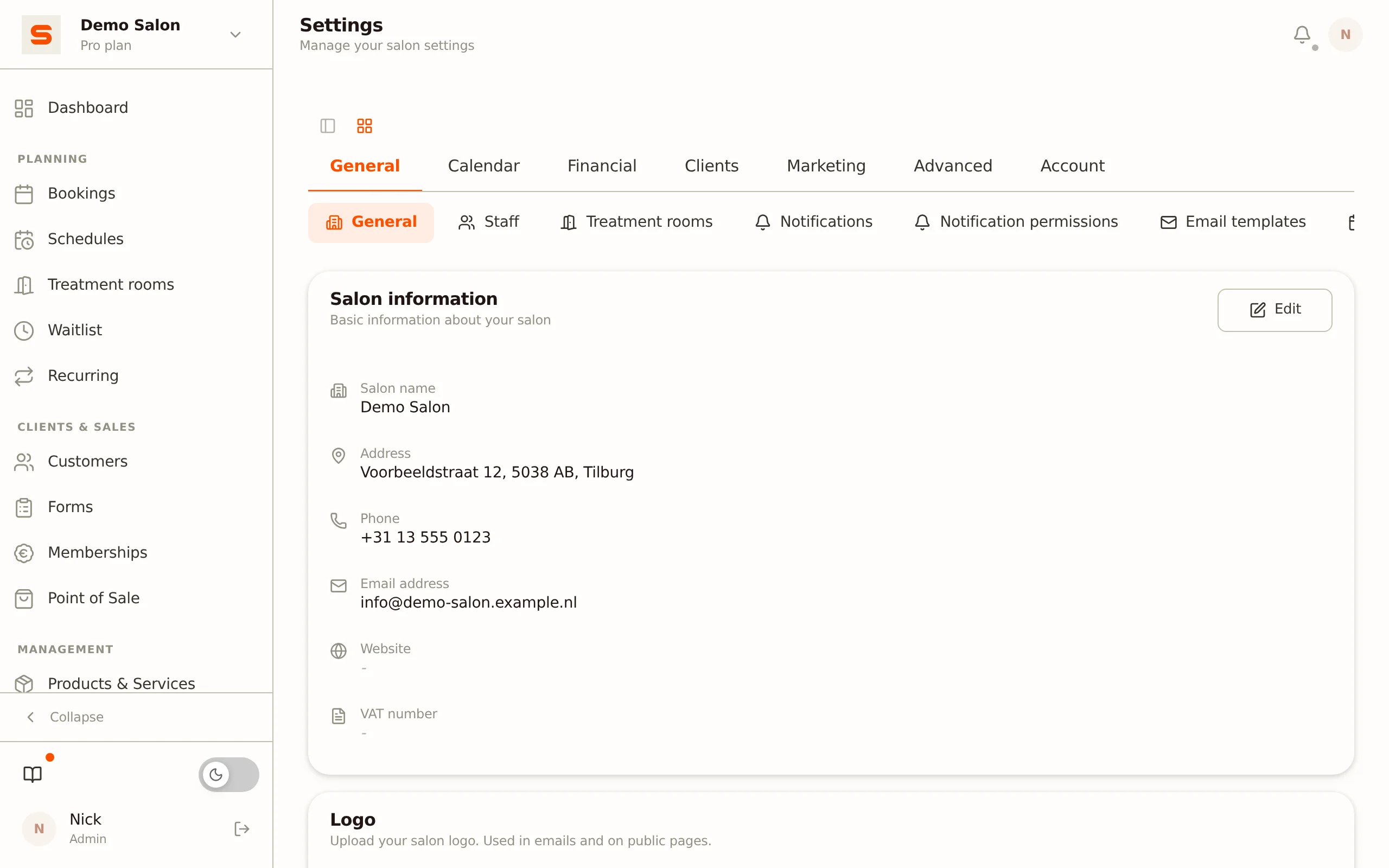
The sections at a glance
General
- General -- Salon name, address, website, VAT number, social media, currency, time zone, language and your salon logo.
- Staff -- Team members, roles, permissions and schedules. See Managing staff.
- Treatment rooms -- Manage your treatment rooms and assign them to services.
- Notifications -- Your own push notifications, the emails to your team (low stock, waitlist) and the alert for a booking request.
- Notification permissions -- Decide per staff member which notifications they may receive (admins only).
- Email templates -- Switch each automatic client email on or off and customise its content. See Email templates.
- Holidays -- Days your salon is closed.
Calendar
- Online booking -- How clients book online (booking mode, lead time, showing prices, and so on).
- Booking link & widget -- Your booking link, the widget for your own website and the look of your booking page.
- Calendar settings -- Slot size, colour mode and the visual display of your calendar, plus appointments with multiple treatments.
Financial
- VAT rates -- Set your VAT percentages.
- Payment connect -- Connect Mollie, SumUp or Stripe for card and online payments.
- Stripe Dashboard -- Shortcut to your Stripe environment.
- Deposits -- Let clients pay a deposit when booking online.
- No-show fee -- Charge a fee for missed appointments.
- Staff payouts -- Marked Soon and not available yet.
Clients
- Client settings -- Preferences for client details and client cards.
- Loyalty & segments -- CRM segments and the loyalty programme (earning and redeeming points).
- Memberships -- Memberships you sell to your clients.
- Forms -- Build intake forms for clients or staff to fill in.
Marketing
- Marketplace & SEO -- Visibility in the public marketplace and SEO for your booking page. See Marketplace.
- Gift Cards -- Selling and managing gift cards.
- Google reviews -- Read and reply to your Google reviews. See Google Business Profile.
- Reviews -- Manage the reviews clients leave through Salonnare.
Advanced
- Branding -- Colours and logos for your emails and the "Powered by Salonnare" badge (white-label). See Branding.
- Custom domain -- Marked Soon and not available yet.
- Two-factor authentication -- Extra security for your account.
- Import -- Import clients and data.
- Google Business Profile -- Connect your Google location. See Google Business Profile.
- API & Webhooks -- Marked Soon and not available yet.
- Privacy & GDPR -- Export all your data or delete your account.
- Features -- Turn optional features on or off (see below).
Account
- My account -- Your own name, email address and password.
- Subscription -- Your plan, usage and billing. See Subscription & billing.
- Referrals -- Refer other salons.
- Salon memberships -- The salons your account is linked to; you can also leave a salon here.
You can display the settings as horizontal tabs at the top or as a sidebar on the left. Switch with the layout button in the top right of the settings screen.
My account
This section is about you, not about the salon. It is where you manage your name, your email address and your password. Everyone sees this section, including a staff member with no other permissions in the settings.
You open My account from your name in the top right (My account), from
My account in the sidebar or, on a phone, from More. The address is
/app/account.
You use one account for every salon you work at, so changing your name here changes it everywhere.
Usage measurement. If you see the Measure usage switch here, it decides whether Salonnare may measure, via Google Analytics, which screens and features you use. No names, no client data and nothing that identifies your salon is sent. Your choice applies on all your devices, including the app on your phone. When it is off, we measure nothing that can be linked to you. Our privacy statement explains this in more detail.
Changing your email address takes two steps. Enter the new address and click Send me a code. That code goes to your CURRENT address, not the new one. Enter it under Code from the email and click Change address; only then does your address change. This stops someone with brief access to your screen from moving your account to their own address. The code is valid for 15 minutes, and once the change goes through, your old address gets a notification that it happened.
Check the new address carefully before you confirm. The screen shows both addresses in full, because a typo sends your mail to a mailbox that does not exist.
After changing your password you have to sign in again everywhere, including on the device you are working on. That is deliberate: it makes sure an old password no longer works anywhere.
Salon details
Start by making sure your salon information is correct:
- Go to Settings > General.
- Enter your salon name, address, city and postcode.
- Under Country, choose the country where your salon is located (the Netherlands, Belgium, Germany, Luxembourg, France, Spain, Austria or Switzerland).
- Add your website URL, VAT number and social media links.
- In the Preferences block, choose your currency, time zone and language.
- Upload your salon logo.
This information appears on your online booking page, in emails and on receipts.
What the country is used for
The country does not appear on your receipts or in your emails, but it tells other systems where your salon is:
- Search engines: in the data that Google and other search engines read from your booking page and from your salon page on the marketplace.
- Google: when searching for your business to connect Reserve with Google, and in the data we supply there.
- A staff member's payout account: with chair rental, a staff member creates their own Stripe account; that account is opened in your salon's country.
If you have not chosen a country yet, the field shows what we derive from your postcode or from the country code of your phone number, and otherwise the Netherlands. Choose the country yourself if that is wrong, for example for a Belgian salon with a phone number written without the country code.
Availability, opening hours and holidays
When clients can book follows from your staff's schedules (Settings > Staff). Days you're closed (holidays, breaks) are managed under Settings > Holidays. Clients cannot book appointments on those dates.
The opening hours visitors see on your salon page in the marketplace are set separately under Settings > Marketplace & SEO. See Marketplace.
Salonnare sends automatic emails for confirmations, reminders, receipts and campaigns -- you don't need to set up an email server for that, Salonnare handles it. You customise the content and design of those emails under Settings > Email templates; that is also where you switch each of them on or off. See Email templates. Sending from your own domain isn't possible yet; that feature is marked Soon.
Payment connections
Under Settings > Payment connect you link your payment services:
- Mollie -- Online payments (iDEAL, credit card, Bancontact, ...) and Mollie Terminal for card payments.
- SumUp Terminal -- Card payments via a SumUp card reader.
- Stripe -- Online payments, no-show fees and deposits.
Branding and custom domain
Under Settings > Branding you adjust the visual look: the colours of your emails, logos for your booking page and emails, and the white-label option to hide the "Powered by Salonnare" badge. This is part of the Pro plan. See Branding. The primary colour, background photo and font of your booking page are set under Settings > Booking link & widget.
Connecting your own web or sending domain (e.g. book.yoursalon.com or info@yoursalon.com) isn't possible yet. Custom domain is marked Soon; if you open that section, you only see a notice that the feature is on its way.
Two-factor authentication (2FA)
Secure your account with TOTP two-factor:
- Go to Settings > Two-factor authentication and click Enable 2FA.
- Scan the QR code with Google Authenticator, 1Password or a similar app and enter the verification code.
- Store the backup codes in a safe place.
We recommend 2FA for all admins.
Feature toggles
Salonnare has several optional features you can turn on or off. Go to Settings > Features to manage them. Examples are the daily revenue goal, the revenue forecast, product recommendations at the POS, purchase orders, internal consumption, follow-up sequences, waitlist positions and client store credit. Changes take effect immediately -- no restart needed. The daily revenue goal and the revenue forecast appear as cards on your dashboard. Visit frequency alerts send a weekly "New: X clients you haven't seen in a while" notification as soon as new clients pass the number of days you set (Visit frequency (days)) without a visit; with the switch off, that notification doesn't come. If you use follow-up sequences, you switch the two emails that belong to it (Thank-you after visit and Rebook reminder) on or off separately under Settings > Email templates. See Email templates.
Light/dark theme
The theme toggle is at the bottom of the sidebar, next to the "What's new?" button. Click it to switch between light and dark. On mobile, you'll find dark mode in the More menu. The preference is saved per browser.
Backing up your data
Want to export or safeguard your data? See Backup & export.