Salon card in Apple Wallet and Google Wallet
Every client can put her own salon card from your salon on her phone: in Apple Wallet (iPhone) or Google Wallet (Android). That one card shows her next appointment, her other planned appointments and her client card with a QR code. If you move or cancel an appointment, the card updates by itself, and the day before the appointment she gets a reminder. Your client does not need an app for this. The salon card is included in every plan and is on by default. If you don't want it, switch it off under Settings > General > Email templates (see Turning the salon card on or off).
How your client adds the card to her Wallet
-
Step 1: Tap the button in the email
The confirmation after booking and the 24-hour reminder contain the official Add to Apple Wallet and Add to Google Wallet buttons under On your phone. Your client taps the button for her phone.
-
Step 2: Add the card
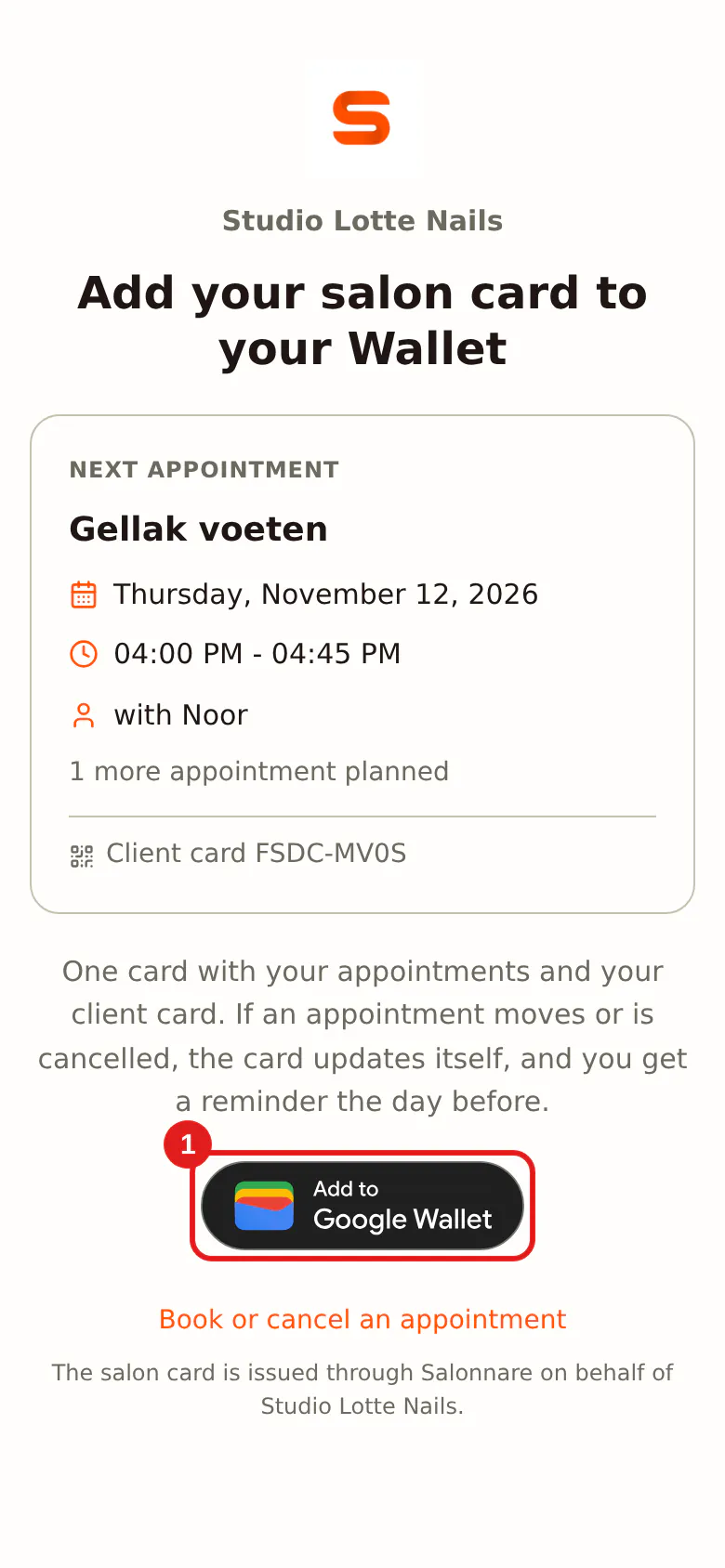
The phone shows the card. Your client confirms, and the card is in her Wallet. If she opens the link on a computer, she sees a page with her next appointment, both buttons and the tip to open the page on her phone.
 (Enlarge image)
If your client already has the card, a later email does not add a second card: it stays the same card. She does not have to do anything again for her next appointment either.
What the card shows
On the front:
- your logo, large at the top of the card;
- your salon's name;
- the next appointment: date, time, treatment and staff member. If she has no appointment planned, it says Book your next appointment;
- the QR code with her client card code (for example 7F3K-9Q2M);
- her points, only if you have loyalty switched on.
On the back (via the i button or the three dots):
- the latest message, such as a moved appointment or the reminder;
- her other planned appointments (Apple Wallet; in Google Wallet via the link to your booking page);
- your salon's address with a link for directions, and your phone number to call;
- the link to book or cancel an appointment;
- the note that the card is issued by Salonnare, on behalf of your salon.
The colour of the card follows your brand colour. If that colour is very bright or light, the card gets a calm background with your brand colour in the text, so everything stays easy to read. If your logo has its own coloured background, that becomes the colour of the card. Your client's name and health data are not on the card, and neither are prices.
Keeping up with the appointments
- If you move an appointment, the card shows the new date and time and your client gets a notification.
- If you cancel an appointment, it disappears from the card and your client gets a notification. The card stays valid: it moves on to the next appointment, or shows Book your next appointment.
- If your client books a new appointment, it is added by itself.
- Around the appointment, from 3 hours before, the card shows on the lock screen of an iPhone with iOS 18 or later.
The reminder the day before
The day before an appointment your client gets a notification through the card, at the same time of day as the appointment. If the appointment is early in the morning or late in the evening, the reminder comes between 09:00 and 21:00, so nobody gets a notification at night. If your client books after that moment, there is no extra reminder: she has just received her confirmation. Google Wallet allows at most three notifications per day per card; beyond that the message only appears on the card.
Scanning at the Point of Sale
If your client shows the QR code on her card, you scan it in the Point of Sale with the Scan button (camera or hand scanner). The Point of Sale then picks this client for the receipt straight away. You can also type in the client card code with the hyphen, for example 7F3K-9Q2M. A card from another salon does not work in your Point of Sale.
Turning the salon card on or off
-
Step 1: Open Email templates
Go to Settings and, in the General group, open Email templates.
-
Step 2: Switch the toggle on or off
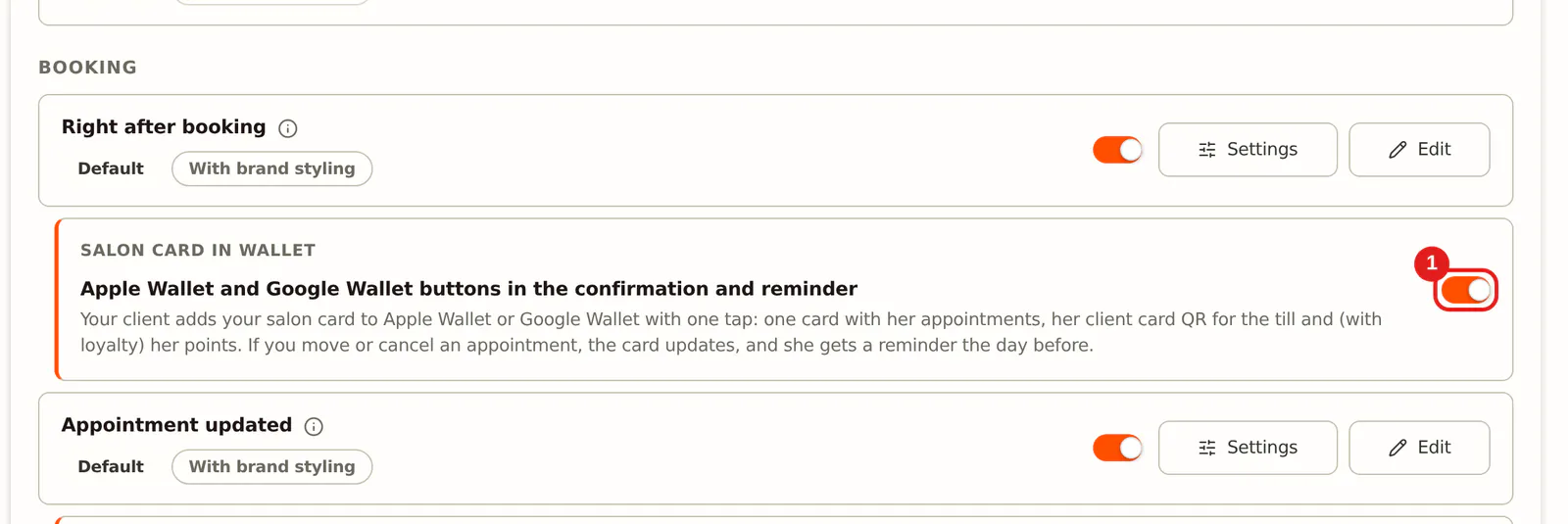
Right below Right after booking is the Salon card in Wallet card. Switch the toggle on or off. It saves straight away.
 (Enlarge image)
When the toggle is off, the buttons no longer appear in the emails and the link to the card stops working. Cards that clients already have do keep updating when you move or cancel an appointment.
The buttons also appear in your email if you designed the confirmation, the change notice or the reminder yourself in the editor. If your own template lacks the Wallet or calendar block, Salonnare adds it below the View my appointment button; you can already see it in the preview in the editor. If the block is already in your template, it is not added a second time. See also Customising email templates.
Duo appointment
With a duo treatment the second person gets the buttons for her own salon card in her own email. The duo appointment then shows on her card as well.
How long the card lasts
If your client has had no appointment for 12 months and has nothing planned, the card becomes invalid and is removed after 30 days. If you delete a client, her card becomes invalid straight away. If she books again later, she gets the buttons in the email again.
Frequently asked questions
Does my client need an app? No. Apple Wallet and Google Wallet are built into the phone; the buttons work from the email.
Does my client get a new card for every appointment? No. She has one card from your salon, and all her appointments go on it.
My client sees no buttons in the email. Why? Check that the Salon card in Wallet switch is on, and that you have not designed the confirmation or reminder yourself without the Wallet block (see the tip above). For a request you still have to confirm and for a cancellation, the buttons are left out on purpose.
Why are there no points on the card? Points only appear if your plan includes loyalty and you have switched it on under Loyalty & segments.