Marketplace and SEO
Salonnare has a public marketplace: a public directory where clients can discover salons and book an appointment online right away. Turn on your listing, and your salon appears in that directory and your booking page becomes easier to find. You manage everything in one place: Settings > Marketplace & SEO.
What is the marketplace?
The marketplace is Salonnare's public salon directory, reachable via /salons. Clients search by treatment, city, or keyword and land on your salon profile with a button to book. Participation costs nothing on top of your plan and is entirely optional -- you decide whether you're visible.
Turning on your listing
- Go to Settings.
- Open the Marketplace & SEO section.
- Turn on Visible on marketplace. This shows your salon in the public marketplace.
- Click Save.
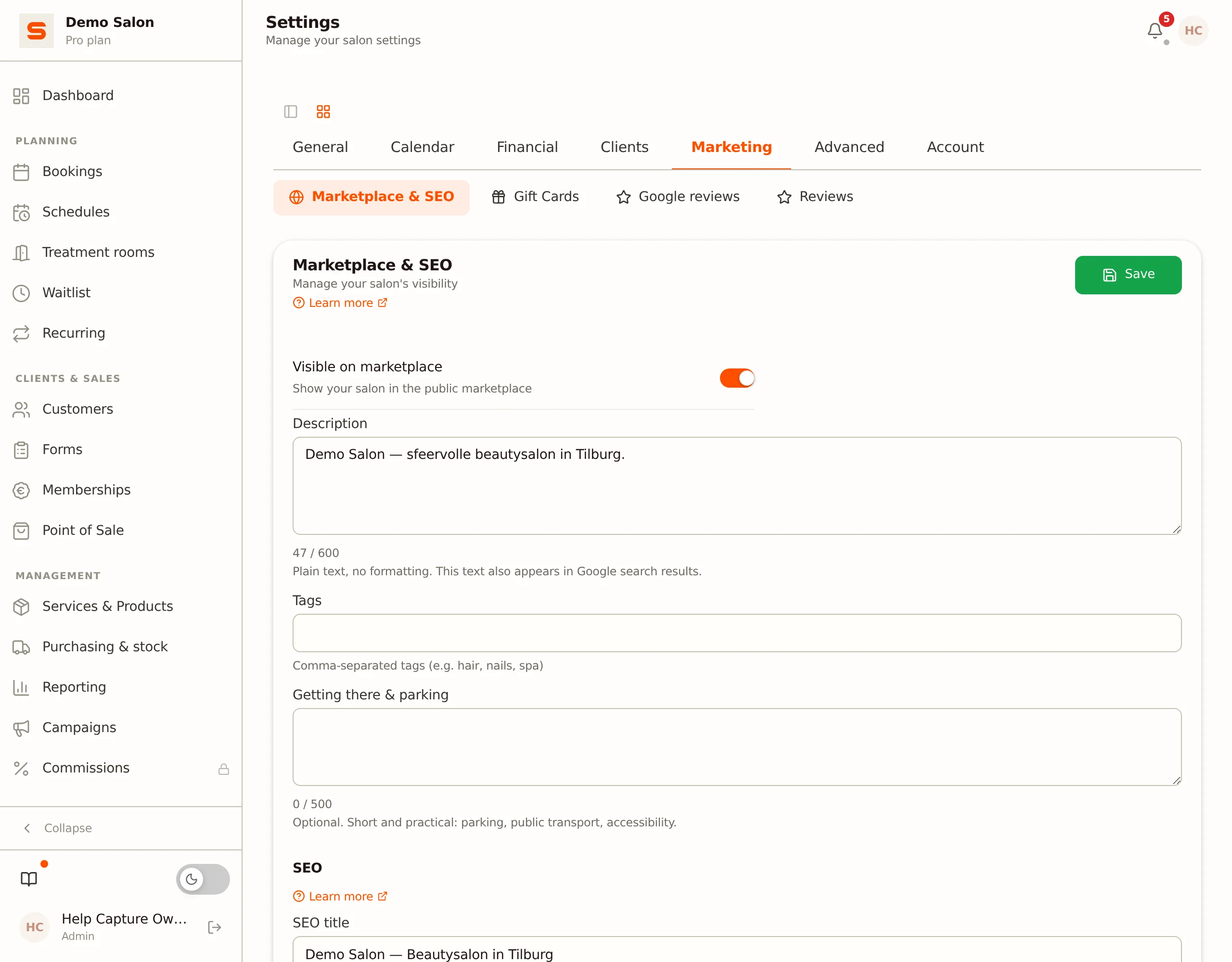
If the toggle is off, your salon stays completely out of the directory. Your own booking page always remains reachable as usual, regardless of this setting.
Your salon only appears in the directory when four conditions are met: you've turned on Visible on marketplace, Salonnare has approved your listing, your account is active, and the marketplace feature is on for your salon. So a new listing doesn't always appear straight away: Salonnare reviews it first.
The marketplace is included in the Starter and Pro plans. If you don't see the section or it's locked, check your plan under Subscription & billing. When the feature is off for your salon, your listing is not shown in the directory and your marketplace page cannot be reached -- even when the toggle above is on.
Filling in your profile
In the same section, you fill in how your salon comes across in the directory:
| Field | What it does |
|---|---|
| Description | A short, appealing description of your salon. Tell people what you offer and what makes you special. Plain text, no formatting -- this text also appears in Google search results. |
| Tags | Keywords separated by commas, for example hairdresser, nails, spa. Clients filter on these in the directory. |
Your address, city, and postcode come from Settings > General -- you don't need to fill those in again here. So make sure your general salon details are correct, since they determine where you're found.
Setting up your salon page
Turn on your listing, and your salon gets its own public page at /salons/<your-slug>. That page shows, in this order:
- A photo gallery at the top, with your cover photo as the first image.
- Popular treatments, followed by all treatments grouped by category. Every row is compact: name, price and the first line of your description, with Read more beside it. When a visitor unfolds the row, they see the photos of that treatment and can open them full size with a click.
- The team.
- Reviews.
- About: your address on the map, and below it your description next to your opening hours (including one-off exceptions) and your getting-there text.
- Salons nearby.
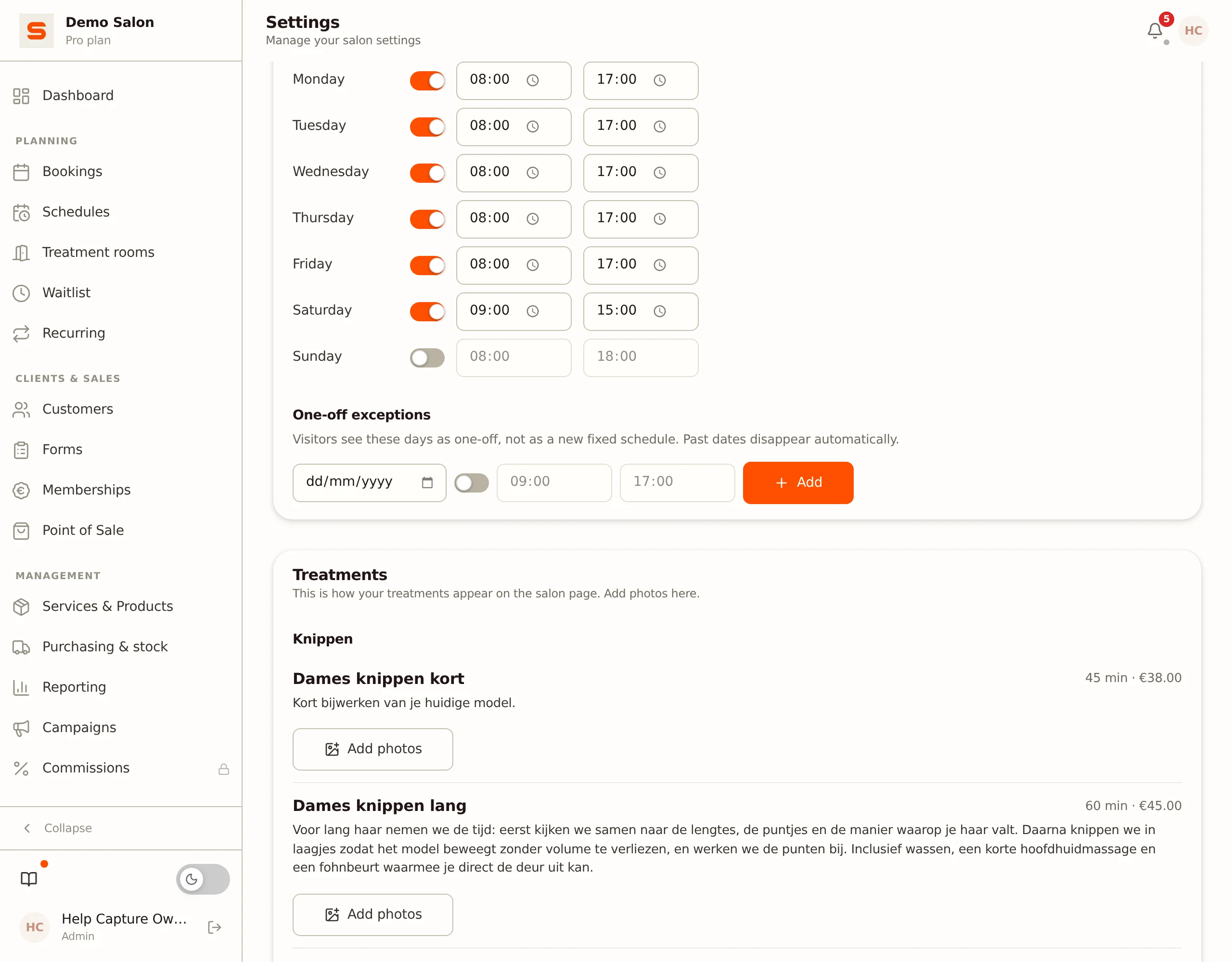
You set all of this up under Settings > Marketplace & SEO, in the Photos, Opening hours, and Treatments panels.
Photos and cover photo
In the Photos panel you can upload up to 12 photos for your gallery. Use the arrows to change the order, and the star to set a photo as the cover photo -- the first photo in the gallery instantly becomes the cover photo of your salon page.
Opening hours and one-off exceptions
In the Opening hours panel you set your fixed weekly schedule and add one-off exceptions, for example for a public holiday or an adjusted closing time. On your salon page, an exception always appears separately from the weekly schedule and labelled "one-off", so a visitor never thinks your fixed schedule has changed. Once the date has passed, the exception disappears automatically from the list and from your salon page.
Treatments on your salon page
The Treatments panel shows your services exactly as they appear on your salon page, grouped by category. You edit a treatment's description under Services & Products > Services (see Services and categories); in this marketplace panel you only add photos per treatment.
Reviews on your salon page
Under the Reviews heading sits your average rating with the breakdown per star, and below it the reviews themselves. In the left-hand column a visitor can filter by treatment and by number of stars - someone who comes specifically for balayage reads exactly the experiences about it. Every review shows which treatment it was about and the first name of the team member.
There is nothing to configure here: as soon as your listing is on, your public reviews appear by themselves. If you've connected your Google Business Profile and showing your Google rating is switched on, this block also shows your average Google rating with the number of reviews and a link to read them on Google. The texts of your Google reviews themselves don't appear on your salon page. See Google Business Profile. See Client reviews for how you collect them and reply to them.
On the map and in the categories
Your salon isn't only on your own salon page: visitors also find you through the map and through the marketplace category pages. That happens automatically, but three things are up to you.
Address and map location
Pick your address from the suggestion list under Settings > General -- Salonnare then places your salon on the map straight away. If you change your address later, Salonnare looks up the new location by itself.
If the pin is in the wrong place, enter the latitude and longitude yourself under Coordinates. Manually entered coordinates are never overwritten automatically afterwards. Want to let go of that correction? Click Reset to automatic.
Getting there & parking
Under Settings > Marketplace & SEO you can fill in the optional Getting there & parking field: plain text, up to 500 characters. Keep it short and practical -- parking, public transport, and accessibility. The text appears on your salon page in the About block, next to your opening hours.
Category pages
The marketplace has five category pages: Hair, Beauty, Nails, Massage & wellness, and Pet grooming. Your salon appears automatically on the category pages that match your tags: a tag like hair or barber puts you under Hair, nails or manicure under Nails, and pet grooming, dog groomer or dierenkapper under Pet grooming. A pet salon that calls itself dog groomer only ends up under Pet grooming, never among the hair salons as well. If several categories match your tags, you appear on several category pages. If Salonnare recognises no category at all in your tags, you simply remain findable through the general salon list at /salons.
SEO title and description
Under the SEO heading you set how your booking page appears in search engines like Google:
- SEO title -- The title shown as the blue link in search results. Keep it short and include your salon name and city, for example "Hair Salon Bloom - Amsterdam".
- SEO description -- The grey text below the title in search results. Describe in one or two sentences what you offer and invite people to book.
Click Save to store your changes.
A good SEO title and description increase the chance that people click your result. Write for the client, not the search engine: be concrete and inviting.
New to search engine optimisation? Read What is SEO? first for the basics.
Tips to get found more easily
- Be thorough. A filled-in description, relevant tags, and correct salon details make your profile stronger.
- Use recognisable keywords. Think about what a client would type: treatments, your city, and your specialities.
- Share your booking link. Put the link to your booking page on your social media and your Google Business Profile.
Need help with your online booking page? See Online Bookings. Want to collect client reviews to strengthen your reputation? See Client Reviews.