

With chair rental, a self-employed stylist rents a spot in your salon. The renter is a business of their own: their clients, their appointments and the revenue from their own treatments belong to them. You provide the space and charge rent for it. Salonnare keeps both sides apart and creates the rent invoice for you.
This article is for the salon that rents out. Are you a chair renter yourself? Then read Working as a chair renter.
Booth rental is part of the Pro plan of the salon that rents out. The renter does not need Pro.
How it works in short
- What does it cost? Chair rental is part of your salon's Pro plan. The renter counts as a staff member at your salon. Their own environment is free for them as long as they rent at a paying salon.
- The renter gets their own environment in Salonnare, with their own calendar, own clients, own treatments and own booking page.
- In your salon they appear as a staff member, on the days from their schedule. You see their appointments in your calendar, but not their client records.
- They check out in your POS. Their own treatments go on a receipt with their details and the money goes to their own Stripe or Mollie account. Products of the salon go on a receipt of the salon.
- At the end of each period Salonnare creates a rent invoice from you to the renter: the agreed rent, offset against their commission on products sold.
Under Staff payouts you used to also find the payout models Booth rental and Hybrid. These can no longer be chosen: renting out a chair now only works through Chair renters. If your salon is still on one of these old models, it keeps working as it did; if you switch to Commission via salon, you cannot go back.
If, with such an old model, the online payment for an appointment comes in after that appointment was already cancelled, the money goes back to the client automatically and nothing is passed on; you get a notification. If the refund fails, the notification says so and the stylist refunds the amount in their Stripe dashboard. Once that is done, tap Refunded manually in the notification and confirm. You only see this button if you are allowed to edit the checkout.
Inviting a renter
-
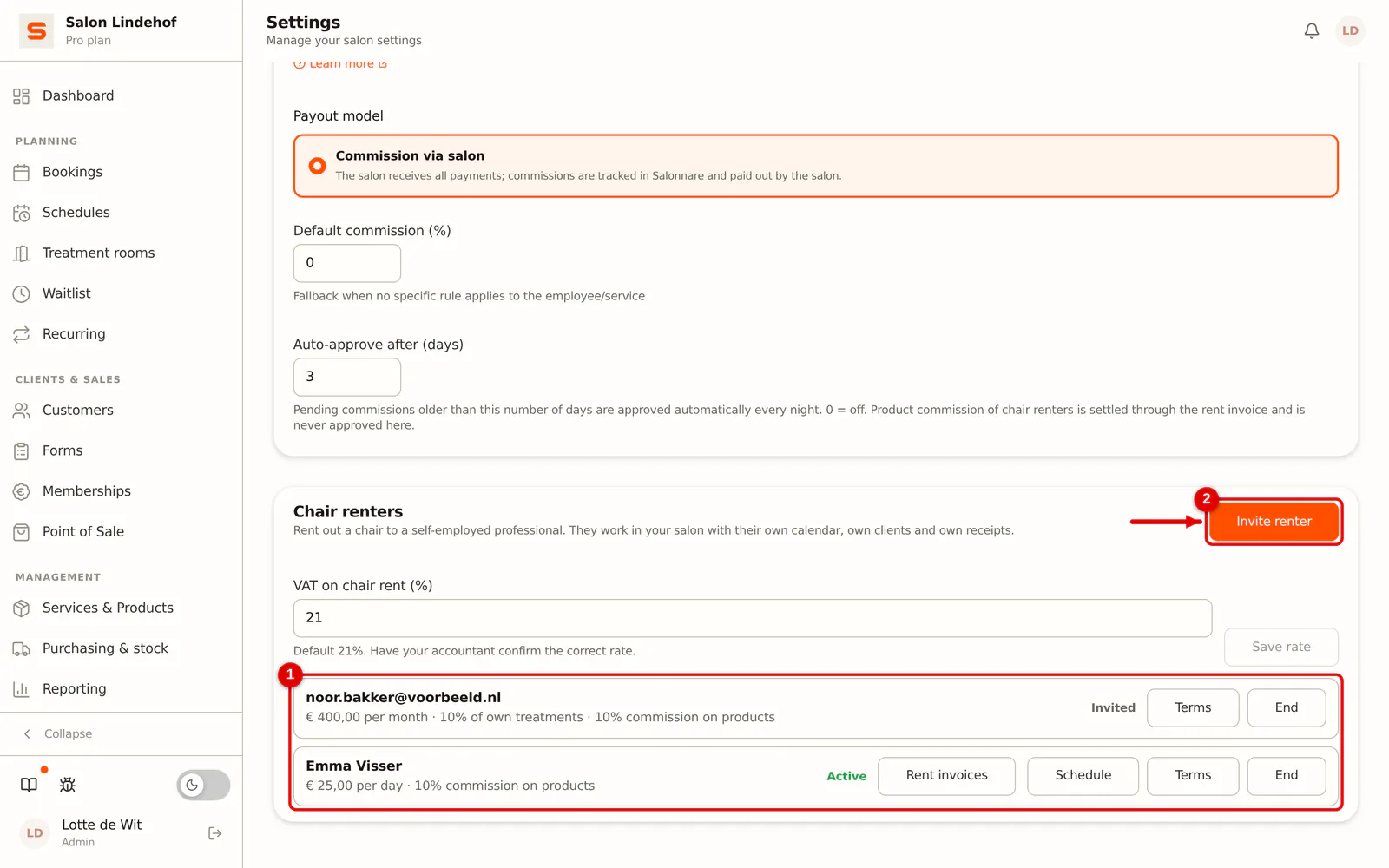
Step 1: Open the Chair renters block
Go to Settings > Financial > Staff payouts. At the bottom is the Chair renters block with your renters and open invitations. Click Invite renter.
 (Enlarge image)
-
Step 2: Enter the email address and choose the rent
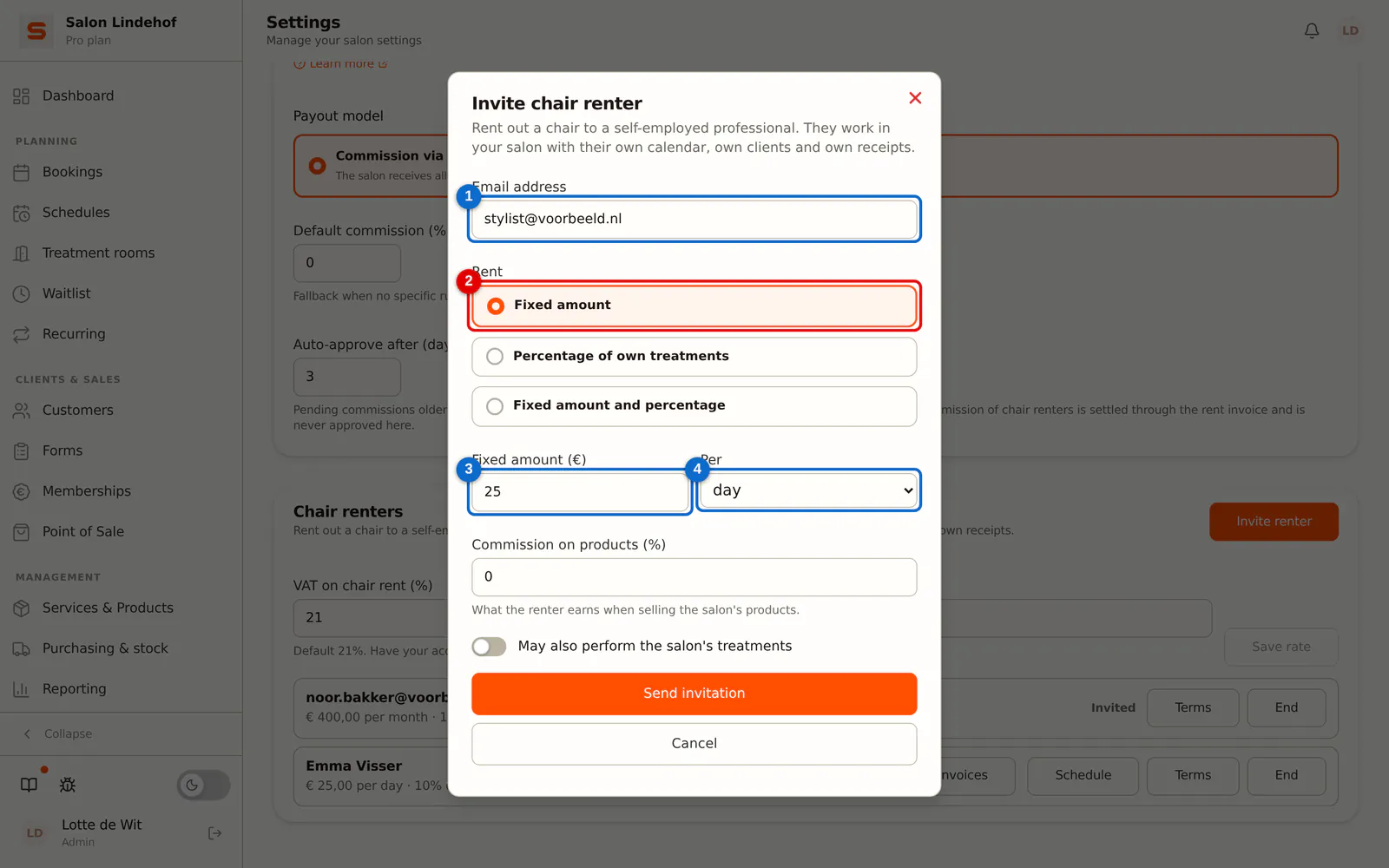
Enter the renter's email address and choose how they pay rent:
- Fixed amount per day, week or month;
- Percentage of own treatments (on their revenue excluding VAT);
- or Fixed amount and percentage.
With a fixed amount you enter the amount and choose the period under Per.
 (Enlarge image)
-
Step 3: Product commission and sending
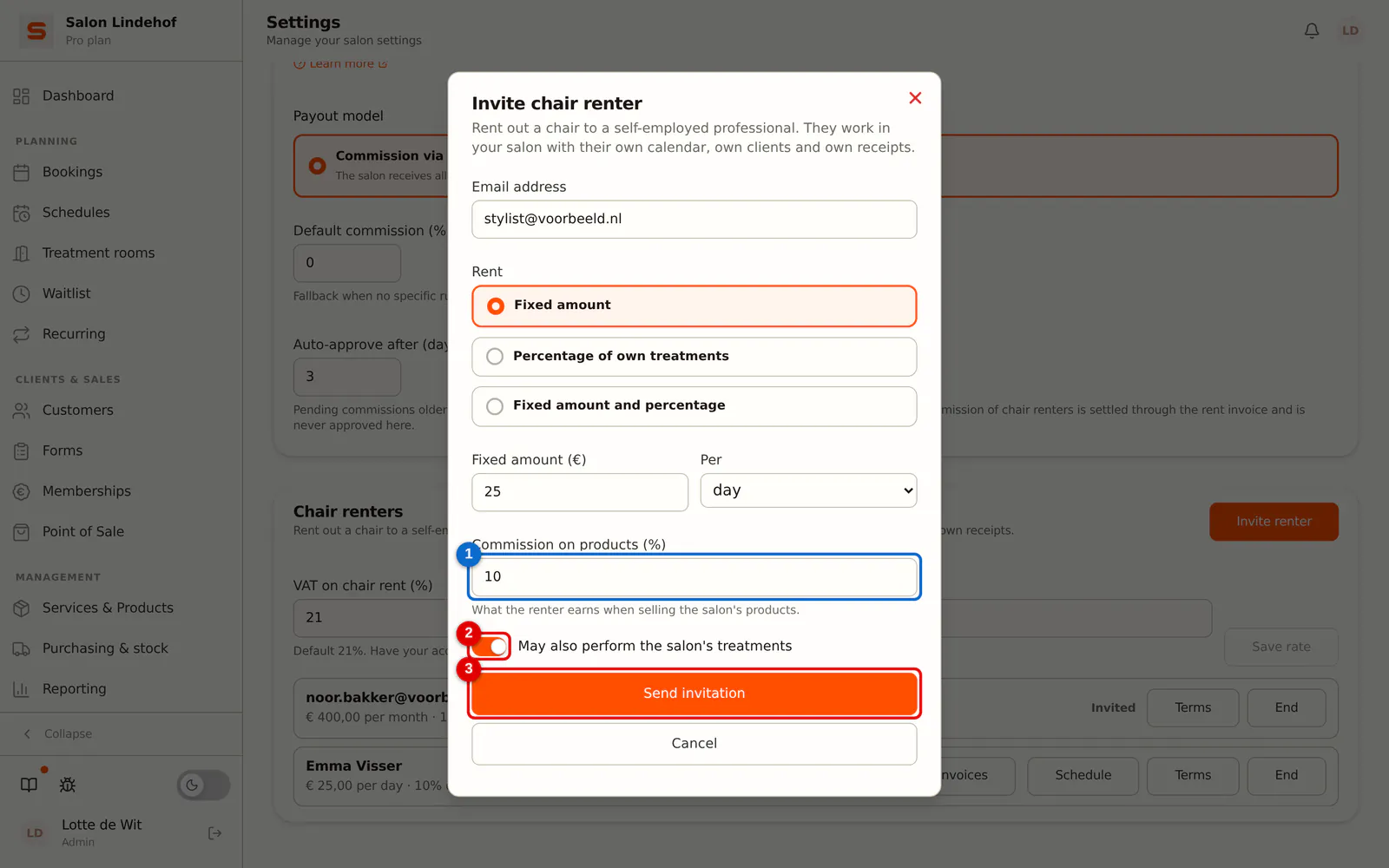
Enter the Commission on products (%): what the renter receives when they sell products of the salon. Turn on May also perform the salon's treatments if the renter may also offer your treatments. Click Send invitation.
 (Enlarge image)
The renter receives an email and appears in the list as Invited. As soon as they accept, they are Active and have their own environment. If they already rent at another salon, they use that environment: one calendar for all their locations.
Until the renter accepts, you see how long the invitation is still valid, with the buttons Send again (a new email with a new link, valid for another 24 hours, with the same terms) and Withdraw (the link stops working and the terms lapse). An expired invitation is shown in red as Invitation expired: send it again or click Remove. The same invitation also appears under Staff in Pending invitations (see Staff).
Changing the terms
-
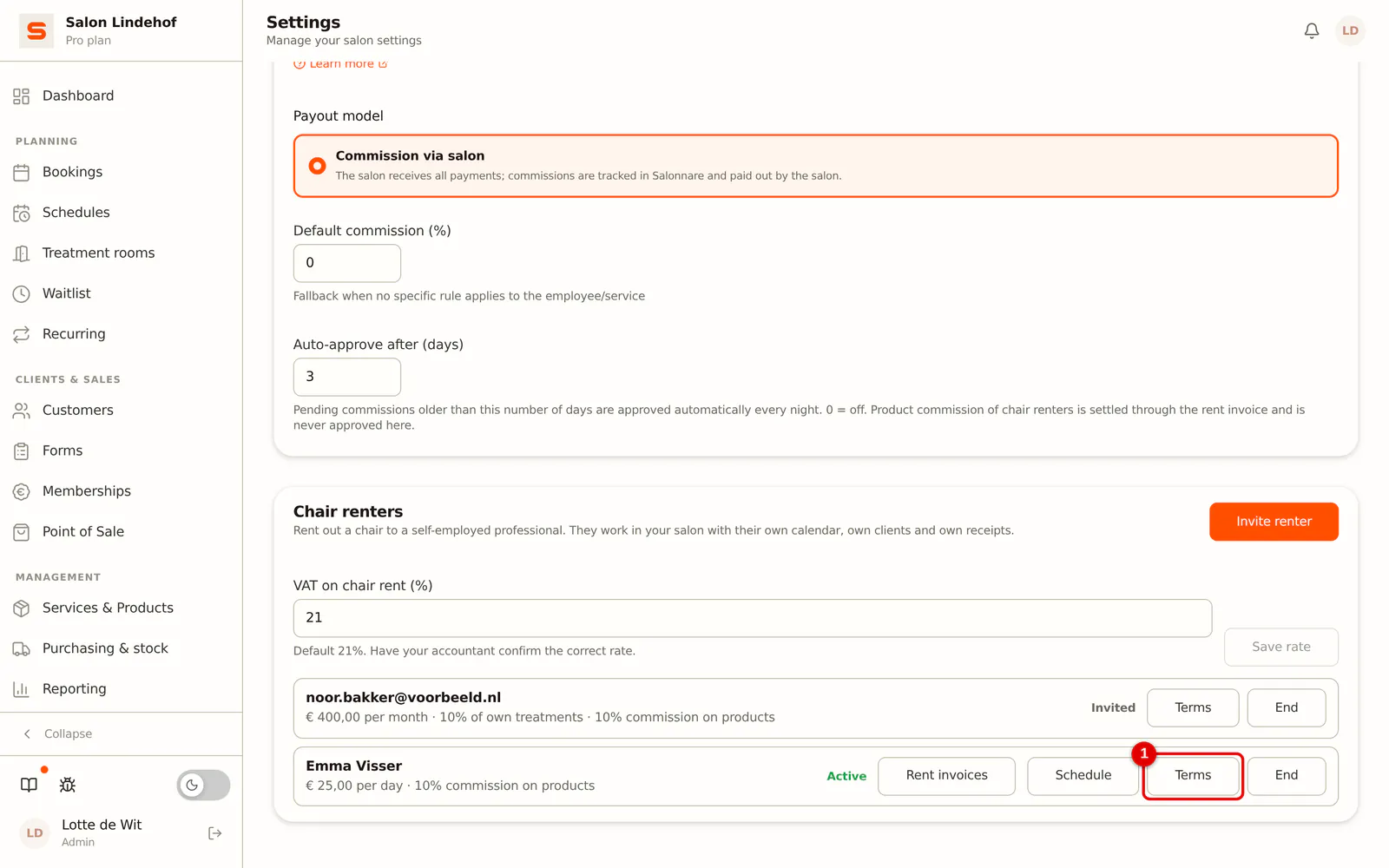
Step 1: Open the renter's terms
Click Terms next to the renter.
 (Enlarge image)
-
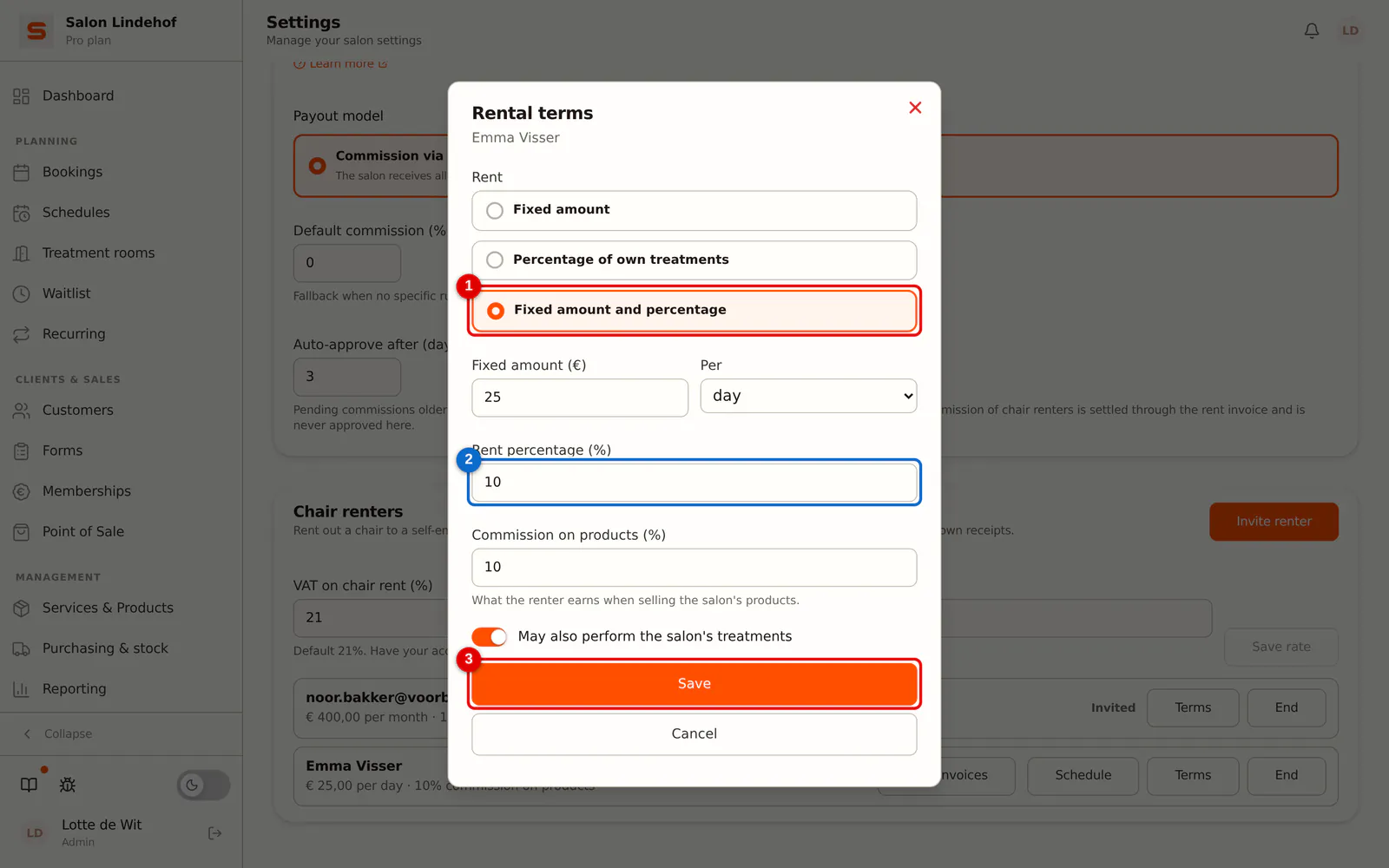
Step 2: Change the rent and save
Adjust the rent model, the amounts or the product commission and click Save.
 (Enlarge image)
A draft rent invoice is then recalculated. An invoice that has already been sent no longer changes.
Viewing the renter's schedule and appointments
The renter sets on which days and times they work at your salon themselves, in their own environment. A renter cannot be at two salons at the same time.
-
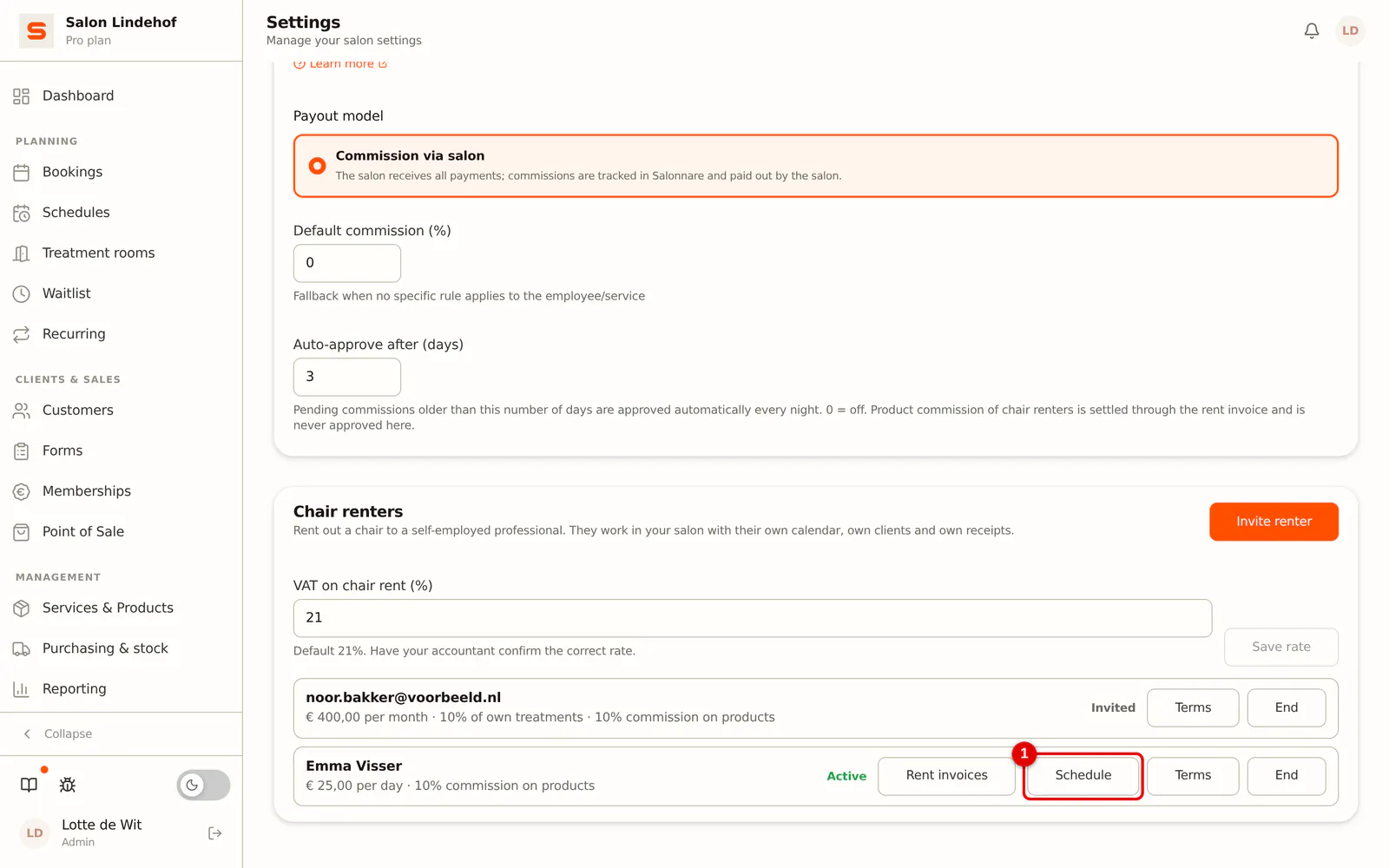
Step 1: Open the schedule
Click Schedule next to the renter.
 (Enlarge image)
-
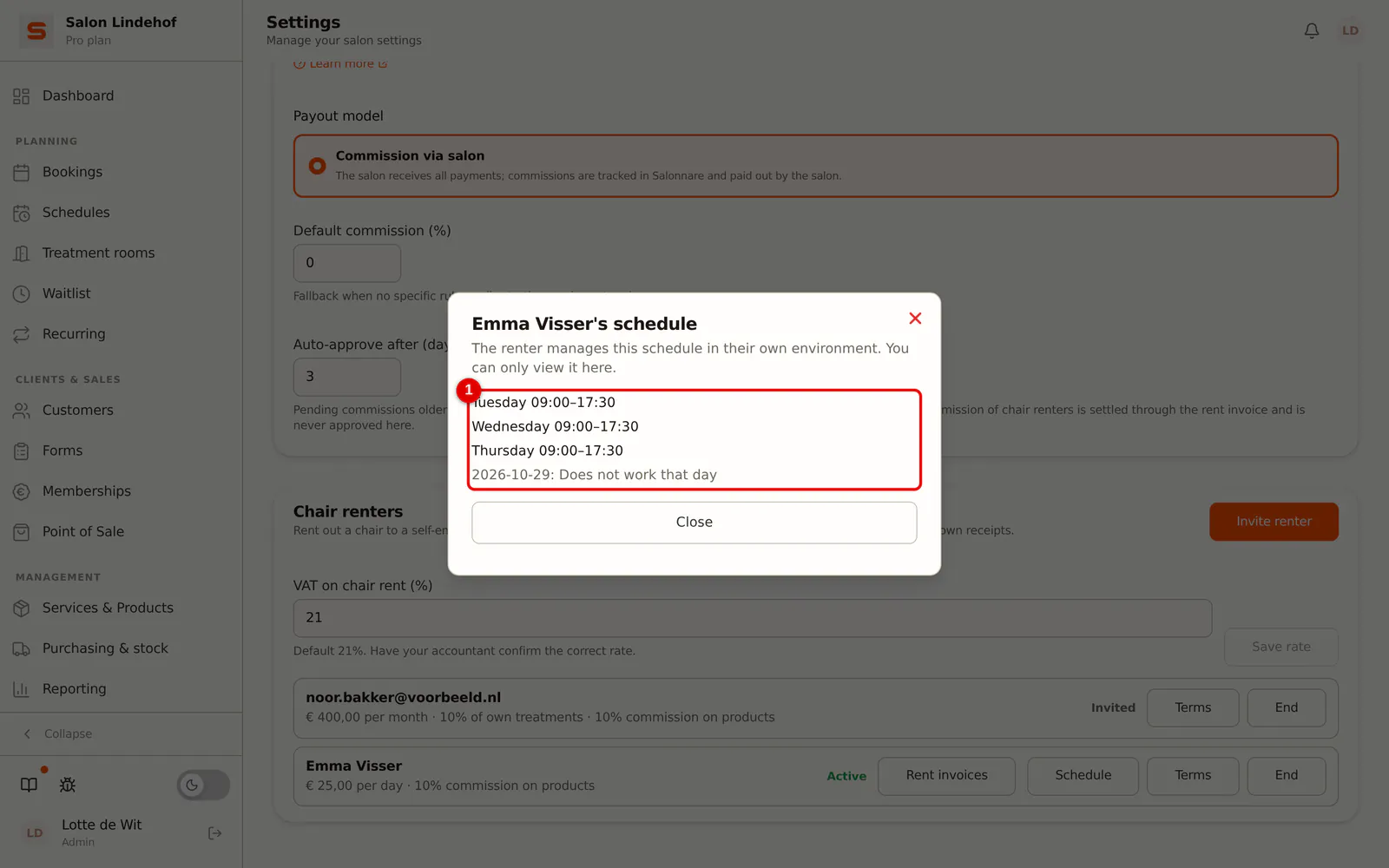
Step 2: View working days and exceptions
You see their regular working days at your salon and the exceptions per date. This is read-only.
 (Enlarge image)
-
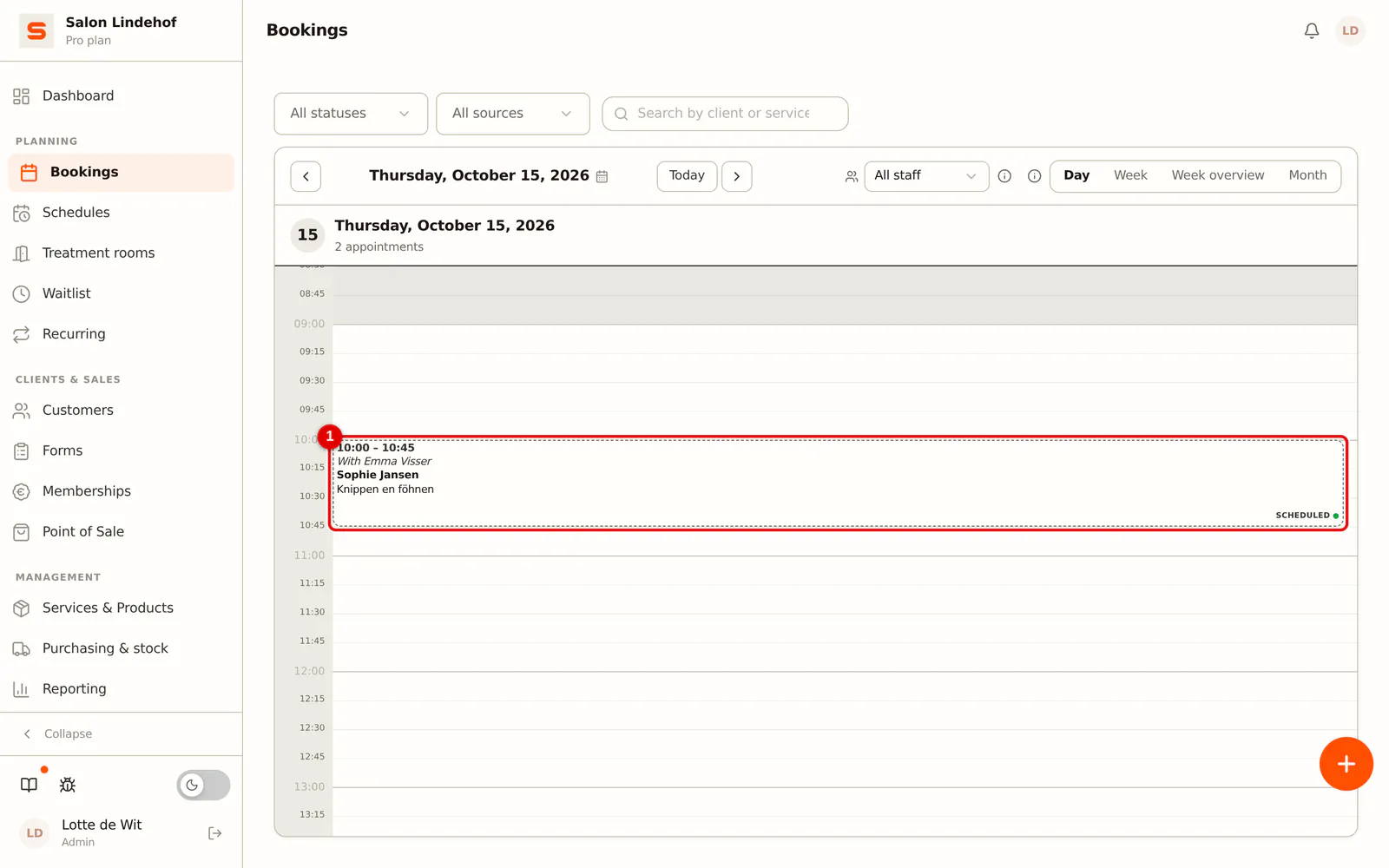
Step 3: Their appointments in your calendar
Go to Bookings. Every appointment of the renter in your salon appears as a copy in your calendar: time, treatment and client name, with the renter's name next to it. That way you see who is in your salon when, without access to their client records or their revenue.
 (Enlarge image)
Only the renter can change or cancel their appointments. You also cannot create an appointment in your own calendar in a renter's name: the client on that form is a client of your salon, not of theirs.
Booking pages
- On your booking page the renter appears as a staff member, on their days at your salon. If a client chooses them, the appointment goes into their calendar. No preference never picks a renter.
- With May also perform the salon's treatments a client can book your treatments with the renter. If that switch is off, a client books the renter through their own page.
- The renter also has their own booking page. It shows per day at which location they work.
POS: two receipts
The renter checks out in your POS, on their working days. If the basket contains both their own treatments and products or treatments of the salon, the POS creates two receipts:
- Their receipt: their own treatments, with their registration number and VAT number, paid into their own Stripe or Mollie account.
- The salon's receipt: products and treatments of the salon. The money and the VAT go to you; the renter receives the agreed product commission.
Each receipt has its own payment. On the salon's receipt the renter cannot use a discount, gift card, loyalty points or credit; those belong to their own clients. Refunding a receipt of the salon is done by you, not by the renter. What checking out looks like for the renter is described in Working as a chair renter.
Sending a rent invoice and marking it as paid
At the end of each period Salonnare creates a draft:
- rent per week: per calendar week;
- rent per day, per month or a percentage only: per calendar month.
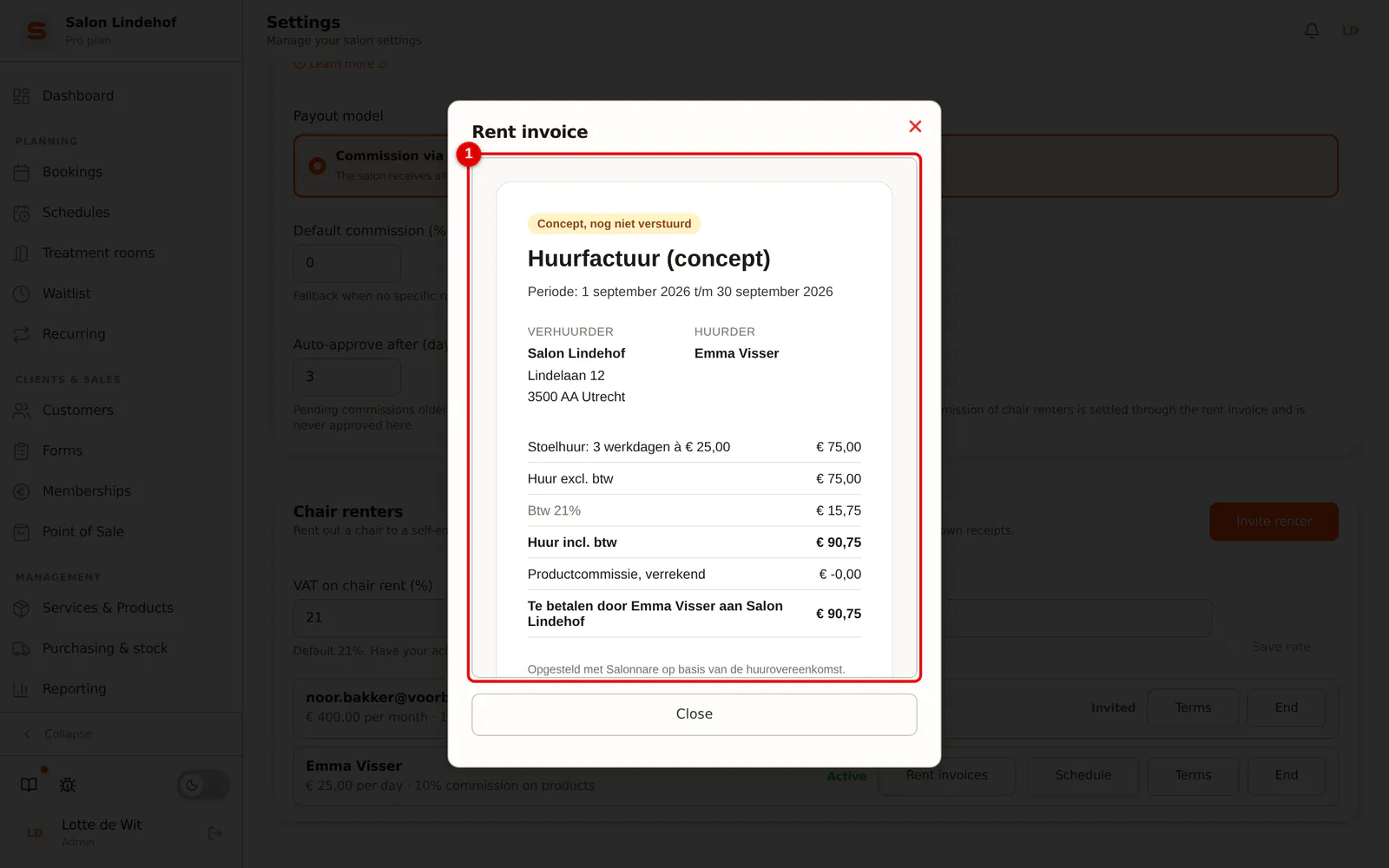
The invoice shows:
- Fixed rent: with rent per day, the number of days on which they were scheduled at your salon; with week or month, pro rata for the days the rental ran.
- Percentage: on the revenue from their own treatments at your salon, excluding VAT. Refunded receipts are deducted. What a client paid with a given-away gift card does not count: there is no payment behind it, so it is not revenue.
- VAT on the rent.
- Product commission: what they earned with your products, deducted.
-
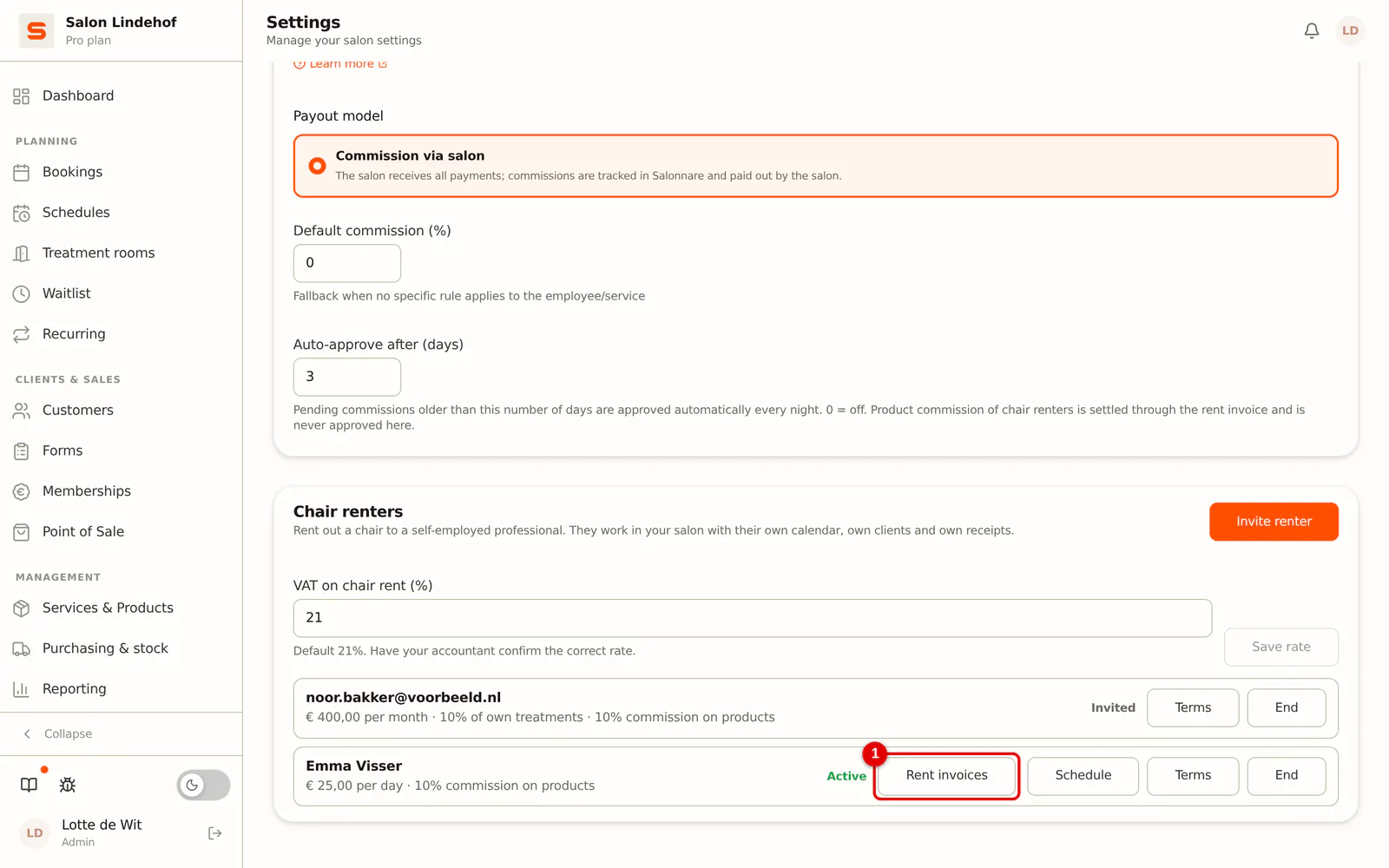
Step 1: Open the rent invoices
Click Rent invoices next to the renter.
 (Enlarge image)
-
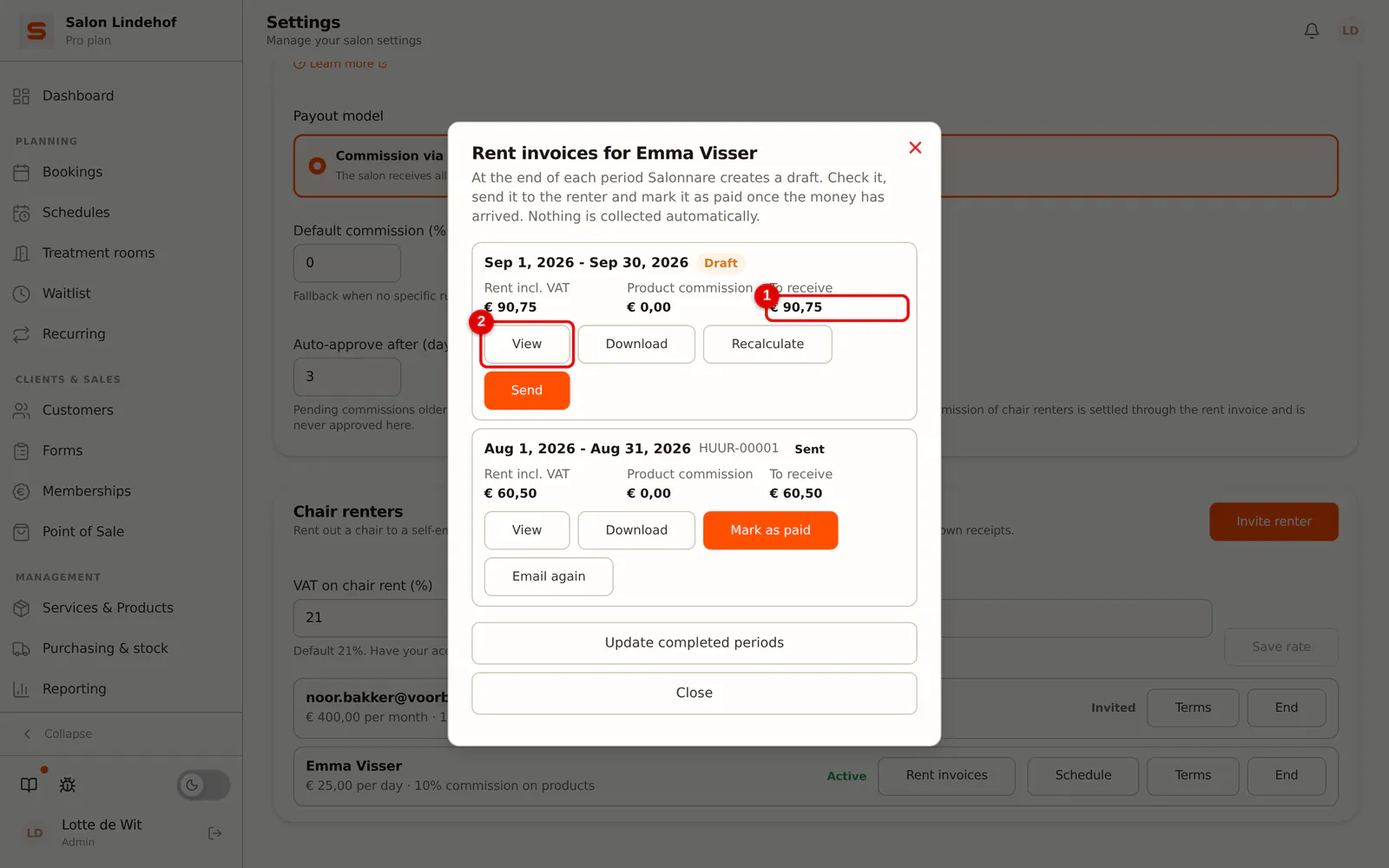
Step 2: Check the draft
Per period you see the rent including VAT, the product commission and what you are due to receive. Click View to open the invoice. If a closed period is not in the list yet, click Update completed periods; with Recalculate you calculate a draft again.
 (Enlarge image)
-
Step 3: View the invoice
The document shows both parties, the period and the calculation. Close the window when everything is correct.
 (Enlarge image)
-
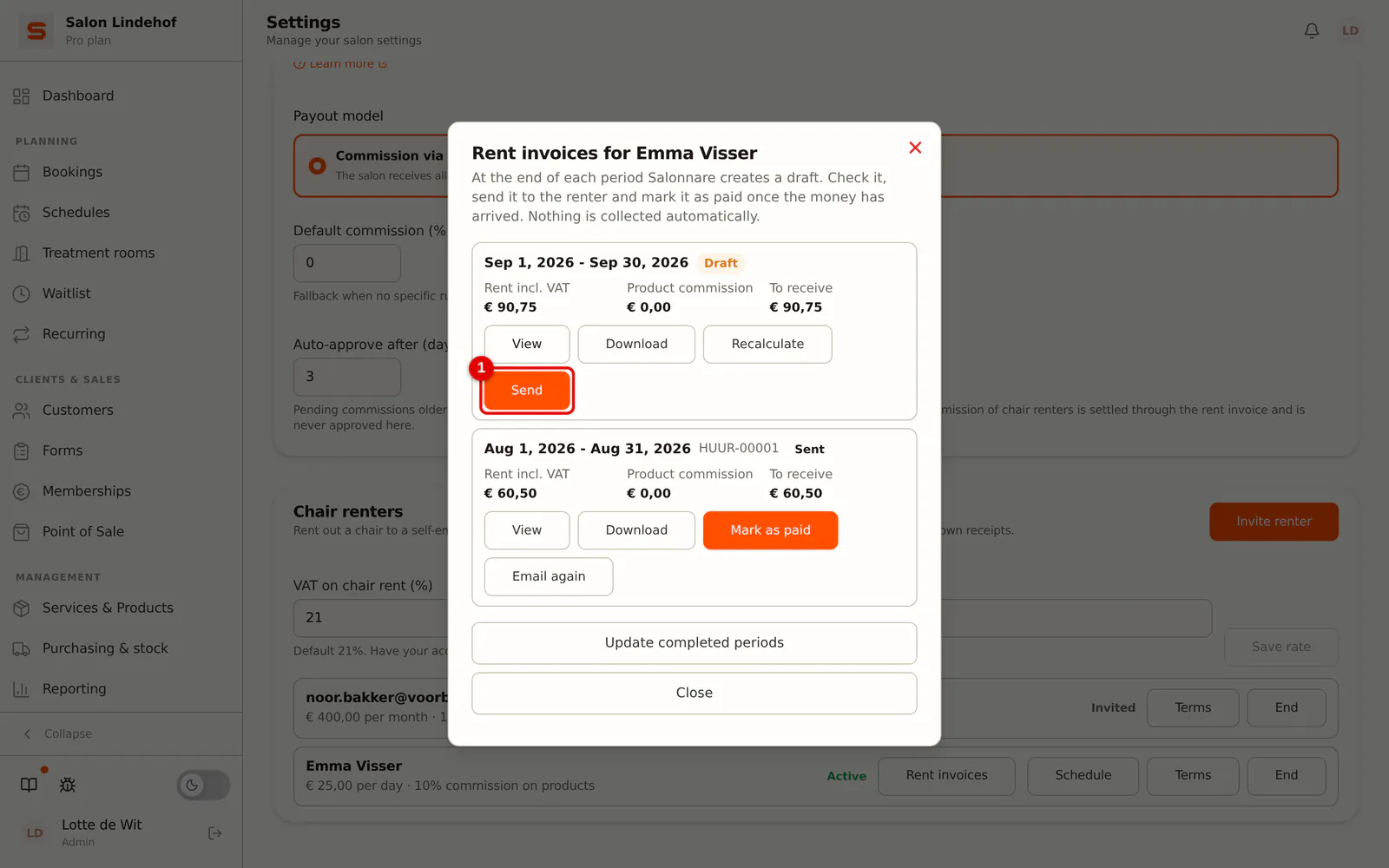
Step 4: Send the invoice
Click Send next to the draft.
 (Enlarge image)
-
Step 5: Confirm sending
Confirm. The invoice gets a fixed number (for example HUUR-00001) and the renter receives it by email. After that the invoice no longer changes.
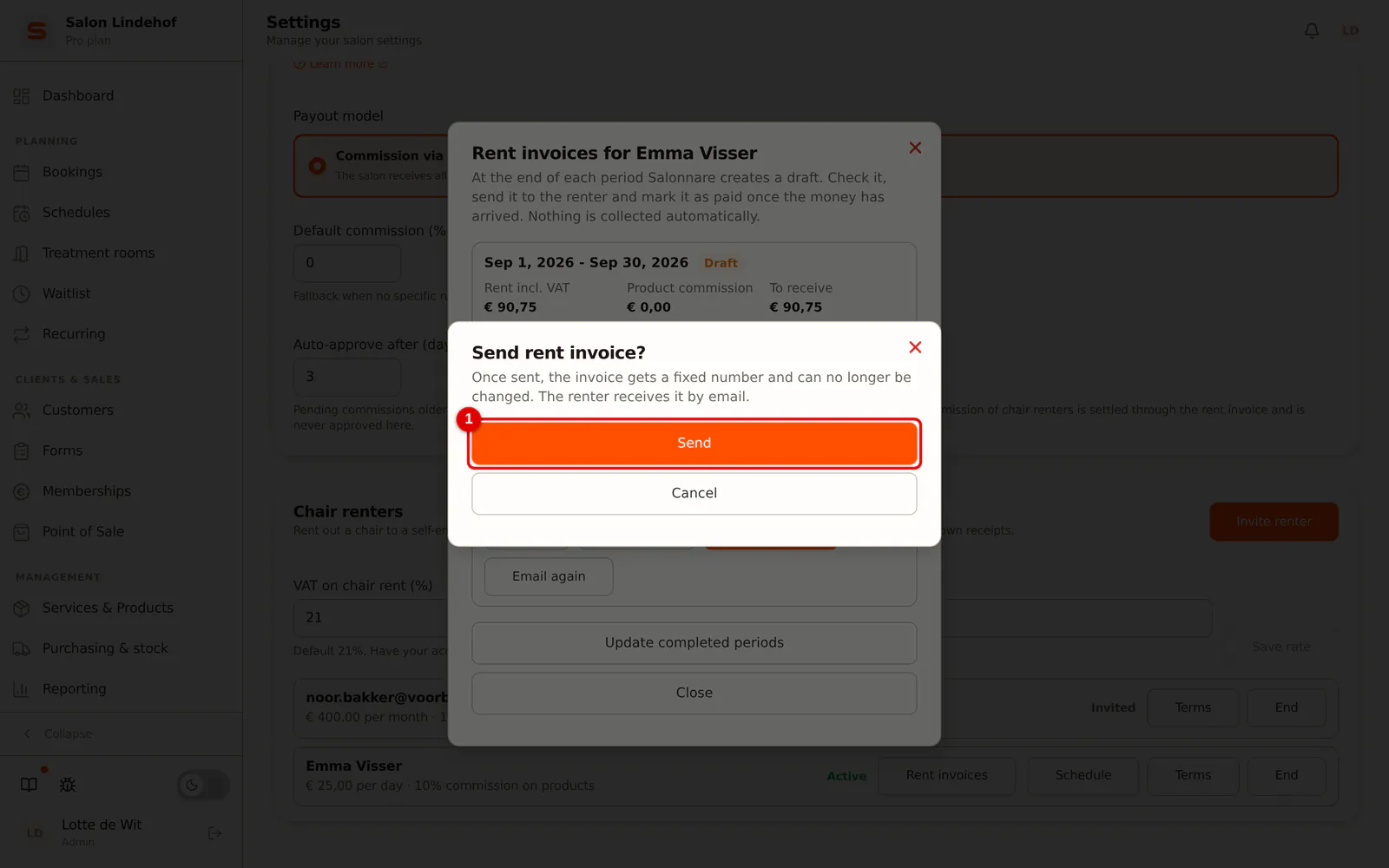 (Enlarge image)
-
Step 6: Mark the invoice as paid
Click Mark as paid as soon as the money has come in. With Email again you send a sent invoice once more.
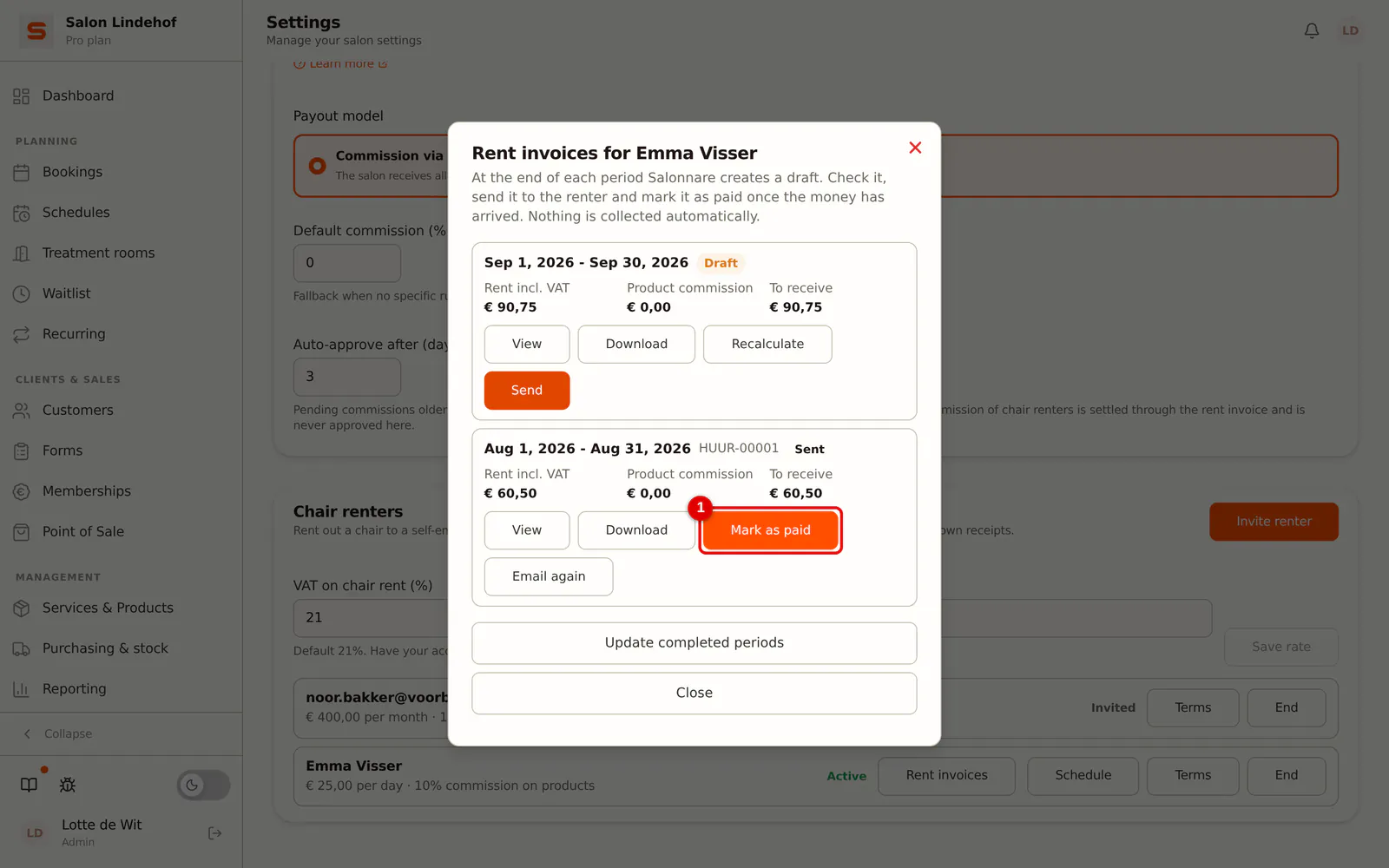 (Enlarge image)
The balance is at the bottom of the invoice. If it is negative, you pay the renter. Nothing is collected automatically; you pay each other directly.
If there is nothing to settle in a period, for example a month without working days with rent per day and without product commission, no invoice is made for that period. When you send the invoice, the renter's commission lines in your commission overview are set to Paid, with the invoice number: that commission is settled and does not go into a payout again. If the product commission in a closed period without rent cancels out exactly, for example € 3 and a refund of € 3, there is no invoice either and Salonnare sets those lines to Paid itself, marked "settled (net 0)".
VAT on chair rent
At the top under Chair renters you find VAT on chair rent (%), 21% by default. Whether chair rent is subject to VAT depends on what exactly you rent out. Have your accountant confirm the rate. The product commission is settled without VAT.
Letting a renter leave
-
Step 1: Click End
Click End next to the renter.
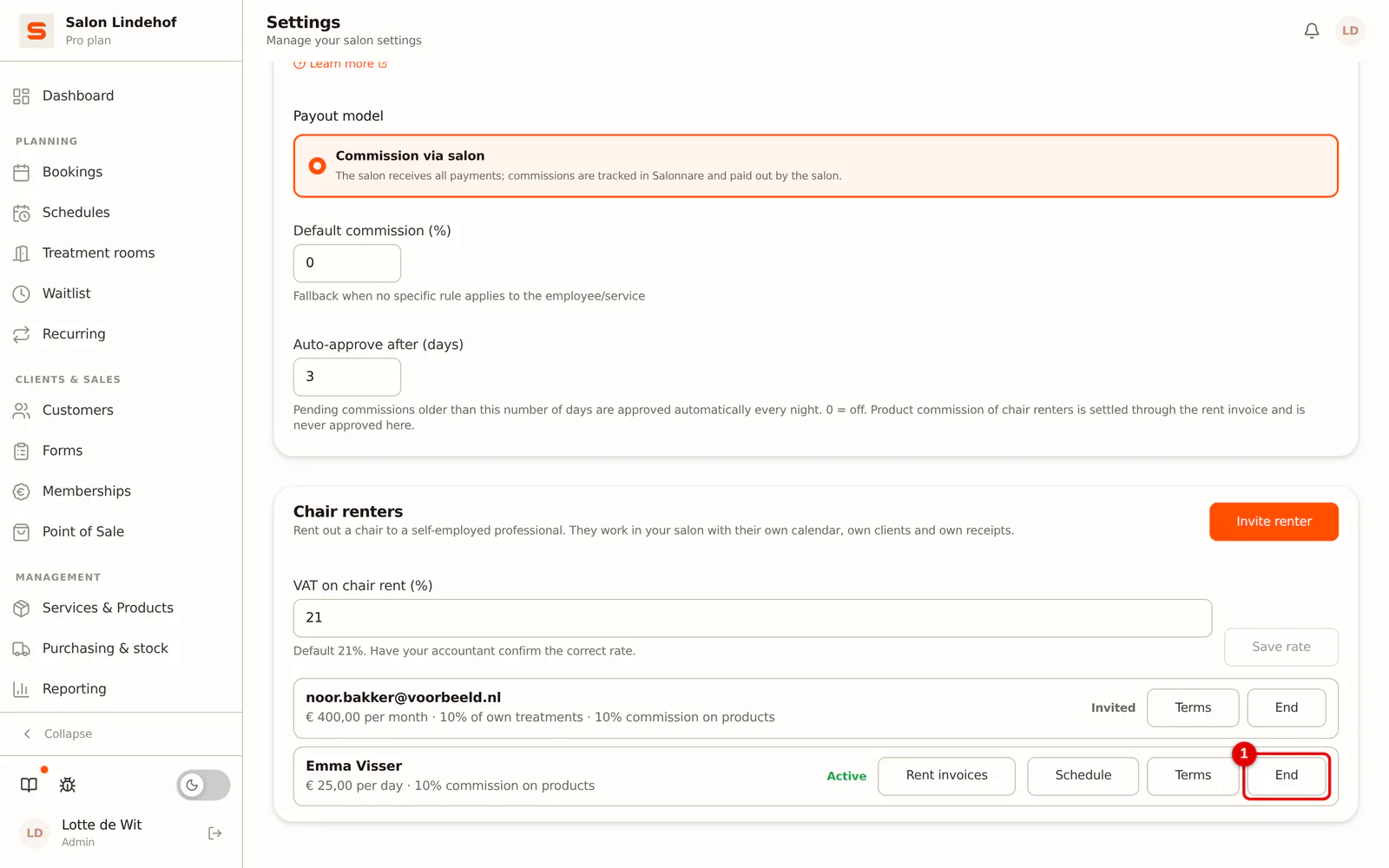 (Enlarge image)
-
Step 2: Choose the end and check their appointments
Choose On a date (the renter's last day in your salon) or Immediately. If the renter still has appointments in your salon after the end, they are in the list and you cannot end the rental yet. You cannot cancel those appointments on their behalf: they are their clients. Click Set last day to ... to fill in the earliest date without appointments, or ask the renter to reschedule or cancel them first.
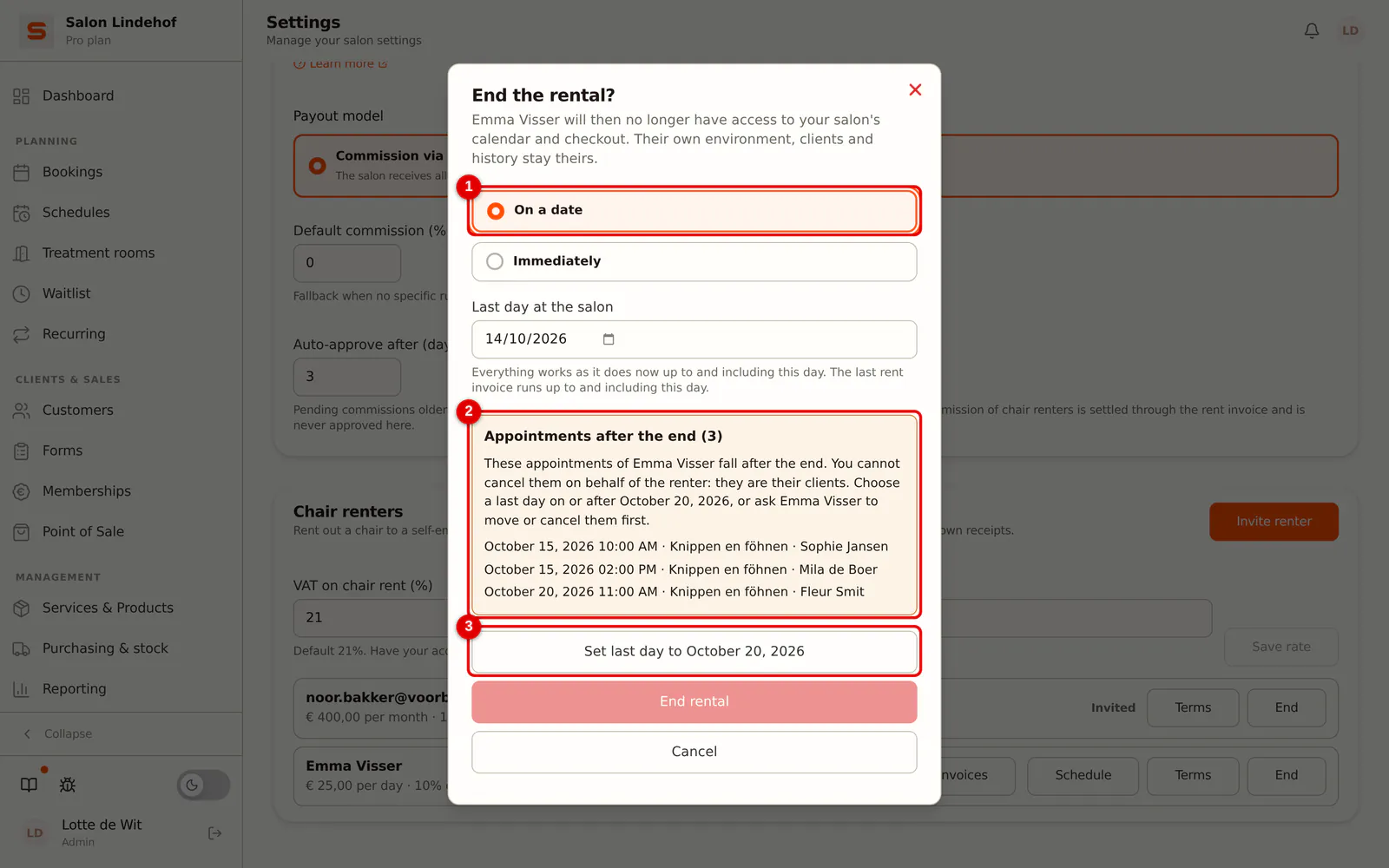 (Enlarge image)
-
Step 3: Confirm the end
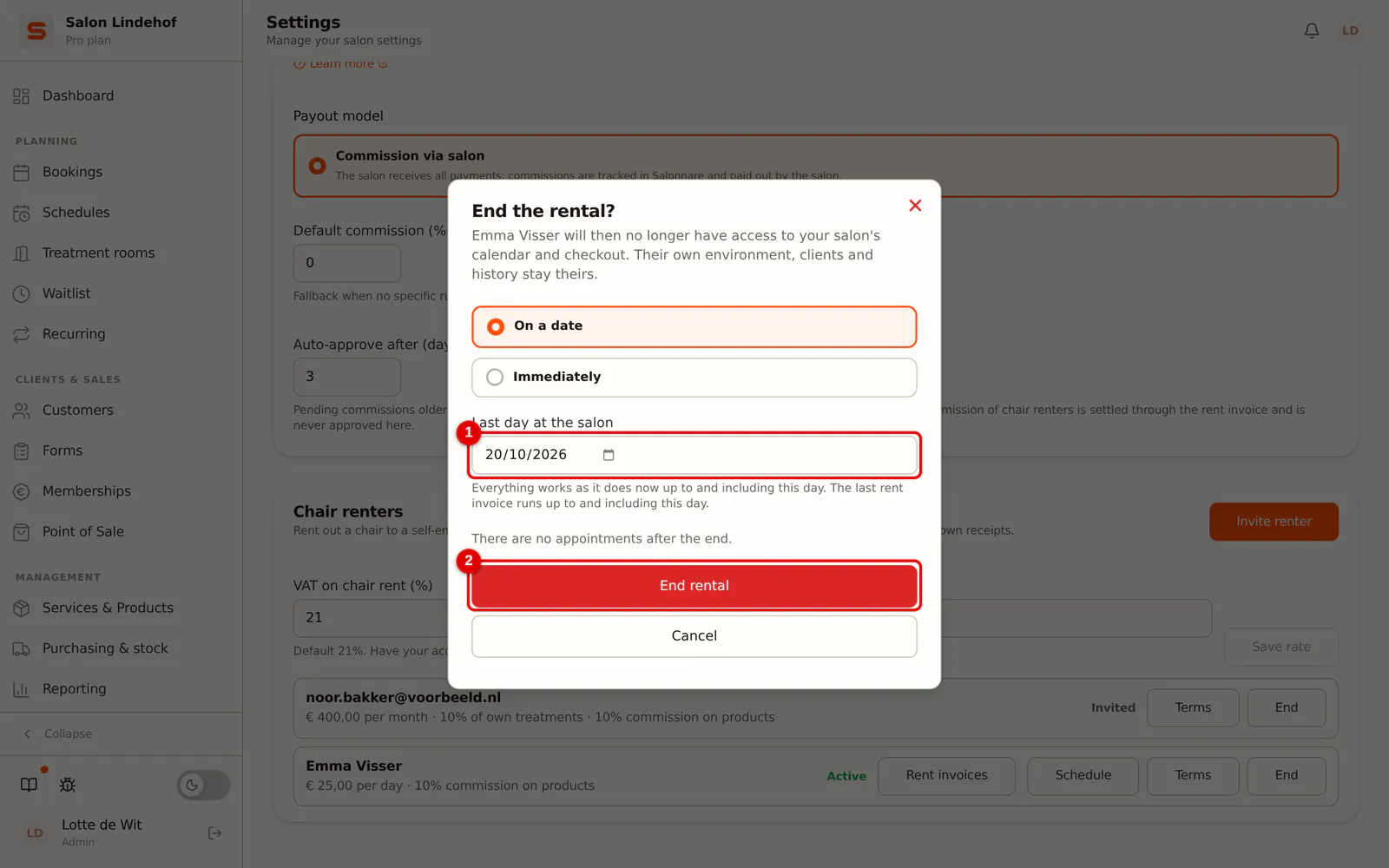
Check the last day and click End rental.
 (Enlarge image)
Up to and including the last day everything works as it does now. After that:
- the renter no longer appears in your calendar, POS and booking page;
- their schedule and the copies of their appointments at your salon are gone;
- the last rent invoice still follows, up to and including their last day.
The renter keeps their own environment, clients, appointments and history. Nothing is deleted.
If you planned an end and change your mind, click Withdraw planned end next to the renter. If the renter requested the end themselves, only they can withdraw it. You receive a notification when the renter stops themselves.
What if ...
- ... you choose a date in the past? Then the window says the end date cannot be in the past and End rental stays disabled. Choose today or later, or choose Immediately.
- ... the renter still has appointments after the date? See step 2: choose a later last day, or ask the renter to reschedule or cancel them.
Frequently asked questions
How does the renter pay the rent? Through the rent invoice. Salonnare creates it each period, you send it and mark it as paid as soon as the money has come in. There is no automatic direct debit.
Where does the money from their treatments go? To their own Stripe or Mollie account. Salonnare does not hold anyone else's money. The money from products and treatments of the salon goes to you.
How does the renter receive their product commission? It is offset on the rent invoice: it is deducted from the rent. It is not paid out separately.
What happens to their clients when they leave? They remain theirs. Their clients, appointments and history go with them in their own environment.
Does a renter cost me an extra subscription? The renter counts as a staff member at your salon. Their own environment is free for them as long as they rent at a paying salon.
Does the renter see my revenue or my clients? No. In your salon they only see their own appointments and schedule, and the POS for their own receipts and your products.
Do I see the renter's clients? You see the name with an appointment in your salon in your calendar, nothing more. Their client records are theirs.