Notifications
Salonnare automatically sends messages to your clients and team for everything that matters -- from a confirmation after a booking to a review request after the visit. On top of that you have a notification center that opens as a slide-in drawer from the notification bell. Below you can read how it all works.
The notification center
At the top of the app you see a bell icon. A red badge number appears on it as soon as there is something that needs your attention. The badge only counts the items that need action (the "To handle" list) -- not the regular notifications. Click the bell and a panel slides out on the right: the notification center.
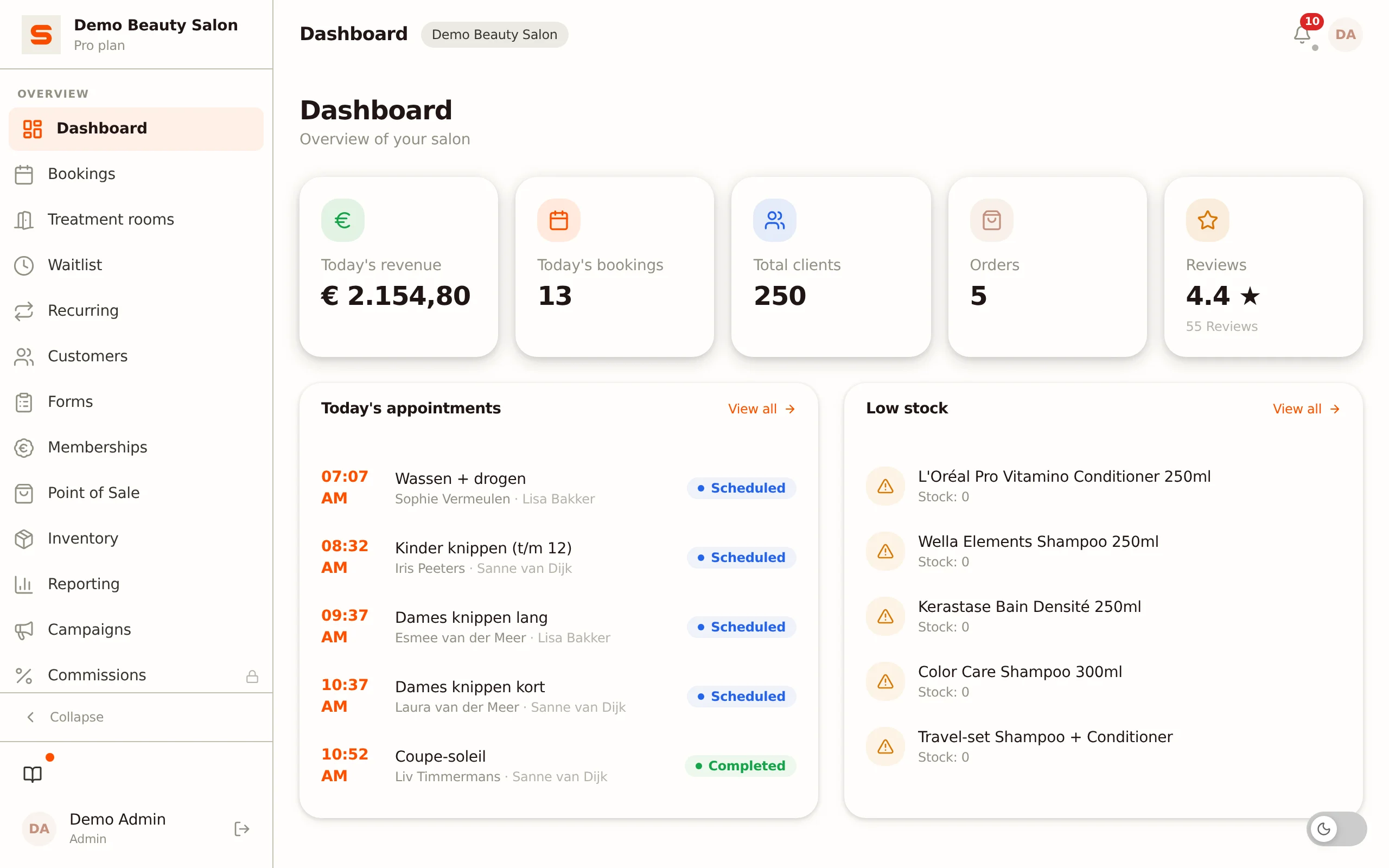
The panel shows two blocks:
- To handle -- cards that ask for an action. This block sits at the top, with the number of open items in brackets. You will find:
- Overdue appointments -- appointments whose end time has passed and that are still scheduled, so they have not been checked out, completed, marked as a no-show or cancelled yet. Salonnare looks back up to 90 days for these.
- Assign a treatment room -- an online booking for a treatment that needs a room but has no room yet.
- Link a receipt -- an overdue appointment for which a paid receipt exists on the same day, but which Salonnare could not match with certainty. See Appointment stays on Scheduled.
- Notifications -- the regular, individual notifications from today and the past few days.
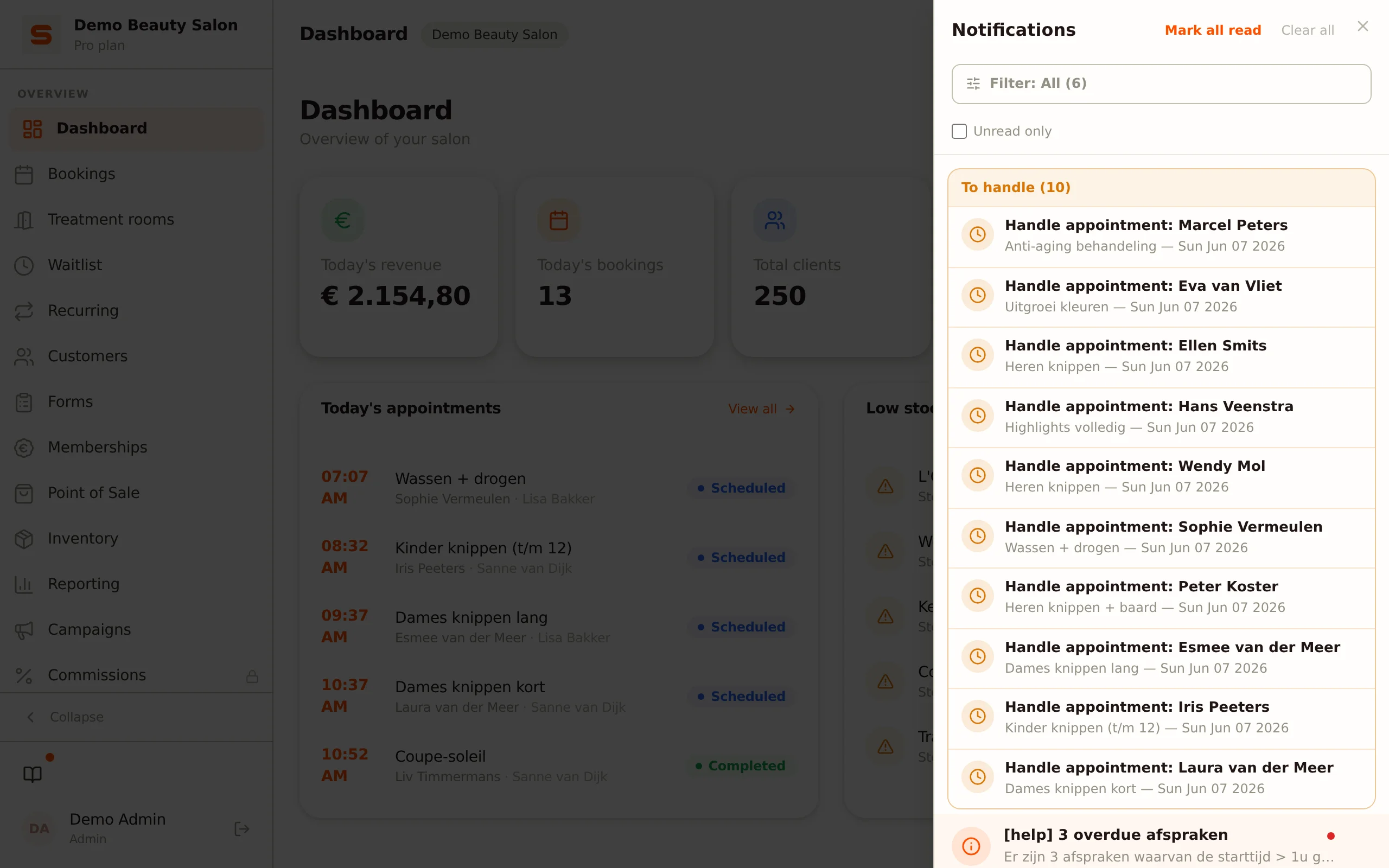
Quick actions from the drawer
Tap a card under "To handle" to expand it. For an overdue appointment these buttons appear:
- Checkout -- opens the point of sale with the appointment already loaded.
- Completed -- marks the appointment as finished.
- No-show -- first opens a confirmation, where you also choose whether the client gets an email. Only then is the appointment marked as a no-show.
- Cancelled -- cancels the appointment.
On a room card you choose Assign (you see the free rooms for that time slot) or Skip. On a receipt card you choose Pick receipt or Complete without receipt.
Below the buttons there is also an Open appointment link that takes you straight to the appointment in the calendar.
Clicked Completed or Cancelled by mistake? No panic. A message with Undo appears at the bottom -- you have seven seconds to reverse the action before it is applied for good. If you close the drawer within those seven seconds, the action is applied right away.
Handle everything in one click
At the top of the drawer you find two bulk actions:
- Mark all read -- marks the regular notifications as seen without performing anything.
- Clear all -- removes the regular notifications. The "To handle" items stay until you handle them.
Filter by category
Below the headings there is a Filter button. It opens a list in which you filter the regular notifications by category: Bookings, Calendar, Payments, Members, Forms, Reviews, Inventory or System. With the Unread only checkbox you hide the notifications you have already read.
Right-click a notification (or press and hold it on your phone) for quick actions: mark as read, open the related screen, mark all as read, or delete the notification.
What is sent automatically?
Besides in-app notifications, Salonnare also sends messages to your clients and team. Below is the overview.
For your clients:
- Booking confirmation -- right after booking.
- Booking reminder -- before the appointment (you choose the timing).
- Cancellation email -- when the appointment is cancelled.
- Reply to a booking request -- on approval or rejection.
- No-show email -- when you have no-show fees enabled.
- Waitlist notification -- as soon as a spot opens up.
- Review request -- the morning after a finished appointment, at 09:00.
- Birthday greeting -- on the birthday.
For you and your team:
- New-booking notification -- in the notification center, optionally as a push notification. When a client books online themselves, a copy is also emailed to your salon's email address.
- Booking request received -- when you work in "on request" mode, by email and/or as a push notification.
- Waitlist notifications -- when a client joins and when a spot opens up.
- Low-stock notification -- as soon as a product drops below the minimum.
Notification channels
Client messages go out by email. Salonnare sends them from a shared, verified Salonnare sending domain (mail.salonnare.com), with your salon's name as the sender. When a client replies, that reply arrives at your salon's email address. Connecting your own sending domain (sending from your own address, e.g. info@yoursalon.com) is still in development and not available yet.
For you and your team there are also push notifications and the notifications in the notification center (see above).
Turning channels on or off
- Go to Settings in the sidebar.
- Open Notifications.
- Set up the three blocks:
- Push notifications -- a switch per notification type to choose whether you get a push notification about it. Some types are always on. The notification appears in your notification center either way.
- Email notifications -- Low stock alert, Waitlist: client joined and Waitlist: spot available.
- Booking requests -- Email on booking request and Push on booking request (only relevant if online booking is set to "request").
- Click Save.
Once saved, your changes take effect immediately.
Notifications covers your side of the app. Whether a client receives a particular email is decided elsewhere: under Settings > Email templates every email has its own switch. See Customizing Email Templates.
Setting the reminder time
The booking reminder is one of the most valuable notifications you can send.
- Go to Settings > Email templates.
- Find the 24-hour reminder row and click Settings.
- Enter the number of hours under How many hours before the appointment and click Save.
Set to 24 hours? Then clients receive a reminder email exactly one day in advance.
24 hours works best for most salons. Enough time to reschedule, not so early that it gets forgotten again.
The Rebook nudge works the same way: it also has its own Settings dialog, with a field for the number of days after the appointment. There you can also create groups with their own interval per treatment type, so lashes get a different rhythm than a haircut. See Customizing Email Templates.
The Review request no longer has a time field. That message goes out the morning after the appointment, at 09:00 in your salon's time zone. It is only about an appointment that is Completed. If you set an appointment to Completed in the calendar yourself, without checking it out, the request goes out straight away. If an appointment becomes Completed because a receipt is linked to it afterwards, no review request goes out (see Appointment stays on Scheduled). See Client Reviews.
Can clients unsubscribe?
An important distinction:
- Marketing emails (campaigns) -- yes, via the link at the bottom of every campaign email. That unsubscribe link complies with RFC 8058: the email also contains a
List-Unsubscribeheader, so Gmail and Apple Mail show the unsubscribe button. See Campaigns for details. - Transactional notifications (confirmations, reminders, receipts) -- no, these belong to the service the client booked. You can, however, set contact preferences per client via the client profile.
Check under Settings > General that your salon's email address is correct. That is where client replies arrive and where the copy of online bookings is sent.
Clickable notifications -- open the right screen
Every notification in the notification center is clickable and takes you straight to the related screen -- you never have to navigate through the menu by hand.
| Notification | What opens |
|---|---|
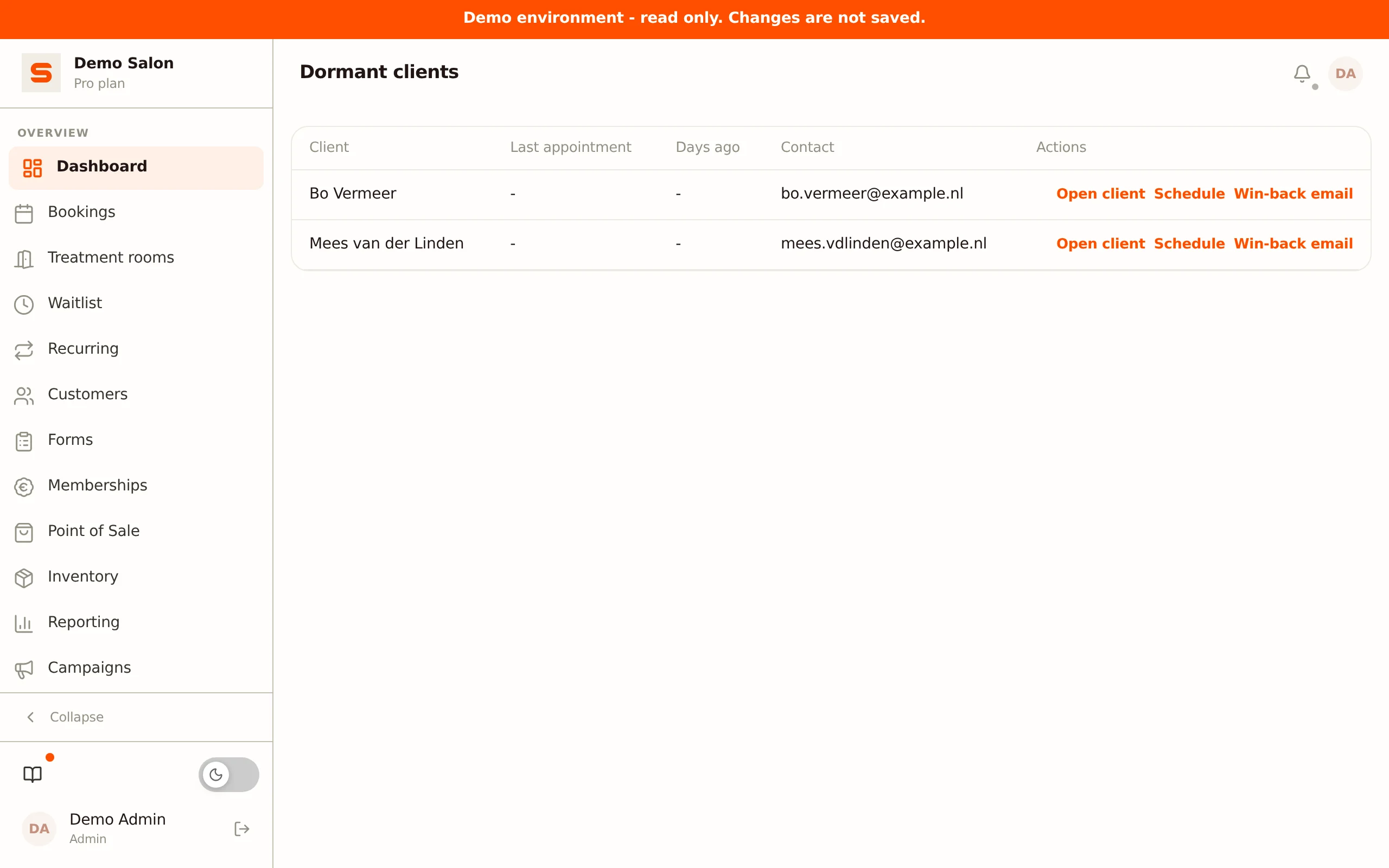
| "X clients not seen in a while" | An overview of those clients: last appointment, how long ago, and actions to open the client, schedule a new appointment or send a win-back. |
| "Your day at a glance" | The personal day dashboard of the logged-in staff member (next appointment, day KPIs, timeline with client signals and free time). |
| Outstanding payments | Overview page with outstanding payments. |
| Deposit deadlines | Overview page with deposits that are about to expire. |
| "Attention today" | Dedicated overview page with clients or situations that need extra attention. |
| "New appointment" | The calendar, with the appointment detail opened straight away. |
| Membership notification | The Memberships page, with the membership in question. |
| Intake notification | The Forms page, filtered on the client in question. |
| Review notification | The list of reviews under Settings > Reviews. |
| Deposit not possible | Settings > Payment connect, to connect Mollie or Stripe (again). See Setting up deposits. |
Handled cards from "To handle" -- appointments you checked out or marked as completed, no-show or cancelled -- disappear from the drawer automatically and do not come back. That way the list is always up to date.