Salon Memberships
With memberships you offer clients a recurring subscription to your salon. They pay automatically every month or every year and receive benefits in return: a member discount on treatments and products and optional priority for online booking.
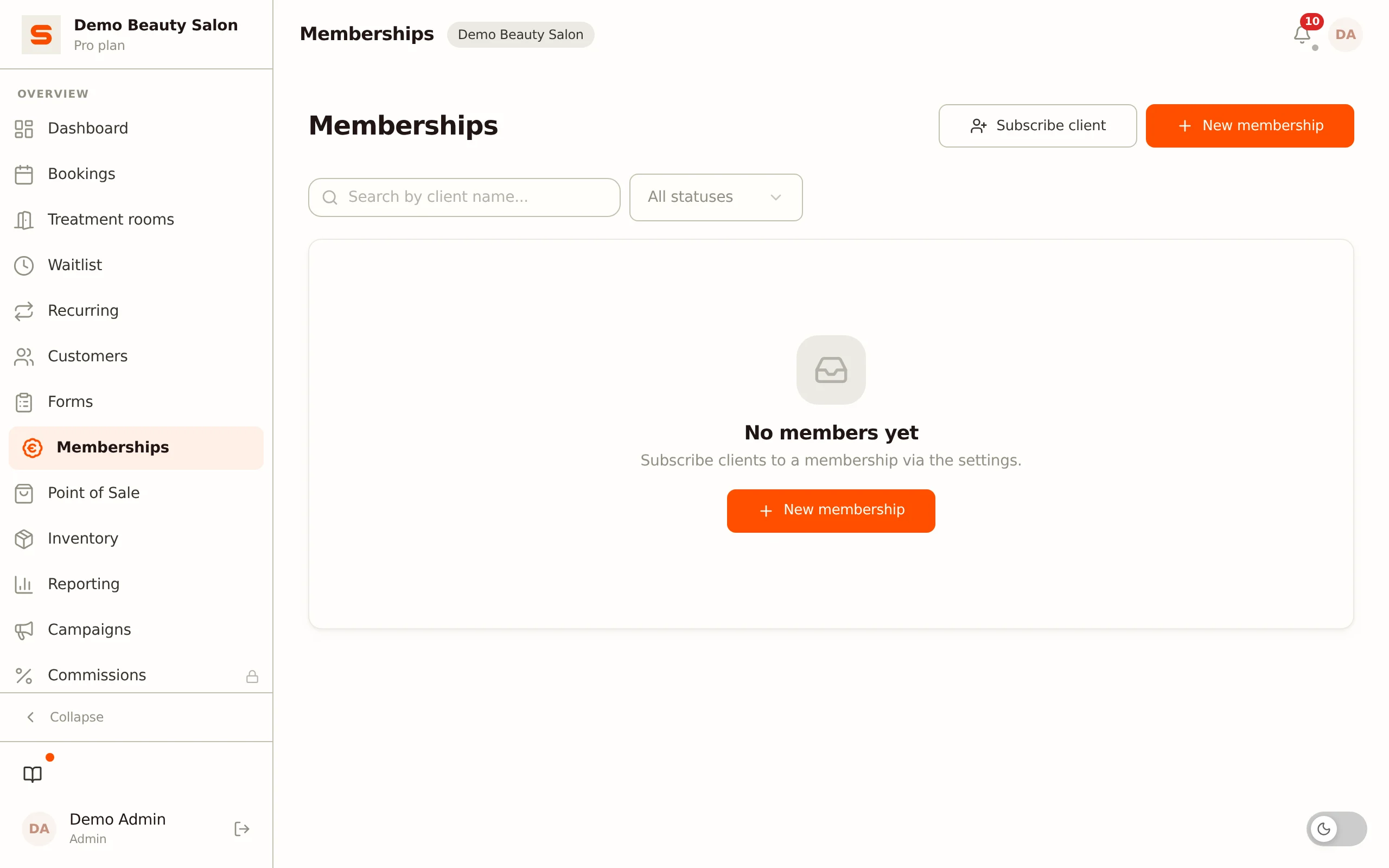
You manage the member overview on the Memberships page (/app/memberships). You set up the plans and tiers under Settings > Memberships.
How the payment works
When you subscribe a client, no member is created yet. Instead, you receive a payment link that you give to the client. Through that link the client sets up a payment and a SEPA direct debit mandate. Only when the first payment succeeds does the membership become active automatically -- this happens via the payment webhook. Until then the membership has the status Awaiting payment.
There is no longer a trial period. A membership always becomes active only after the first payment.
First: connect Mollie or Stripe
Memberships are collected automatically through your own payment provider. Without a connected provider you cannot create a plan: the top of Settings > Memberships then shows the Connect a payment provider first block and the New plan button is disabled.
- Click Connect Mollie or Stripe in that block, or go to Settings > Payment connect.
- Connect Mollie or Stripe. While connecting you see the SEPA direct debit fees the provider charges for automatic collection (per debit, refund, failed attempt, chargeback and, with Mollie, a notice of an unauthorised debit). The salon pays those fees. By connecting the provider you agree to them.
After that you can create plans.
Creating a membership plan
- Go to Settings > Memberships.
- Click New plan.
- Fill in the details:
- Name -- the name clients see (e.g. "Monthly subscription" or "VIP Year").
- Description -- optional sales text.
- Price (€) -- the amount per billing period.
- Interval -- monthly or yearly.
- Benefits -- free text; describe what the membership includes, one benefit per line.
- Member discount (%) -- discount for members (0 = no discount). A member who is logged in on your online booking page sees her member price with the services straight away. At the till the discount is not applied automatically; you give it there yourself.
- Priority for online booking -- shown to the member as a benefit of the membership. Note: Salonnare does not (yet) hold back times for members; all clients see the same availability.
- Active (offerable) -- on by default; turn off to hide the plan without deleting it.
- Click Save.
Make the benefits field concrete: write "15% off all treatments" instead of "benefits for members". Clients decide based on what they actually receive.
Subscribing a client (payment link)
- Open the Memberships page (
/app/memberships) and click Subscribe client. (You can also use the Subscribe button in the Members block under Settings > Memberships; the View all members button there takes you to the full member overview.) - Choose the client and the plan. If the plan has tiers, also choose the desired tier (or "Base plan (no tier)").
- Click Subscribe.
Salonnare now creates a payment link and opens it in a new tab. Give this link to the client. As soon as the client has made the first payment, the membership appears with the status Active in the overview.
The client must have an email address for the payment link. You cannot subscribe clients without an email address.
Clients can also sign up themselves. On your online booking page a logged-in client sees the Memberships button. There she picks a plan (and a tier, if any), agrees to the terms and completes the first payment.
Membership statuses
| Status | Meaning |
|---|---|
| Awaiting payment | The payment link has been created; waiting for the first payment. |
| Active | The first payment succeeded; the membership is running. |
| Past due | A debit failed; another attempt is being made. |
| Paused | The membership is temporarily paused. |
| Canceled | The membership has stopped. |
| Revoked | The membership has been ended immediately. |
The status is updated automatically via the payment webhook. You do not need to do anything manually.
Cancelling a membership
On the Memberships page, click the menu (three dots) next to a member. You have two options:
- Cancel (end of period) -- the membership stops at the end of the current billing period. The client keeps access until the end of the already-paid period. The list then shows the label "ending".
- End immediately -- the membership stops at once and access is revoked now.
Confirm your choice in the dialog.
Reminders to the member
Salonnare automatically emails the member in two situations:
- The membership is about to end. If the membership has been cancelled at the end of the period, the member gets an email seven days and three days before it ends, saying the membership is ending and inviting her to get in touch with you if she wants to renew. That is the email Membership renewal. A membership that simply continues does not get this email.
- A debit has failed. If the membership is Past due, the member gets an email with a link to pay after all. That is the email Membership reminder. It goes out once per failed debit.
Both emails are on by default. You switch them off, or change the text, under Settings > Email templates, in the Memberships group. See Email templates.
Editing or deleting a plan
In Settings > Memberships:
- Edit -- open the plan via the pencil icon. Price and interval changes apply to new subscriptions; existing subscriptions keep their price.
- Delete -- via the bin icon. Set a plan to inactive if you want to stop selling it but keep existing members.
Deleting is permanent. Set a plan to inactive if you temporarily no longer want to offer it.
Multiple tiers per membership plan
Each plan can have several tiers -- for example Bronze, Silver and Gold. Each tier has its own price, benefits, discount, credits and priority level. This way you offer clients a choice within a single plan.
Creating a tier
- Go to Settings > Memberships and click the layers icon (Manage tiers) on a plan to expand it.
- Click Add tier.
- Fill in:
- Name -- the name clients see, e.g. "Gold".
- Order -- the position in the comparison table (lower = cheaper tier).
- Price (€) and Interval -- the amount and billing period for this tier.
- Benefits -- free text, one benefit per line.
- Included credits -- the number of treatments that come with this tier. The number appears in the tier comparison for clients; Salonnare does not (yet) track their use automatically.
- Member discount (%) -- member discount that applies to this tier.
- Priority -- if it is higher than 0, the tier gets the "priority for online booking" benefit (see the note above: no times are held back yet).
- Active (offerable) -- turn off to hide the tier.
- Click Save.
Repeat this for each tier. Plans without tiers simply work on the plan price as the only option.
Tier comparison for clients
If a plan has several active tiers, the online booking page automatically shows a tier comparison table under Memberships (visible to logged-in clients). Clients see the tiers side by side with price, benefits and discount, and choose the tier that suits them.
Subscribing a client to a tier
Under Subscribe client you choose, besides the client and the plan, the desired tier. Salonnare creates the payment link for the tier-specific price point; the membership starts after the first payment.