Email Campaigns
Want to tell your clients about a seasonal promotion, announce a new service, or just stay in touch? With the campaign feature you design professional emails and send them to exactly the right group of clients -- no separate email tool needed.
Email campaigns are available on the Pro plan. You can check your current plan via Settings > Subscription.
Creating a campaign
- Go to Campaigns in the sidebar.
- Click New campaign.
- Work through the four steps of the campaign wizard: Basics, Audience, Template, and Review.
At the top you can click Save as draft at any time to keep your work and continue later.
Step 1 -- Basics
- Give your campaign a campaign name (only you see this, for example "Spring promo 2026").
- Write the subject line your clients see in their inbox. The subject is required.
Step 2 -- Audience
This is where you decide who receives the email. You can filter your client list by:
- Only clients with an email address -- a switch that excludes clients without an email address.
- Filter by labels -- click the client labels you've set up (such as "VIP" or "New client"). Only clients with those labels are selected.
- Last visit (days ago) -- target, for example, clients who haven't visited in more than 60 days.
- Min. amount spent -- reach your biggest spenders from a certain amount.
In addition, via Select specific clients you can add clients by hand by searching on name or email. These are merged with your filter selection.
Click Preview count to see how many clients currently match your audience.
Filtering works on your manual labels. The automatically computed client segments (such as sleepers or high spenders) are read-only badges on the client card and are not a separate campaign filter -- use labels when you want to email a fixed group. See Loyalty tiers and client segments.
Step 3 -- Template
Design your email with the built-in drag-and-drop builder. You drag blocks (text, image, button, divider) into the email and adjust colours, font, and layout. The email is automatically made responsive so it looks great on desktop and phone.
Personalise with merge tags that are filled in per client at send time:
{{clientName}}-- the client's name.{{salonName}}-- your salon name.{{salonAddress}},{{salonEmail}},{{salonPhone}}-- your contact details.
Step 4 -- Review & Send
- View a fully rendered preview of your email with sample data (no raw
{{tokens}}). - See a summary of your name, subject, filters, and the number of recipients.
- Don't want to send right away? Turn on Schedule for later and pick a date and time.
- If everything looks right, click Send now (or Schedule if you picked a moment).
Your campaign is sent in the background -- no need to wait. You can close the page and come back later to view the results.
Scheduled campaigns
- The time you pick is your salon's time (the time zone in your settings), even if you are somewhere else yourself.
- Pick a time in the future. If the time has already passed, the screen asks for a new time instead of sending the campaign right away.
- When you schedule, we already check that there is an unsubscribe link and that bulk campaigns are turned on. Who falls within your audience is only decided at the scheduled time.
- At the scheduled time the campaign goes out by itself, within about a minute. The status then changes to Sending and afterwards to Sent.
- Want to change a scheduled campaign after all? Open it and click Cancel schedule. It becomes a Draft again: you can edit it, delete it or schedule it again. Once it is already being sent, this is no longer possible. The chosen send time is cleared: pick a new time if you still want to send it later.
- As long as a campaign has not been sent, Recipients shows the expected number of clients in the audience. The actual number is fixed at the moment of sending.
Could a campaign not be sent on time? A campaign that is more than 24 hours overdue is not sent after all: an offer that arrives a day late does more harm than good. It becomes a Draft again, with the notice This campaign was scheduled for ... and has not been sent and the reason. You also get a notification in the app. The same happens if the campaign may not be sent at the scheduled time, for example because the unsubscribe link is missing, bulk campaigns are turned off or nobody is left in the audience. In that case not a single email goes to your clients. Open the campaign, pick a new time and schedule it again.
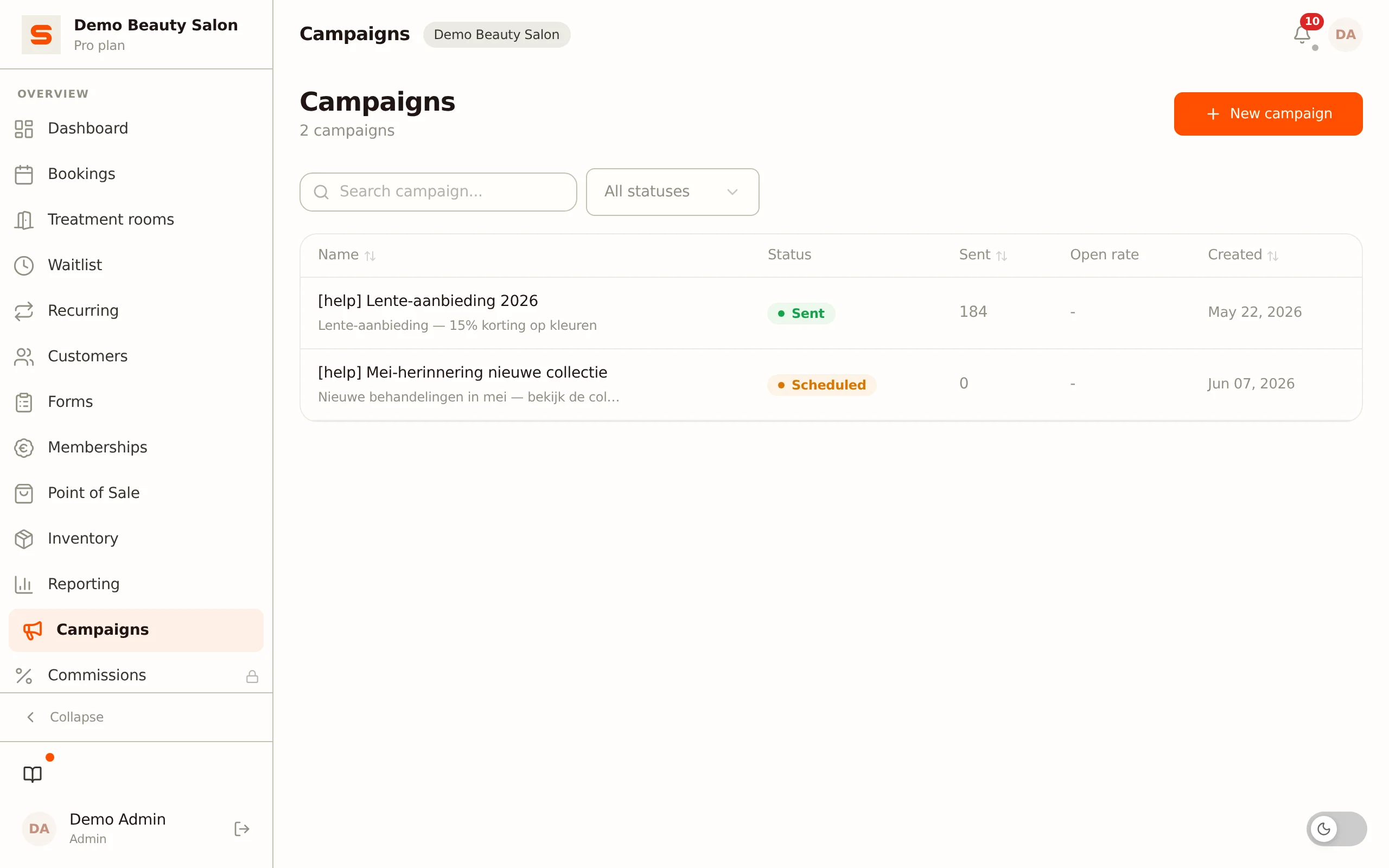
Viewing campaign results
After sending, go back to your campaign to see:
- Recipients -- how many clients matched the audience.
- Sent -- the number of emails sent.
- Open rate -- how many recipients opened the email.
Sender and deliverability
Campaigns, like all other email from your salon, are sent from Salonnare's shared, verified sending domain (noreply@mail.salonnare.com). Your client sees your salon's name as the sender, and if she replies, the reply arrives at your salon's email address (Settings > General). Salonnare takes care of the DKIM and SPF records for that domain, so Gmail and Apple Mail recognise your email as legitimate; there is nothing for you to set up.
Sending from your own domain (for example info@yoursalon.com) is not available yet; it is shown in the settings as coming soon.
Unsubscribing and compliance
Every marketing email is required to include:
- An unsubscribe link at the bottom of the footer.
- A
List-Unsubscribeheader (RFC 8058) and aList-Unsubscribe-Postheader. Gmail and Apple Mail therefore show a one-click unsubscribe button at the top of the email. - The identification of your salon in the footer (trade name, address, registration number if available).
When clicking the unsubscribe link, the client lands on a public page (/campaign-unsubscribe) where they confirm with one click. This meets EU rules (article 11.7 of the Dutch Telecommunications Act and the GDPR) and the RFC 8058 requirements Gmail has made mandatory for bulk senders since February 2024.
If a client asks you directly (at the desk or by phone) to stop sending marketing email, you opt her out on the client card, in the Marketing preferences block. That is also where you see whether and when a client unsubscribed herself. See Clients.
A client who has unsubscribed must stay excluded from future campaigns. Salonnare automatically filters her out of your audience selection. Only switch her back on in Marketing preferences if she explicitly asks for it herself.