Payment Setup
You manage all payment connections via Settings > Payment connect (group Financial). Salonnare works with three payment providers: Mollie, SumUp and Stripe. You can use one, two or all three, depending on how your salon accepts payments. They are all optional -- if you only get paid in cash, you do not need to connect anything.
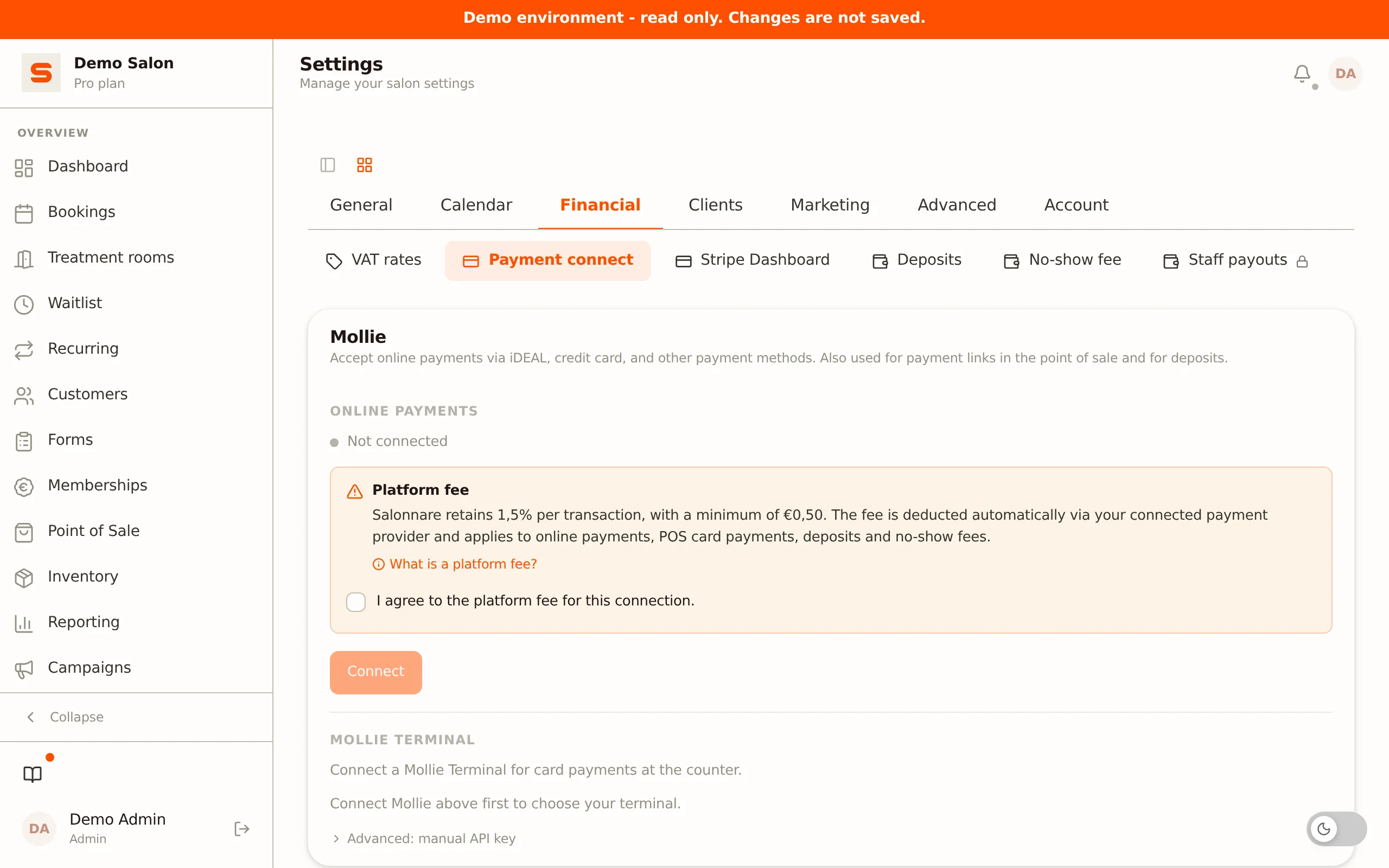
Mollie
Mollie handles online payments (iDEAL, credit card and more) and card payments at the counter. The Mollie card in Settings > Payment connect has two sections: Online payments (via OAuth) and Mollie Terminal (for the card reader).
Full Mollie guide - creating an account, activating in-person payments, recurring payments for memberships and all direct-debit rates: Create and activate a Mollie account.
Online payments via Mollie Connect (recommended)
Mollie supports iDEAL, credit card, Bancontact and more. Ideal for online payments.
- Go to Settings > Payment connect.
- Under Mollie > Online payments, click Connect. Tick the platform-fee agreement first (see below) -- only then does the connect button become active.
- Authorize access on the Mollie website.
- You are sent back to Salonnare; the status shows Connected with your account name.
To disconnect, click Disconnect in the same section.
If you serve Dutch clients, Mollie with iDEAL is practically indispensable. It is the most popular online payment method in the Netherlands.
Mollie Terminal -- card payments at the counter
Once Mollie is connected online, Salonnare automatically fetches your physical terminals. Pick your terminal from the dropdown in the Mollie Terminal section.
- Connect Mollie above first.
- In the Mollie Terminal section a dropdown appears with your paired terminals.
- Choose the terminal you want; the choice is saved immediately.
No OAuth connection, or want to set it up manually? Click Advanced: manual API key and enter your Mollie Terminal API key (starts with live_) and Terminal ID (format term_...). Click Save.
Adding a Mollie terminal
You activate a physical Mollie terminal in your Mollie account:
- Make sure the terminal is on and connected to the internet (Wi-Fi or mobile network).
- Activate the terminal in your Mollie dashboard and link it to your profile.
- The terminal then appears in the dropdown in Salonnare (see above).
Official Mollie documentation. Read how to activate and manage your terminal.
See the guides on the Mollie website:
Mollie: activate your terminal and the complete Point of Sale overview.
Save money with the Mollie Tap app -- no physical terminal needed
Don't feel like buying a payment terminal? With the Mollie Tap app you turn your own phone into a payment terminal. Thanks to Tap to Pay you accept contactless card payments (and Apple Pay / Google Pay) directly on your phone -- so you don't need a separate card reader. That saves your salon the cost of buying hardware.
Download the free Tap app from the App Store or Google Play and activate Tap to Pay in your Mollie account. Requirements: an iPhone XS or newer with iOS 17.4+, or an NFC device with Android 11+.
More info: Mollie Tap to Pay on iPhone and Mollie Tap to Pay on Android.
SumUp
SumUp is for accepting card payments with a card-reader terminal. You connect SumUp via OAuth (SumUp Connect) or via a manual API key.
Full SumUp guide - creating an account, ordering a card reader or activating Tap to Pay, and rates: Create and activate a SumUp account.
Via SumUp Connect (recommended)
If SumUp Connect is available for your salon:
- Go to Settings > Payment connect > SumUp Terminal.
- Click Connect.
- Authorize on the SumUp website.
- You are sent back; the status shows Connected with your merchant code.
- Choose your card reader from the dropdown that appears.
To disconnect, click Disconnect next to the connected merchant code.
Via manual API key
- Click Advanced: manual API key.
- Enter your SumUp API key.
- Click Save.
After setup, card payments at the point of sale are automatically sent to your SumUp terminal. The client taps or inserts their card, and the payment is processed.
Connecting a SumUp card reader
You connect a SumUp card reader (such as the SumUp Solo or Air) via the SumUp app on your phone or tablet:
- Turn on the card reader and make sure Bluetooth is on on your phone or tablet.
- Open the SumUp app and log in with your SumUp account (the same account you connect in Salonnare).
- In the app, go to the card-reader settings and choose Connect card reader.
- The app searches for nearby readers. Check the last digits of the serial number and tap Connect.
- The card reader is now linked to your SumUp account and appears in the reader dropdown in Salonnare.
Official SumUp documentation. There you find the full instructions for your card reader.
See the guides on the SumUp website:
SumUp: card reader set-up and SumUp: how to connect or reconnect your card reader.
Stripe
Stripe processes online payments (including credit card and iDEAL) and can, just like Mollie, be the provider for payment links in the POS, deposits for online bookings and no-show fees.
Full Stripe guide - creating an account via Stripe Connect, KYC verification, recurring payments for memberships (SEPA Direct Debit) and all rates: Create and activate a Stripe account.
Connecting via Stripe Connect (recommended)
- Go to Settings > Payment connect > Stripe.
- Tick the platform-fee agreement and click Connect.
- You are redirected to Stripe to create or link an account. Follow the steps.
- When you are done, you are sent back to Salonnare. The status changes to Connected.
If onboarding is not fully complete yet (Chamber of Commerce, IBAN, ID verification), Salonnare shows the status Connected -- onboarding not completed with the Complete onboarding button. Stripe can only make payouts once onboarding is complete.
To disconnect, click Disconnect.
After that you can also manage your Stripe account from within Salonnare, via Settings > Stripe Dashboard.
Platform fee
For online payments via Mollie or Stripe (including payment links in the POS, card payments via a Mollie terminal, deposits and no-show fees) Salonnare charges a platform fee of 0.5% per transaction, with a minimum of EUR 0.30. The minimum is a floor, not a surcharge: on a EUR 100 payment the fee is EUR 0.50, on EUR 20 it is EUR 0.30. The fee is withheld automatically via your connected provider and comes on top of Mollie's or Stripe's own transaction costs. For cash payments, the manual card button and SumUp, Salonnare charges no platform fee. When connecting, you tick that you agree to this.
Email receipt (all payments)
For all POS payments -- regardless of the provider used -- Salonnare can send a receipt by email to the client. That toggle is no longer on this page but under Settings > Email templates, on the Receipt row. See Email templates.
Clients can override this per person via their client profile. The preference on the client card wins: set to 'always send', the receipt goes out even when this switch is off.
Default payment provider
If Stripe or Mollie is fully connected, the Payment settings card appears at the bottom of the page. Under Active provider you choose your default payment provider: Stripe, Mollie or None.
This choice is the main switch for all online payments and determines two things:
- Payment link in the POS -- the Payment link payment method uses the chosen provider to create the online payment link (QR or email).
- Deposits -- whether you can ask for deposits on online bookings, and which provider they run through.
No-show fees run through Mollie if Mollie is connected, and otherwise through Stripe if that is your active provider. See No-show fees.
| Choice | Effect |
|---|---|
| Stripe | Payment links and deposits run through Stripe (Stripe must be connected). |
| Mollie | Payment links and deposits run through Mollie (Mollie must be connected). |
| None | No Payment link button in the POS and no deposits possible. Cash, card and a connected SumUp/Mollie terminal keep working. |
If you connect Stripe or Mollie while the default provider is still set to None and you have no other provider, Salonnare automatically sets the default provider to the one you just connected. If you have both providers connected, it remains a deliberate choice you make here yourself.
Which provider should I use?
| Situation | What you need |
|---|---|
| You only accept cash | No payment integration needed |
| You want to accept card payments in the salon | Mollie Terminal or SumUp |
| You want to accept online payments | Stripe or Mollie |
| You want to charge no-show fees or ask for deposits | Stripe or Mollie |
| You serve Dutch clients online | Mollie or Stripe, both with iDEAL |
| You want all options | Set up all three |
Payment links
Salonnare can send payment links to clients -- in the POS (as a QR code or by email), or automatically for no-show fees and deposits. When a client clicks the link or scans the QR code, they see a secure payment page from your default payment provider (Stripe or Mollie). As soon as they pay, Salonnare is automatically informed and the payment is recorded.
In the POS you choose the Payment link method for this. See Paying with a payment link for the steps (show QR, email the link, mark as paid manually).
Deposits
You can ask for a deposit for online bookings (Pro plan). This requires an active provider (Stripe or Mollie):
- Go to Settings > Deposits.
- Under Who pays a deposit? choose All clients or New clients only.
- Choose a fixed amount (e.g. EUR 10) or a percentage (e.g. 25%) of the treatment price.
- Optional: set extra rules, for example a deposit from a certain amount or for specific treatments.
When booking online, clients pay the deposit on the payment page of your active provider before the booking is final. All details are in Setting up deposits.
Never share your payment-provider keys with anyone. They give access to your payout account. Salonnare stores them securely and never shows them in full after they have been saved.
Ready to set up no-show fees? See No-show fees. Want to learn more about the point of sale? See Point of Sale.