Accounting Export
At some point, your accountant is going to ask for your numbers. Instead of manually copying figures into a spreadsheet, you can export everything directly from Salonnare in a format your accountant can work with.
Accounting export is available from the Starter plan. On the free plan this block is hidden. Check your plan in Settings > Account > Subscription.
Where to Find It
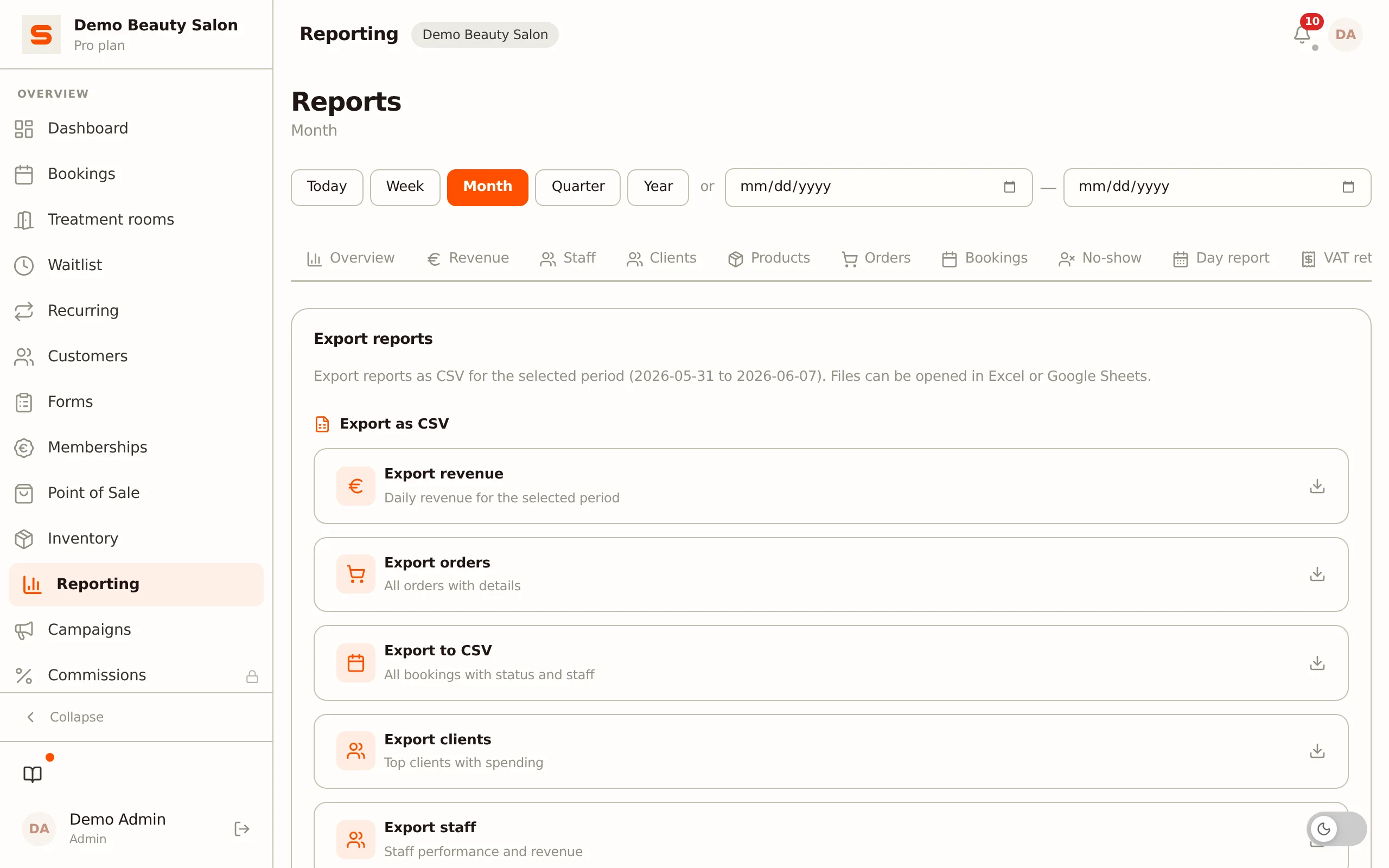
Accounting export is not a separate page -- it lives at the bottom of the Reporting export tab:
- Go to Reporting in the sidebar.
- Open the Export tab.
- Scroll down to the Accounting Export block.
If this block is missing, your salon is on a plan without accounting export.
Supported Formats
Under Format you choose how Salonnare prepares the transactions:
- Exact Online -- CSV with invoice number, invoice date, client name, description, amounts excl./incl. VAT, VAT percentage, and a ledger account per line (8100 for products, 8000 for services). One line per order line.
- Moneybird -- CSV with the columns Moneybird recognises (contact_name, reference, date, due_date, description, price, tax_rate_id). Amounts excluding VAT.
- MT940 -- A bank statement format (
.sta) that is compatible with most Dutch accounting software. Includes opening and closing balances plus one line per transaction. - Generic CSV -- A neutral transaction export with all columns (date, invoice number, client, description, amounts excl./incl. VAT, payment method, staff member). Works with any spreadsheet program.
How to Run an Export
- At the top of the Reporting page, set the period (quick presets Today/Week/Month/Quarter/Year, or a custom from/to range). The export uses the same period.
- Choose your accounting software under Format.
- Under Payment Method, choose whether to include all methods, cash only, or card/online.
- Click Export Transactions for the line-by-line export.
- Optionally click Export Monthly Summary for a per-month overview. This is not available for MT940.
The file downloads to your computer right away. Hand it to your accountant or import it into your bookkeeping software.
Monthly Summary
If your accountant just needs a quick overview per month rather than every individual transaction, click Export Monthly Summary. You get a CSV with one row per month: revenue incl. VAT, VAT amount, revenue excl. VAT, number of orders, and average order value.
What Is Included in the Export
The export is based on the point of sale (POS) orders in the chosen period; an applied deposit counts towards the amount. Appointments that were never checked out at the point of sale are not included. The export does not filter on payment status, so an order whose payment is still outstanding is included too.
In this export VAT is always calculated back from the total at 21%, also for lines with a different rate. If your salon also uses other VAT rates (for example 9%), use the VAT return tab for your return and check the export with your accountant.
No Access?
Do not see the Accounting Export block, or get a message that the export is unavailable? Then your salon is on a plan that does not include this feature. Upgrade via Billing & subscription to at least Starter. The export itself is also only for admins: a staff member without the admin role gets an error message when downloading.
For the regular report exports (CSV and PDF of revenue, orders, bookings, clients and staff) you do not need this -- those sit separately at the top of the same tab. See Reporting & Analytics.