Managing clients
Your clients are at the heart of everything you do. Salonnare keeps their details, visit history, and preferences in one place -- so you always know who's in your chair. Since 24 April 2026 there is a separate encrypted health vault for medical information (see below).
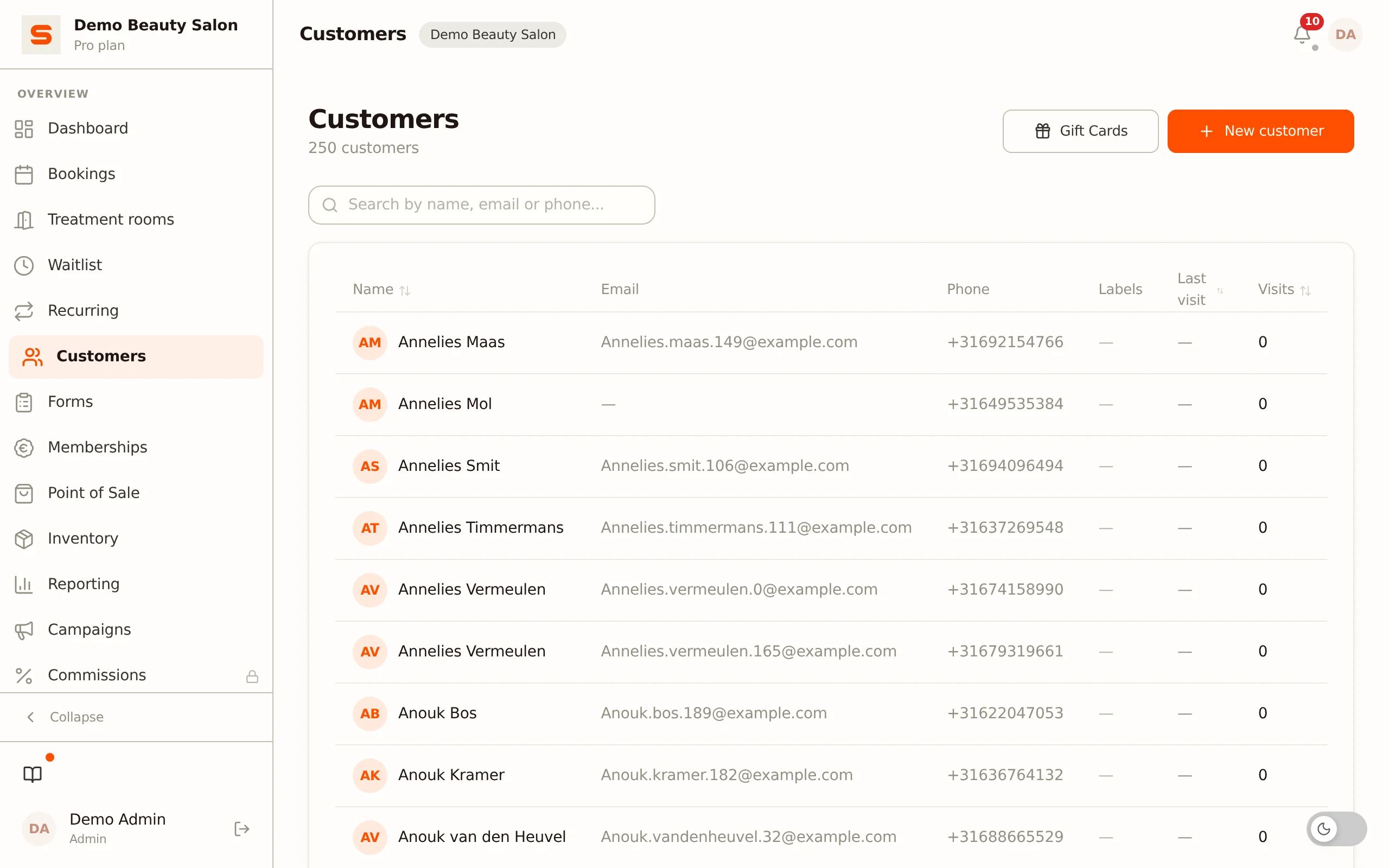
Searching for a client
- Go to Customers in the sidebar.
- Start typing in the search bar at the top.
- Search by name, email address, or phone number.
Results appear as you type, so you quickly find who you're looking for.
Adding a new client
- Go to Customers.
- Click New customer.
- Fill in the details:
- Name -- First and last name. For a new client the last name is required: a first name alone ("Nanda") is not saved. An existing client without a last name, for example from an import, can still be edited. New clients booking online must also enter a last name.
- Preferred name -- Optional; the name you address the client by.
- Email -- For booking confirmations, receipts, and marketing.
- Phone -- A mobile number for contact.
- Gender and Date of birth -- Optional; the date of birth is handy for birthday messages.
- Address, Postcode and City -- Optional.
- Notes, Receipt preference, Deposit required and Labels -- Optional.
- Click Save.
That's it -- the client is in your system and ready to book.
Clients are also created automatically when someone books via your online booking page. Their contact details are saved from the information they enter while booking.
Viewing a client profile
Click a client to open the full profile. The detail panel brings together everything about this client:
- Contact details -- name, email, phone, optional invoice name, labels, and the loyalty tier badge.
- Auto segments -- automatically computed badges (such as sleeper or high spender), see Loyalty tiers and client segments.
- No-show risk -- an indicator based on the client's no-show pattern.
- Reminders paused -- turn all automated appointment reminders for this client on or off.
- Marketing preferences -- turn marketing email for this client off or back on. Booking confirmations and service emails are always sent; this only applies to campaigns.
- Visit history -- every appointment with this client: date with weekday, status and treatment. The window shows five rows; click inside it to scroll through the rest. When an appointment has several treatments, they are all listed below each other.
- Receipts -- recent point-of-sale receipts for this client.
- Forms -- completed intake forms (see Forms).
- Photo history -- portfolio photos linked to this client.
- Colour formulas -- recorded colour recipes per client. Only visible when you switch them on under Settings > Client settings (see Colour formulas).
- Health vault -- a separate encrypted section for medical data (see below).
- Statistics -- number of visits, total spent, last visit and (when the loyalty programme is on) loyalty points.
- Notes -- internal notes, visible to your whole team.
- Mail history -- which emails this client received (see below).
- Financial history -- store credit (only when store credit is enabled), refunds, a card on file (only when you require one for the no-show fee) and gift cards in this client's name with remaining balance and expiry date. This block only appears when there is something to show.
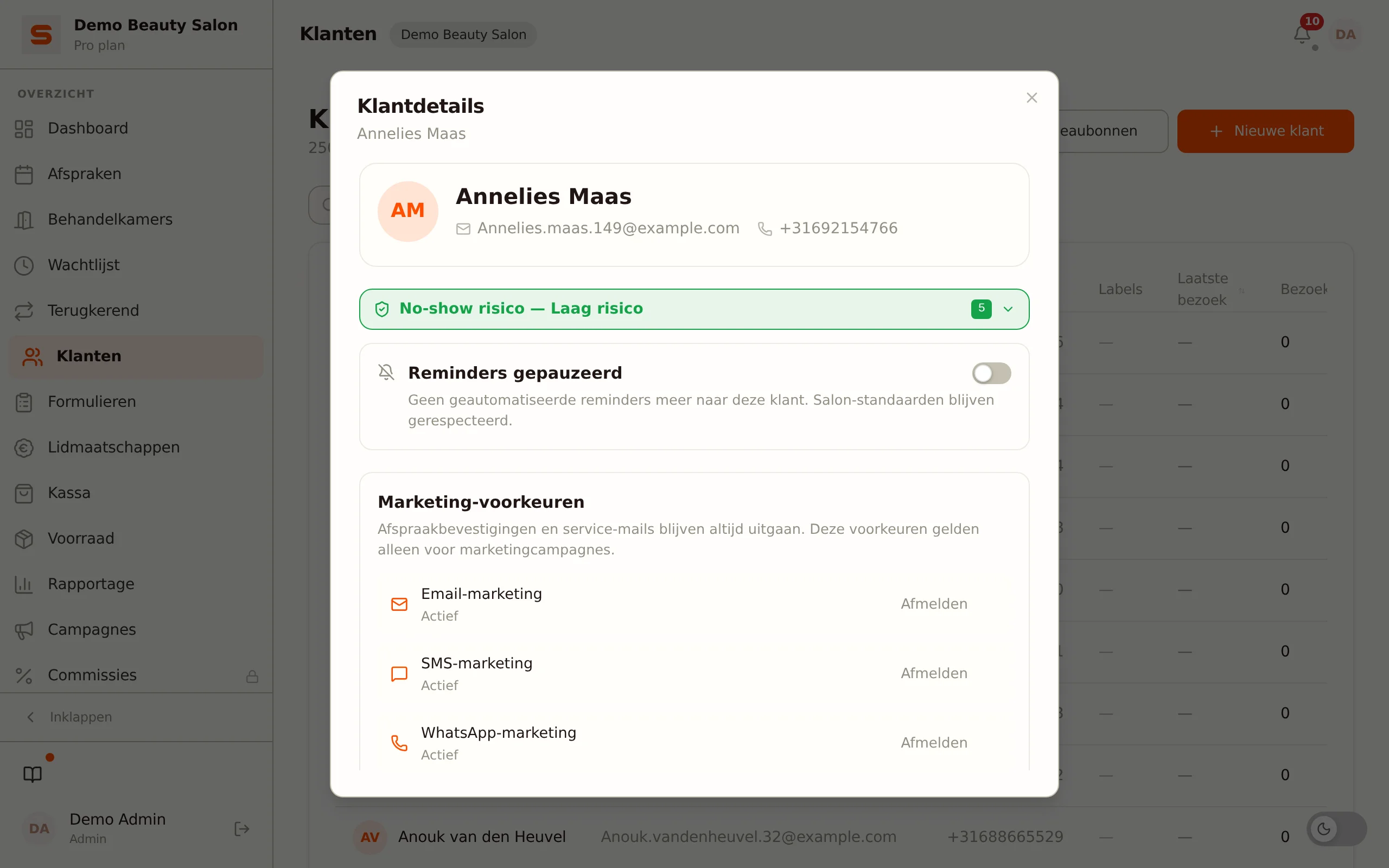
At the bottom of the panel are the Block, Export (admins only) and Edit client buttons.
An open client profile is part of the web address. Copy the address from your address bar and forward it: your colleague opens exactly this client card without having to search for it first. Refreshing keeps the profile open, and the back button closes it instead of taking you off the page. See Where you were stays put.
Adding notes
Notes are a great way to remember client preferences, past conversations, or treatment details.
- Open the client profile.
- Go to the Notes section; the field is directly editable.
- Type your note and click Save.
Notes are visible to your whole team, so everyone stays in the loop.
For allergies, medical conditions, or other health data, use the health vault (below), not the regular notes field. Notes are unencrypted and meant for general practical remarks ("sensitive scalp", "always extra coffee"). Medical details belong encrypted, with consent.
Health vault -- GDPR article 9
Allergies, medication, skin conditions, and other health data are special category personal data under GDPR article 9. Salonnare keeps them strictly separate from your regular client notes in a per-tenant encrypted vault (AES-256-GCM with per-salon envelope encryption).
How it works:
- Open the client profile.
- Find the Health notes (secure vault) section.
- First time: the client must give explicit consent. Record it with Record consent in the Special-category data (GDPR Art. 9) section. Without consent you can't record anything.
- Ask the client to expressly confirm which data you may record.
- Click New health note -- choose the Type (for example allergy or medication) and the Severity, and fill in the Content.
- Attachments (e.g. a photo of a patch test) are themselves stored encrypted and aren't reachable via an ordinary URL.
Who has access: only staff with admins, and staff for whom the owner has switched on Access to health notes (Settings > Staff). Platform impersonation can NOT see this data.
Retention: a note expires by default 12 months after you record it. It is then deleted automatically and permanently erased 30 days later.
See Privacy and GDPR for the legal context.
Mail history -- what did this client receive?
In the client profile, below the forms, you'll find the Mail history block. It shows, per message, what was sent to this client: the type of mail, the subject, the address it went to, the time, and the outcome.
The outcome has three values, and the difference matters:
- Sent -- the mail was handed to the mail provider.
- Suppressed -- Salonnare deliberately held the mail back. That happens when sending for your salon is temporarily paused, for instance, or when the recipient address is a test or throwaway address. The reason is spelled out in plain language.
- Failed -- the mail provider refused the message. The line says a technical error occurred; hover over it to read the provider's own message.
A client who says "I never got anything" can be answered at a glance. If there is no row, nothing was ever sent. If it says Suppressed or Failed, something was attempted but never arrived.
By default the block shows the five most recent messages; Show all expands the rest.
Most messages have a View email link. It shows the email exactly as it was sent, even if your template or the appointment changed afterwards.
What is not in there
- The subject and content of health-related mail. For the intake form invitation and reminder you'll see Subject not stored (health data). The row itself stays, so you can still demonstrate that the invitation was sent -- only the text is left out, because it may name a condition or an allergy (GDPR article 9).
- The content of a login link or password email. The subject is kept, the email itself is not: it contains a working link that would let someone log in as the client.
- Mail from before this feature. For older emails only the row is kept.
- Mail older than a year. Mail history is cleaned up automatically after 365 days.
If a client asks for her data to be erased, her mail history goes with it.
Labels
Labels help you organise and recognise clients at a glance. You can create labels such as:
- "VIP"
- "Pregnant"
- "New client"
- "Birthday this month"
You create labels under Settings > Client settings. You attach them to a client via Edit client, under Labels. They appear as coloured badges in the client list, making it easy to recognise important groups. In a campaign you choose the audience by label, optionally combined with the Last visit (days ago) and Min. amount spent filters.
Editing client details
- Open the client profile.
- Click Edit client at the bottom.
- Adjust what you need.
- Click Save.
Changes take effect immediately.
Blocking a client from booking online
If a client keeps missing appointments, you can block her from booking online herself. Open the client and click Block. You can add an internal reason; only you and your staff can see it.
What a block does:
- The client can no longer book through your booking page, a treatment-series booking, or Google.
- That holds even if she tries with a different email address, as long as she uses the same phone number.
What a block does not do:
- You and your staff can still schedule the client in the calendar. The salon has to be able to help someone at the counter or on the phone.
- Existing appointments stay. Cancel them yourself if you want them gone.
The client is not told she has been blocked. If she tries to book online she only sees that it does not work and that she can contact the salon.
Unblocking works from the same place. While the block is active, a Cannot book online marker appears on the client card.
Note: someone determined enough gets around this with a new email address and a new phone number. The block is meant for a client who keeps not showing up, not for someone actively trying to get in.
Deleting a client
If a client asks to be removed from your system:
- Open the profile and click Edit client at the bottom.
- Click Delete client.
- Confirm.
In the customer list there is a quicker way: right-click the client (on a phone: long-press) and choose Delete.
What happens next:
- If the client still has future appointments, Salonnare asks once more. You see the window Client still has appointments, with the number of appointments still open. If you click Cancel appointments and delete (with one appointment: Cancel appointment and delete), those appointments are cancelled and the client is then anonymised, just like with past appointments below. The client does not receive an email about those cancellations. Click Cancel if you want to keep the appointments. After deleting you see the message Client deleted, with the number of cancelled appointments.
- If the client has past appointments, she is anonymised immediately: name, email, phone, address, date of birth and notes are erased and her mail history disappears. The appointments themselves remain (as "deleted client"), so your revenue and reports stay correct.
- If the client never had an appointment, she is deleted completely.
Deleting takes effect immediately and cannot be undone. See Privacy and GDPR for more details.
Exporting client data
Does a client ask for a copy of all their data (GDPR access request)? From the client detail panel you export all the data for that one client:
- Open the client profile.
- Click Export at the bottom (only admins see this button).
- A JSON file is downloaded with all the data for this client.
This is meant for access and data portability requests. See Privacy and GDPR for the full context around exports and deletions.