Managing Appointments
The calendar is where you'll spend most of your time in Salonnare. Since 21 April 2026 you can schedule multiple services back to back in a single appointment -- handy for clients who, for example, get a cut first and then colour with the same or a different staff member.
Viewing your calendar
Open Bookings in the sidebar. At the top you can switch between views:
- Day -- all appointments for one day, with a column per staff member.
- Week -- the broader overview for your whole week.
- Week overview -- the same week, zoomed out: all seven days fit the width and you see about twelve hours at once.
- Month -- a high-level overview, handy for spotting busy days at a glance.
- Rooms -- appears only when you have treatment rooms configured; shows a column per room.
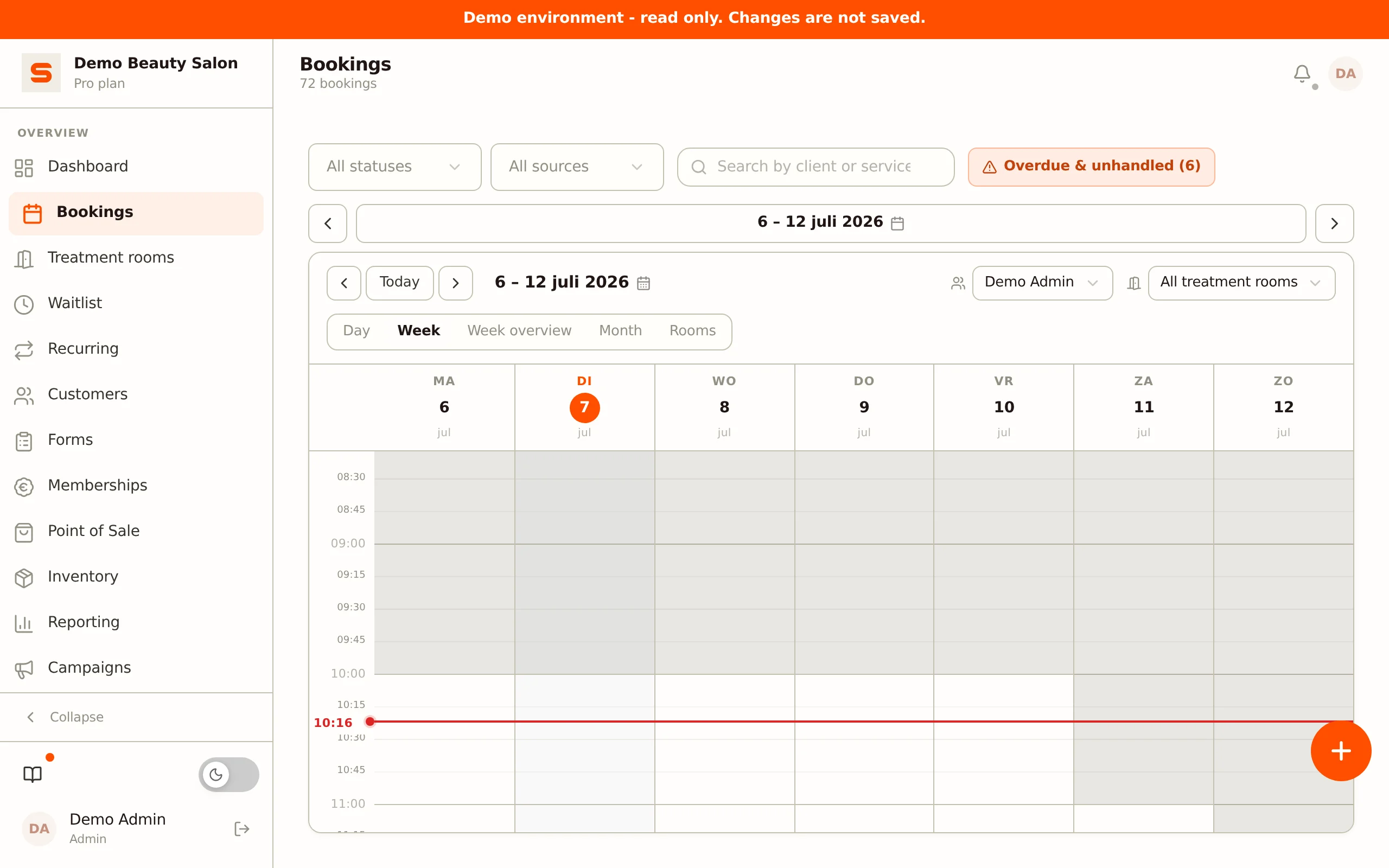
Use the arrows at the top to jump forwards or back. Next to the date sits a button that jumps you back to now in one click -- its label matches the view: Today in day view, This week in week view, and This month in month view. If you're already looking at that period, the button is greyed out and does nothing.
The red line with the current time only appears on today. If you open another day in the day or room view, the calendar scrolls to the start of the working day or to the first appointment, whichever comes first.
Creating an appointment
- Click an empty slot or the New appointment button.
- Pick the client -- just type to search.
- Add one or more services. The first is the primary one; below it you can stack extra services with + Add service.
- Choose the staff member. If Staff member per service is switched on (Settings > Calendar settings, block Multiple services), you can pick a different staff member for each service.
- Confirm the date and start time. The end time is calculated automatically from the duration of each service.
- Optionally assign a treatment room (only visible when you have rooms configured).
- Optionally add notes or internal notes (see below).
- Click Save.
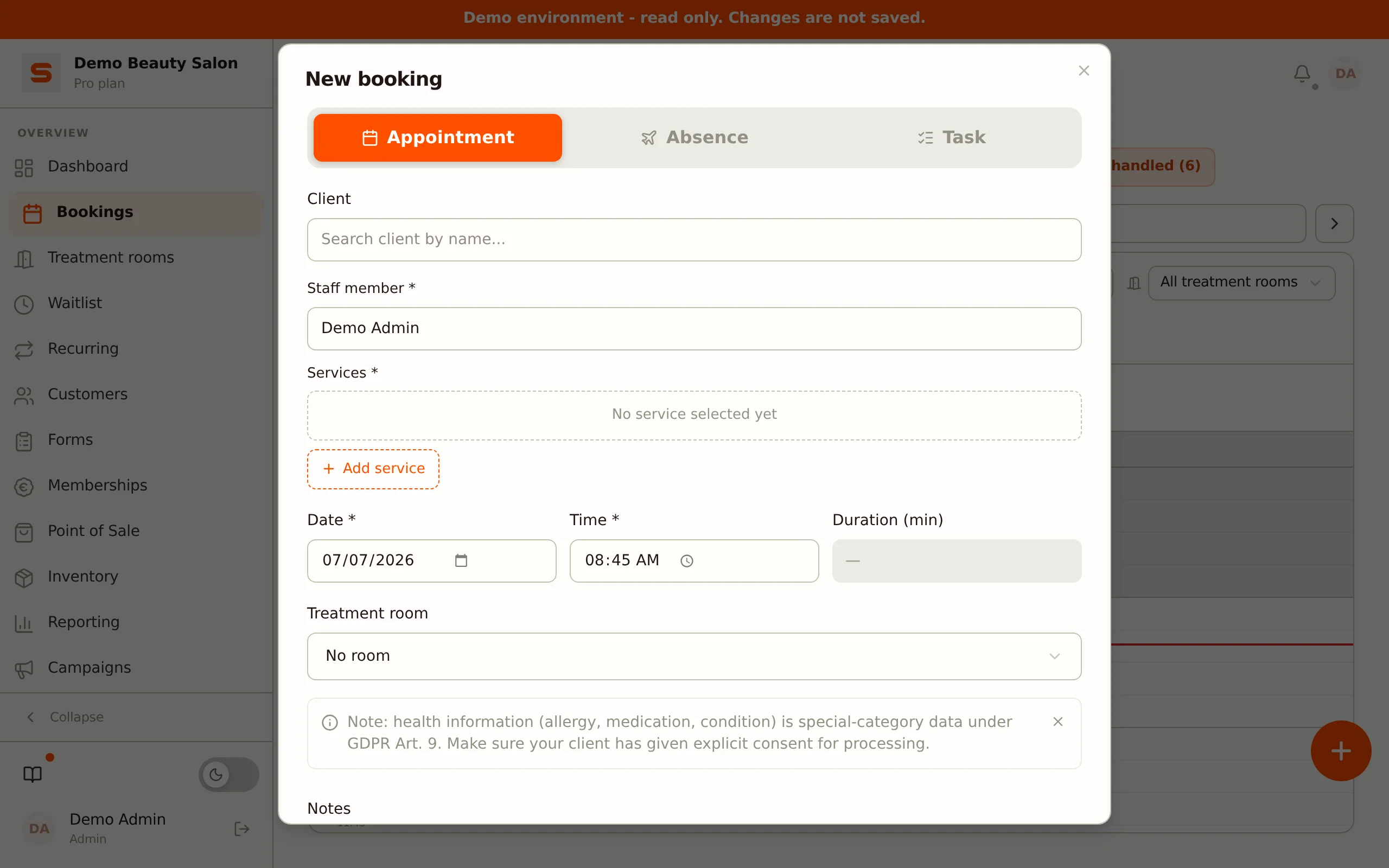
The appointment lands in the calendar right away and your client automatically receives a confirmation email, unless you have switched that email off under Settings > Email templates.
As you fill in the time, staff member, room, or services, Salonnare checks for conflicts in the background -- such as a double-booked staff member or an occupied treatment room. You'll see a warning strip even before you save.
Adjusting the treatment duration
Does a treatment usually take a bit longer or shorter for a particular client than the duration in your service catalogue -- for example thick hair that takes more time, or a client who's just faster? Adjust the duration per service.
- In the appointment editor, add a service (or open an existing appointment).
- Next to the service you'll see a Duration (minutes) field showing the service's default duration. Change this number to override the duration for this one appointment.
- The appointment's end time is recalculated automatically based on the adjusted duration.
Each service in the appointment has its own duration field -- handy when you stack multiple services (see Multiple services in one appointment). The duration is capped by the Maximum block duration under Settings > Calendar settings, block Multiple services (default 240 minutes).
Remembering the duration per client
Want Salonnare to also prefill this adjusted duration on this client's next appointment?
- First turn on the Remember treatment duration per client setting under Client settings -- it's off by default.
- In the appointment editor, next to the duration field, check Default for this client. This checkbox only appears when the setting is on and a client is selected.
- Click Save.
On this client's next appointment for the same service, Salonnare automatically prefills the remembered duration as soon as you pick the service -- you can still override it manually afterwards. This applies not only when you schedule the appointment, but also when the client books online themselves.
Quickly managing your availability
Besides creating a new appointment, you can also use an empty time slot in the calendar for quick schedule actions.
- Desktop -- right-click an empty time slot.
- Mobile -- press and hold an empty time slot.
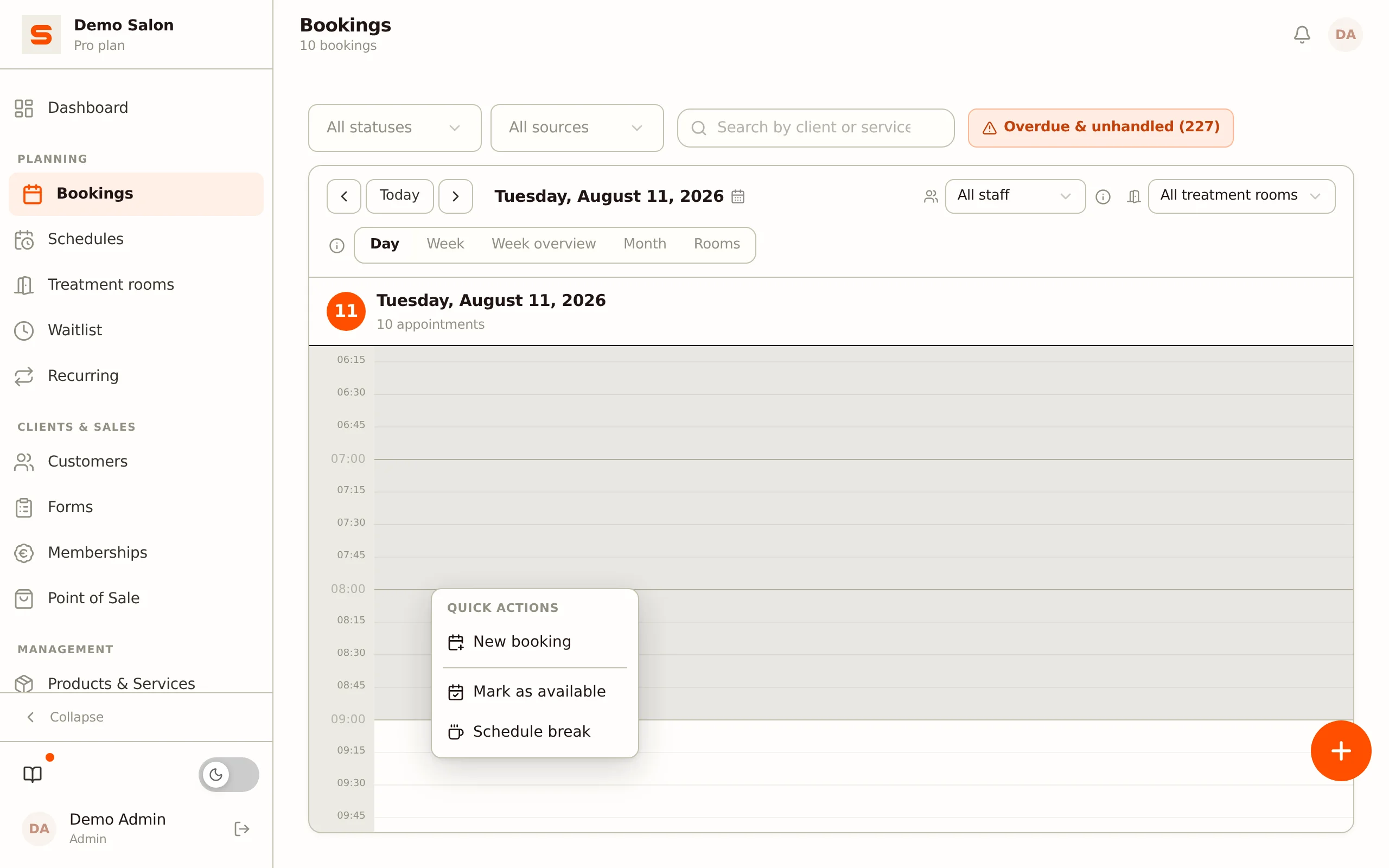
The Quick actions menu appears with four options:
- New booking -- opens the appointment editor for this time slot.
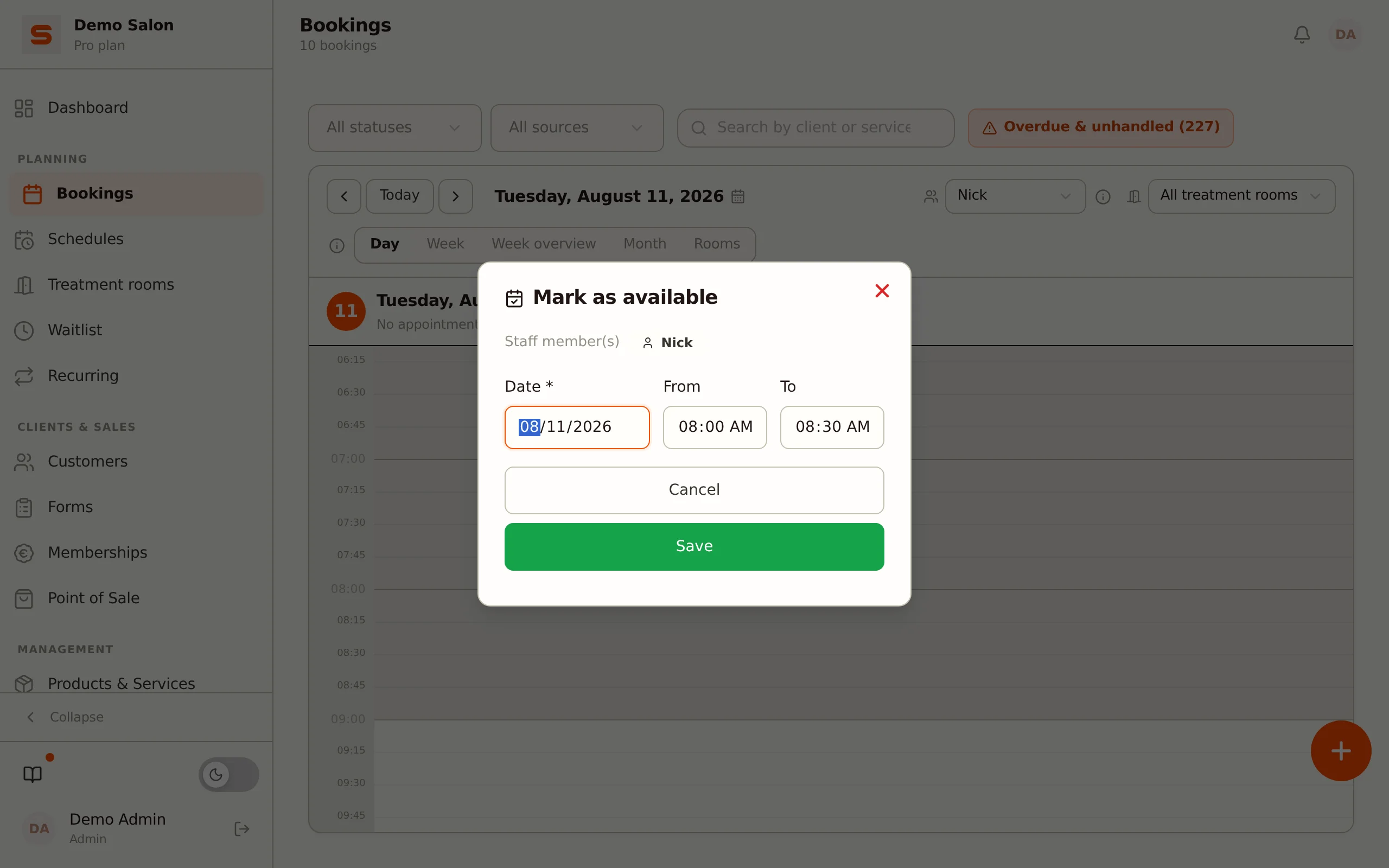
- Mark as available -- marks the time slot as scheduled.
- Mark as unavailable -- marks the time slot as not scheduled.
- Schedule break -- creates a break block with its own name (default "Break", for example changed to "Lunch" or "Meeting").
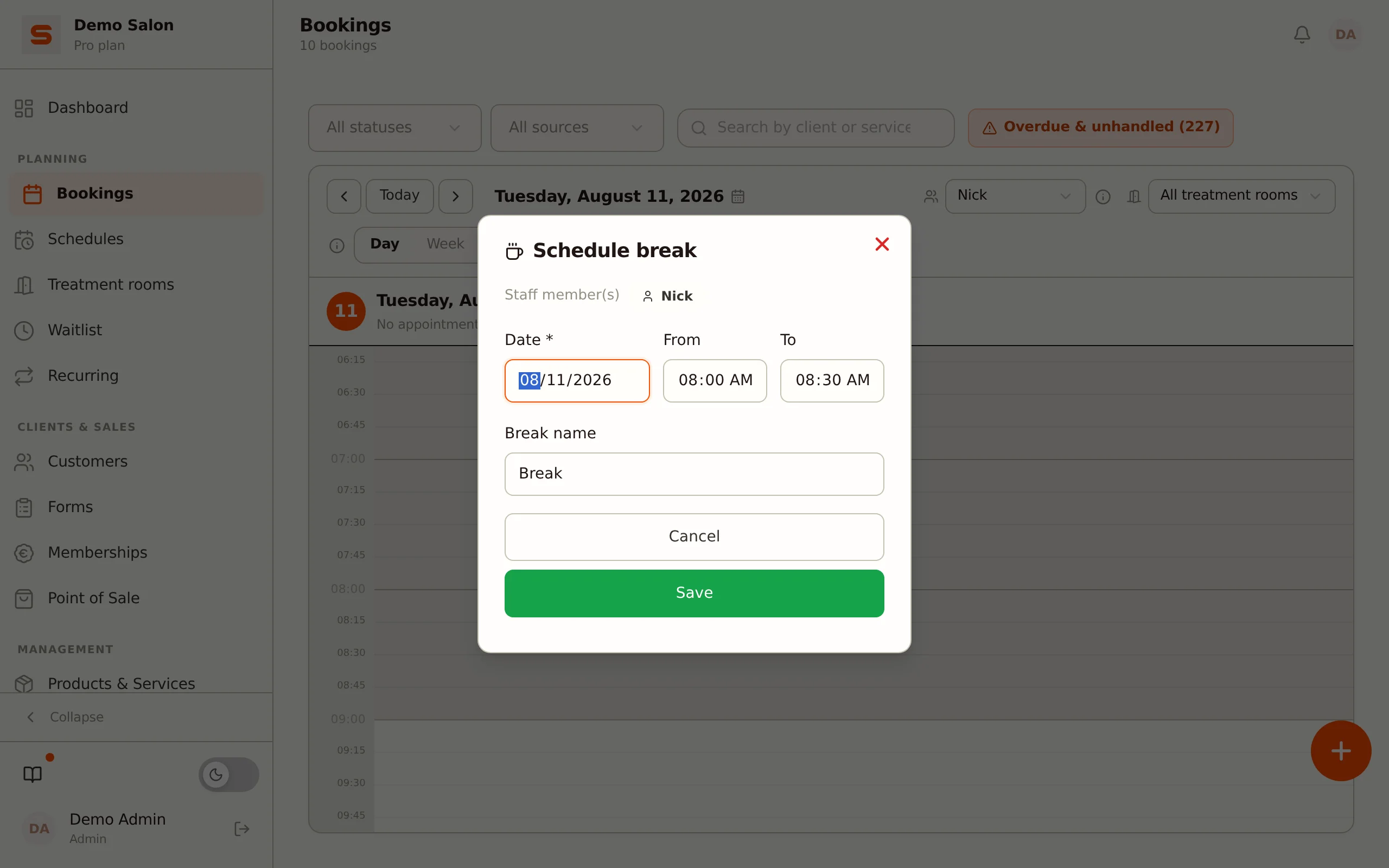
Each action opens a window with a pre-filled, adjustable start and end time. The action applies to the staff member the calendar is currently filtered on -- if the calendar is showing all staff, Salonnare first asks you to pick a staff member via the filter.
Marking a slot as available or unavailable updates the schedule right away -- the calendar background changes with it: scheduled time gets a light background, unscheduled time a grey one.
Automatic breaks (see Staff) and manually scheduled breaks both block online bookings too. Want to adjust a colleague's schedule instead of your own? You need the Manage everyone's roster permission for that (see Staff).
Notes and internal notes
The editor has two text fields:
- Notes -- remarks about the appointment that the client also sees: this note is included in the confirmation and reminder email. Only write what the client may read here (for example "please arrive 10 minutes early").
- Internal notes -- visible to staff only, never to the client. This field has a dashed border so it stands out visually from the regular notes field.
Medical details, allergies, or skin conditions don't belong in either of these notes fields. There is a separate encrypted health vault for that (see Clients). The notes fields are for styling preferences and general practical remarks.
Treatment rooms
If you have treatment rooms set up, you can choose a treatment room per appointment in the editor. In the calendar you can then filter by room, and the Rooms view shows a column per room. Appointments without a room assignment appear under "No room".
Opening the client card from an appointment
In the detail view of an appointment, click the client's name. The client card opens on top of it, with visit history, notes, preferences and gift cards. Close that card and you are back in the appointment straight away. The same happens when you edit and save the client from that card -- so you never have to leave the calendar to look something up or change it.
Editing an appointment
- Click an appointment in the calendar and choose Edit.
- Adjust what's needed: time, services, staff, room, or notes.
- Click Save.
If the date or time changes, the client automatically receives a change email. It goes out after 30 minutes, so several adjustments made shortly after each other end up in one email. Other changes (service, note, room) do not trigger an email.
Copying an appointment
Want to quickly schedule a similar appointment -- for example a follow-up for the same client, or the same combination of services for someone else at a different time? Use Copy instead of typing everything again.
- Click the appointment to open the detail view.
- Click Copy at the bottom.
- The calendar is now in copy mode, just like Move: a bar at the top shows which client you are copying. Feel free to browse to another day or week.
- Tap the time for the copy in the calendar (an empty slot, or another appointment to use its start time).
- Check the date and time and click Schedule copy. The copy gets the same client, service(s) (including any adjusted duration), staff member, room and transition time. The original appointment stays where it is.
If the time clashes with another appointment or an occupied room, Salonnare first asks whether you want to schedule the copy anyway. Stop with the cross in the bar. When you are not working from the calendar, Copy opens the appointment editor with an empty date and time, as before.
Copy is ideal for one-off follow-up visits that aren't regular enough for a recurring appointment -- you don't have to look up the client and services again every time.
Moving an appointment
Moving is about date and time. To change the staff member as well, use the editor.
Dragging (on a computer)
Grab the appointment and drag it to another moment; releasing it moves it straight away.
The steps count from the appointment's own start time, in increments of the slot size you picked under Settings. An appointment at 15:05 therefore goes to 15:20 and 15:35, not to 15:15. Pass the edge of something else -- another appointment, a break, or the start or end of the working day -- and it snaps flush against that first. From there the interval starts counting again.
Once you let go, a Moved to ... message appears with an Undo button. Ctrl+Z works too.
Picking a moment
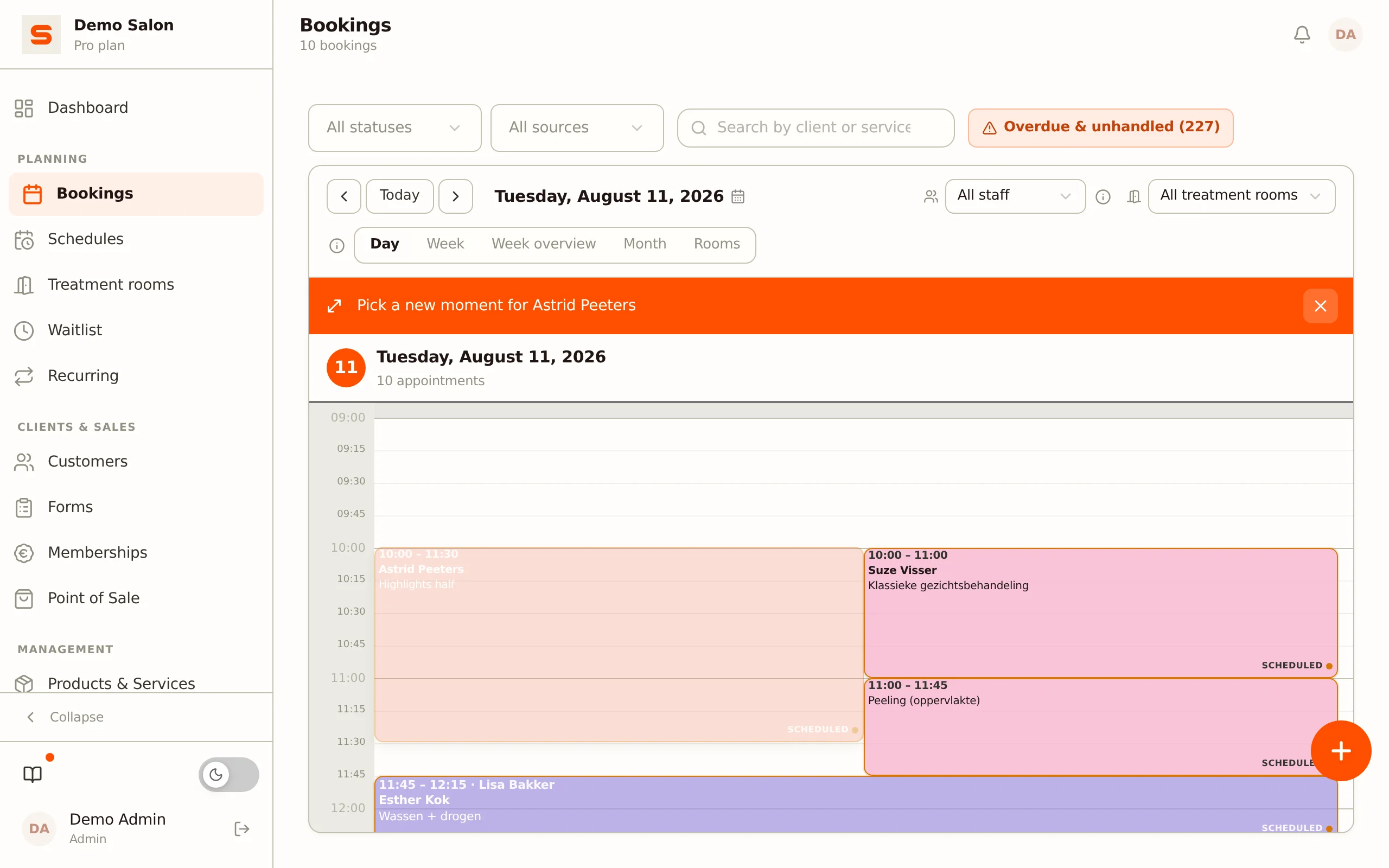
- Choose Move in the appointment's action menu -- right-click in the calendar, or at the bottom of the detail view.
- A bar appears at the top with the client's name, and the appointment dims so you can still see where it came from.
- Browse to another day or week if you like; the mode stays active until you close it with the cross.
- Click or tap the moment the appointment should go to. Tap an existing appointment and it takes over that start time, so the two line up neatly.
- A window opens with date and time, both editable. Click Move.
On a phone, dragging is switched off so scrolling through the calendar never takes an appointment along by accident. Moving always goes through the action menu there.
If the staff member is already booked at the new moment, or the treatment room is taken, Salonnare asks for confirmation first. Choose Move anyway if you deliberately want to double-book (see Double-booking on purpose).
Breaks and time-off blocks are moved in exactly the same way.
Double-booking on purpose
If a staff member already has an appointment at that moment, Salonnare first asks for confirmation when you save or move, in the Staff member double-booked window. That also applies when that staff member is not the main staff member of the other appointment but works on it: as an extra staff member, or on one of the services (with Staff member per service). You choose:
- Place anyway (when saving in the editor) or Move anyway (when moving in the calendar) -- the appointment is added on purpose. That also works when both appointments start at exactly the same time.
- Change time -- nothing is saved. When saving, the editor stays open so you can pick another time or another staff member; when moving, the appointment jumps back to its old spot.
An occupied treatment room works the same way, with the Treatment room occupied window and the buttons Place anyway or Move anyway and Cancel.
You also get that question when a colleague saves an appointment for the same staff member or room at the same moment at exactly the same time: whoever saves second gets the same choice instead of a silent double booking.
One exception: if an extra staff member of the appointment is already on another appointment at exactly the same start time, you cannot push it through. You then see the message that this staff member already has an appointment at exactly this start time; choose another start time or another staff member.
Online bookings are never double-booked: your clients only see times at which the staff member is really free, including when that staff member is working on another appointment.
Cancelling an appointment
- Click the appointment and choose Edit.
- Set the Status field to Cancelled.
- Confirm.
Your client automatically receives a cancellation email (unless you have switched it off under Settings > Email templates). The appointment is kept in your records and simply marked as cancelled.
Appointment statuses
Every appointment has a status:
- Scheduled -- planned in (the default status of a new appointment).
- Provisional -- waiting for your approval (with booking-on-request) or for a deposit from the client.
- Completed -- the treatment is finished.
- Cancelled -- the appointment was called off.
- No-show -- the client didn't turn up.
Change a status via the Status field in the editor (when editing an appointment), via Mark as completed or Mark as no-show in the action menu (right-click the appointment), or via the quick actions in the notification center.
An appointment that is still Scheduled while its end time has already passed counts as "overdue & unhandled". Use the chip at the top of the calendar to filter these appointments in one click, so you can still complete them or mark them as no-show.
Handling no-shows
- Choose Mark as no-show in the appointment's action menu (right-click in the calendar) or in the notification center.
- Confirm with Yes, no-show. If the appointment is still running, the button is disabled and you see until when: a no-show is only possible after the end time.
- Choose what the client receives: a Recovery email (a friendly message without charges), No-show fee (an email with a payment link, only shown when no-show fees apply, with the amount next to it) or Send nothing.
- Click Send. The appointment is then set to No-show, also if you chose Send nothing.
See No-show fees for the settings.
Tips for a smooth calendar
- Transition time -- under Settings > Calendar settings, block Multiple services, switch on Transition time (changeover) to automatically reserve time between services and between appointments, for cleaning up or client handover.
- Colour mode -- under Settings > Calendar settings, use Appointment color mode to colour appointments per category or per staff member -- which helps you scan the calendar quickly.
- Start with the dashboard -- check the Dashboard each morning for the day's overviews.
Want appointments to repeat automatically? Read Recurring appointments.