Forms (intake)
With forms you collect relevant information from clients, such as known allergies before a hair colour or a skin-type questionnaire before a facial. A form can be completed in two ways: by a staff member in the salon (the default), or by the client themselves via a secure link.
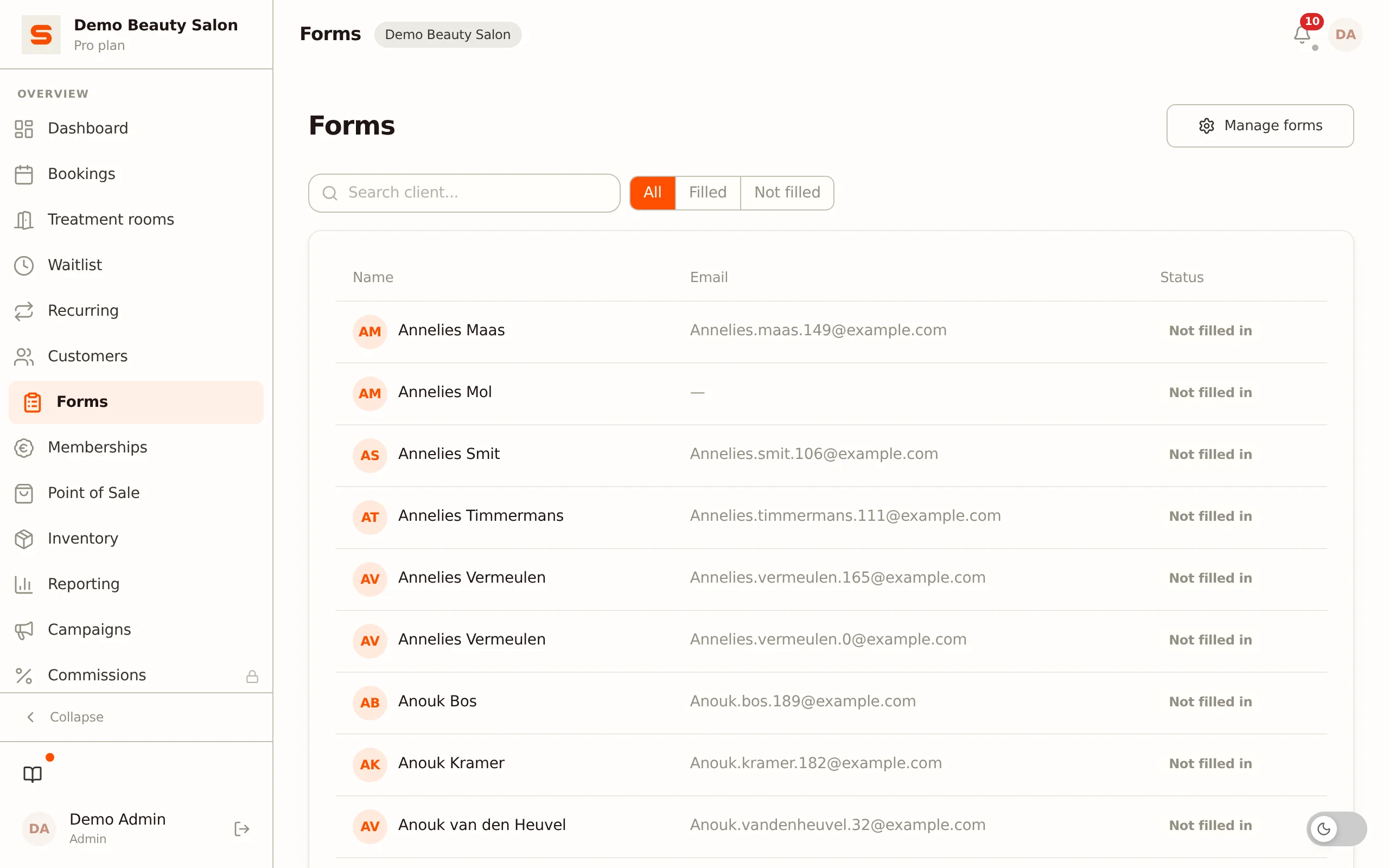
You work with forms on the Forms page (/app/forms). It shows per client whether a form has already been filled in, and lets you fill in, assign or send forms to the client. You configure a form's fields in the form builder.
Building a form
- Go to Forms in the side menu.
- Click Manage forms at the top right. This opens your forms overview under Settings > Clients > Forms.
- Click New form.
- Give the form a name and an optional description.
- Choose how the form is filled in (see Choosing the fill method).
- Add the fields you want to ask (see Field types).
- Set the Retention period (months) and the Active switch.
- Click Save form.
Choosing the fill method
At the top of the builder you find the choice Who fills in this form?:
- Salon -- the default. A staff member fills in the form on behalf of the client, for example during or just before the appointment. You can still send the form to the client as a link at any time.
- Client -- the client fills in the form themselves via a secure link. Only with this method does the Apply to services block appear: there you link the form to one or more services, so the client receives it automatically when an appointment for such a service is scheduled (see Automatic sending).
Not sure? Leave it on Salon. You keep control yourself and can still email the form to the client whenever that is more convenient.
Field types
| Type | Use |
|---|---|
| Short text | Short open question (e.g. name of the GP). |
| Long text | Longer open question (e.g. describe your skin concern). |
| Single select | Selection list with one answer (e.g. hair colour). |
| Multi-select | Selection list where several answers can be ticked. |
| Checkbox | A single yes/no tick (e.g. a consent or confirmation). |
| Date | Date field (e.g. date of birth). |
| Number | Numeric field. |
| Photo upload | The person filling in uploads up to 5 images (e.g. reference or skin photo), each up to 8 MB. |
Per field you can set:
- Required field -- the form cannot be saved without this field.
- Help text (optional) -- an explanation below the question.
- Health data (GDPR) -- marks the field as special category data (see below).
- Consent checkbox -- on a checkbox only; marks the tick as the consent for sensitive data.
For Single select and Multi-select fields you enter the options as separate rows: each row is one option, and Add option adds a new one. The last remaining option cannot be removed. For a Photo upload field you set the maximum number of photos (1 to 5).
Order fields with the up/down arrows; remove a field with the bin icon.
Health data and GDPR
Salonnare distinguishes between ordinary data and special category personal data (GDPR Art. 9), such as allergies, skin conditions or medication use.
Turn on Health data (GDPR) for a field if it concerns health data. Those answers are stored encrypted in a separate vault using AES-256-GCM -- kept apart from the regular client card. The field gets an AVG Art. 9 badge in the builder.
Always add a checkbox for consent when you use GDPR fields, and turn on Consent checkbox for it. Salonnare blocks the submission of sensitive answers without that consent. When the client ticks it, the consent is recorded on the client as explicit consent (see Which legal ground do you choose?).
Having a staff member fill in a form
- Go to Forms and search for or select the client in the list.
- The panel with that client's forms opens. Click Fill in now on the relevant form (or Edit answers if answers already exist).
- Fill in the fields. On photo fields you can upload photos directly.
- Click Save.
Does the client not have a form in the list yet? Click Assign form, choose a form and then Fill in now.
Sending a form to the client
- In Forms, open the client.
- Click Email to client on the form (or via Assign form > Email to client).
- The client receives an email with a secure fill-in link.
The same form can only be emailed to the same client once every 24 hours. If you try sooner, Salonnare reports that the form has already been sent.
How a client fills in the form
- The client opens the secure link on phone or computer.
- The client fills in the fields; the draft is saved automatically as they type.
- For sensitive (GDPR) fields, the client must first give consent via the consent tick.
- After Submit form, the form is completed and visible on the Forms page.
Clients can fill in the form partially and continue later -- the draft is saved automatically. Sensitive fields are only stored definitively after submitting.
Reviewing answers
- Go to Forms and open the client.
- On a completed form the View answers button appears. Click it to see the answers.
- Uploaded photos are shown as a gallery.
In the client list and the forms panel you see per form whether it is Completed or Not filled in, and when it was last sent. Answers to GDPR fields are only visible to administrators or staff with explicit intake read rights; access is logged.
Deactivating or deleting a form
- Deactivate -- open the form in the builder and turn off Active. A client form is then no longer sent automatically for new appointments, but answers already filled in are kept.
- Delete -- in the forms overview (Settings > Clients > Forms), click the bin icon next to the form and confirm. The form disappears; answers clients have already filled in stay with those clients.
Automatic sending on appointment creation
If a form is set to Client and linked to a service, Salonnare automatically sends the form as soon as an appointment for that service is created or changed in the calendar -- provided the client has not already filled it in and has an email address.
The client then receives a separate email with the secure fill-in link. Nothing needs to be sent manually.
This happens for appointments that you or a staff member create or change in the calendar. When a client books online via your booking page, the invitation is not sent automatically. In that case send the form yourself via Email to client.
If an invitation has already been sent and the client still has not filled in the form about 24 hours before the appointment, they automatically receive a reminder email. This ensures the information arrives in time. Neither the invitation nor the reminder is sent if you have switched off the intake invitation email under Settings > Email templates.
Deleting answers (GDPR)
If you want to remove a client's completed answers -- for example at their request under GDPR -- you can do so per form:
- Go to Forms and open the client.
- Click Delete responses on the completed form.
- Confirm the deletion.
Deleting removes the plain answers, the encrypted sensitive (Art. 9) answers, and any uploaded photos. The withdrawal of consent is recorded.
Deletion is irreversible. Always make sure you have identified the client and can justify the request before wiping data.
Public intake page -- your branding
The page where a client fills in the form adapts to your salon settings:
- Logo -- your logo appears at the top of the page: the email logo from Settings > Branding, or if that is empty the booking page logo or your general salon logo.
- Colours -- the accent bar uses the accent colour and the buttons use the button colour you have set in Settings > Branding.
- "Powered by Salonnare" footer -- a subtle credit appears at the bottom of the page. With the Pro plan you can hide it with Hide 'Powered by Salonnare' badge under Settings > Branding.
Set your logo and colours in Settings > Branding before you send out the first forms. That way the intake page looks professional to the client straight away.
Retention period
Each form has a retention period in months (at most 120). After it expires, the answers are wiped automatically by a background task. The default is 24 months. Set 0 to keep answers indefinitely.