Loyalty tiers and client segments
Salonnare can automatically place your clients in tiers based on their total spending and tag them with behaviour segments based on visit pattern and revenue. This gives you insight into who your biggest spenders are, who is at risk of dropping off and who keeps coming back.
You'll find the settings under Settings > Loyalty & segments (in the Clients group). At the top of that page is the points programme (see Loyalty programme); below it are the Loyalty tiers and Automatic segments blocks explained in this article. Only admins can change tiers and segment rules.
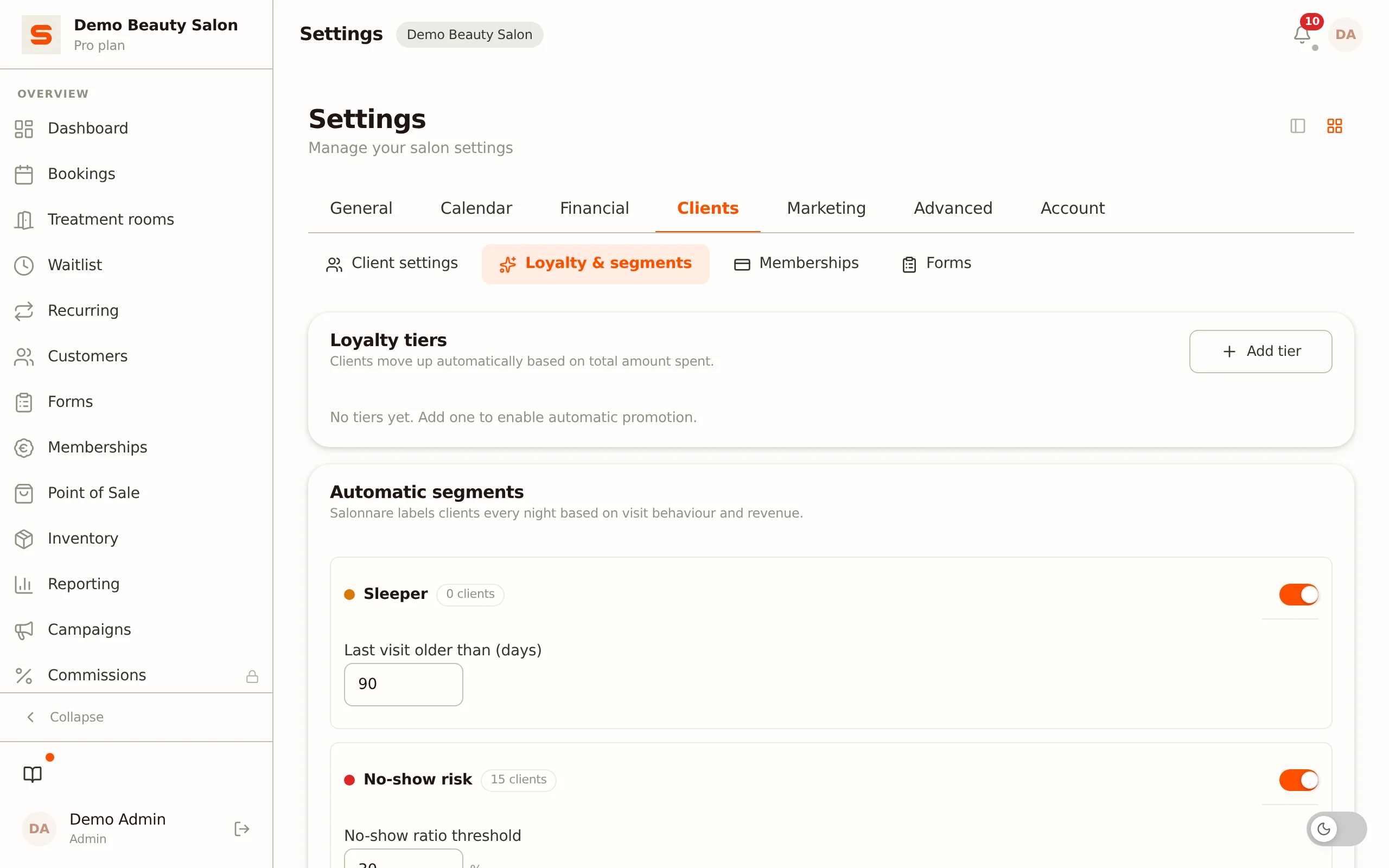
Loyalty tiers
Loyalty tiers are levels into which clients are placed automatically based on their total spending at your salon (the total of their receipts). As soon as a client reaches a tier's threshold, they move up automatically and you get a notification.
Creating a tier
- Go to Settings > Loyalty & segments.
- Click Add tier at the top right of the Loyalty tiers block.
- A new tier ("New tier") appears. Fill in:
- Colour -- Click the colour square to choose a colour.
- Name -- Give the tier a name, such as "Bronze", "Silver" or "Gold".
- From € -- The minimum total amount spent from which a client falls into this tier.
- Name and amount are saved automatically when you leave the field; a colour is saved right away.
You can create several tiers. Clients are always placed in the highest tier whose threshold they have reached.
Deleting a tier
Click the bin icon next to the tier. The tier is deleted and clients who were in it lose it immediately. At the next nightly recalculation they move into the highest remaining tier whose threshold they meet.
Tiers and the client card
On the client card you can see which tier a client is in, as a coloured badge next to the name.
Automatic segments
Besides tiers, Salonnare has four built-in behaviour segments. Every night Salonnare recalculates for each client which segments apply. You'll find the segment labels as badges on the client card; you can't switch them on or off there yourself.
| Segment | What it means |
|---|---|
| Sleeper | The last completed visit was longer ago than the number of days you set. A client who has never visited does not count as a sleeper. |
| No-show risk | The share of missed appointments is at least the percentage you set. This is only calculated from three appointments (completed or no-show) onwards. |
| High spender | The total of the client's receipts is at or above the amount you set. |
| Loyal | The client has at least the number of completed visits you set. |
Switching on a segment rule
Each segment has a toggle. If the toggle is off, the segment is not calculated and no badges are assigned.
- Go to Settings > Loyalty & segments.
- Switch on the toggle for the segment you want.
- Adjust the threshold:
- Sleeper -- Last visit older than (days).
- No-show risk -- No-show ratio threshold, as a percentage (0-100).
- High spender -- Minimum revenue in euros.
- Loyal -- Minimum number of visits.
Thresholds are saved automatically when you leave the input field. The colour of each segment badge is fixed.
Live counter
Next to each segment's name is a badge with the current number of clients in that segment. This gives you an instant idea of the segment's size.
How to use tiers and segments
The calculated tiers and segments appear as badges on the client card, so you see at a glance who you are dealing with -- handy when scheduling, checking out or having a personal chat.
The automatic segments and loyalty tiers are not a filter in the campaign wizard. You filter a campaign's audience on your manual labels, plus the Last visit (days ago) and Min. amount spent filters. For example, if you want to write to all your sleepers in a campaign, give those clients a label of their own, or use the Last visit (days ago) filter in the campaign.
See Email Campaigns for creating a targeted email campaign and Managing clients for labels and the client card.