Client settings
In the Client settings section you control a few things related to your client database: whether Salonnare remembers the treatment duration per client, whether colour formulas appear on the client card, whether clients get their receipt by email, and your own client labels.
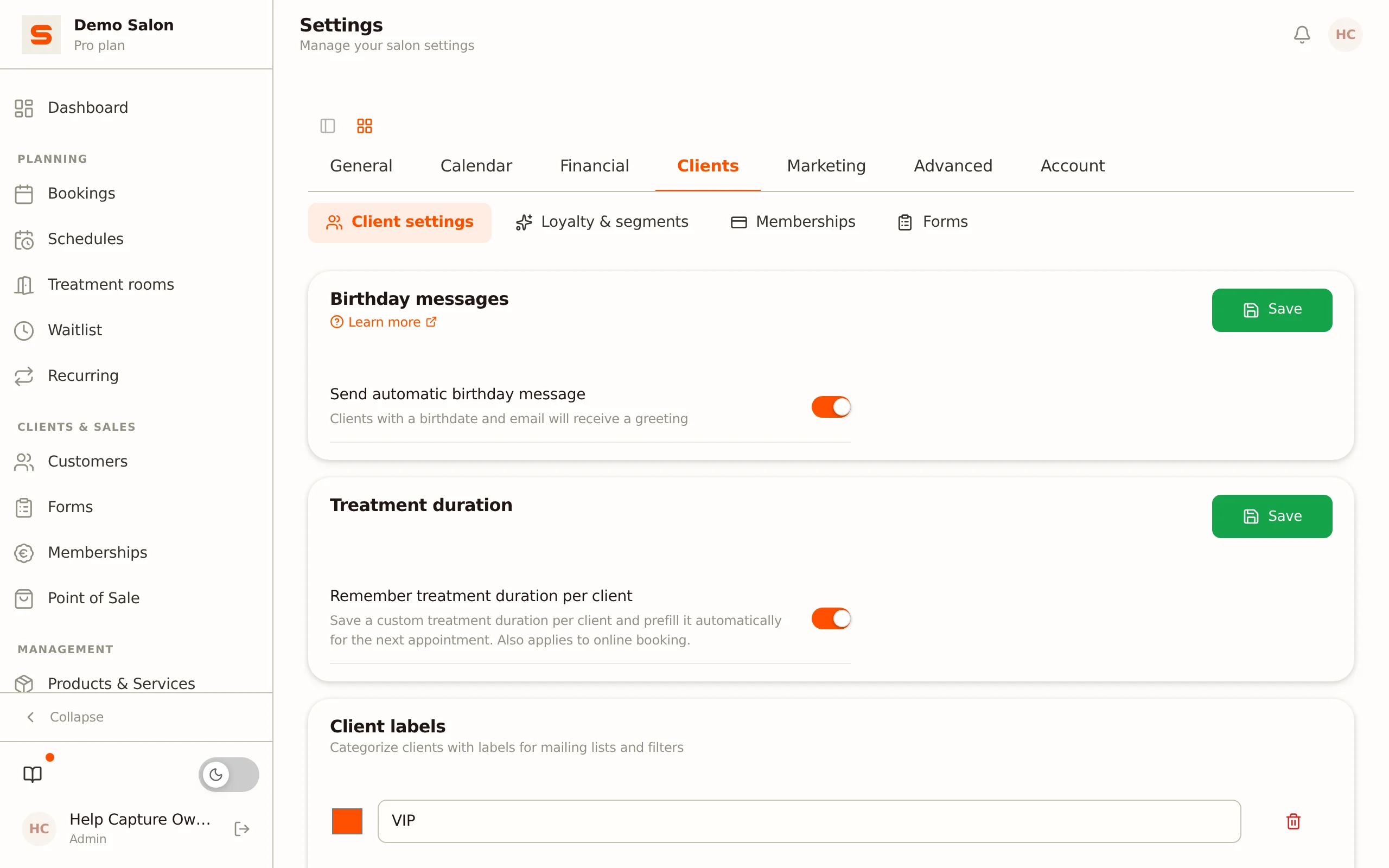
Opening the overview
- Go to Settings.
- In the Clients group, open the Client settings section.
You'll see four cards: Treatment duration, Colour formulas, Email receipt and Client labels.
Remembering treatment duration per client
Turn on the Remember treatment duration per client toggle, and Salonnare stores a custom treatment duration per client-and-service combination, then automatically prefills it on the next appointment.
- Turn on the Remember treatment duration per client toggle. It's off by default.
Once the setting is on, a Default for this client checkbox appears in the appointment editor next to a service's duration field. Check it when saving the appointment, and Salonnare remembers that duration for next time -- including when the client books online themselves.
See Managing appointments for how to adjust and remember the duration per appointment.
Colour formulas
The Show colour formulas on the client card toggle turns the Colour formulas section in the client detail on or off. It's mainly useful for hair salons and is off by default. If you turn it off again later, saved formulas are kept -- they are just no longer visible. See Colour formulas.
Receipts by email
Turn on Send receipts by email and clients automatically receive their receipt by email after checkout. This is the setting for your whole salon.
A client can deviate from it. Open the client, click Edit client and choose one of three options under Receipt preference:
- Follow salon setting -- the client follows the switch above. This is the default for new clients.
- Always email receipt -- this client gets a receipt even if you turn the salon setting off.
- Never email receipt -- this client never gets a receipt by email.
Do some clients sit on Always email receipt without you ever setting that? They come from an import or from an online booking made before 23 September 2026; back then, clients created outside the client form got that setting automatically. Set them to Follow salon setting if you want to control them with one switch.
Client labels
Labels are tags you choose yourself and attach to clients to categorise them. Think "VIP", "Colour treatment", "Saturdays only" or "Newsletter". You use labels to recognise clients and to build audiences for mailings.
Creating a label
- At the bottom of the Client labels card, type a name in the Label name... field.
- Choose a colour with the colour picker next to it.
- Click Add (or press Enter). The label appears in the list right away.
If there are no labels yet, Salonnare shows "No labels created yet".
Renaming or deleting a label
- Renaming -- adjust the name; the change is saved as soon as you leave the field. Change the colour with the colour picker in front of the label.
- Deleting -- click the bin icon. You'll get a confirmation first. If you delete a label, it disappears from every client who had it.
Assigning labels to clients
You assign labels on the client itself, not in these settings: open the client, click Edit client and choose the labels under Labels. See Managing clients.
Labels are the basis for targeted Campaigns. In the campaign wizard you pick one or more labels as the audience, so you can, for example, only write to your VIP clients or your newsletter subscribers.
What isn't in this section
- Birthday messages are switched on or off on the Birthday email template under Settings > Email templates: click Settings on that template and use the Send this email toggle. Only clients with both a date of birth and an email address receive the message, and each client at most once a year. See Customizing email templates.
- Automatic segments and loyalty tiers (dormant clients, high spenders, bronze/silver/gold) are set under Settings > Loyalty & segments. See Loyalty tiers and client segments.
- Consents and privacy (GDPR) are managed under the separate Privacy & GDPR section. See Privacy and GDPR.
Related topics
- Managing clients -- the client card, assigning labels and client details.
- Campaigns -- targeted emails based on labels.
- Customizing email templates -- including the birthday message.