Cash drawer and closing the day
The Cash drawer keeps track of what should be in your till drawer. Every cash payment in the Point of Sale already counts there automatically. You record yourself what you put in or take out separately from the Point of Sale, and at the end of the day you count the drawer and close it. That way you see straight away whether there is a difference, and why.
The cash drawer is part of the Point of Sale and is available on every plan, including Free.
Opening the cash drawer
-
Step 1: Open the cash drawer
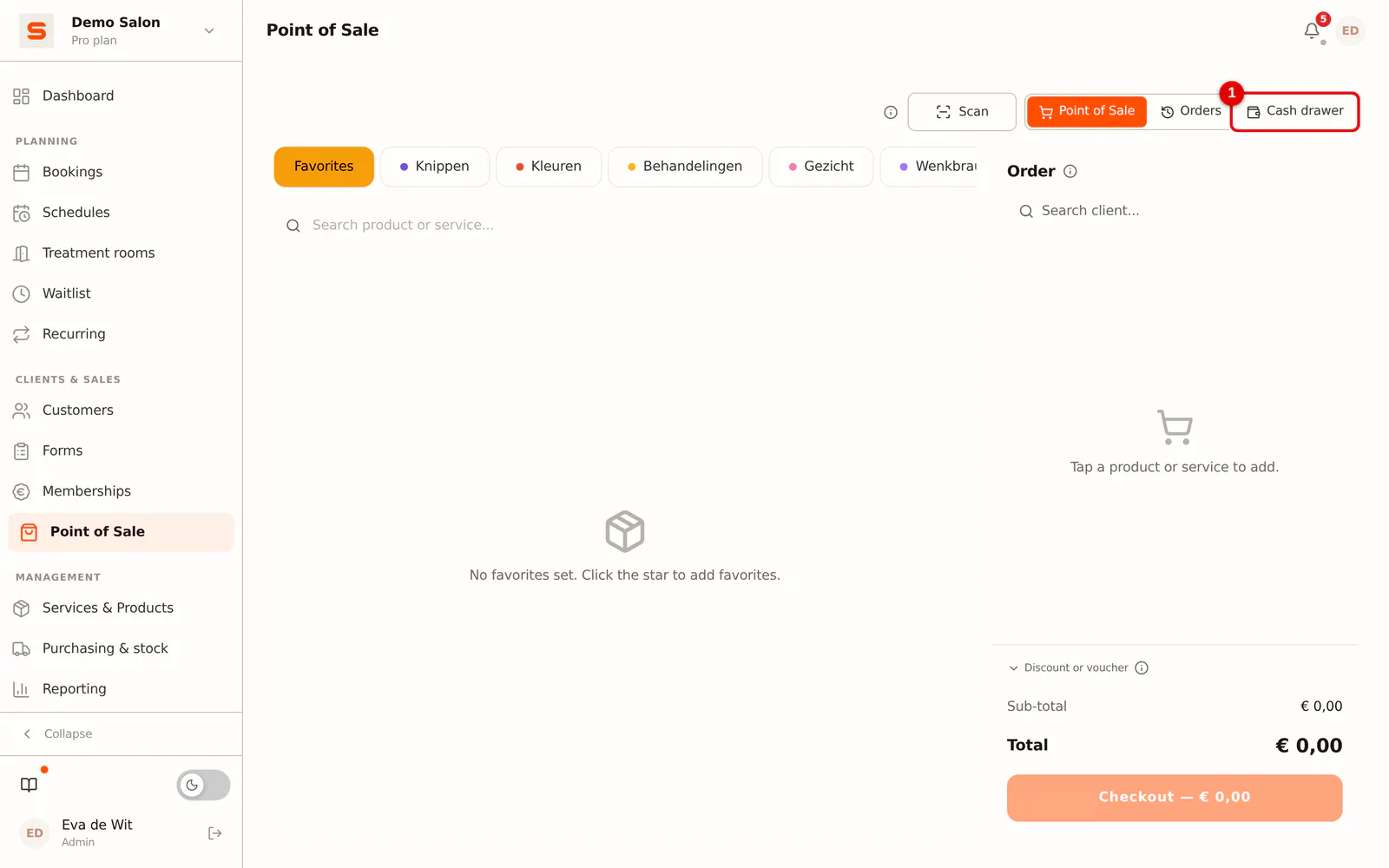
Go to Point of Sale and click Cash drawer at the top. On a phone the button sits in the row below the title.
 (Enlarge image)
At the top you see since when the cash drawer has been running and whether it is Open or already Counted. An administrator also sees straight away what should be in the drawer. A staff member only sees that amount after counting it themselves (blind counting, see below).
Putting money in the drawer
Use this for the starting amount the first time, or when you top up the change.
-
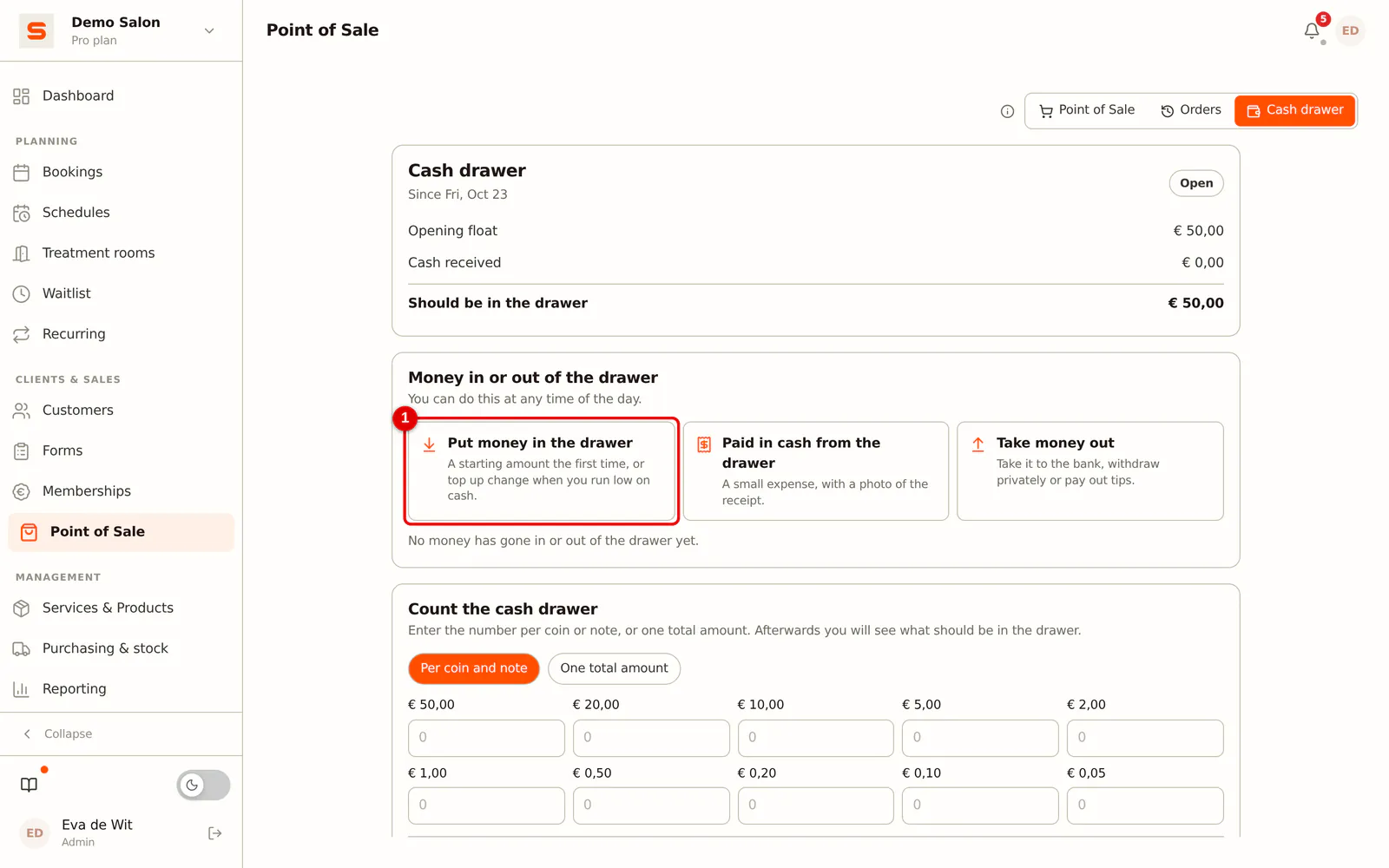
Step 1: Click Put money in the drawer
In the Money in or out of the drawer block, click Put money in the drawer.
 (Enlarge image)
-
Step 2: Enter the amount and where it came from
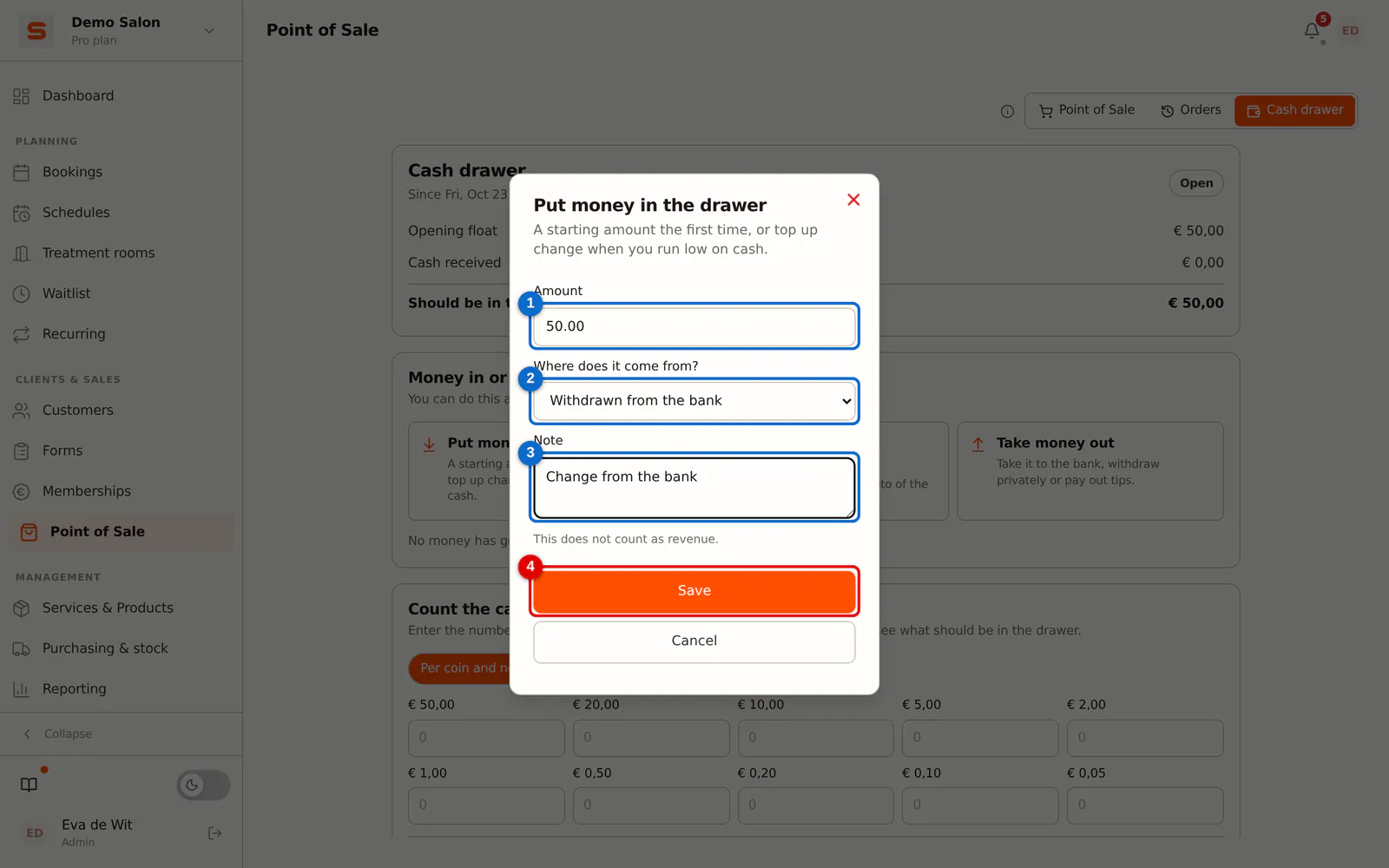
Enter the amount and choose where it comes from: Starting amount of the drawer, Out of my own pocket (private) or Withdrawn from the bank. You can add a note.
 (Enlarge image)
-
Step 3: Save
Click Save. The amount is now in the cash drawer list and counts towards what should be in the drawer. It is not revenue.
Paying in cash from the drawer
For a small expense you pay in cash from the drawer, such as milk for the coffee.
-
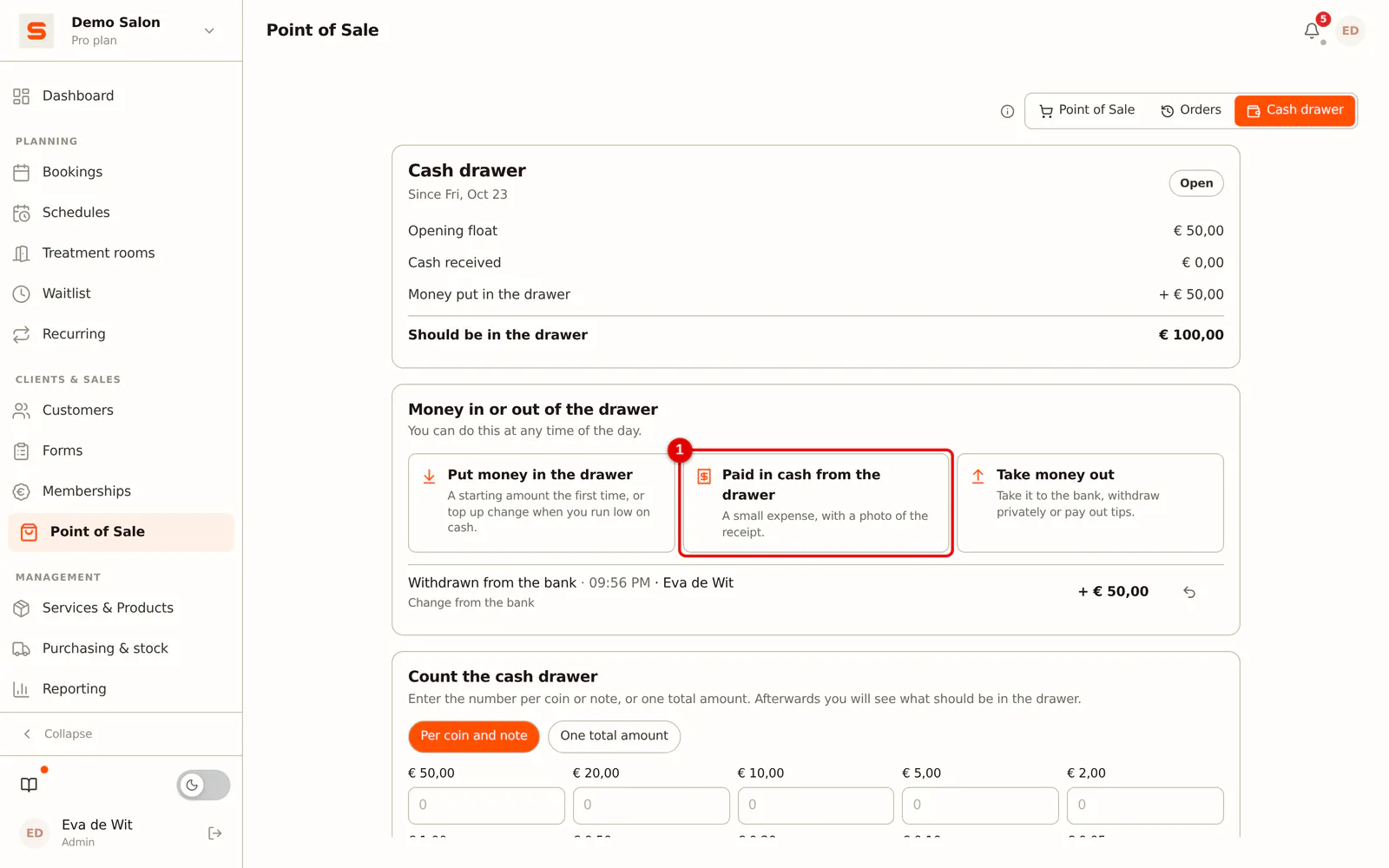
Step 1: Click Paid in cash from the drawer
Click Paid in cash from the drawer.
 (Enlarge image)
-
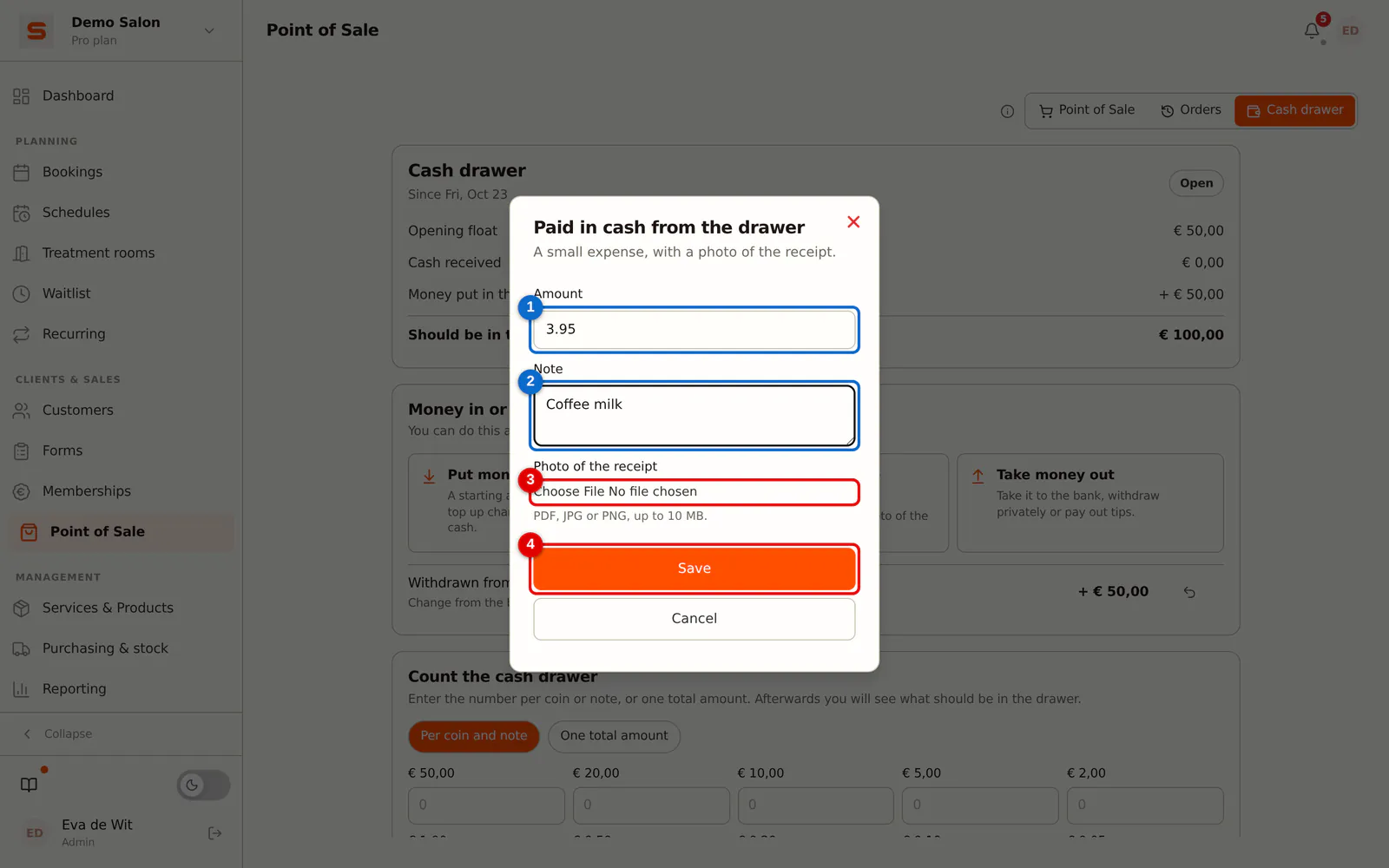
Step 2: Enter the amount and add the receipt
Enter the amount and a note. Add a photo of the receipt (PDF, JPG or PNG, up to 10 MB) and click Save.
 (Enlarge image)
Taking money out of the drawer
For money you take to the bank, withdraw privately or pay out as tips to your staff.
-
Step 1: Click Take money out
Click Take money out.
-
Step 2: Choose where it goes and save
Enter the amount, choose Taken to the bank, Withdrawn privately or Tips paid out, and click Save.
Entered something wrong? Click Void next to the line and give a reason. The line stays visible, struck through, but no longer counts. You can void your own lines; an administrator can also void other people's. This is possible as long as the drawer has not been counted or closed.
Closing the day
-
Step 1: Count the drawer
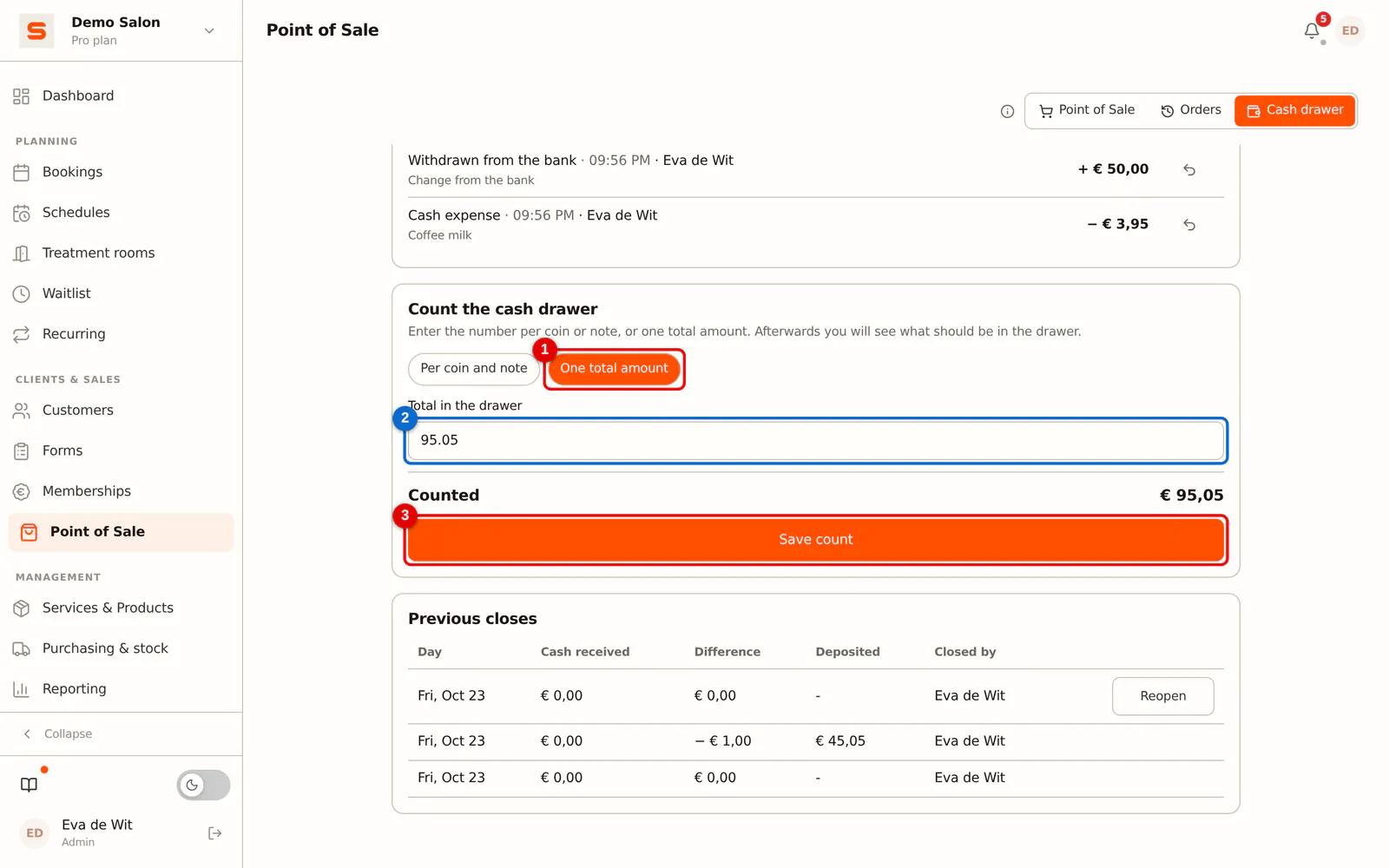
Under Count the cash drawer, choose whether you count per coin and note or enter one total amount. Enter what is actually in the drawer.
 (Enlarge image)
-
Step 2: Save the count
Click Save count. Only now do you see what should be in the drawer: the change from the previous close, the cash received, what you refunded in cash and what you put in or took out. Below that is the cash difference. If you counted €0, Salonnare first asks whether the drawer is really empty.
-
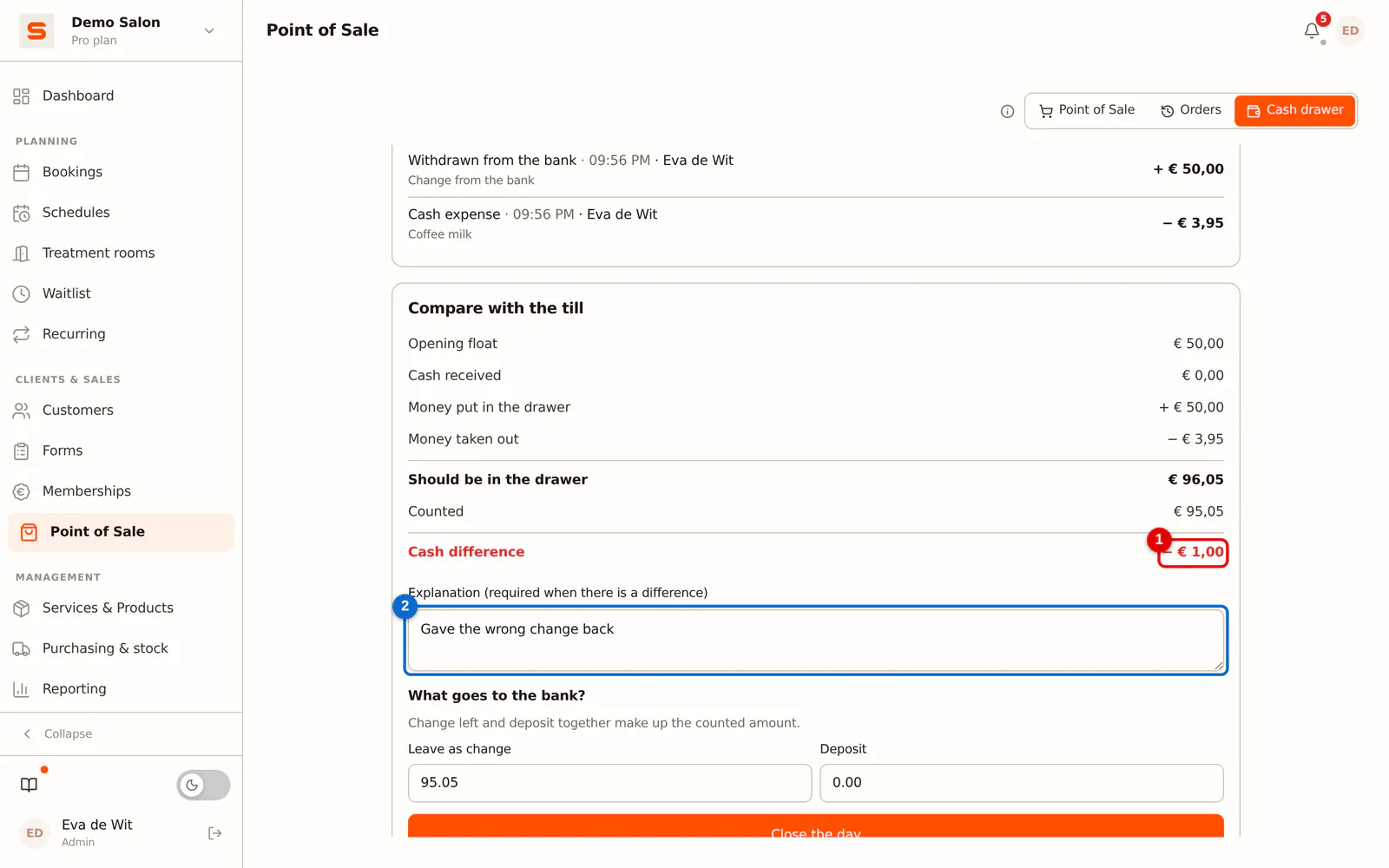
Step 3: Explain a difference
If your count does not match what should be in the drawer, an explanation is required. Write down what you think happened, for example "gave the wrong change".
 (Enlarge image)
-
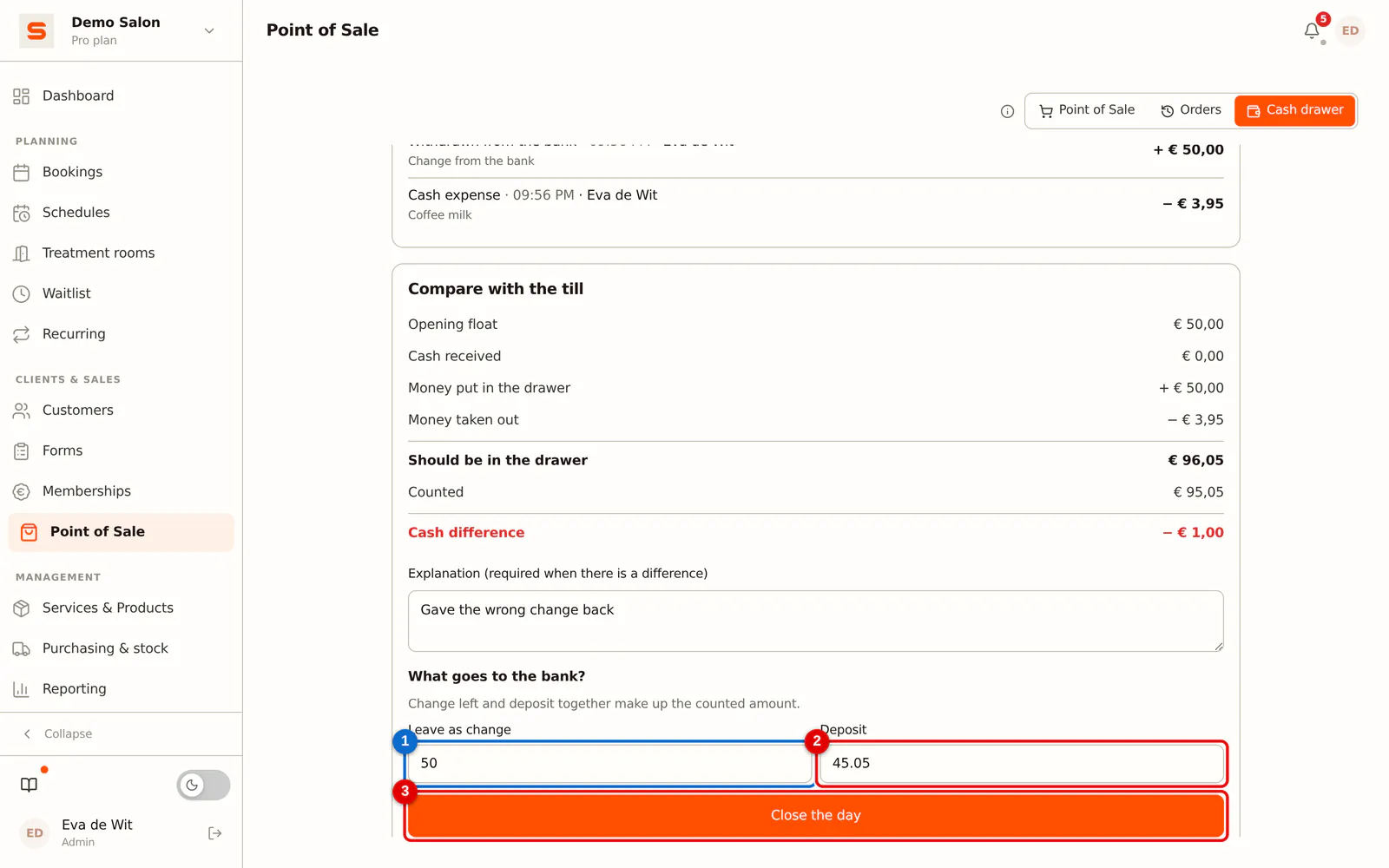
Step 4: Split the money
Enter how much stays in the drawer as change and how much you will deposit at the bank. Together those two must be exactly the counted amount. The change is the starting amount for next time.
 (Enlarge image)
-
Step 5: Close
Click Close the day. The close now appears under Previous closes, with the cash received, the difference, what was deposited and who closed. A close does not change afterwards.
Only the person who counted the drawer, or an administrator, can close the day. If the drawer needs to be counted again, an administrator can release the count with Have it counted again.
1 and 2 cent coins only appear in the count if your salon uses them. By default this follows your salon's country: in countries where cash payments are rounded to 5 cents, such as the Netherlands and Belgium, you don't count them; in Germany and France, for example, you do. Want it differently? Go to Settings, group Financial, Point of Sale, turn Count 1 and 2 cent coins on or off and click Save.
A close covers everything since the previous close. If you did not close for two days, you count once for both days at the next close. If a manager changes a receipt from an earlier day to cash after a close, it counts in the next close and is listed there separately. A receipt that was made offline counts in the close that is running at the moment it arrives. The very first time, the cash drawer counts from the start of that day: cash you received earlier that day simply counts. If Closing the day is required was already on before that, the drawer counts from the moment you turned it on.
Do you rent out a chair to a self-employed stylist? Cash a renter receives from their own clients belongs in their own drawer or wallet, not in the salon's cash drawer. It does not count in what should be in your drawer; if you put it in anyway, you will see a difference when you count.
Reopening a close (administrator)
-
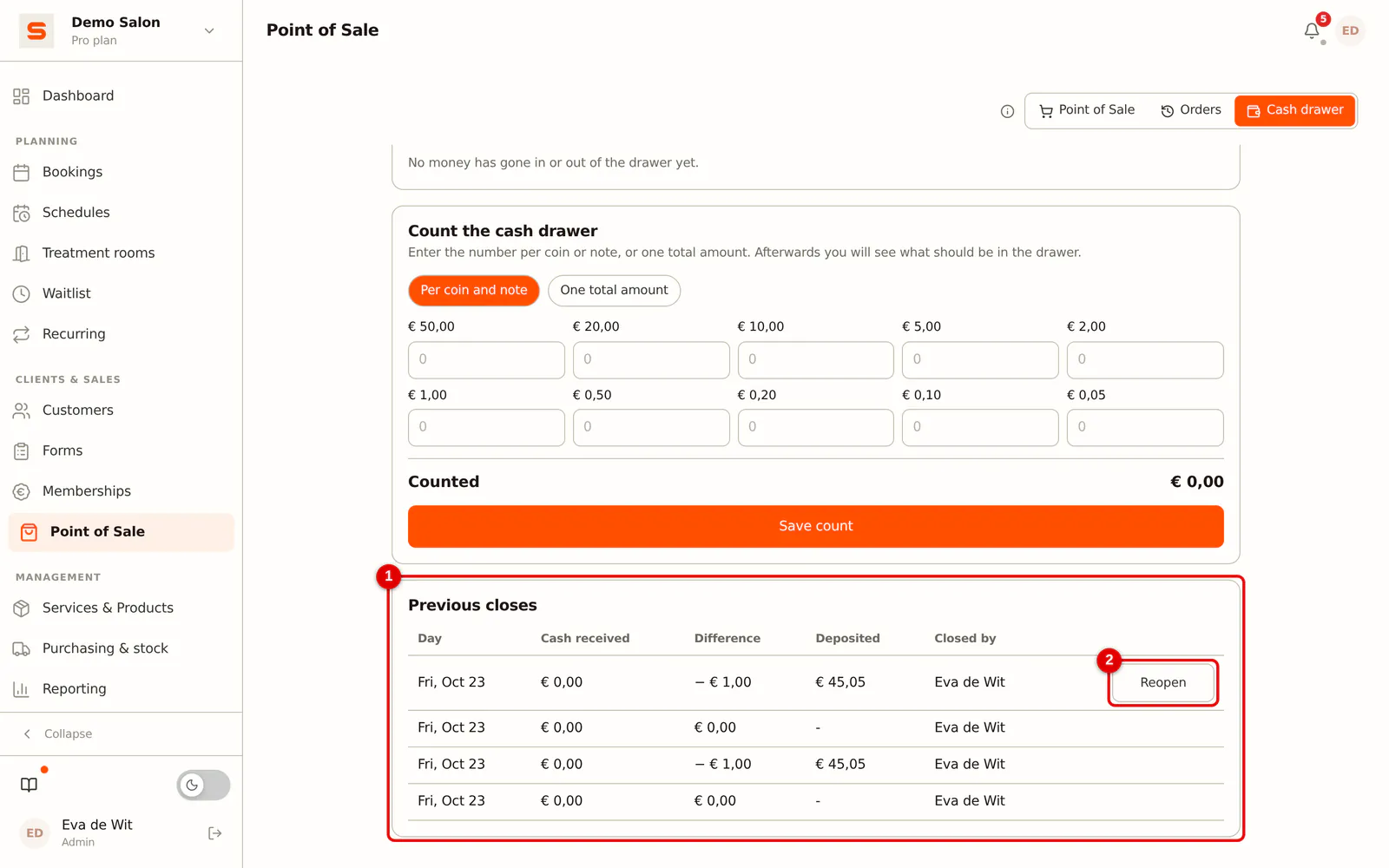
Step 1: Click Reopen
Under Previous closes, click Reopen next to the most recent close and give a reason.
 (Enlarge image)
The period opens again and has to be counted and closed again. Only the most recent close can be reopened: otherwise the change of the closes after it would no longer add up. Reopening voids the bank deposit of that close. That amount counts again in what should be in the drawer, until you close the period again. You can only reopen as long as nothing has happened since the close: once a cash receipt has been made or money has gone in or out of the drawer, it is no longer possible.
Making closing the day required
By default closing is not required. If you use the cash drawer and there is cash from an earlier day that has not been closed yet, you do get a reminder among your notifications to handle.
-
Step 1: Open the Point of Sale settings
Go to Settings, group Financial, and click Point of Sale.
-
Step 2: Turn on Closing the day is required
Turn on Closing the day is required and click Save.
When this is on, you can only create a new receipt once the cash drawer of an earlier day with cash in it has been counted and closed. Keep in mind:
- It only counts from the moment you turn it on. Cash from before that never blocks anything.
- A payment that is already under way, such as a payment link or a payment on the card terminal, is never held up.
- A receipt that was made offline and arrives later is not refused: that sale has already happened.
An administrator can always change this setting. A staff member needs the Point of Sale permission under the settings.