Setting up deposits
With deposits you ask clients to pay part of the service price in advance when they book online. This reduces the risk of no-shows and gives your calendar more certainty. The payment runs through your connected payment provider (Mollie or Stripe).
Requirements
Deposits require a default payment provider: you must have chosen Stripe or Mollie as the default provider under Setting up payments, and that provider must be connected. Salonnare uses that provider for the deposit.
If your default payment provider is set to None (or you remove the chosen provider), you cannot turn deposits on -- the Who pays a deposit? choice is then not shown and you see the note that no payment provider is connected. If deposits were already on and you later set the provider to None, the setting automatically falls back to Nobody and the two extra rules are switched off as well -- including when only new clients were paying.
Deposits are available from the Pro plan. On a lower plan you see a message asking you to upgrade and you cannot turn the setting on.
The same default payment provider also drives the Payment link payment method in the POS. So one choice under Setting up payments determines both your deposits and the payment links.
Without a connected payment provider
A deposit always goes to your own Mollie or Stripe account. If no payment provider of your salon is connected, Salonnare does not ask for a deposit: there is nowhere for the money to go.
You disconnect Stripe or Mollie. If you disconnect the provider under Settings > Payment connect, Salonnare switches your deposits off straight away: Who pays a deposit? goes to Nobody, the extra rules are switched off, and a location that switched the deposit on itself follows the salon again. You immediately see the message "Deposits are now switched off: without a connected payment provider no deposit can be collected. Clients can still book online as usual." The notification center also shows Deposits switched off: Stripe was disconnected (or Mollie). If you reconnect later, switch the deposit back on yourself -- that does not happen automatically.
An online booking that should have had a deposit. If a client still has to pay a deposit while no payment provider is connected -- for example because you set Always (mandatory for this client) for that client -- the booking simply goes through, without a deposit. The client sees the normal confirmation screen and receives the normal confirmation email. You get the notification Deposit not requested: no payment provider connected in the notification center, with the client's name. That notification comes at most once every 24 hours, even if more such bookings come in during that time.
If you see one of these notifications, your no-show protection through deposits is not active. Connect Mollie or Stripe again and switch the deposit back on, or set the client's requirement back to Default (follow salon setting).
Who pays a deposit?
- Go to Settings.
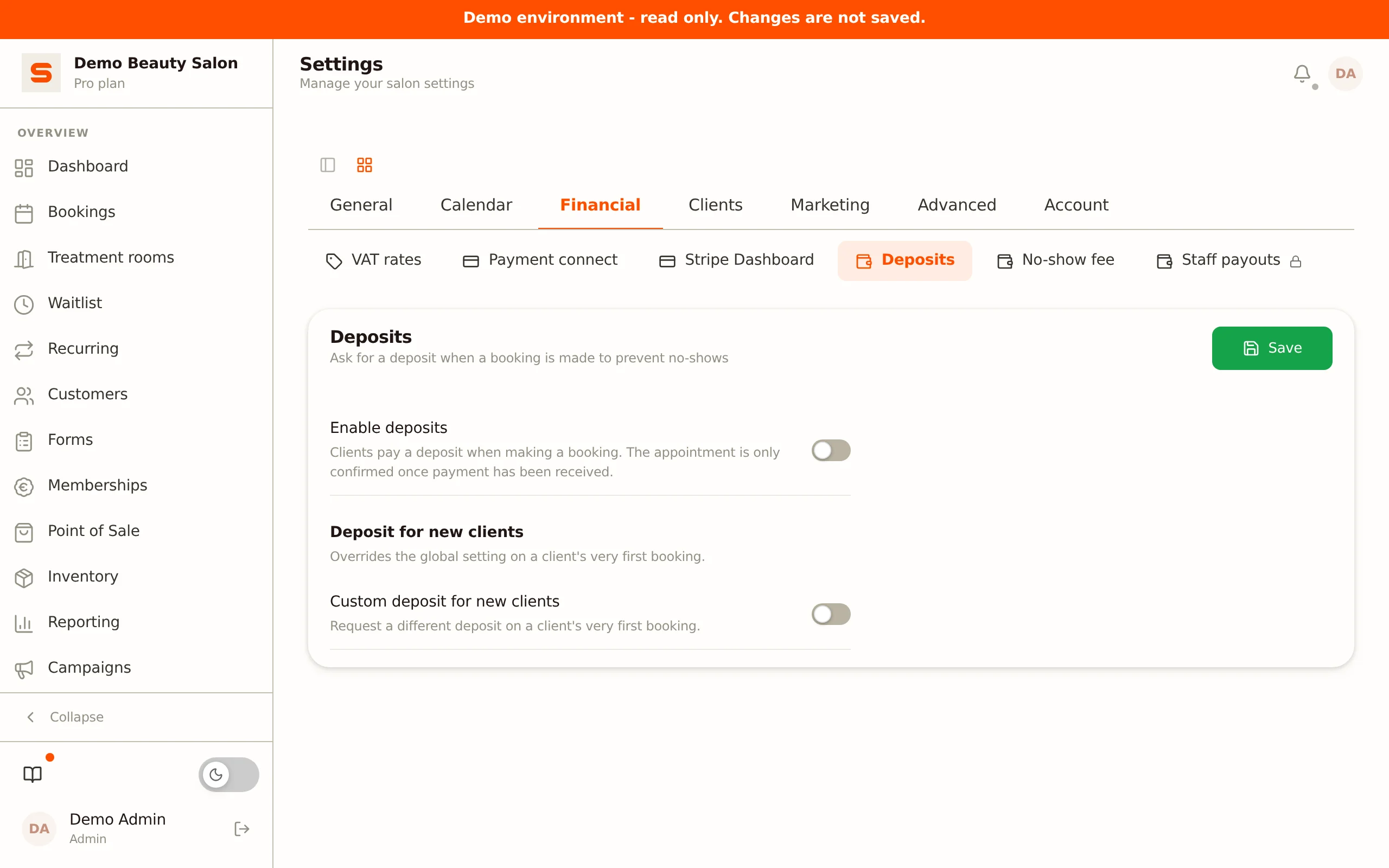
- In the Financial group, choose the Deposits section.
- Under Who pays a deposit? choose one of the three options.
| Option | What it does |
|---|---|
| Nobody | No deposit is ever requested. |
| All clients | Everyone who books online pays in advance, regulars included. |
| New clients only | Only clients without a previous appointment pay in advance. Returning clients pay nothing. |
As soon as you choose anything other than Nobody, the extra options appear.
New clients only
A client counts as new as long as no earlier, non-cancelled appointment is on record for them. From their second appointment onwards they pay nothing in advance.
In this mode you enter a separate amount under Deposit for new clients. That amount is required: without it Salonnare will not save the setting.
If you want everyone to pay but new clients a different amount, choose All clients and turn on Custom deposit for new clients below it.
Extra rules: per treatment or above an amount
On top of the choice above you can switch on two rules that are about the appointment instead of about the client. You will find them under Extra rules.
| Rule | When it applies |
|---|---|
| Deposit for selected treatments | One of the selected treatments is part of the appointment. Useful for long or expensive treatments that block a chair for hours. |
| Deposit above an amount | The appointment total reaches the threshold you set. The threshold is inclusive: an appointment of exactly that amount counts. |
These rules apply alongside the setting under Who pays a deposit?. An appointment requires a deposit as soon as one of the active rules applies. So even with the setting on Nobody, a client who books a selected treatment still pays up front.
Which amount applies when several rules match?
Every rule carries its own amount. When several match at once, the highest amount applies. That way switching on an extra rule can never lower a deposit: the strictest rule you configured wins.
Leave a rule's amount at 0 and it uses the general deposit amount above.
Salonnare does not allow switching a rule on without an amount: a switch that is on and collects nothing is worse than no rule at all. The treatment rule also needs at least one selected treatment, and the threshold rule needs a threshold greater than 0.
Choosing the deposit type
You can choose between two types:
| Type | Description |
|---|---|
| Percentage | A percentage of the total service price. For example 25% of a 60 euro service = 15 euro deposit. For multiple services, the sum of the prices counts. |
| Fixed amount | A fixed euro value, regardless of the service price. For example always 10 euros. |
Choose the type via the Percentage of treatment price or Fixed amount radio buttons.
These fields belong to the All clients option. With New clients only you set the type and amount under Deposit for new clients; the extra rules each have their own type and amount.
Setting the amount
- For percentage: enter the percentage, for example
25for 25%. - For fixed amount: enter the amount in euros, for example
10for EUR 10.
Minimum amount (percentage only)
For a percentage type you can set a minimum amount. This is the lowest amount that will be charged, even if the calculated percentage comes out lower.
Example: you set 20% with a minimum of 8 euros. For a 30 euro service, 20% would normally be 6 euros -- but because of the minimum the client pays 8 euros.
Deposit deadline
This is the most important rule, determining what happens when a client does not pay the deposit. A booking with an outstanding deposit stays provisional in your calendar. With the deadline you automatically cancel such bookings so the slot frees up again.
Choose one of the three modes:
| Mode | What it does |
|---|---|
| Off | Unpaid bookings stay; you cancel them manually if needed. |
| After creation | The booking expires this many hours after the booking is created. Enter the number of hours. |
| Before appointment | The booking expires this many hours before the appointment time. Enter the number of hours. |
When the deadline is set to After creation or Before appointment, Salonnare checks outstanding deposits every hour. If the deadline has passed, the deposit is marked as expired and the provisional appointment is cancelled automatically.
Before appointment is handy when clients book far ahead: you give them time, but make sure an unpaid booking frees up well before the appointment for someone else.
The emails around a deposit
The on/off switches for these emails are no longer in this section; they live under Settings > Email templates. There are two of them, each with its own row:
| Row | What it sends |
|---|---|
| Deposit required | The email with the payment link the client uses to pay the deposit. |
| Deposit received | The confirmation as soon as the deposit succeeds. |
Both are on by default. Turn Deposit received off if you prefer to communicate yourself.
Do not switch Deposit required off lightly. Without this email the client gets no payment link. The appointment stays pending and is cancelled automatically after the deadline.
Until this move, a single switch sent both emails. Your existing setting was carried over to both rows, so nothing changes until you flip something yourself. See Email templates.
Saving
Click Save to lock in the settings. If you choose All clients without entering an amount, or New clients only without an amount for new clients, Salonnare shows a validation error.
When is a deposit required?
A deposit is requested for direct online bookings, from the group you selected under Who pays a deposit?. In request mode no deposit is requested (see Online Bookings).
You can override this per client. Open a client in Clients and set Deposit required:
- Default (follow salon setting) -- the general setting applies.
- Never (exempt) -- this client never has to pay a deposit, even if the salon setting is on.
- Always (mandatory for this client) -- this client must always pay a deposit, even if the salon setting is off.
How it works for the client
When a client books online and a deposit is required:
- They go through the normal booking steps (service, staff member, date/time, details) and confirm.
- There is no separate payment step in the wizard. After confirming they are automatically redirected to the secure payment page of Mollie or Stripe.
- They pay the deposit.
- The appointment stays provisional in your calendar until the payment is confirmed; after that the appointment becomes final.
If the payment fails or the client does not pay before the deadline, the provisional booking is cancelled automatically (see Deposit deadline).
If no payment provider is connected, steps 2 to 4 do not happen: the appointment is created straight away, without a deposit (see Without a connected payment provider).
When a payment does not arrive in the usual order
You confirm the appointment yourself while the deposit is still open. The appointment is then fixed, but the deposit stays open: Salonnare only records it as paid once Mollie or Stripe confirms the payment. Nothing is deducted at checkout either. If the client pays the link later after all, the deposit counts as usual.
The client pays after the appointment has already been cancelled. For example because the deadline passed, or because you cancelled the appointment yourself while the payment link was still open. Salonnare then refunds the amount automatically via Mollie or Stripe, the appointment stays cancelled and the client gets no confirmation. In the notification centre you see Deposit of €... paid after cancellation refunded automatically. If the provider refuses the refund, it says refund failed: refund the amount yourself in the Mollie or Stripe dashboard, or reschedule the appointment.
The client pays the same deposit twice, for example through two payment links. The second payment is refunded automatically and you get the notification Duplicate deposit of €... refunded automatically. At checkout the appointment still shows the line Deposit (already paid) with the amount of the payment that stays.
Deposits and no-shows
If a client still fails to show up after paying a deposit, you can mark the appointment as no-show. The deposit is not refunded automatically -- you decide what to do with it. If you also want to charge a no-show fee, see Setting up no-show fees. Note: that fee is calculated on the full treatment price; the paid deposit is not deducted automatically.
A common setting is a 25% deposit with a minimum of 10 euros. This effectively filters out unreliable bookings without putting your clients off.
Make sure your payment provider is fully activated and verified before enabling deposits. An unverified account can block payments.