Setting up no-show fees
A no-show fee lets you charge a client when they fail to show up for an appointment. You configure the amount (percentage or fixed) and the rules once. When you mark an appointment as no-show, Salonnare first asks for confirmation, then lets you choose in a second step: a recovery email with no payment link, a no-show fee email with a payment link (the amount is shown at the choice), or sending nothing. This way you never accidentally send a bill.
What you need
No-show fees require Mollie or Stripe to be connected. Salonnare uses Mollie if you have set it up, otherwise it falls back to Stripe. If you do not have a payment provider yet, see Setting up payments first.
Configuring no-show fees
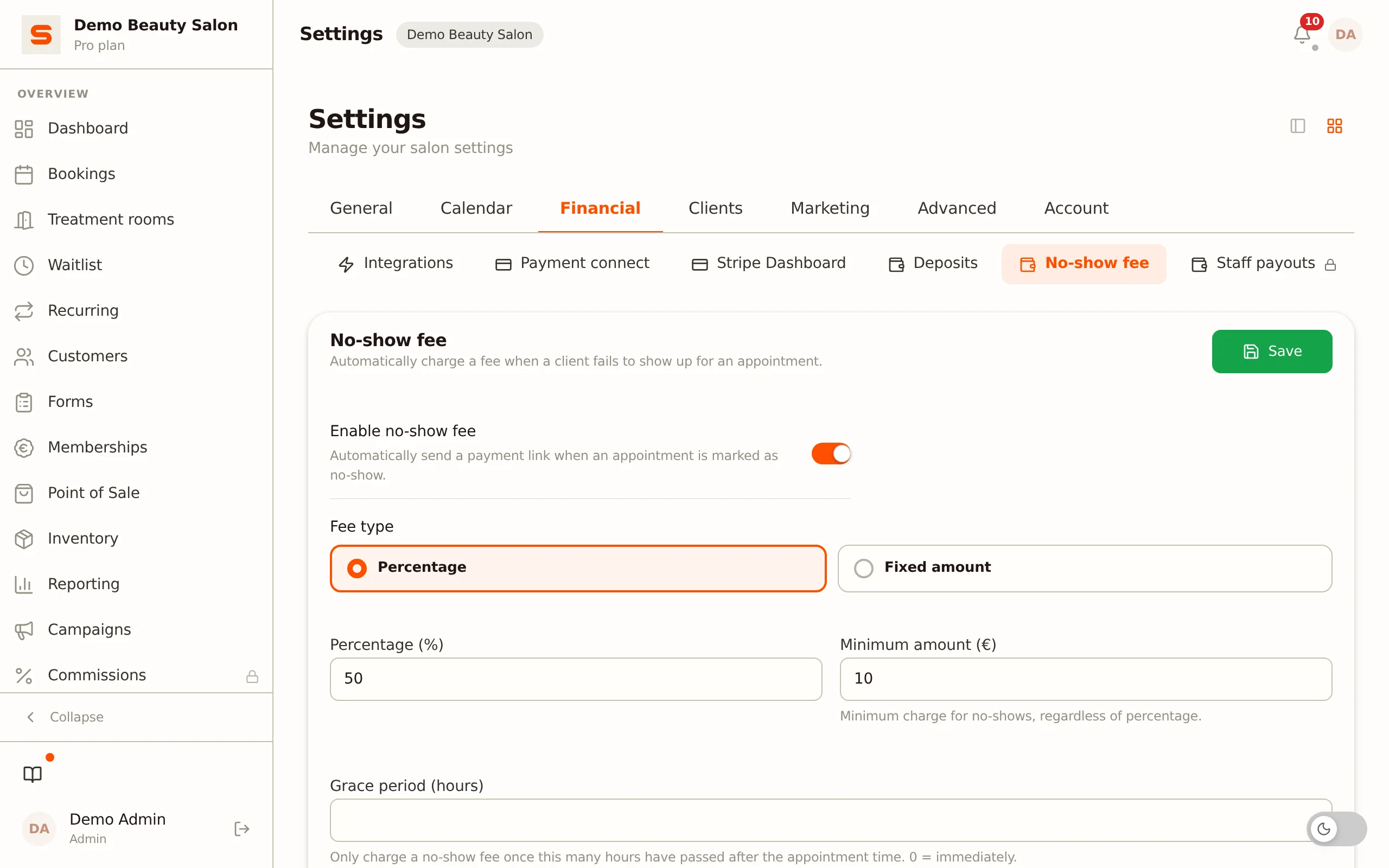
- Go to Settings.
- In the Financial group, choose the No-show fee section.
- Turn on Enable no-show fee.
- Configure the rules:
| Setting | What it does |
|---|---|
| Fee type | Choose Percentage (a percentage of the service price) or Fixed amount (a fixed amount in euros). |
| Percentage / Fixed amount | The percentage (for example 50) or the fixed amount (for example 25). |
| Minimum amount | Percentage only. The lowest fee that will be charged. Example: if you set 20% with a minimum of 10, a 30 euro service still costs 10 euros (not 6 euros). |
| Grace period (hours) | Only charge a fee once this many hours have passed after the appointment time. 0 = immediately. |
| Require card (auto-charge) | Collect a card at booking. When you mark an appointment as no-show and choose No-show fee, the fee is charged to that card automatically after the grace period. Requires Stripe and the No-show fee required email (see below). |
- Click Save.
You cannot enable the no-show fee without entering an amount. Salonnare will show a validation error.
A common setting is 50% of the service price with a minimum of 15 euros. This is fair to clients while protecting your revenue.
The emails around no-show fees are no longer in this section. You switch them on or off under Settings > Email templates: the No-show fee required row is the email with the fee and the payment link, the No-show fee received row is the confirmation after the client has paid. Both are on by default. Until this move, a single switch sent both emails; your existing setting was carried over, so nothing changes until you flip something yourself. See Email templates.
If the No-show fee required email is off, no payment request is sent after a no-show and nothing is charged: not automatically, and not when you mark an appointment as a no-show yourself. This also applies to a card the client saved in advance: no email, no charge. That way you can record no-shows without the client getting a bill.
What happens automatically on a no-show
Step 1 -- Mark the appointment as no-show
- Open the appointment in the calendar (or via the notification center).
- Click the status dropdown (or the Mark as no-show button) and confirm.
A confirmation dialog appears first, showing the client name, date and service. Click Yes, no-show and the appointment is only marked as no-show after the email choice in step 2.
Step 2 -- Choose the email (or skip it)
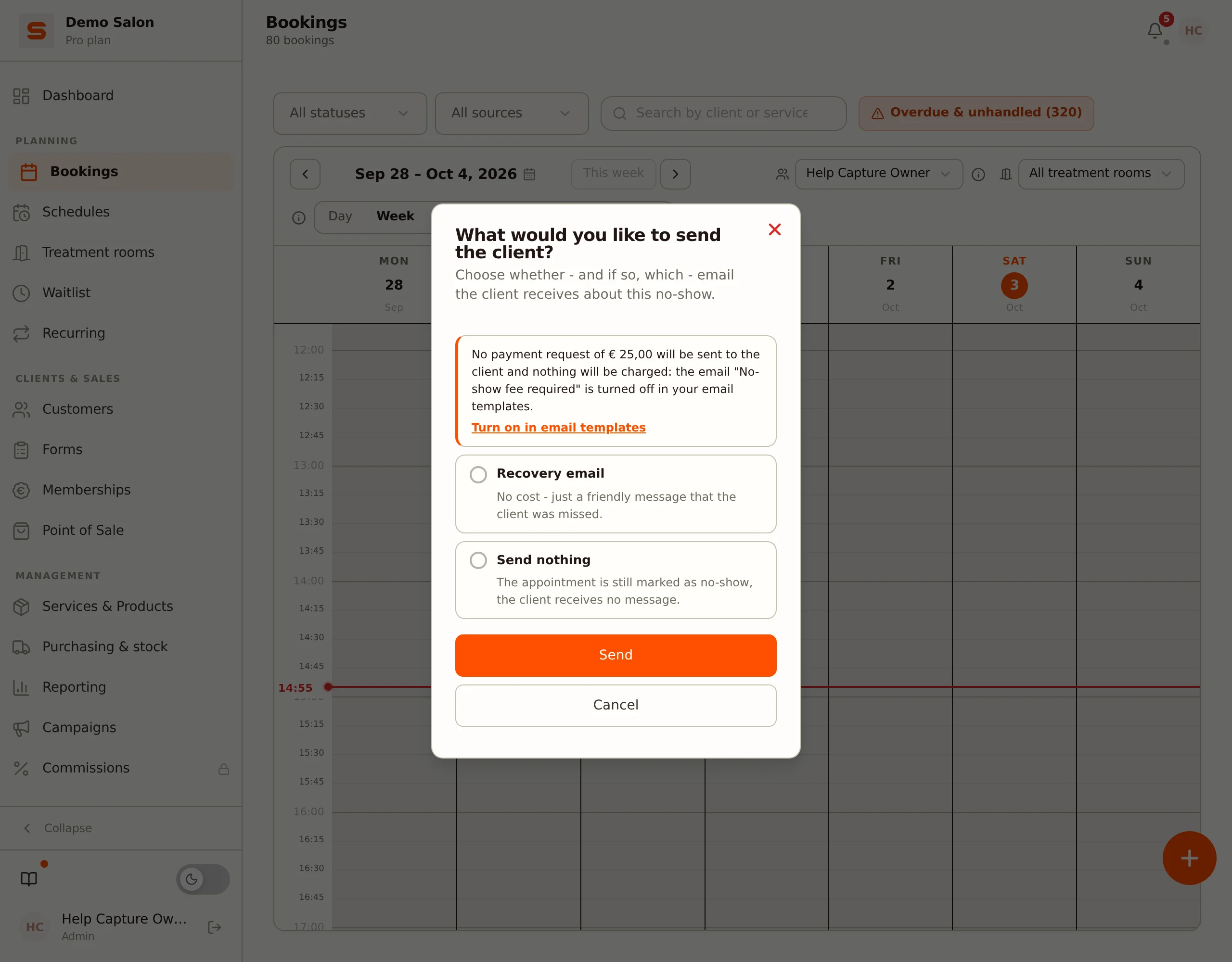
After confirming, a second dialog shows three options:
| Option | Payment link | When available |
|---|---|---|
| Recovery email | No | Always |
| No-show fee | Yes, with the amount shown in the choice. If the client has a card on file, no link but a charge to that card | Only if the no-show fee is enabled, the No-show fee required email is on in your email templates, AND a fee applies to this appointment |
| Send nothing | -- | Always |
The no-show fee option has a clear "Includes payment link" badge, so you never confuse it with the recovery email. Pick an option and click Send.
What the email choice tells you about the payment request:
- If the No-show fee required email is off, the top of the choice reads: No payment request of [amount] will be sent to the client and nothing will be charged: the email "No-show fee required" is turned off in your email templates. The No-show fee option is then missing, and the link Turn on in email templates takes you to the switch.
- If the email is on and a fee applies, choose No-show fee: below it you read If you choose No-show fee, the client receives a payment request of [amount] with a payment link.
- If the client has a card on file (under Require card), the choice is still called No-show fee, but it means: after the grace period the amount is charged to that card, without a separate payment link. If you choose anything else, nothing is charged.
Step 3 -- Salonnare calculates and sends the chosen email
- Salonnare calculates the fee based on your settings (for multiple services, on the sum of the prices). A paid deposit is not deducted from it.
- If a grace period is set and has not yet passed, the no-show fee option shows no amount and does not appear in the list.
- If you choose the no-show fee, the client receives an email with the appointment date, the service, the amount and a payment link.
- If you choose the recovery email, the client receives a friendly message with no payment link and no cost.
- If you choose to send nothing, the appointment is still marked as no-show, but the client receives no message. No payment request is sent and nothing is charged, and the window says so as soon as you make this choice.
If Require card (auto-charge) is on and the client has a card on file, the fee is charged automatically from the card after the grace period, but only if you choose No-show fee when marking and the No-show fee required email is on. No separate payment link is sent. If you mark the appointment as no-show any other way (the recovery email, send nothing, several appointments at once), nothing is charged.
Step 4 -- The client pays
- The client clicks the payment link in the email (only for the no-show fee option).
- They see a secure payment page (via Mollie or Stripe, depending on your settings).
- They enter their payment details and pay.
Step 5 -- Confirmation
Once the client pays, the no-show fee is recorded as paid in the reports.
Finding no-show fees
Want to see all no-shows and the status of the fees?
- Go to Reporting.
- Open the No-show tab.
At the top you see the KPIs:
| KPI | What it shows |
|---|---|
| Total no-shows | Number of missed appointments |
| Paid | Number of paid no-show fees |
| Pending | Number of fees not yet paid |
| Total fees | Sum of all charged fees |
| Collected fees | Sum of the paid fees |
| Recovery rate | Percentage of fees that has been paid |
If there are still open payment requests, you first see Open payment requests: per request the client, the appointment date and the amount. With Resend the client receives a new payment link by email (only for a request via Stripe and if the No-show fee required email is on; a request via Mollie cannot be resent here).
Below that you find No-shows by client: a table with, per client, the number of no-shows, how many of those were paid and the date of the last no-show.
Clients who repeatedly fail to show up
Under the same settings you find No-show pattern flagging. When enabled, clients who reach the threshold get a warning badge in the calendar and the appointment search.
- Threshold (number of no-shows) -- from this count the client gets the badge.
- Window (months) -- no-shows are counted within this number of months.
Tips to reduce no-shows
No-show fees are a safety net, but prevention is better:
- Send reminders -- Salonnare can send automatic reminder emails.
- Ask for a deposit -- see Setting up deposits.
- Make rescheduling easy -- clients show up more often if they can easily move their appointment.
Want to know more about payments? See Setting up payments. Need help managing appointments? See Managing appointments.