Multiple treatments in one appointment
Sometimes a client wants more than one treatment back to back -- a cut and colour, for example, or a wash, cut and blow-dry. Instead of creating separate appointments, you link all treatments to a single booking. The client gets one confirmation email, one calendar item and one checkout at the till.
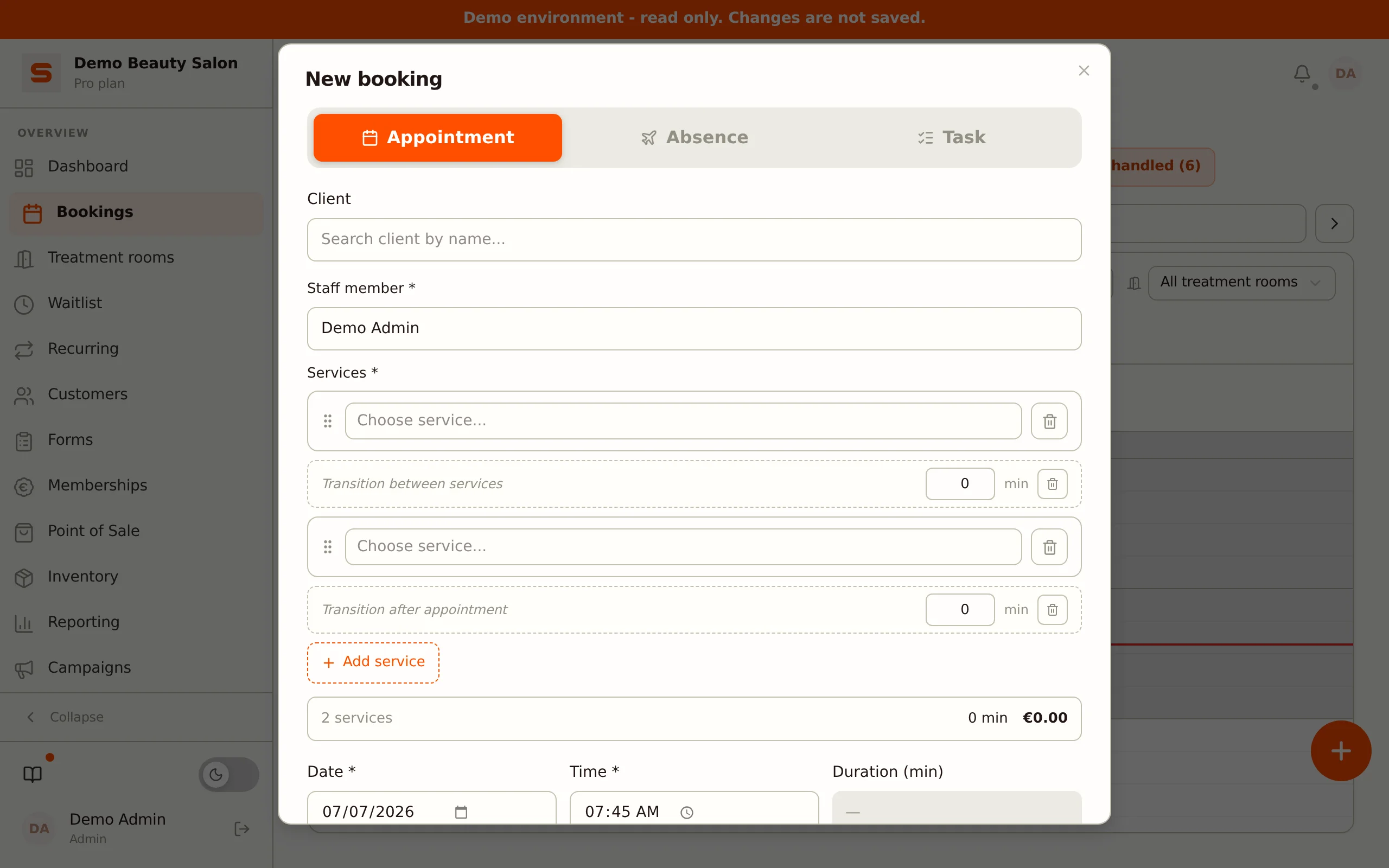
Multiple treatments per appointment always works -- there is nothing to switch on. Each appointment can hold up to ten treatments.
When to use this
- Treatment combinations -- cut + colour, facial + brow shaping, manicure + pedicure.
- Different specialists per treatment -- the colour specialist does the colour, another staff member does the wash (only when Staff member per service is on).
- Longer blocks with a clear price breakdown -- the client sees exactly which treatments are in the appointment and what each costs.
Creating an appointment with multiple treatments (admin)
- Open Bookings and click an empty time slot (or New booking).
- Select a client.
- Choose the staff member (applies to all treatments, unless you set a staff member per treatment).
- Add the first treatment from the list.
- Click Add service to choose a second or third treatment (up to a maximum of ten).
- Optionally, click the Staff per service button above the list and choose a different staff member per row. You only see that button when the Staff member per service setting is on -- see below.
- The total duration and total price are calculated automatically at the bottom.
- Click Save.
The appointment appears as a single block in the calendar. The length of the block is the sum of all treatments, plus any transition time in between.
Added one treatment too many? Click the bin icon next to the row to remove that treatment.
Editing treatments in an existing appointment
Open the appointment and click Edit. In the treatment editor you can:
- Add a treatment with the Add service button.
- Remove a treatment with the bin icon.
- Change the staff member for a treatment (when Staff member per service is on).
- Change the order of the treatments by dragging the handle -- the drag icon to the left of each treatment. The new order is kept when you save and determines the calculated end time.
After saving, the appointment's end time is automatically adjusted to the new total duration.
Several staff members on one treatment
When Staff member per service is on, you can also add Extra staff under each treatment -- for a treatment that two or more staff members do together. Click Add staff member, choose the staff member and optionally fill in a Revenue share (%). The Lead staff member's share is what remains (100% minus the extra staff) and Salonnare calculates it for you. Together, the extra staff members may not get more than 100%.
How many staff members a treatment needs by default is set per service with Number of staff members (1 to 5, see Services).
Settings
Go to Settings > Calendar settings, block Multiple services, to configure the behaviour. Note: there is no switch to turn multiple treatments on or off -- it is always on. You can configure:
- Staff member per service -- turn on if different specialists do different treatments. With this off, all treatments are assigned to the same staff member.
- Transition time (changeover) -- automatically reserve a buffer. Turn this on and then fill in two fields (0 to 60 minutes): Transition between services (minutes) for the time between consecutive treatments in the same appointment, and Transition between appointments (minutes) for the time after the appointment, before the next one. Both count towards the appointment duration in the calendar.
- Maximum block duration (minutes) -- upper limit for the total duration of one appointment (default 240 minutes, or 4 hours). Exceed it and you get a warning.
The maximum number of treatments per appointment is fixed at ten and cannot be changed.
In the online booking wizard
Clients can choose multiple treatments themselves too -- you do not need to enable this separately. In the booking wizard the client sees:
- Step 1: choosing treatments -- they tick multiple cards (up to a maximum of ten). The category tabs and search bar help them quickly find the right treatment.
- A live running-total bar at the bottom showing the number of selected treatments, the total duration and the total price.
- A notice as soon as they reach the maximum of ten treatments.
- An overview of all chosen treatments at the confirmation step.
The full set of treatments the client chooses is booked correctly as a single appointment.
At the till
When checking out an appointment with multiple treatments, each treatment appears as a separate line on the receipt. This means:
- The receipt shows each treatment separately with its own name and price -- handy for client clarity and your bookkeeping.
- You can apply a discount per treatment (for example, only on the colour).
- VAT is calculated per treatment according to that specific service's VAT rate.
Emails to the client
Confirmation, change and reminder emails show all treatments in a clear list. With a single treatment, the email looks exactly like a regular appointment.
Frequently asked questions
Do I need to enable multiple treatments somewhere? No. Multiple treatments per appointment always works, both in the admin and in online booking. Only Staff member per service and Transition time are optional settings.
How many treatments can I link to one appointment? A maximum of ten.
Can a client leave the salon between treatments? No -- the treatments are scheduled as one continuous block. Want breaks in between? Then create separate appointments.
Can a client book multiple treatments themselves? Yes, that is always possible in the online booking wizard. The client simply ticks multiple treatments.