Holidays and closed days
With holidays and closed days you set the days your salon is closed. On those dates, Salonnare automatically blocks online bookings: clients won't see any available times and can't book an appointment. This prevents bookings on days when no one is working.
Your own calendar takes them into account too: if you schedule an appointment yourself on a closed day, the calendar first asks whether you really want to (Book anyway).
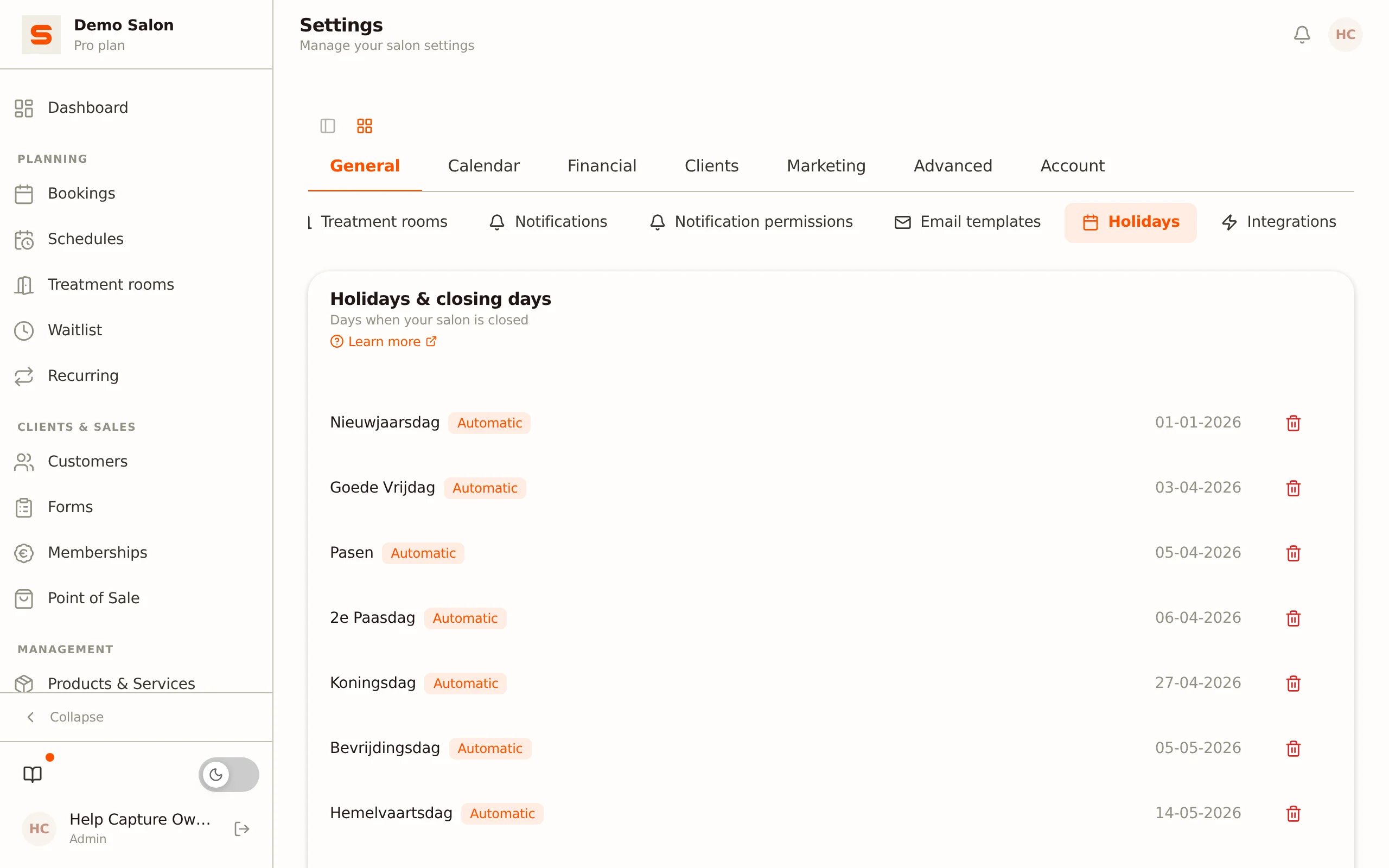
Opening the overview
- Go to Settings.
- In the General group, open Holidays. The card is called Holidays & closing days.
You'll see a list of all configured closed days, sorted by date in ascending order. If no days have been set yet, Salonnare shows "No holidays configured".
Automatic versus manual days
There are two types of days in the list:
| Type | What it means |
|---|---|
| Automatic | Dutch statutory public holidays that Salonnare adds itself (such as King's Day, Christmas Day), always for the current year and the two years after. They get an orange Automatic badge. |
| Manual | Days you add yourself, such as a training day, holiday, or an extra day off. |
Both types work the same way: online booking is disabled on that date.
Adding a closed day
- Fill in a recognisable description in the Holiday name... field, for example "Summer holiday" or "Team outing".
- Choose the date with the date picker.
- Click Add.
The day appears immediately in the list, in the correct place in date order. The date is displayed as dd-mm-yyyy. A date can only appear once in the list: if you pick a date that is already there, Salonnare shows "There is already a holiday or closing day on this date."
Add a closed day well in advance. Clients wanting to book further into the future will then immediately see the day as unavailable and naturally pick a different date.
Removing a closed day
Click the bin icon next to the day you want to remove. The day disappears from the list and clients can book online again (provided a staff member has a schedule available that day).
An automatic holiday that you remove stays removed. Salonnare remembers that you removed that date and no longer puts it back during the daily update of the holiday list. This works per date: the same holiday in a following year is still added to the list. If you want a removed holiday closed again later, simply add the day yourself again.
If you remove a day that already had appointments on it, those existing appointments simply remain in place. Removing the day only reopens online availability.
How closed days work together with schedules
Online availability results from two things combined: your staff members' schedules and your closed days. Even if a staff member has a schedule on a public holiday, the closed day blocks online bookings for that date. This means you don't have to adjust every schedule separately around a holiday.
You set your staff schedules via Planning > Schedules in the menu; that opens Settings > Staff. See Online Bookings for the full online booking settings.
Tips
- Add your fixed closures a year ahead. Add holidays, training days, and long weekends all at once as soon as you know them.
- Use clear names. "Christmas holiday" is easier for you and your team to find again than a bare date.
- Check the automatic holidays. Are you actually open on a national holiday? Then remove that day from the list; it will not come back, and clients can then book online again on that day.