Services and categories
Services are the treatments your salon offers -- cuts, colour treatments, manicures, facials, and everything in between. Organising them into categories keeps things tidy for you and easy to browse for your clients.
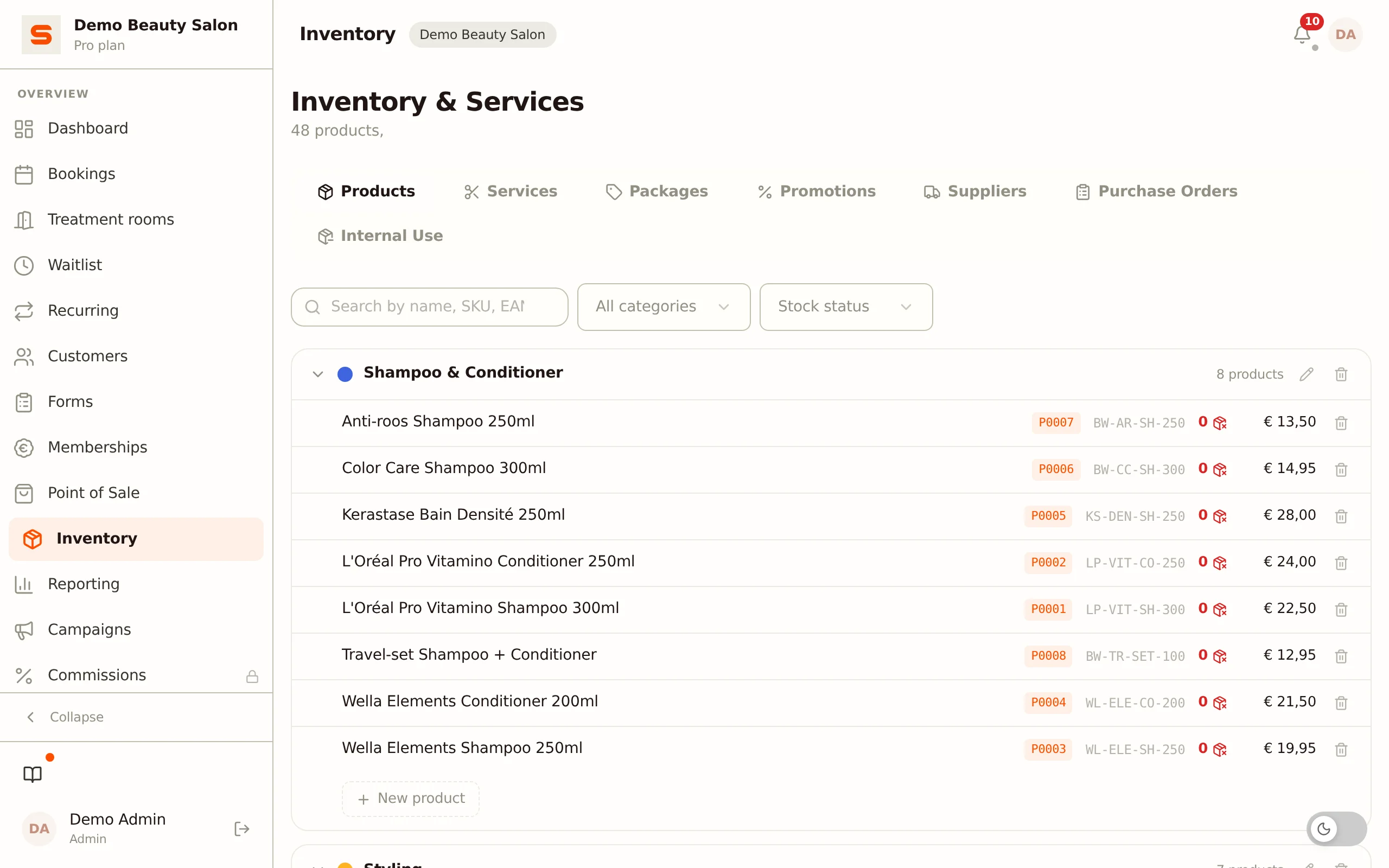
Where to find services
You manage services under Services & Products in the sidebar. That page opens on the Services tab. There you'll find all your categories with their treatments.
On the same page you'll also find the Products and Promotions tabs (the latter containing Packages and Promotions). If a feature isn't part of your plan, that tab shows an explanation on how to upgrade.
Understanding categories
Categories are like folders that group related services. For example:
- Hair -- Cutting, blow-dry, colouring, highlights
- Nails -- Manicure, pedicure, gel nails
- Skincare -- Facial, peeling, eyebrows
Clients see these categories on your online booking page, so a clear structure helps them quickly find what they need.
Creating a category
- Go to Services & Products in the sidebar and open the Services tab.
- Click New category.
- Enter a name and pick a colour for the category.
- Click Save.
Your category is ready -- now you can add services to it.
Reordering categories
Want to rearrange your categories? Drag a category to the position you want. The order you set here is the order clients see on your booking page.
Adding a service
- On the Services tab, open the category you want to add the service to.
- Click New service.
- Fill in the details:
- Name -- The name of the treatment (visible on your booking page and receipts).
- Category -- Which category the service belongs to.
- Duration (min) -- How long the service takes, in minutes.
- Price -- The selling price.
- VAT rate -- Which VAT rate applies to this service.
- Click Save.
The article number is assigned automatically.
Create at least one category first -- you can only add a service once there's a category to place it in.
Inclusive service
Turn on the Inclusive service toggle if this treatment has one fixed price regardless of the client's gender. A badge then appears on your public booking page to make that clear -- handy for gender-neutral pricing.
Treatment room required
Turn on Treatment room required for services that need a free treatment room. The online booking wizard then only offers times when a suitable room is also available, so you never double-book. With Default treatment room you choose the room that is picked automatically for this treatment. See Treatment rooms.
Number of staff members
Under Number of staff members you set how many staff members this treatment needs at the same time (1 to 5). This is a default: you can adjust it per appointment.
Description
Fill in Description with a short explanation of the treatment (up to 500 characters). Clients see this text on your online booking page via an (i) icon next to the service name -- useful for explaining what a treatment involves without cluttering the card itself.
Images
Under Images you add up to 3 photos of the treatment. For a new service they are uploaded as soon as you save the service.
Course (cure)
Turn on Offer as a course to also offer this treatment as a course (cure): the same treatment repeated several times, at a course price that may be lower than the sum of the individual prices. Add one row per course option with Add course option:
- Number of sessions -- how many sessions the course includes (2 to 12).
- Course price -- the total price of the course. Pre-filled based on the single price times the count, but you can lower it.
- Payment timing -- Pay everything upfront or Pay per session.
You can offer several cure options side by side on the same treatment (for example a 4x and a 6x option). How your client books a course, how paying works and how you sell a course at the desk is covered in Cures.
Bookable online and archived
- Bookable online -- If you turn this off, you can still schedule the service yourself in the calendar, but it no longer appears on your public booking page. In the list it gets the label Not online.
- Archived -- An archived service is no longer offered for new appointments, but stays visible in existing appointments. Handy if you no longer offer a treatment but want to keep its history.
Restricting availability (advanced)
At the bottom of the service form there's a collapsible Availability (advanced) block. Use it to limit when a service can be booked online:
- Allowed days -- Check the days the service is available. If you leave everything unchecked (or select all days), no restriction applies.
- Allowed time windows -- Use Add window to add one or more time windows (for example 09:00 -- 12:00) within which the service may be booked.
This lets you protect your long, lucrative slots by offering short treatments only on certain days or times.
Editing a service
- Find the service in your list.
- Click it or the edit icon to open the form.
- Make your changes.
- Click Save.
Changes take effect immediately -- including on your online booking page.
Reordering services
Within a category you can drag services into the order you want. This is the order clients see when booking online, so put your most popular services at the top.
Deleting a service
If you no longer offer a treatment, you can delete the service using the delete icon next to it. The service disappears from your booking page and point of sale. If the service is part of a package, it also disappears from that package (see Packages). Would you rather keep the history? Archive the service instead of deleting it.
Tips for a good service menu
- Keep names clear and simple -- "Women's haircut" is better than "Cut & Style Deluxe Package."
- Set realistic durations -- Include time for preparation and cleanup if needed.
- Use categories wisely -- Don't create too many. Three to five categories works well for most salons.
- Review regularly -- Remove services you no longer offer.
Want to bundle services at a special price? See Packages.