

Does a client come in every four weeks for her nails or her colour? Then she can book those appointments on your booking page in one go: "Repeat this appointment, every 4 weeks, 4 times". Salonnare checks each date separately and puts everything in the calendar at once.
You decide per service whether this is allowed. It's included in the Starter and Pro plans.
Turning it on for a service
-
Step 1: Open the service
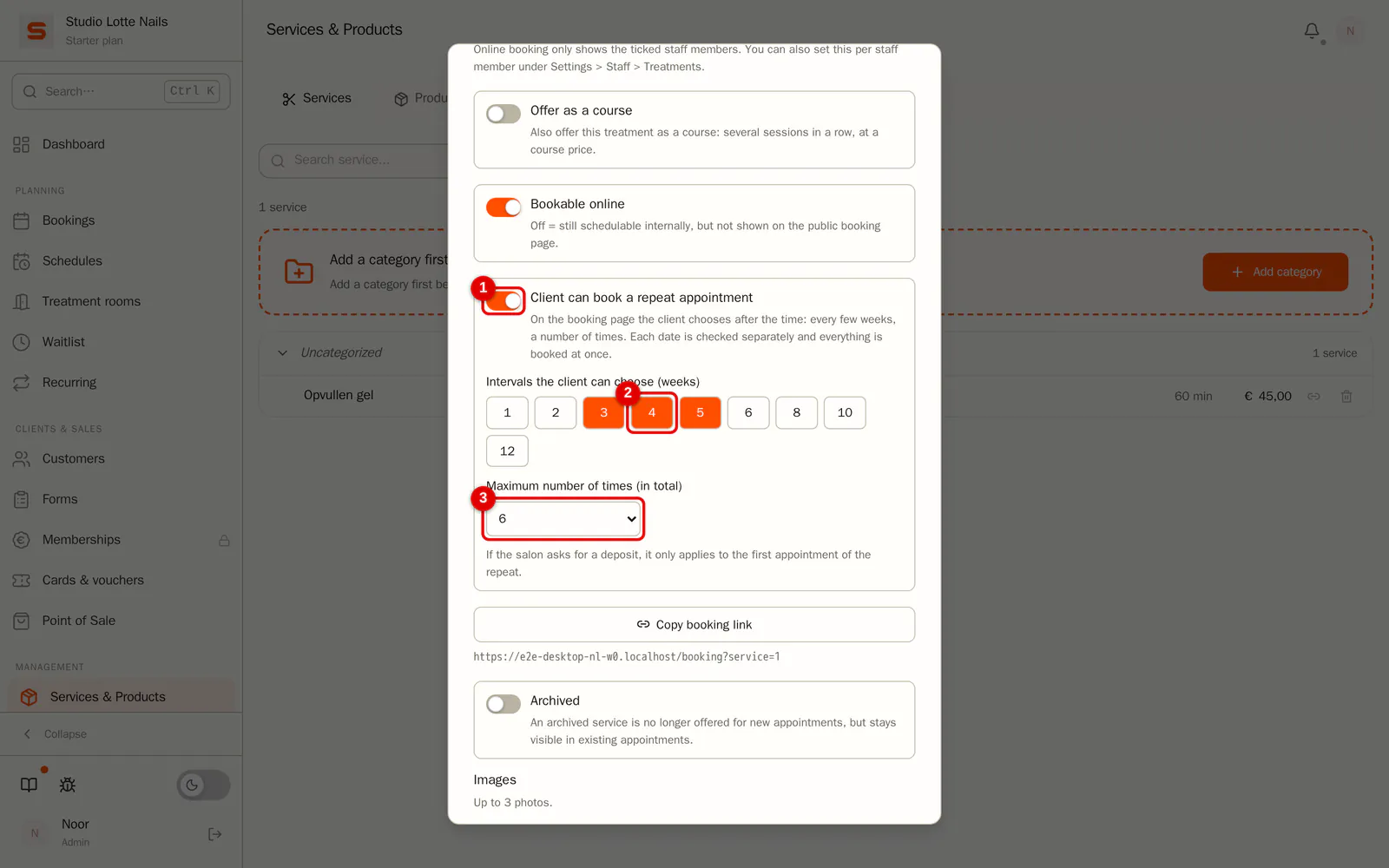
Go to Services and open the service. Turn on Client can book a repeat appointment. Under Intervals the client can choose (weeks), pick the intervals the client can choose from, for example 3, 4 or 5 weeks. Under Maximum number of times (in total), set how many appointments she can book at most, the first appointment included. Click Save.
 (Enlarge image)
The switch only appears for a service that can be booked online and is assigned to one staff member. If your salon books with requests (booking mode Request), it works too: see below, As a request.
What the client sees
-
Step 1: Repeat this appointment
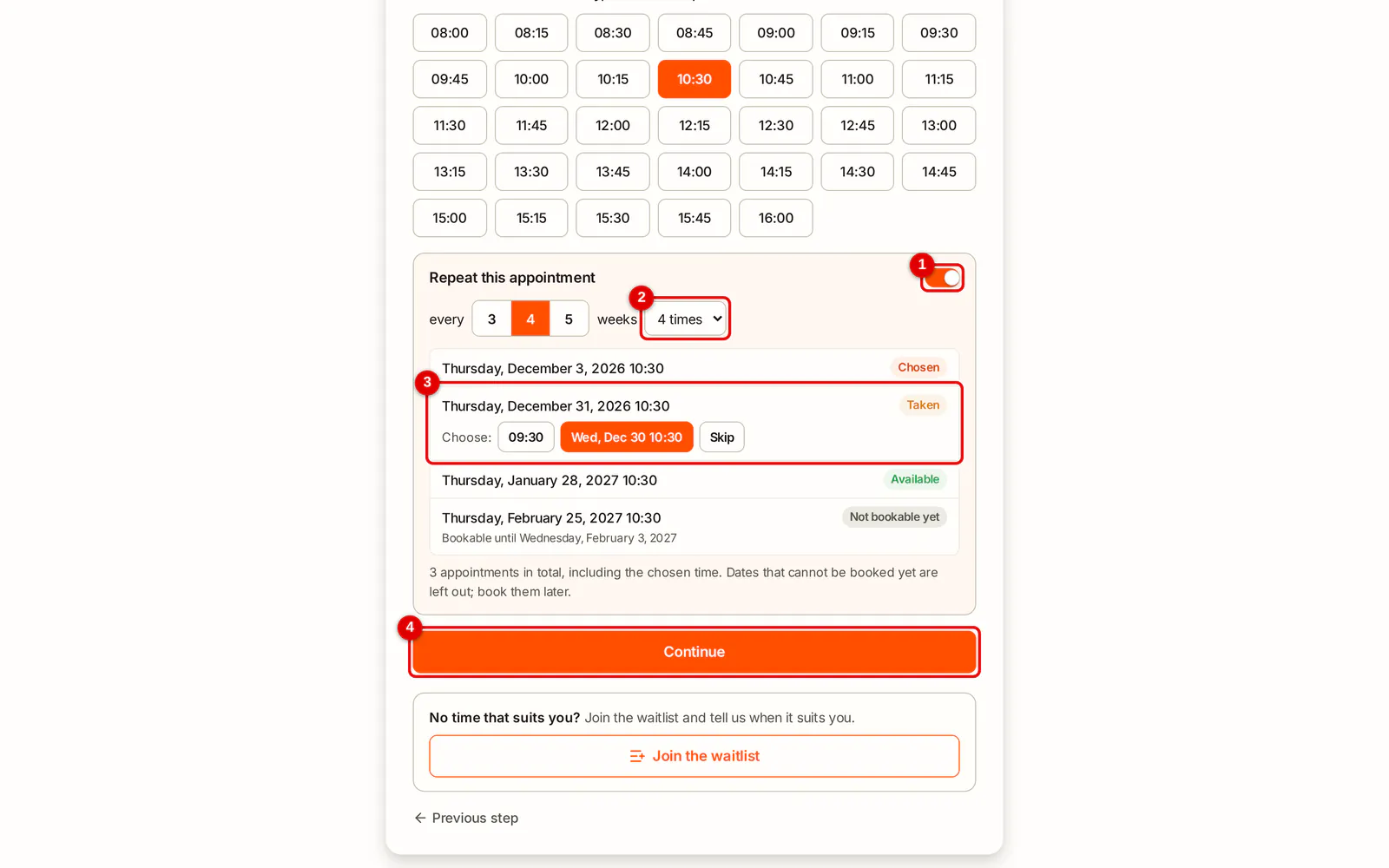
After choosing a time, Repeat this appointment appears below the times. The client chooses every X weeks and how many times. For each date she sees straight away whether it's free:
- Available: same staff member, same time.
- Taken: she picks a suggestion (another time that day, or the nearest day at the same time) or skips the date.
- Closed: the salon is closed that day or it's a public holiday. She gets a suggestion here too.
- Not bookable yet: the date is further ahead than you allow online bookings. We leave it out; the client books it later.
 (Enlarge image)
-
Step 2: Confirm
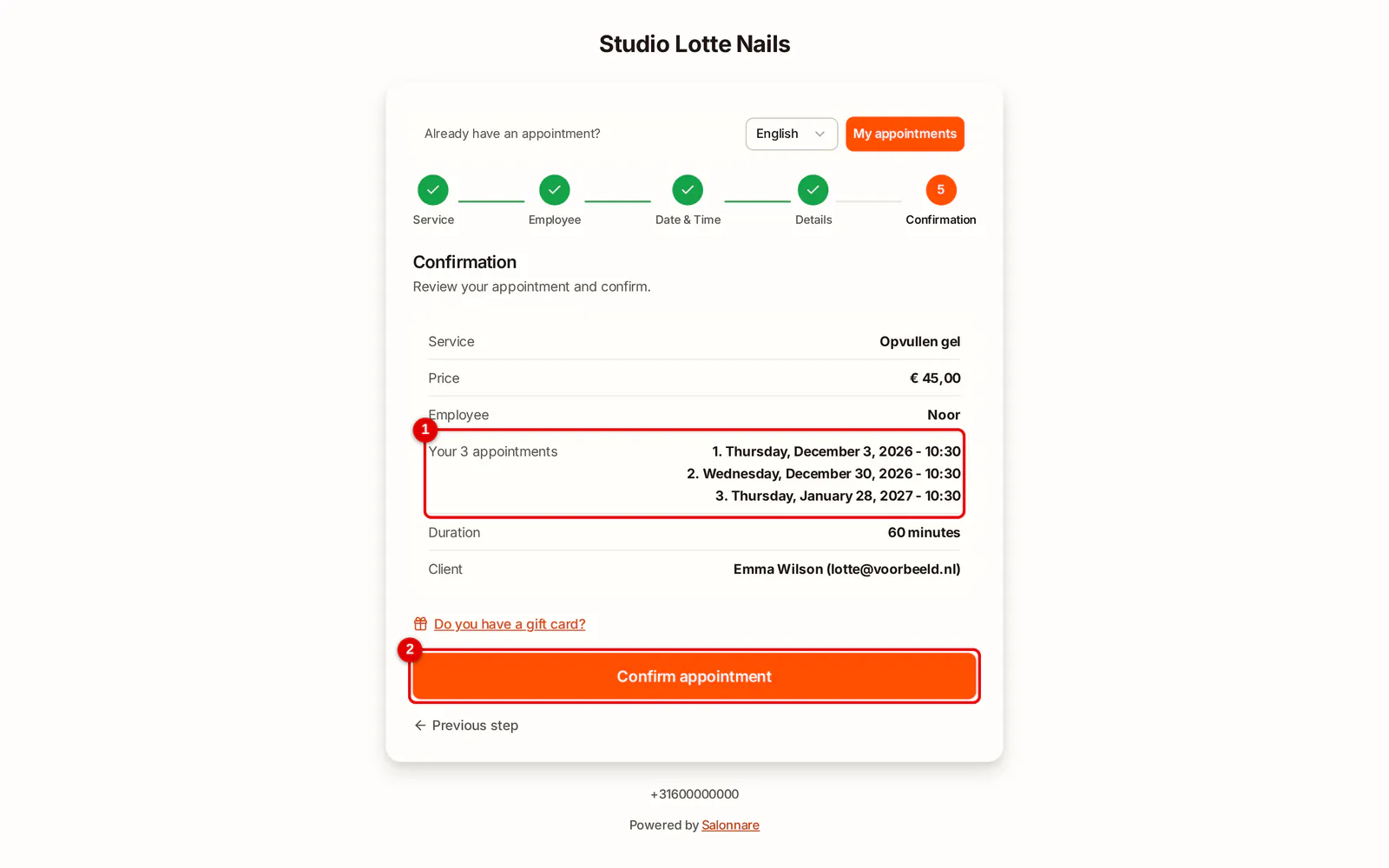
At Confirm, all appointments are listed below each other. Everything is booked in one go: if one date gets taken just then, no appointment is booked at all and the client sees the dates again.
 (Enlarge image)
In the calendar and under Recurring
The appointments are normal appointments in the calendar, with the same staff member. The series also appears under Recurring, so you can find it again. Salonnare doesn't extend a client's series by itself: it stops at the last date the client chose. Want to extend it? Edit the series or let the client book again. See Recurring appointments.
As a request
If your salon is on booking mode Request, all appointments of the repeat come in as a request. They hold their slot until you decide. The client doesn't get a confirmation yet.
- Open one of the appointments in the calendar. You see the whole series, with the status per date.
- Click Confirm whole series or Decline whole series. That applies to all appointments of the series at once; approving a single appointment on its own isn't possible. With Email the client you choose whether the client gets an email.
- The buttons in the New booking request email work the same way: they also apply to the whole series.
- If you confirm, the client gets the normal confirmation with all dates. If you decline, she gets one email with all cancelled appointments and the series shows under Recurring as Declined.
- Rescheduling or cancelling a single appointment works as always. If you confirm one in the calendar, you confirm the whole series.
Emails and reminders
- The client gets one confirmation with all dates listed, not an email per appointment. In the email builder that block is called Repeat appointment dates.
- Before each appointment the normal reminder goes out, as with any appointment.
- You get the New online booking notification once, with all dates of the series in it.
Deposit
If you ask for a deposit, it applies only to the first appointment of the repeat. Until it's paid, the other appointments wait too. Once paid, they're all fixed and the client gets the email with all dates. If the payment period expires, the other appointments lapse too.
Cancelling and rescheduling
- One appointment: the client cancels or reschedules it under My appointments, like any appointment. The rest of the series stays.
- The whole series: under My appointments, a repeat has Cancel whole series. That cancels this appointment and all following ones. Anything within your cancellation period stays; the client sees which ones. She gets one cancellation email with all cancelled appointments.
- Under Recurring such a series then shows as Cancelled by client. Use the All statuses filter to find them.
What if ...
... a staff member leaves? Then nobody can book a repeat with her anymore. Appointments already booked stay in her calendar: move them to a colleague, just like other appointments.
... the client doesn't choose a staff member? Then Salonnare picks someone who is free on all dates, so the client always sees the same person.
... daylight saving time starts or ends? The time stays the same on the salon's clock: 10:30 stays 10:30.
... the client wants to add products or books with a punch card? That only works for a single appointment. For a repeat, the booking page skips the products step.