Walk-in without a name
If someone walks in for a quick treatment and you do not want to ask for a name, book the appointment as a Walk-in. The appointment shows in the calendar as Walk-in and counts towards revenue as usual. No new client card is created.
Booking a walk-in
-
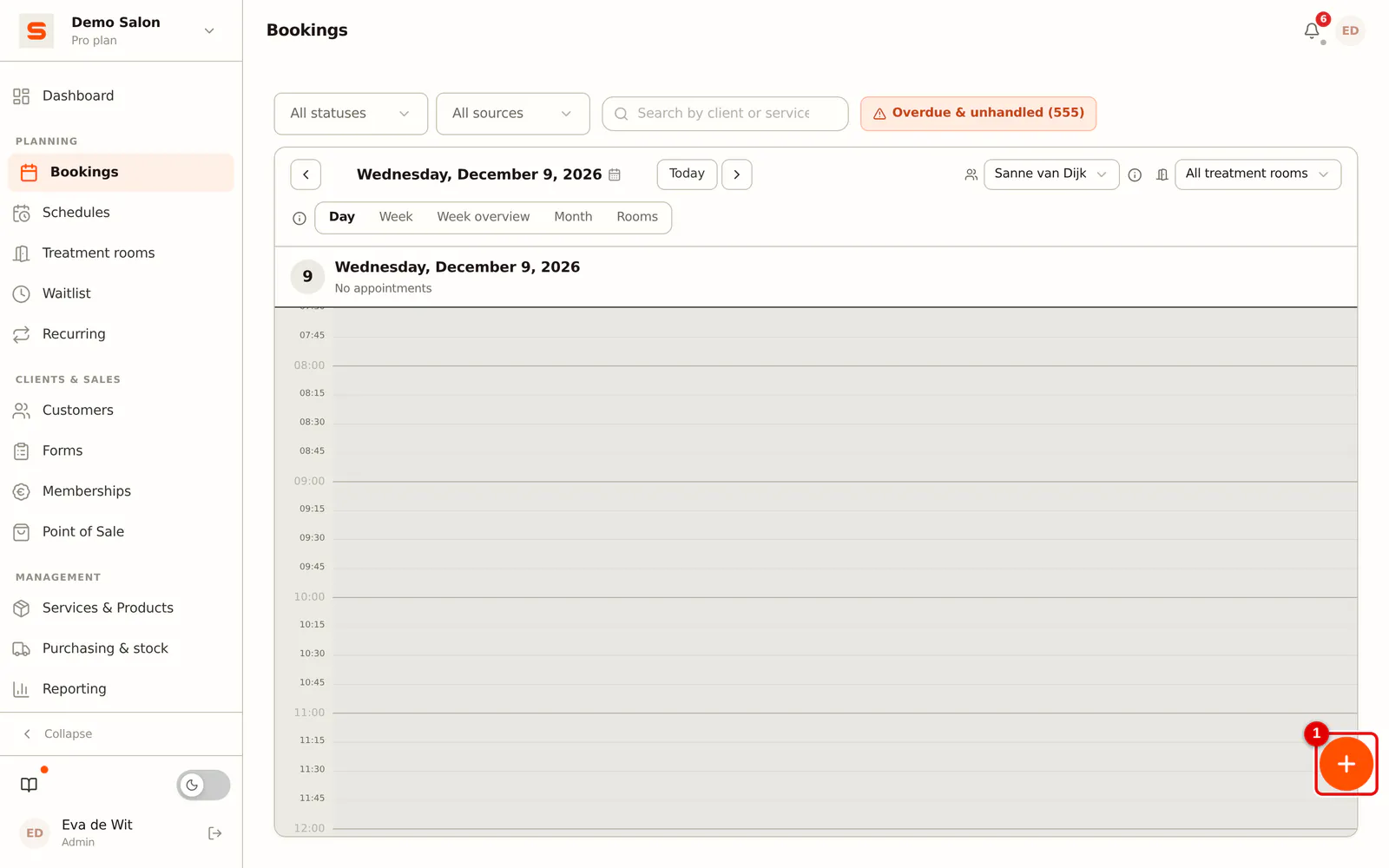
Step 1: Create a new appointment
In the calendar, click a free slot, or click New appointment.
 (Enlarge image)
-
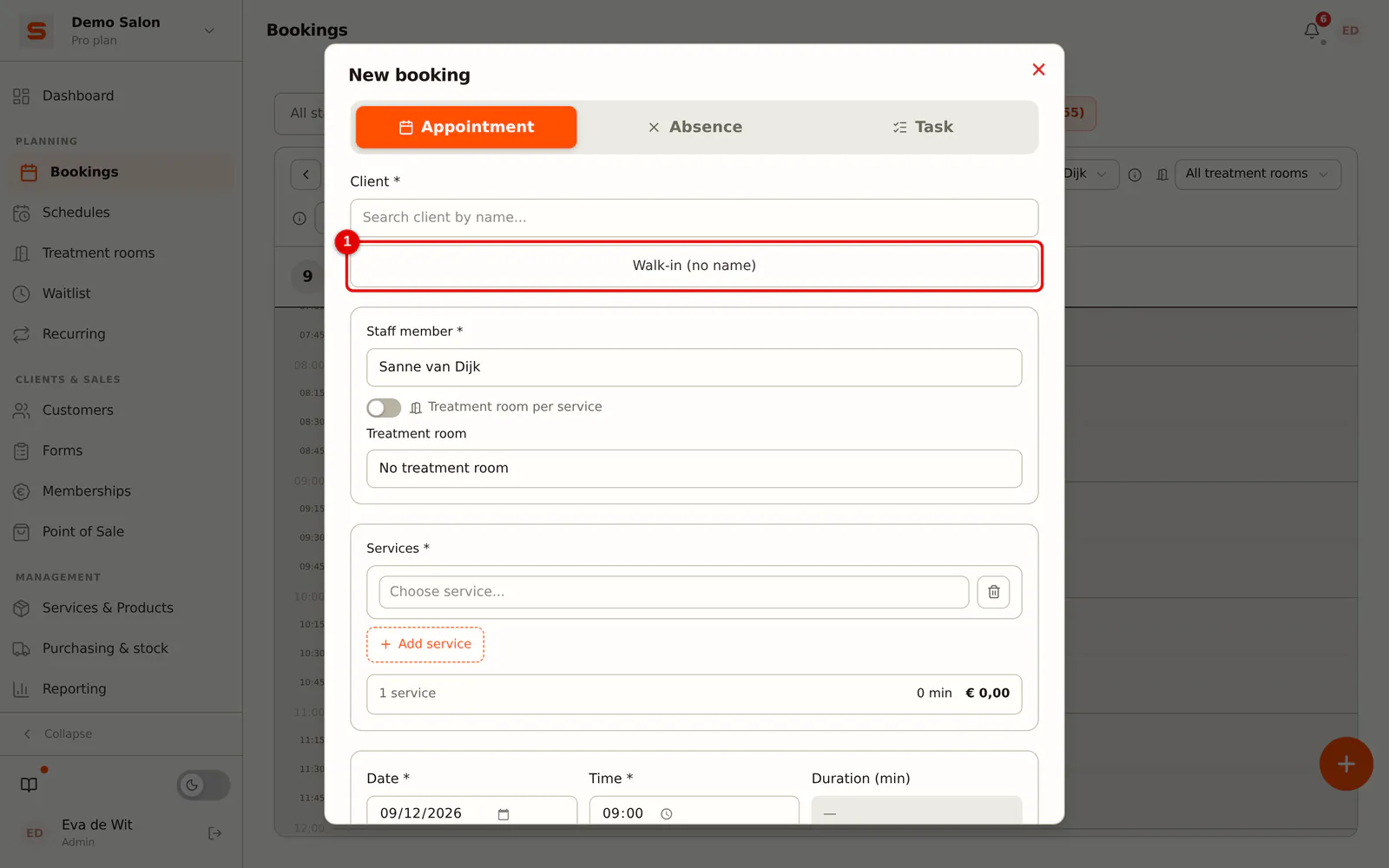
Step 2: Choose Walk-in
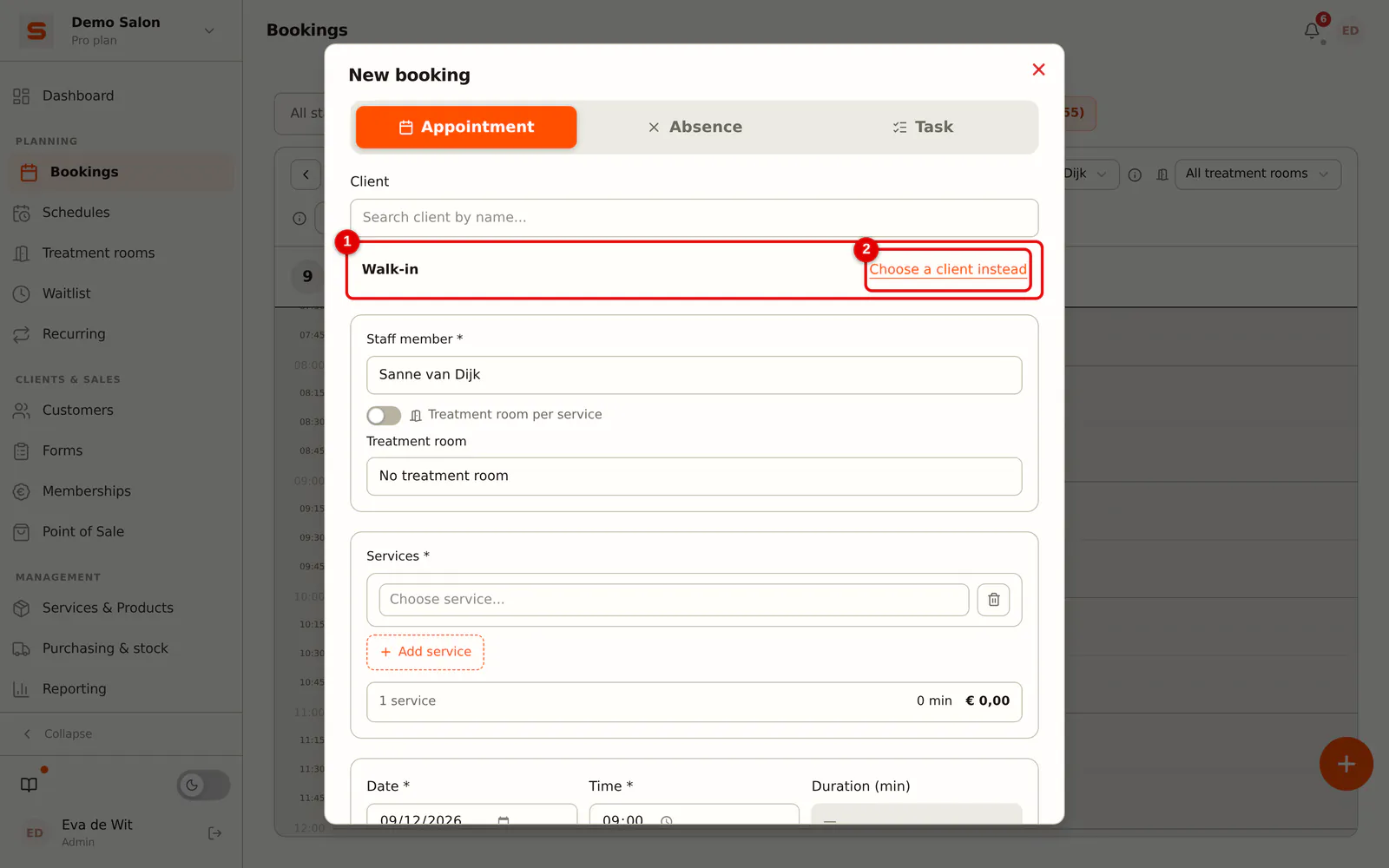
Under client, click Walk-in (no name). Choose the treatment and the staff member as usual. Want a client after all? Click Choose a client instead.
 (Enlarge image)
-
Step 3: Save the appointment
Click Save. The appointment shows in the calendar as Walk-in.
 (Enlarge image)
Checkout works as usual. The receipt has no client, so no emailed receipt, no review request and no loyalty points are sent.
Linking a client later
Do you learn the name afterwards? Open the appointment and click Link client. Choose an existing client or create one. From then on it is a regular appointment of that client.
What a walk-in does not do
- A walk-in does not count as a client in reports, segments, campaigns or the client count.
- You cannot open the walk-in as a client card.
- A walk-in never receives an email or text message.