Recurring appointments
Some clients are creatures of habit -- same day, same time, same treatment, every week. Recurring appointments save you from manually creating the same booking over and over. Set it up once and Salonnare creates the appointments for you.
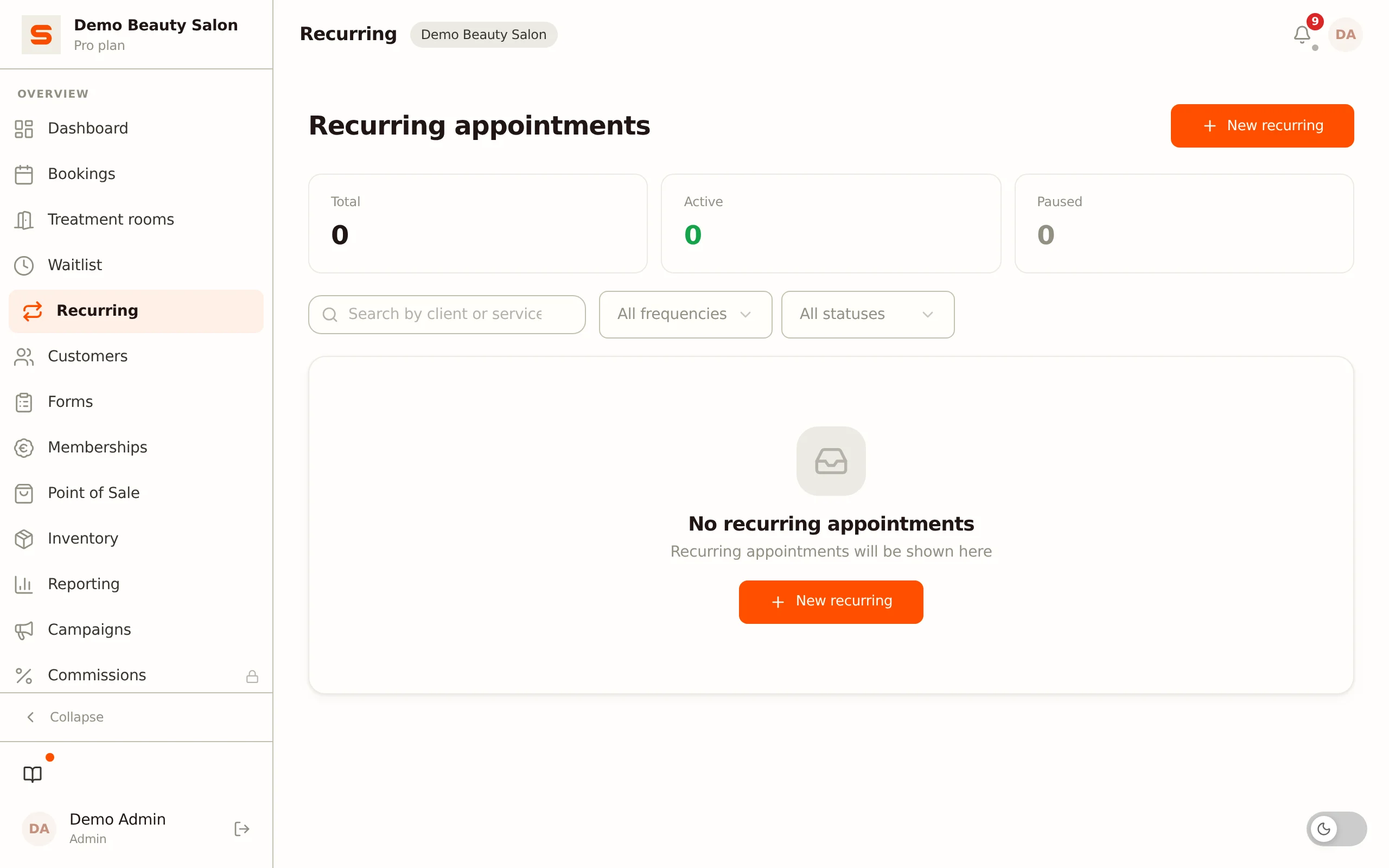
Recurring appointments have their own page in the menu: Recurring. So it is not part of the bookings screen, but a separate overview.
Creating a recurring series
- Open Recurring in the menu.
- Click New recurring.
- Select the client (search by name), the service and the staff member.
- Choose the frequency:
| Frequency | What it means |
|---|---|
| Weekly | Every week on the chosen day |
| Biweekly | Every other week on the chosen day |
| Every 4 weeks | Every four weeks on the chosen day |
| Monthly | Every month on the same date |
- Choose the day and the start time. The duration is derived automatically from the chosen service and cannot be changed separately.
- Optionally, add notes.
- Click Save.
Salonnare immediately creates the first four appointments of the series. They appear in your calendar just like regular bookings. Salonnare does not schedule an appointment on a holiday from your list of holidays; the series then moves on to a later date. If the same team member already has an appointment at exactly the same start time, that single appointment is skipped and the series simply continues. After that, Salonnare tops the series up every day, so there are always at least four upcoming appointments in the calendar, in the rhythm of the series. An appointment you cancel yourself is not created again. If a moment is skipped when you save a new series, you immediately see a message with the number.
When it creates appointments, a recurring series does not check whether an appointment partly overlaps another appointment, a break or a room. That is a deliberate choice: a regular client gets her regular slot, and you decide case by case whether to move something. So take a quick look at the calendar after creating the series to check that the new appointments fit.
With Monthly, the chosen day of the week is not used: the first appointment falls on the day after you create the series, and after that every month on that same date. If you want a fixed weekday, choose Every 4 weeks.
Recurring appointments are ideal for regular clients who always want the same time slot. You put the upcoming appointments in the calendar in one go, without entering the same appointment every time.
Editing, pausing or resuming a series
Open the Recurring page and click the series you want to change. You can change the client, service, staff member, frequency, day, time or notes. When editing, check the service and the frequency before you save.
A change to the series does not apply to appointments that are already in the calendar. If you want those to change too, adjust them in the calendar.
With the pause button in the list (the pause icon, Pause) you set a series to inactive; with the play-icon button (Resume) you make it active again. Appointments that were already created stay in the calendar either way. A paused series is not topped up.
Changing a single appointment from the series
You change an appointment from a series in the calendar just like any other appointment (see Managing Appointments). In the detail view you see the line Part of a recurring series. Whatever you change there -- time, status, notes -- only applies to that one appointment; the other appointments in the series stay as they are.
Deleting a series
- Open the Recurring page.
- Click the series and then Delete at the bottom.
- Confirm. All future appointments from this series that are still Scheduled are cancelled. Past appointments are kept.
Viewing all your recurring series
The Recurring page gives you an overview showing, per series, the client, the service, the frequency, the day and time, the staff member, the Next date and the status. The Status column shows Active or Inactive (a paused series), with the button to pause or resume next to it.
Above the list you can search and filter:
- Search by client or service... -- searches the name of the client, the service and the staff member.
- All frequencies -- shows only series with the chosen frequency: Weekly, Biweekly, Every 4 weeks or Monthly.
- All statuses -- shows only the series that are Active or Paused.
At the top you see counters for Total, Active and Paused. They count across all pages of the list and take your search term and the frequency filter into account, but not the status filter: if you choose Active, the Paused counter stays as it is.
If a series uses an interval other than the four frequencies above, that custom interval is written out in the frequency, for example Every 3 weeks, Every 10 days, Every 2 months or Daily. If you edit such a series, the same interval also shows in the Frequency field, and the series keeps it unless you choose another frequency yourself.
Want to learn more about other booking features? See Managing appointments or Online bookings.