Duo treatment with two clients
A duo treatment is a treatment for two people at the same time, with two staff members, such as a duo massage. On the service (Services & Products), choose 2 staff members (duo) under How many staff members are needed?. Only for such a treatment can you choose a second staff member and a second person; for a treatment set to 1 staff member that choice appears nowhere. If an appointment has several treatments, it applies per treatment. If you later set a treatment back to 1, existing appointments stay. If you move such an appointment, it stays a duo; if you edit its treatments, the second staff member is removed. The appointment then blocks both calendars. You only need the details of one client: adding a second person is allowed but not required. If the appointment also has a second person, the window tells you beforehand that this person is removed when you save.
If you do add a second person, they are a regular client with their own client card. They get:
- their own confirmation, reminder and cancellation email (if there is an email address);
- their own intake or health form, with their own consent;
- their own health notes, visible only to staff members who may see health notes;
- the appointment in their own visit history.
Booking a duo at the desk
-
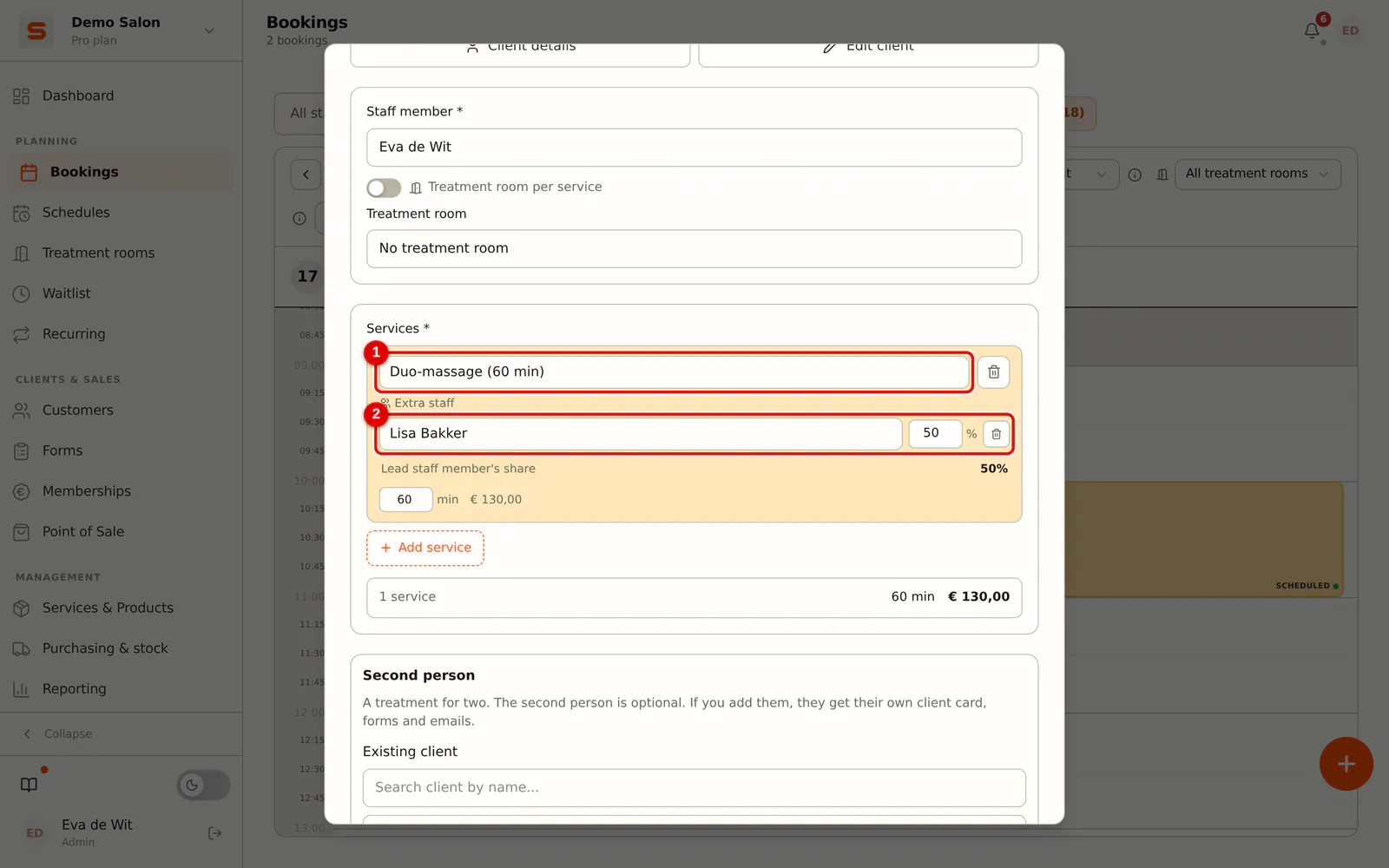
Step 1: Create an appointment with the duo treatment
Click a free slot in the calendar and choose the main client and the treatment for two.
 (Enlarge image)
-
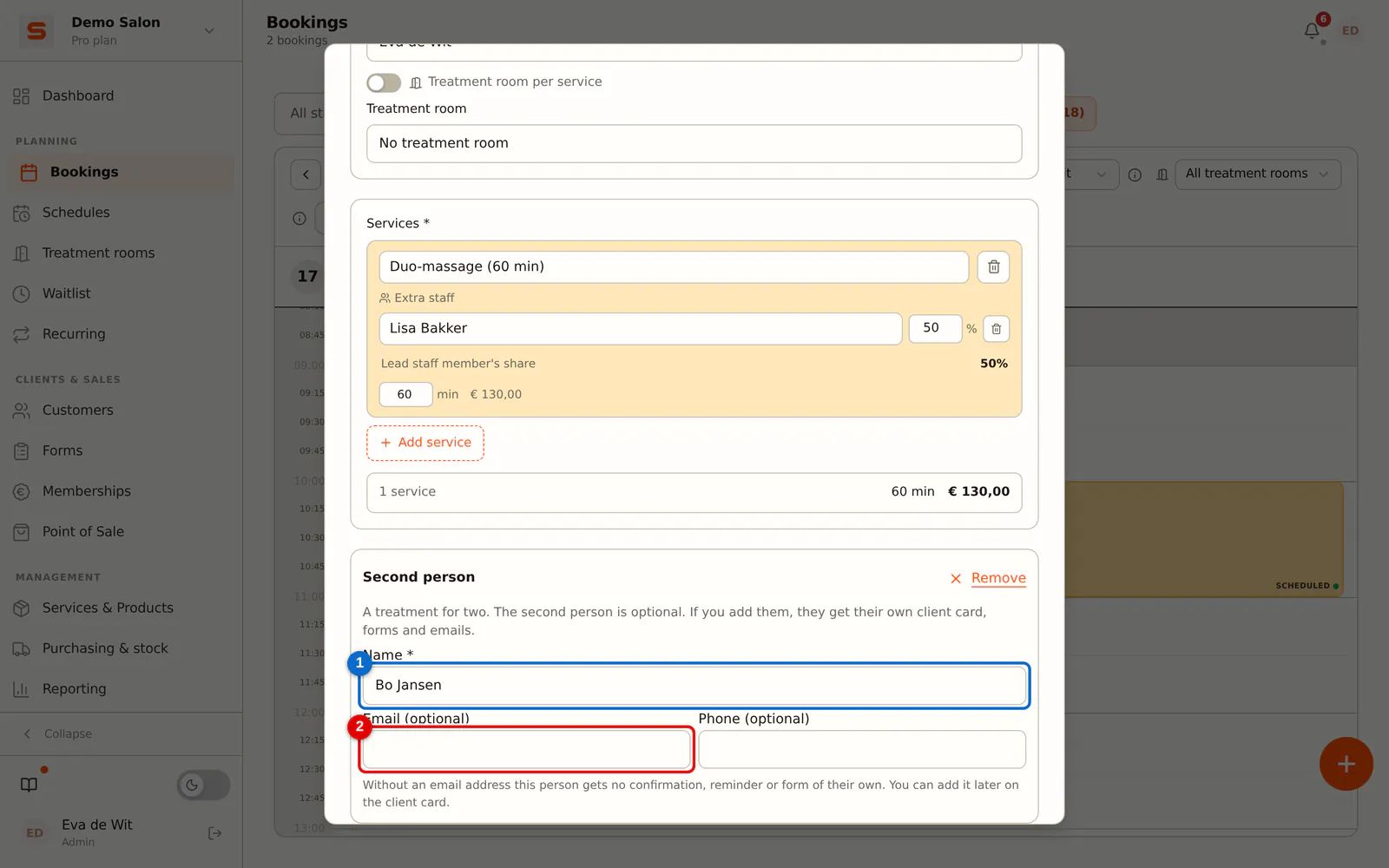
Step 2: Optionally fill in the second person
Below the services, Second person appears. If you leave it empty, the appointment is only in the name of the main client. Search for an existing client, or click New person (a name is enough) and enter the name. Email and phone are optional.
 (Enlarge image)
-
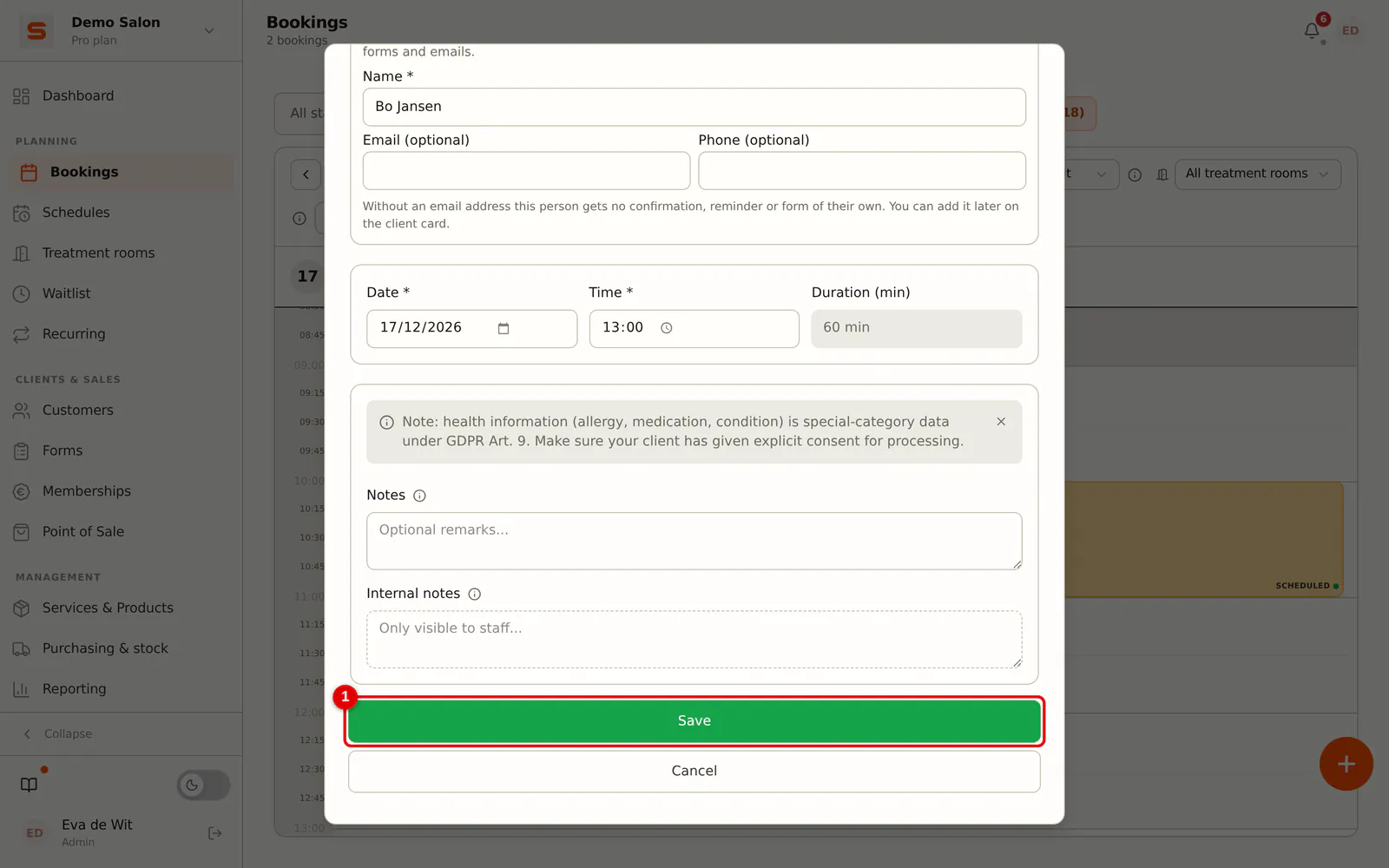
Step 3: Save the appointment
Click Save. The calendar shows both names on the appointment, for example Anna & Bo, also in the column of the second staff member.
 (Enlarge image)
-
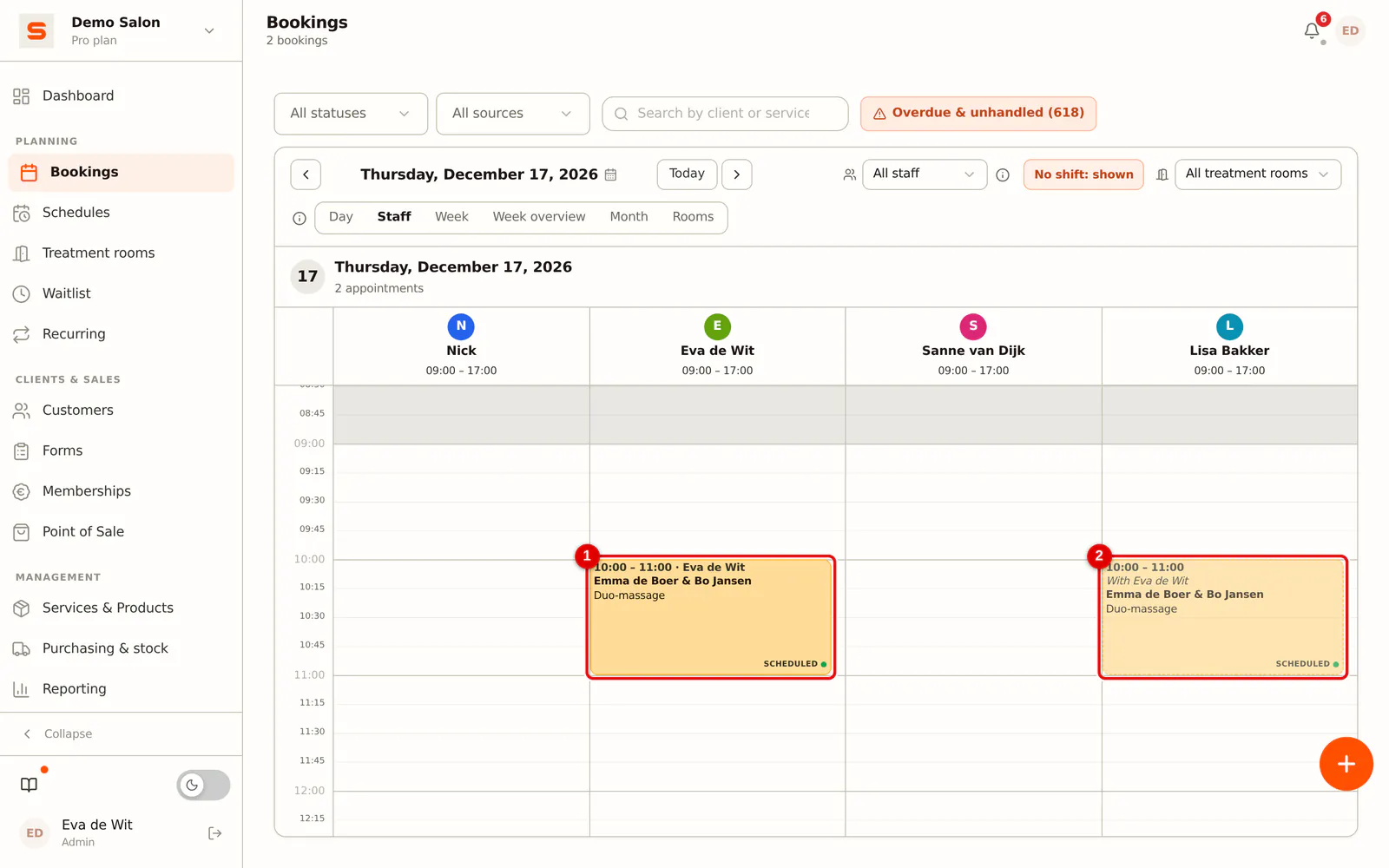
Step 4: Check the appointment in the calendar
In the Staff view the appointment appears for both staff members, with both names.
 (Enlarge image)
Without an email address the second person gets no emails and no form of their own. Add it later on their client card.
Online booking
When a client chooses a treatment for two online, the client can enter the name of the second person on the booking page. This is not required, just like email and phone. With an email address the second person gets their own confirmation and their own form.
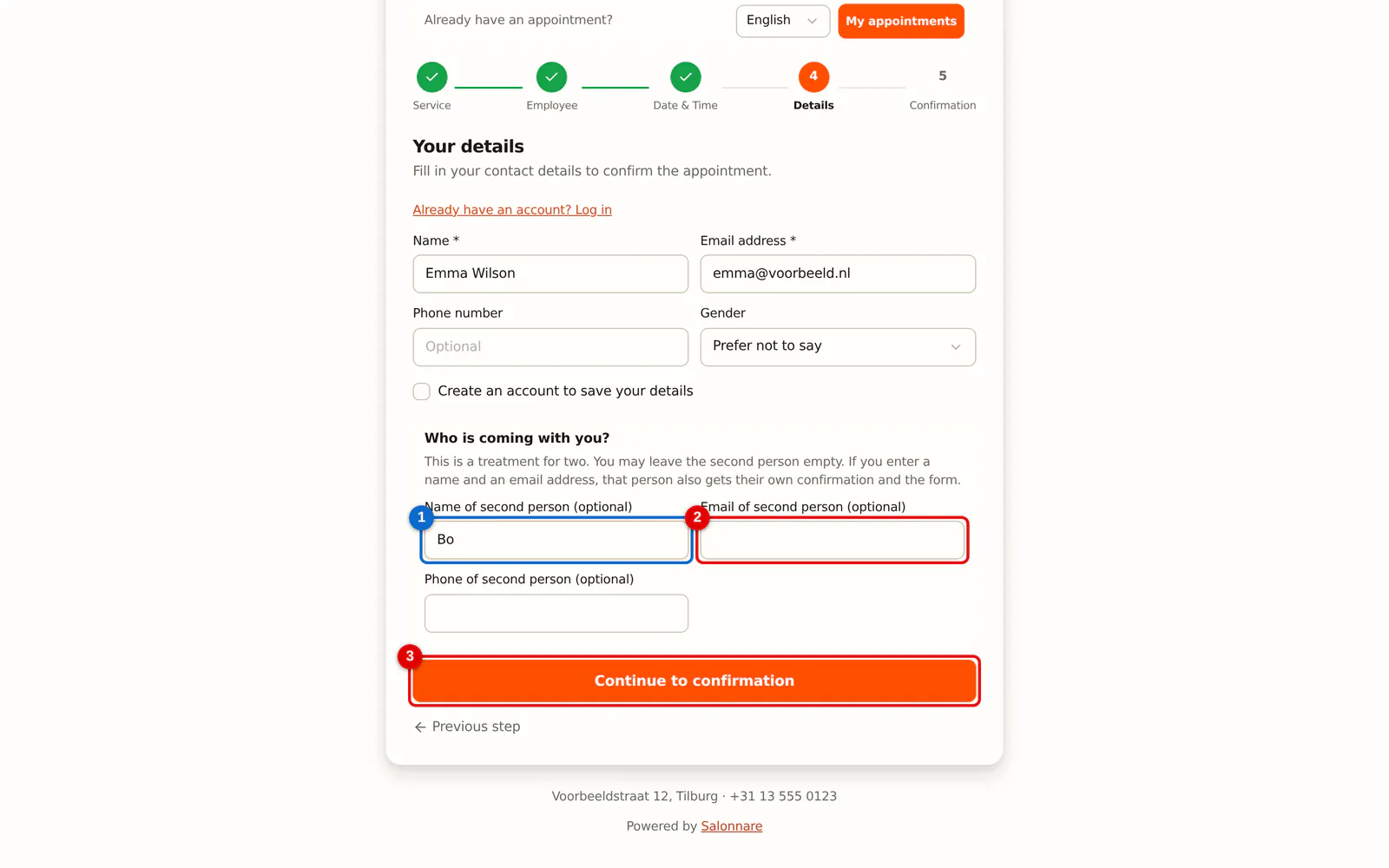
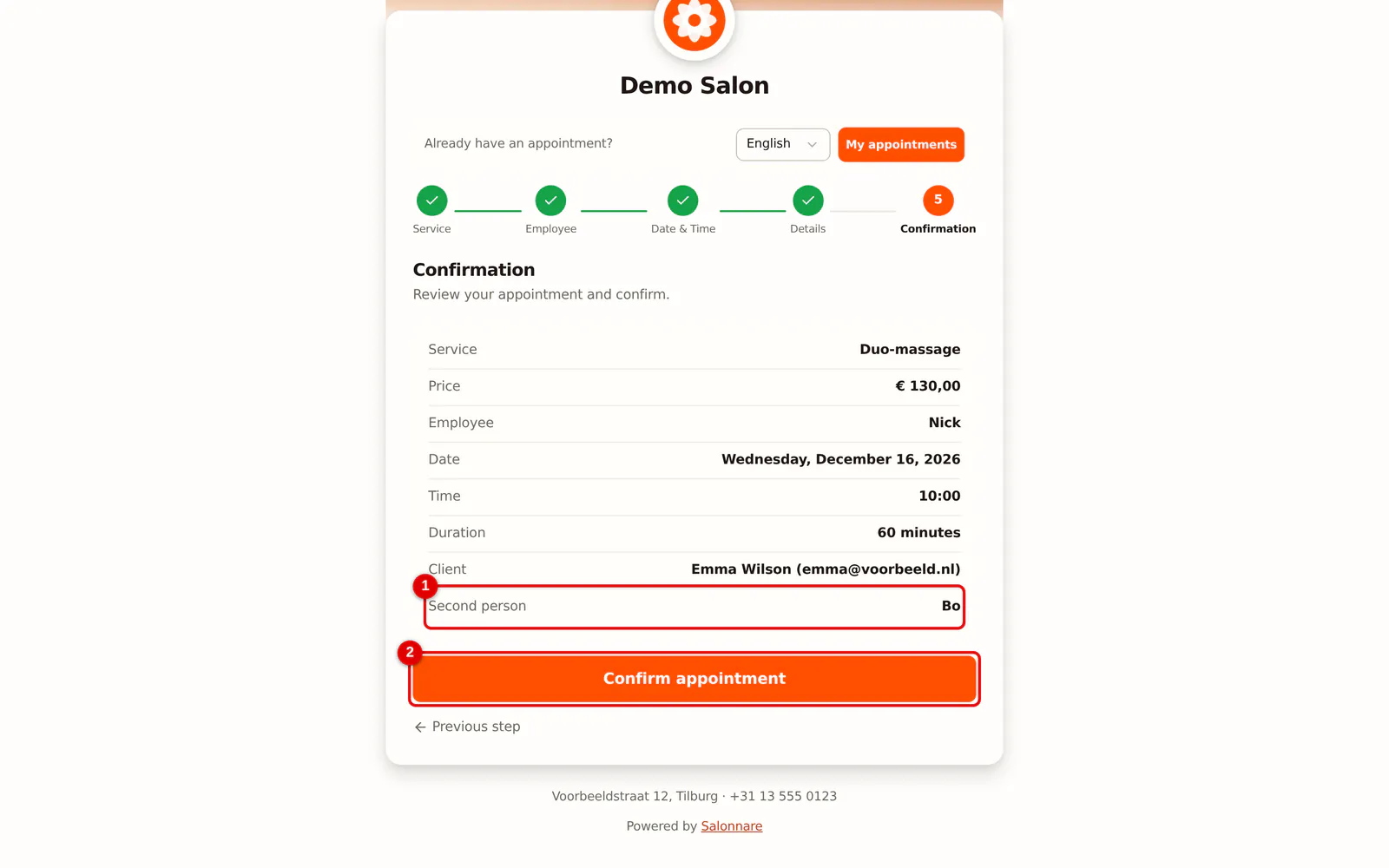
The second person gets no cancellation link and no review request of their own, and does not count in the client statistics. The deposit and any no-show fee apply to the total and are on the main client.
One of the two cancels
Open the appointment. Under Duo treatment choose:
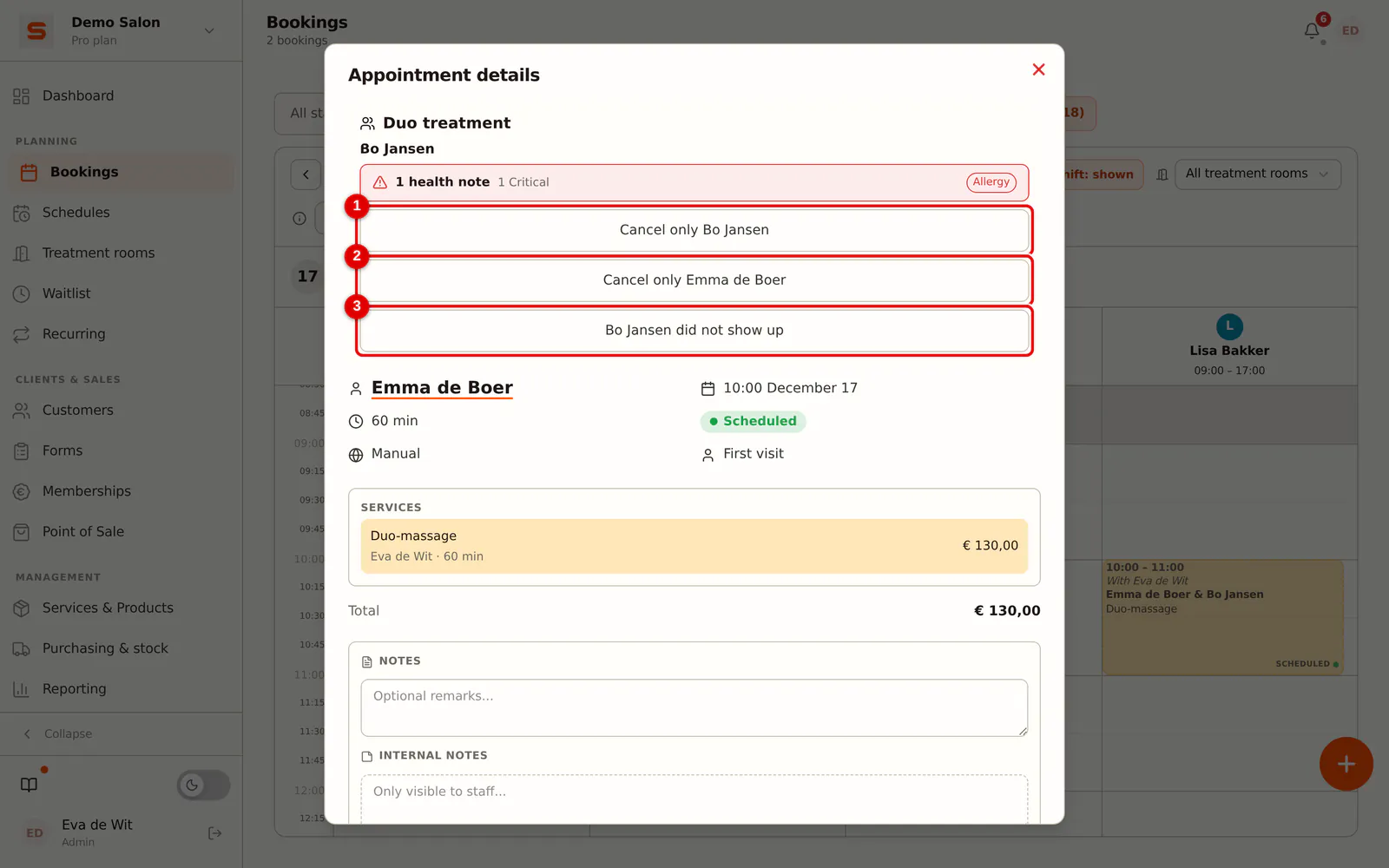
- Cancel only [name]: only the second person is removed. The main client's appointment stays.
- Cancel only [main client]: the main client is removed. The second person keeps the appointment and becomes the main client.
You then choose whether the person gets a cancellation email and whether the colleague is freed up. If the colleague is freed up, it becomes a regular appointment for one person and that colleague can be booked again.
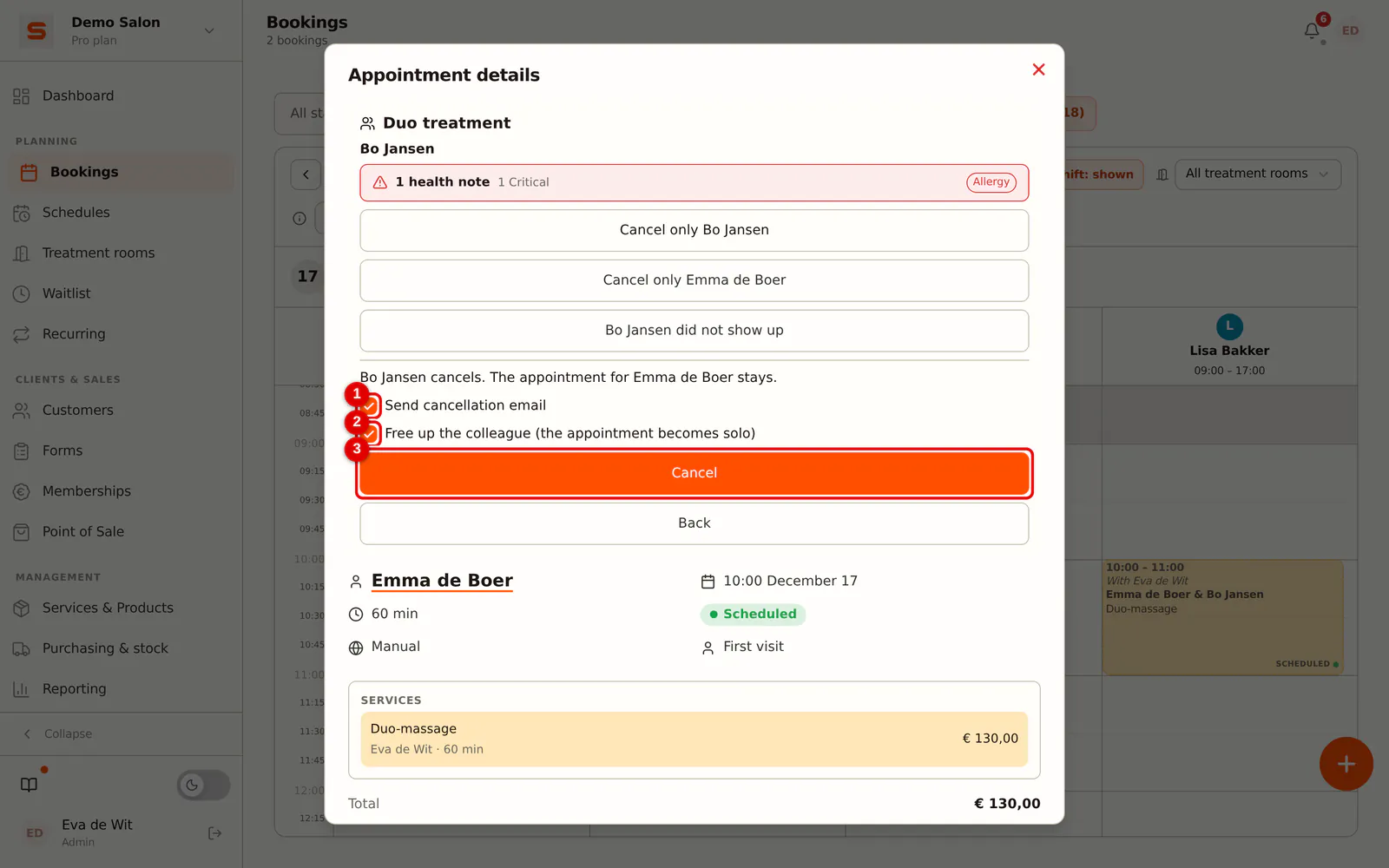
If the client cancels online, the whole appointment is cancelled.
No-show
If only the second person did not come, click [name] did not show up. The appointment stays for the main client and no no-show fee is charged. If they came after all, click Did show up after all.
Checkout
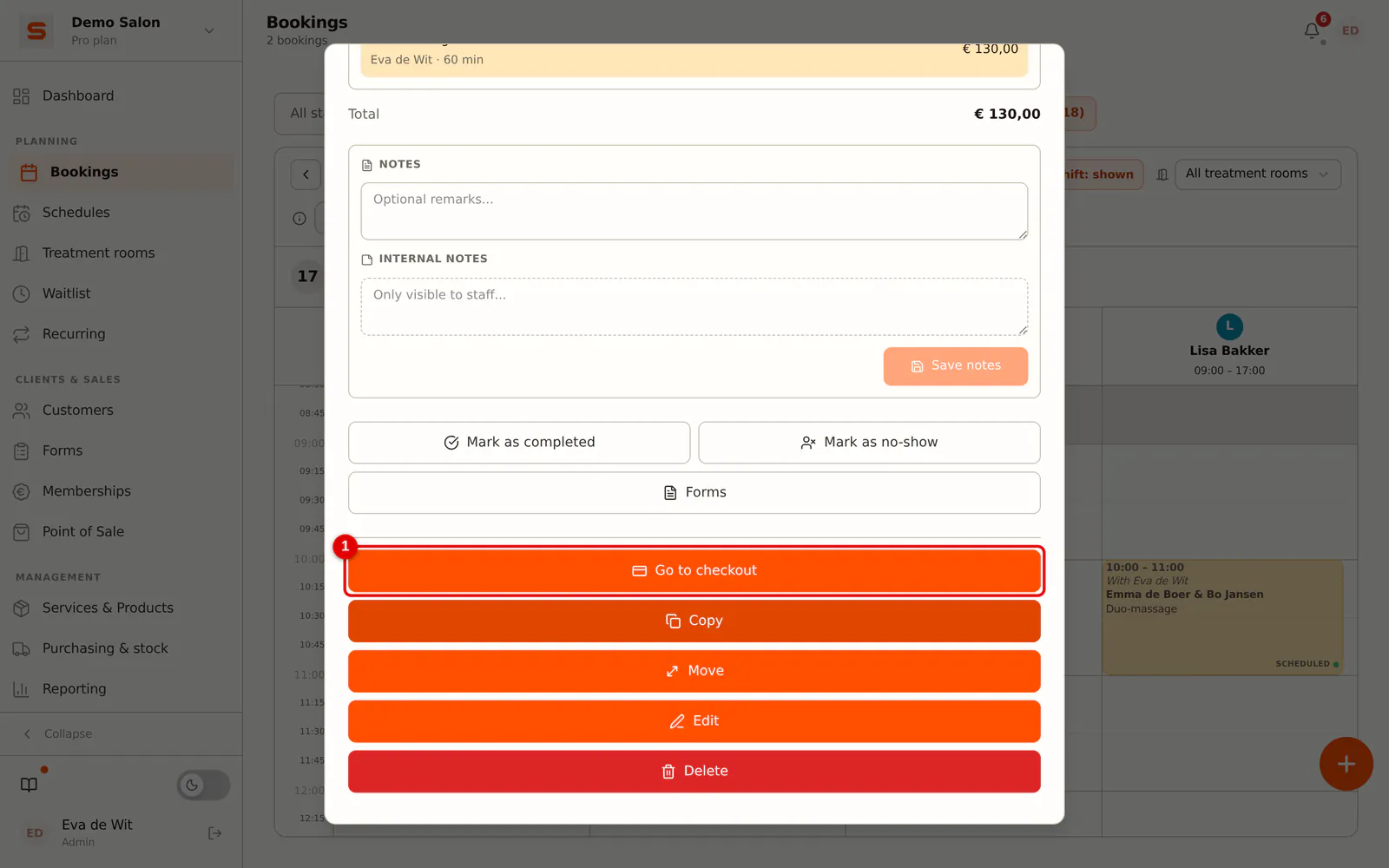
When you check out the appointment from the calendar, the POS shows Duo appointment with two buttons:
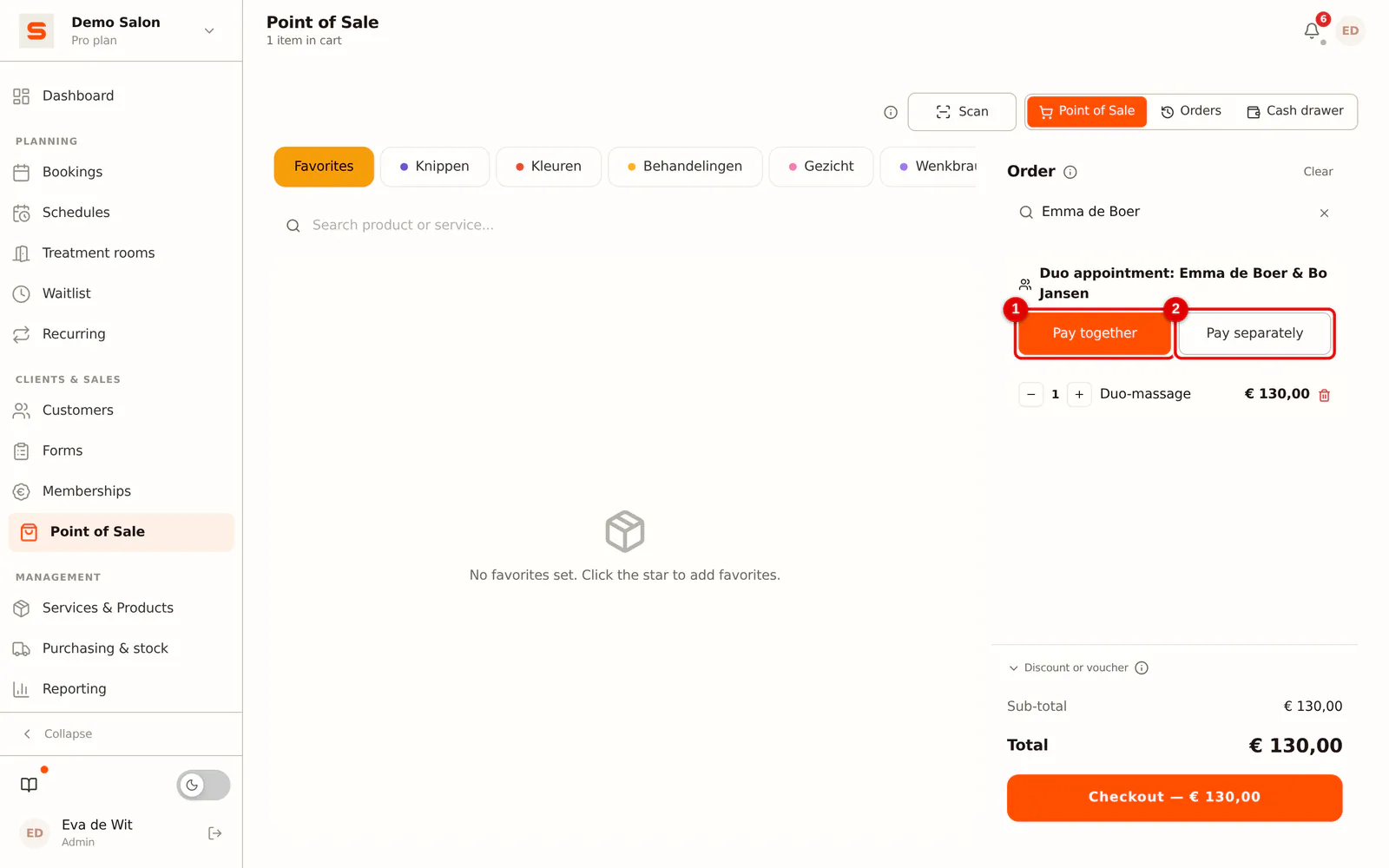
- Pay together: one receipt for both people, in the name of the main client. This is the default.
- Pay separately: two receipts. Each person pays half of the treatment. After the first receipt, the second person's receipt is ready straight away. A deposit is deducted from the main client's receipt.
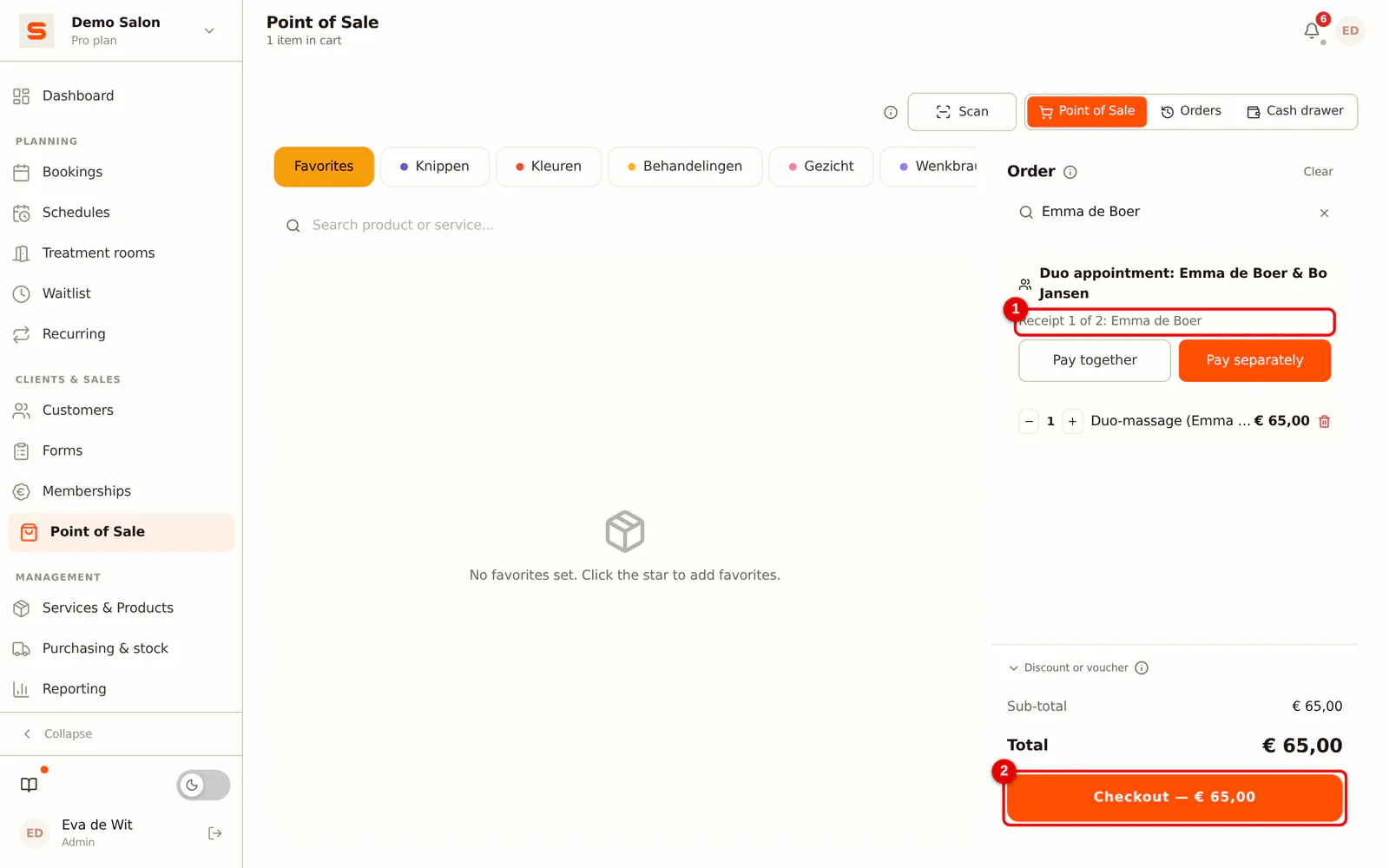
The calendar shows the appointment as Partly paid until both receipts are paid.
If the receipt of one of the two is already paid, for example after reloading the POS, the POS opens straight at the other person's receipt. A part that is already paid cannot be checked out again.
The price of the duo treatment is the price for two people. When paying separately, each person pays half.