Using the waitlist
A fully booked day is a nice problem to have -- but you do not want to lose a client because there is no slot. That is what the waitlist is for. Add clients who want an appointment, and when a slot opens up you can notify them with a click.
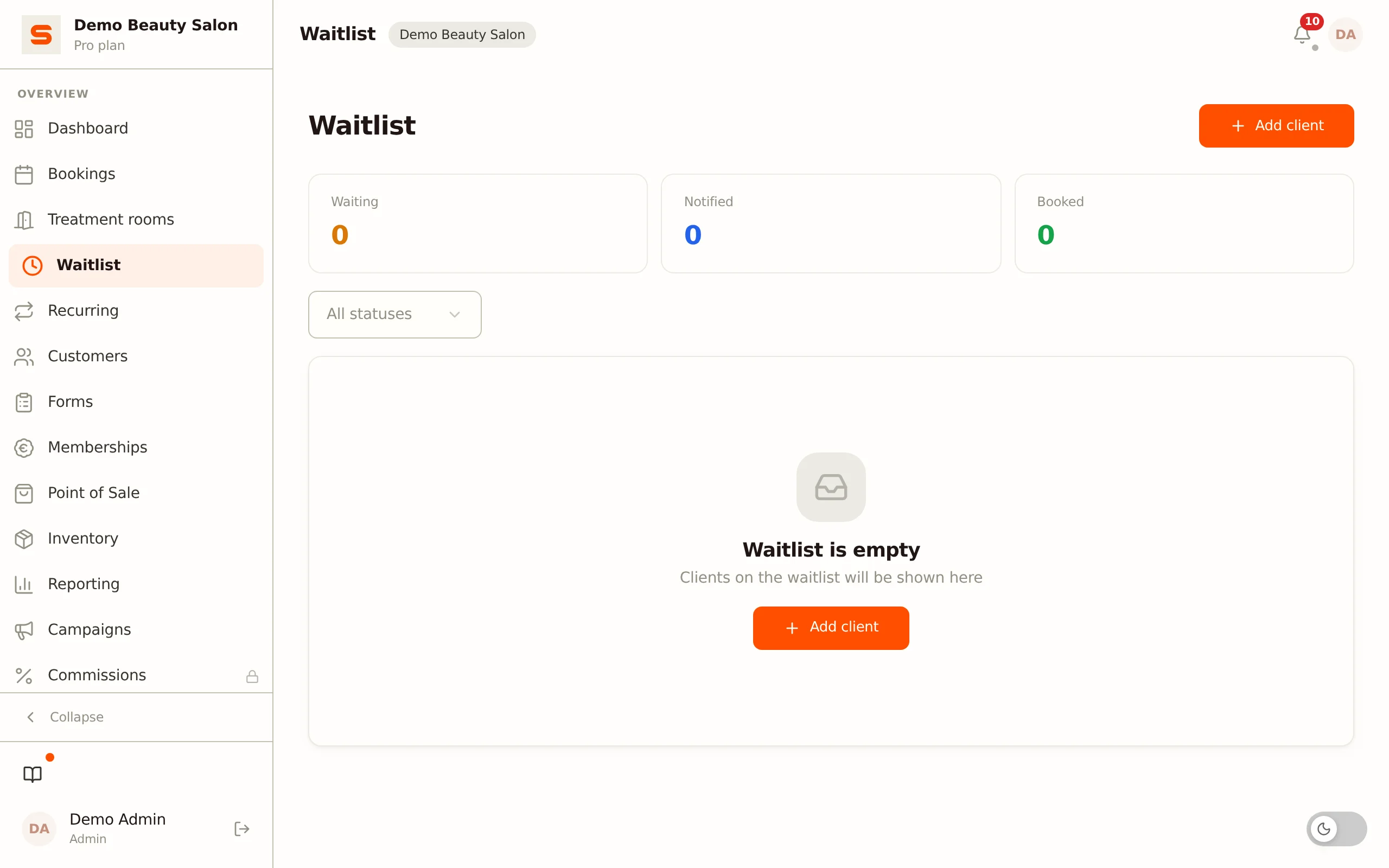
The waitlist has its own page in the menu: Waitlist.
Adding a client to the waitlist
- Open Waitlist in the menu.
- Click Add client.
- Fill in the details:
- Client -- search for the client by name.
- Treatments -- choose as many as the client wants with Add treatment. Below the rows you see the total duration; a slot that opens up must be at least that long.
- Preferred times -- choose one of two forms:
- Specific dates -- one or more dates (up to ten), each with an optional From and To time. Leave both times empty if the client is available all day.
- Fixed weekdays -- tick the days (Mon to Sun) and optionally enter a time window with From and to. For evenings only, choose for example from 18:00 to 21:00; leave both times empty if the client is available all day on those days. With Valid from and through you can optionally limit the pattern; leave them empty and it runs on without an end date.
- Notes -- anything worth noting (for example "only available in the mornings").
- Click Add client.
Want to change something later? Click Edit next to the entry. You can change the treatments, preferred times and notes.
Want to record a preference for a specific staff member? Put it in the notes field -- that keeps the overview complete when you offer a slot later.
Waitlist statuses
Every waitlist entry has a status so you know exactly where things stand:
| Status | What it means |
|---|---|
| Waiting | The client is actively waiting for an opening. |
| Notified | The client received an automatic email about a slot that opened up. |
| Awaiting client | A provisional appointment has been offered; the client still has to confirm it via the link in the email. |
| Booked | The entry has been converted into an appointment. |
| Cancelled | The entry was declined and closed. |
At the top of the page you see counters for the number of waiting, notified and booked clients. You can filter by status. The buttons next to an entry only appear while it is Waiting, Notified or Awaiting client.
Automatic message on a cancellation
As soon as an appointment is cancelled, Salonnare checks by itself whether someone on the waitlist fits. A message only goes out when all conditions are met:
- It is the right treatment -- at least one of the requested treatments was in the cancelled appointment.
- The moment matches -- the date matches, or with fixed weekdays the weekday (within the optional validity period).
- The slot is long enough -- all requested treatments together fit within the part of the freed-up slot that falls inside the client's time window.
Only entries with status Waiting take part. If several clients fit, only the one who has been waiting longest gets the email. As soon as that email has actually been sent, the entry switches to Notified. If nobody fits, or you switched off the waitlist email under Settings > Email templates, no message goes out.
Contacting a client
Want to approach a client yourself, for example for a last-minute opening? Click Contact (the message icon) next to the entry. A WhatsApp chat with the client opens. If no phone number is known, the button is greyed out. This does not change the status of the entry.
Assigning a slot: Accept
Does the client want the slot? Click Accept (the check mark). Salonnare converts the entry into an appointment and sets the status to Booked.
Choosing a day when accepting
After clicking Accept, you choose the day of the appointment in a calendar. The days are coloured by how busy they are: green means plenty of room, orange a few slots left, red full. Then you choose a start time from the times that are actually free on that day -- so double booking is not possible. If you pick today, you only see the start times that are still to come, in the salon's time zone.
The appointment is built the same way as an online booking: the transition after the appointment (calendar settings) and, for a client who has never visited before, the extra time for a first visit. They are shown striped at the bottom of the appointment in the calendar, and the start times you see count the whole appointment.
Days that fall outside the client's wishes are shown faded. You can still choose them, for example after talking to the client, but Salonnare asks for confirmation first.
An appointment in the past is not possible. If the client's preferred date has already passed, Salonnare says so at the top and no day is preselected: choose a new day in the calendar. A time that has already passed is refused as well.
Closing an entry: Decline
Click Decline (the cross) and confirm to close an entry. The status becomes Cancelled and the client automatically receives an email that the registration has lapsed (if an email address is known). Closed entries stay visible with their status.
Deleting an entry without an email
Has a registration expired or been entered twice, and you do not want to message the client about it? Click Delete (the bin) and confirm. The registration disappears from the waitlist and the client does not receive an email. This works for any registration, including closed or booked ones. You need the permission to edit the waitlist. On a phone the buttons are shown in two columns, with their names.
Keeping it tidy
Review your waitlist regularly and close entries for clients who have waited too long or have already found an appointment elsewhere. A clean waitlist helps you respond quickly when openings come up.
Looking for more ways to manage your schedule? Check out Managing appointments or set up Online bookings.