Insights and Your day
Insights help you get an overview of your day and see which clients need attention. Everything is in one place: a personal daily overview (Your day) and a set of lists that surface clients who need follow-up, such as an outstanding payment or a client you have not seen in a while.
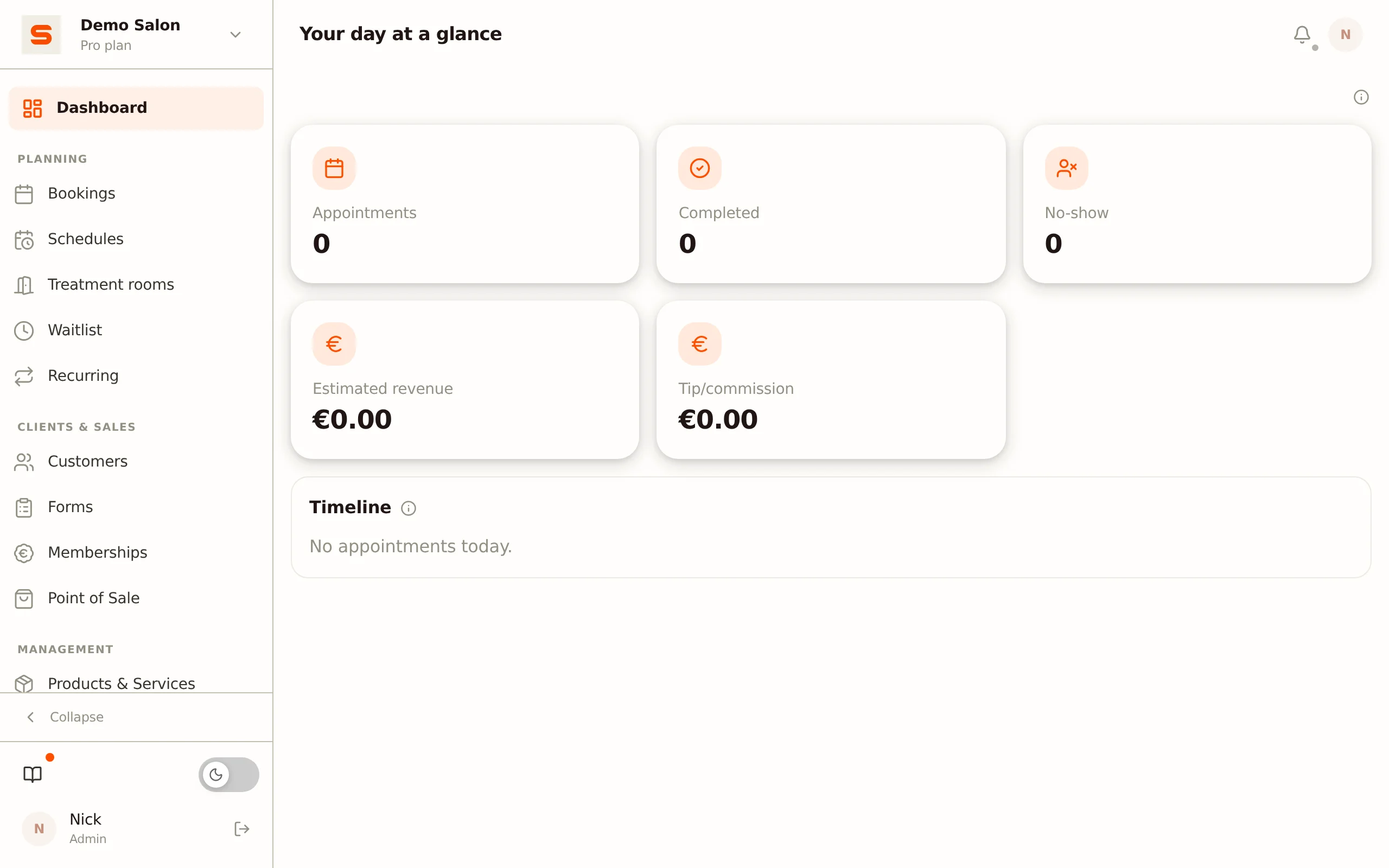
Your day at a glance
Your day is your personal daily dashboard. It always shows the data for the staff member who is currently logged in, so everyone sees their own day. It is ideal for a quick scan in the morning before your first client arrives.
Next appointment
At the top you see your next appointment at a glance -- the time and the client's name. That way you immediately know who is waiting for you first (or next).
Daily KPIs
Below the next appointment there is a row of cards with the key figures of your day:
- Appointments -- the number of appointments scheduled for today.
- Completed -- how many appointments you have already finished.
- No-show -- the number of clients who did not turn up.
- Estimated revenue -- the expected revenue from your own treatments today.
- Tip/commission -- the commission calculated for you today. Commissions are not yet available in Salonnare (coming soon), so for most salons this card shows € 0.00 for now.
Timeline
The timeline shows all your appointments today in order of time. For each appointment you see:
- The start and end time and the duration.
- The client's name and the treatment.
- Handy signals: a New client label for a first visit and Frequent no-show for a raised no-show risk.
- Any attention note about the client.
Between your appointments, the timeline also shows your free moments and breaks, so you see exactly when you have some room. Click an appointment to open it right away in your calendar.
You also find "Your day" on your dashboard: next to the KPI cards there is the clickable Your day at a glance card. See Your dashboard for the full overview.
Clients who need attention
Besides your personal daily overview, insights offer a set of lists that surface clients who need follow-up. Each list is a clear table with direct actions, so you can act right away.
The lists are not in the menu. You open Outstanding payments and Dormant clients through the matching notification under the bell (see Notifications); a notification about an expiring deposit opens the appointment directly. The lists require the right to view reporting.
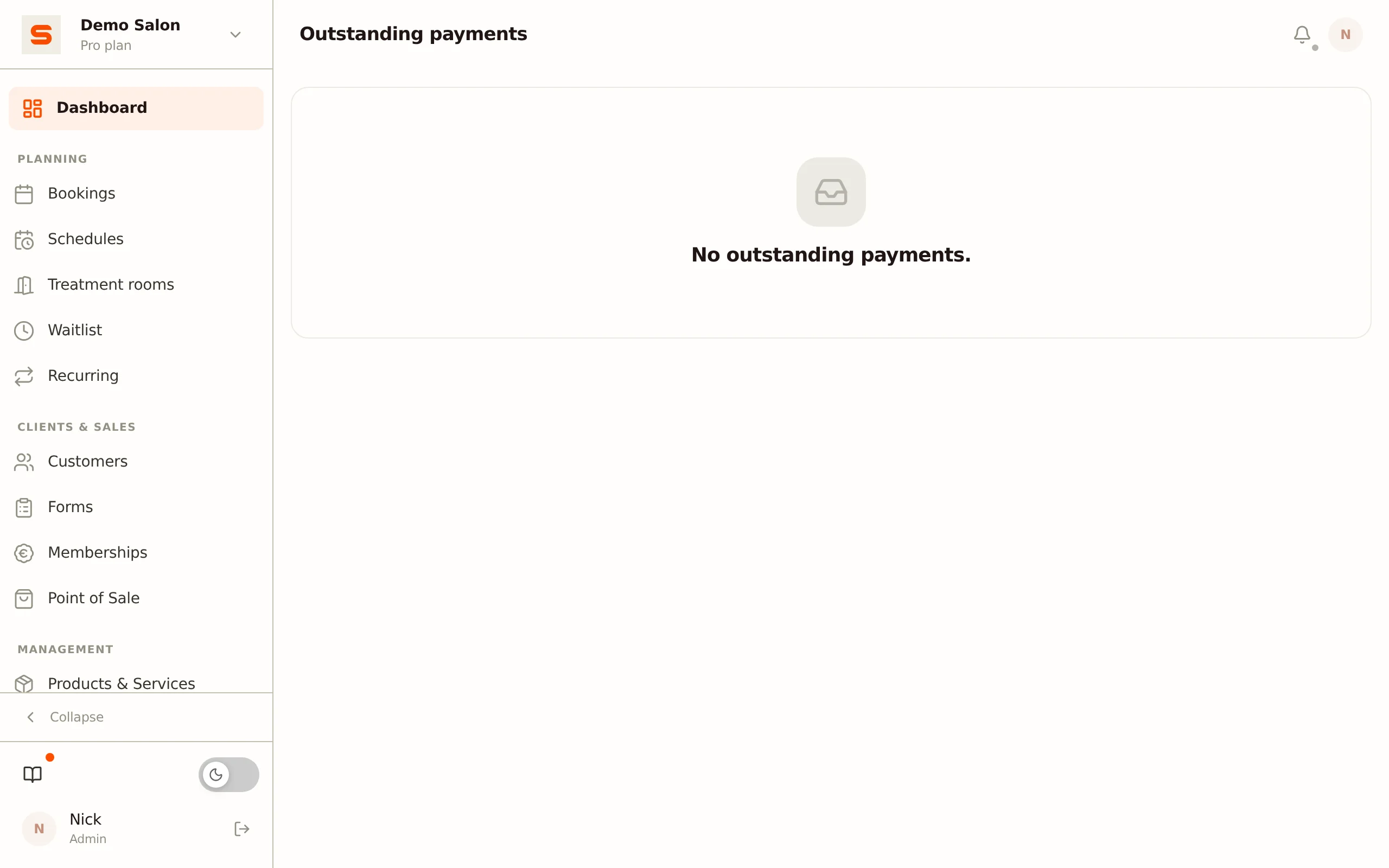
Outstanding payments
Point of sale orders that have not been fully paid yet. You see the client, the outstanding amount and how long it has been open. From the list you can open the sale directly in the Point of sale or go to the client profile.
Dormant clients
Clients you have not seen for a while. The list shows the client, the date of the last visit and how many days ago that was. You can open the client, schedule a new appointment right away or send a win-back email to bring them back.
Stop showing a client. Certain that a client is not coming back (moved away, switched salons, passed away)? Choose Stop showing in the row's action menu. The client disappears from the list and Salonnare also stops sending automatic notifications about them. This applies to your whole salon, not just to you - everyone sees the same list. That is why it requires edit rights on reporting: anyone who may only view the overview cannot remove clients from it.
Made a mistake? Right after the click, the confirmation message offers Undo. If you only notice later, switch on Also show hidden clients at the top of the list. Hidden clients come back into view with the label Hidden and the action Put back.
Hiding a client heals itself: if they do come back once and then stay away for a long time again, they reappear in the list on their own. So you never have to keep track of who you once hid.
Deposits with deadline
Appointments for which a deposit was requested but the payment window is running out. You see the client, the amount and the related appointment, and you can open the appointment right away to follow up. See Deposits for how deposits work.
Attention required today
Today's appointments with an attention note or another reason to be extra alert. You see the time, the client and the note. If the client has a health note, that is indicated with a separate icon. From the list you open the client profile or the appointment.
Getting the most out of your insights
- Start your day with "Your day" -- go through your next appointment, KPIs and timeline before your first client arrives.
- Clear the lists -- settle outstanding payments and follow up on deposit deadlines before they expire.
- Win clients back -- use the dormant clients list to regularly send a win-back email.
Want deeper figures about your whole salon? Check your Reporting. More about the notifications that need action? See Notifications.