Setting up VAT rates
Salonnare supports multiple VAT rates. You can create as many rates as needed and link the correct one to each service or product. At point of sale and for online payments, the linked rate is applied automatically. Reports and the accounting export show VAT amounts broken down by rate.
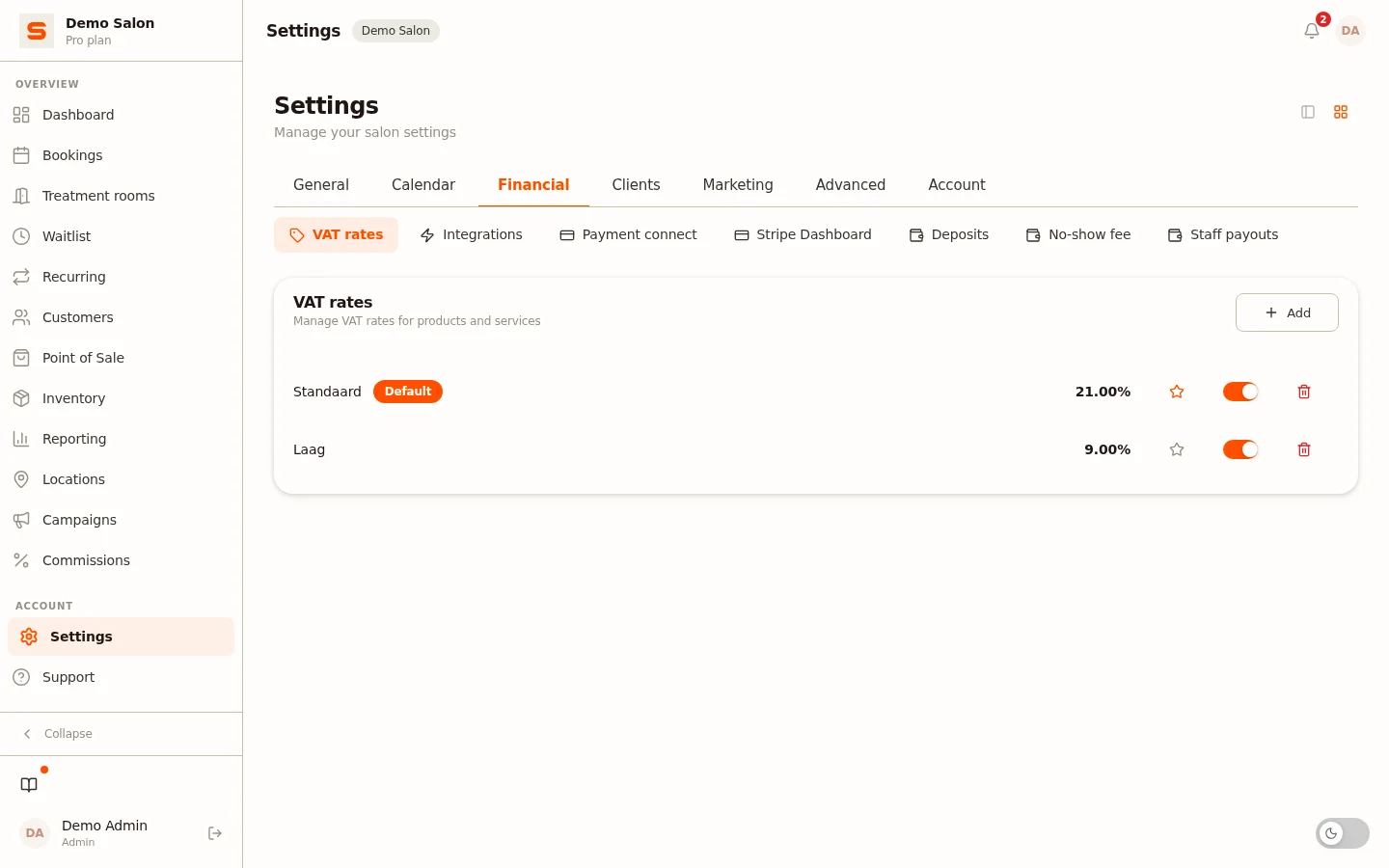
Overview
Go to Settings > VAT rates (group Financial). You will see a list of all configured rates. A new salon starts with two rates: 21% (named "Standaard", set as the default) and 9% (named "Laag"). Rename or adjust them, or add another rate if you need something different.
Adding a VAT rate
- Click Add in the top right of the VAT section.
- Fill in:
- Name -- A recognisable label such as "Standard 20%" or "Reduced 5%".
- Percentage -- The VAT percentage as a number, for example
20or5.
- Click Add to save.
The new rate appears in the list immediately.
Setting a default rate
Any rate can be set as the default. The default rate is preselected automatically when you create a new service or product.
Click the star icon next to the rate you want to set as default. The star turns orange when a rate is the active default.
Only one rate can be the default at a time. Setting a new default automatically removes the default label from the previous one.
Enabling or disabling a rate
Next to the star is a toggle switch. Turn the switch off to deactivate a rate. Deactivated rates remain visible in the list but can no longer be selected on services and products.
This is useful if you want to temporarily stop using a rate without breaking the historical link.
Deleting a rate
Click the bin icon to delete a rate. This happens immediately, without an extra confirmation. So only delete a rate if it is no longer in use.
If a rate is already linked to services or products, deleting it may cause inconsistent VAT amounts in your reports and receipts. Use deactivation instead of deletion in that case.
VAT in reports
All sales transactions through the point of sale and online payments are stored with the VAT rate that was in effect at that time. Under Reporting > VAT return you see, per quarter or year, the revenue excluding VAT and the VAT amount per rate, as an overview for your accountant (not an official return). The accounting export also includes a VAT column for each item.
See Reporting and Accounting export for more details.
Linking VAT rates to services and products
Linking a VAT rate to a service or product is done in the service or product management, not in this screen. Go to Services & Products, open the Services or Products tab and edit an item -- you will find the VAT rate field there.