Treatment rooms and spaces
Treatment rooms and spaces are resources in Salonnare. Once you set them up, Salonnare takes their occupancy into account: the calendar warns you when you put two appointments in the same room at the same time, and for services that need a room, the online booking page only offers times when a suitable room is free.
You can create three types: treatment rooms, workstations and equipment.
Adding rooms
- Go to Settings.
- In the General group, open Treatment rooms. The card is called Treatment rooms & resources.
- Fill in the form at the bottom:
- Name -- A recognisable name such as "Room 1" or "Laser device".
- Type -- Choose from the three options (see below).
- Capacity -- How many appointments can take place in or on the room at the same time. Default is 1.
- Click Add.
The room appears in the list immediately.
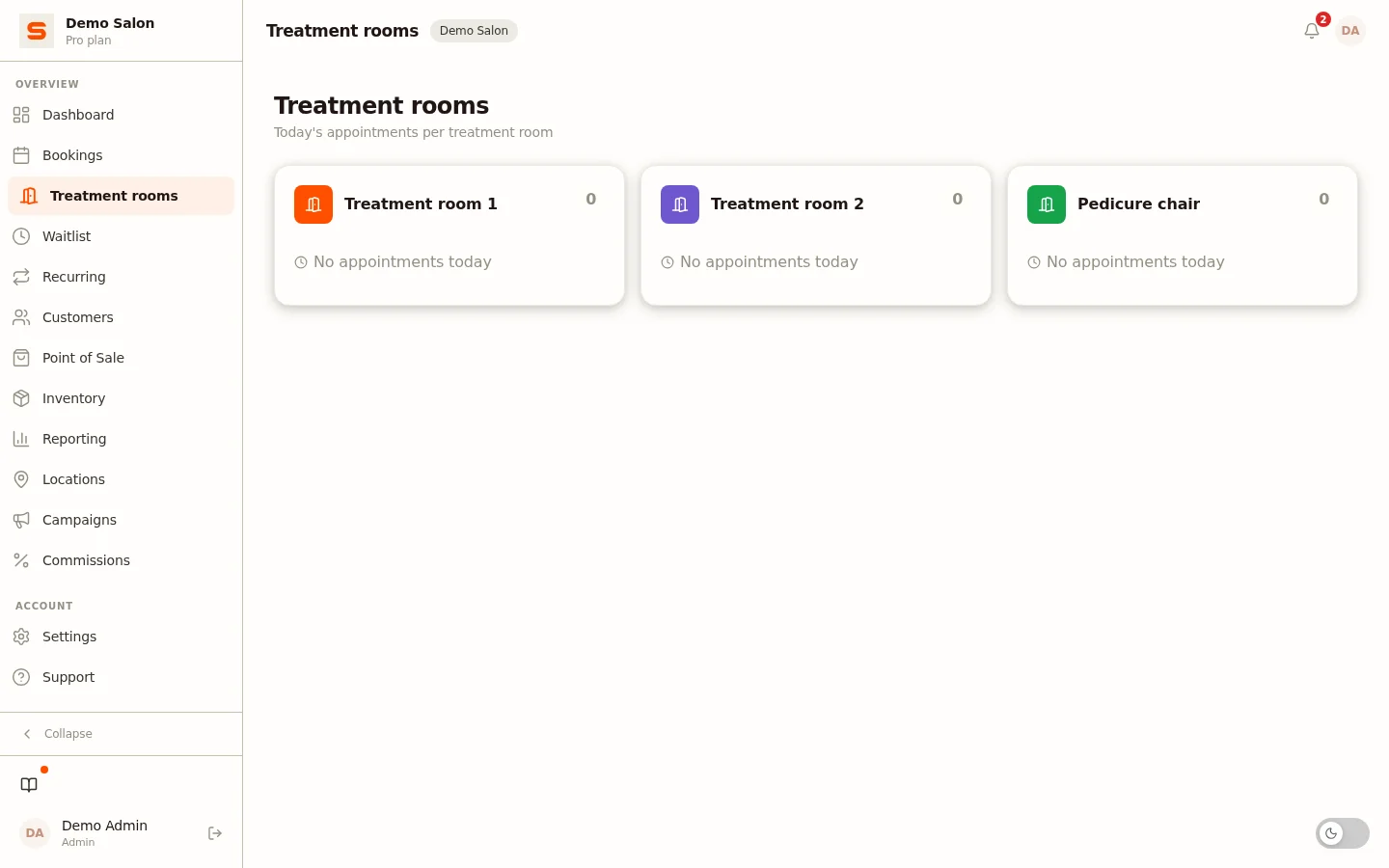
Planning > Treatment rooms in the menu takes you to the overview of your rooms. The New treatment room card on that overview brings you to these settings.
Types
| Type | When to use |
|---|---|
| Treatment room | A separate room for treatments (massage room, treatment room). |
| Station | A chair, hairdressing chair or fixed spot for a staff member in an open space. |
| Equipment | Shared equipment that only a limited number of treatments can use at the same time (laser device, sunbed). |
Editing a room
Click the pencil icon next to the room. You can change the name, type and capacity. Save the change with the check mark.
Removing a room
Click the bin icon next to the room. The room disappears from the list immediately, without an extra confirmation, and can no longer be selected. Only an admin can remove a room.
Appointments that were already linked to the room simply remain in place. If needed, move them to another room yourself before you remove it.
Setting availability windows
Without windows, a room does not restrict the times: only your staff schedules determine when bookings can be made. If you only want to use a room at certain times -- for example a treatment room that is only in use on Monday and Wednesday -- set up availability windows.
- Click the clock icon (Availability) next to the room.
- Click Window to add a new time slot.
- Choose the day of the week and the start and end time.
- Add as many windows as you need.
- Click Save.
As soon as you save windows, only those times apply to the room. On a weekday without a window the room is closed, and an appointment has to fall entirely within one window.
Multiple windows on the same day are possible. For example, add a morning block (09:00 - 12:00) and an afternoon block (13:30 - 17:30) if the room is closed over lunch.
Scheduling staff in a room
The calendar icon (Weekly roster) next to a room opens a weekly overview of that room. Click in a day to schedule a staff member in this room for a time slot; use the arrows and Today to move between weeks.
Capacity
Capacity indicates how many appointments can take place in or on the room at the same time. With a value of 1 (default), the room is occupied as soon as an appointment is scheduled. A value of 2 or higher is useful for large spaces or equipment that several staff members can use at once.
Linking rooms to services
In Services & Products > Services you set per service how it works with rooms:
- Treatment room required -- The online booking page then only offers times when a suitable room is free (open according to its windows and not full).
- Default treatment room -- This room is chosen automatically for this service.
What the calendar does
- If you put an appointment in a room that is already full at that moment, Salonnare asks whether you still want to place it there (Treatment room occupied).
- When an online booking comes in for a service that requires a room, you get a notification to assign a treatment room.
- Under Planning > Treatment rooms you see today's appointments and occupancy per room. Click a room to open that room's full calendar.