Processing time for colour services
While a client's colour is processing, your hands are free. With Processing time Salonnare knows that too: a colour service then has three parts.
- Application: you are working on the client.
- Processing time: the client stays in the chair, you are free for a short treatment with another client (a fringe trim, brows) or to start on another colour client.
- Rinse and style: you are back with your client.
The client sits in the chair the whole time. Only your time becomes free.
Setting a processing time on a service
-
Step 1: Switch on the processing time for the service
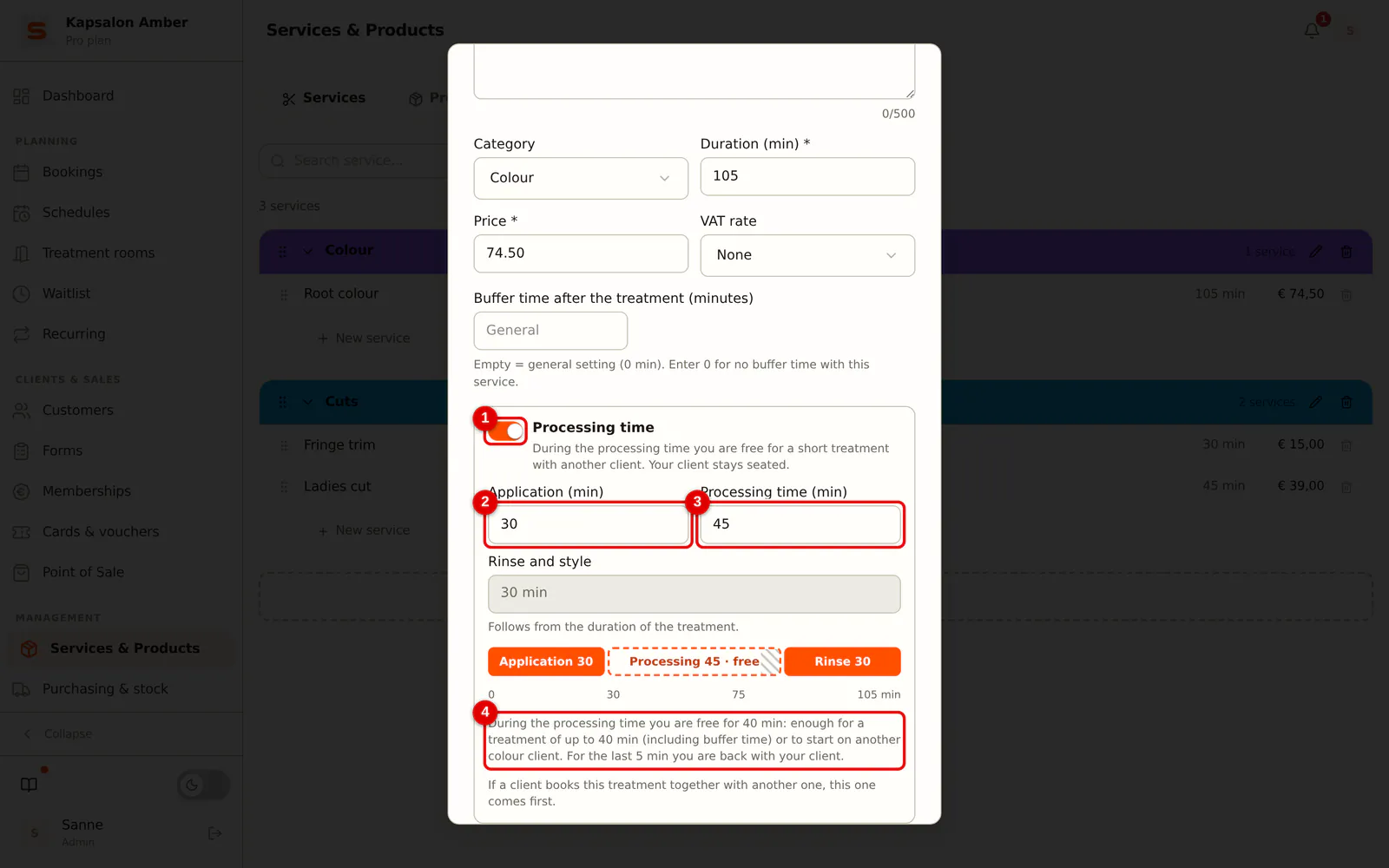
Open Services & Products, tab Services, and click the colour service. Switch on Processing time and fill in:
- Application (min): how long you work before the colour starts processing (at least 5 minutes).
- Processing time (min): how long the colour processes (10 to 240 minutes).
Rinse and style follows from the duration of the service and must be at least 5 minutes. Below it you see how many minutes you are free and what fits in them. Click Save.
 (Enlarge image)
If a client picks this service together with another one (for example colour and a cut), the service with a processing time goes first, so the colour can process while you carry on.
How it looks in the calendar
-
Step 1: View the colour appointment in the calendar
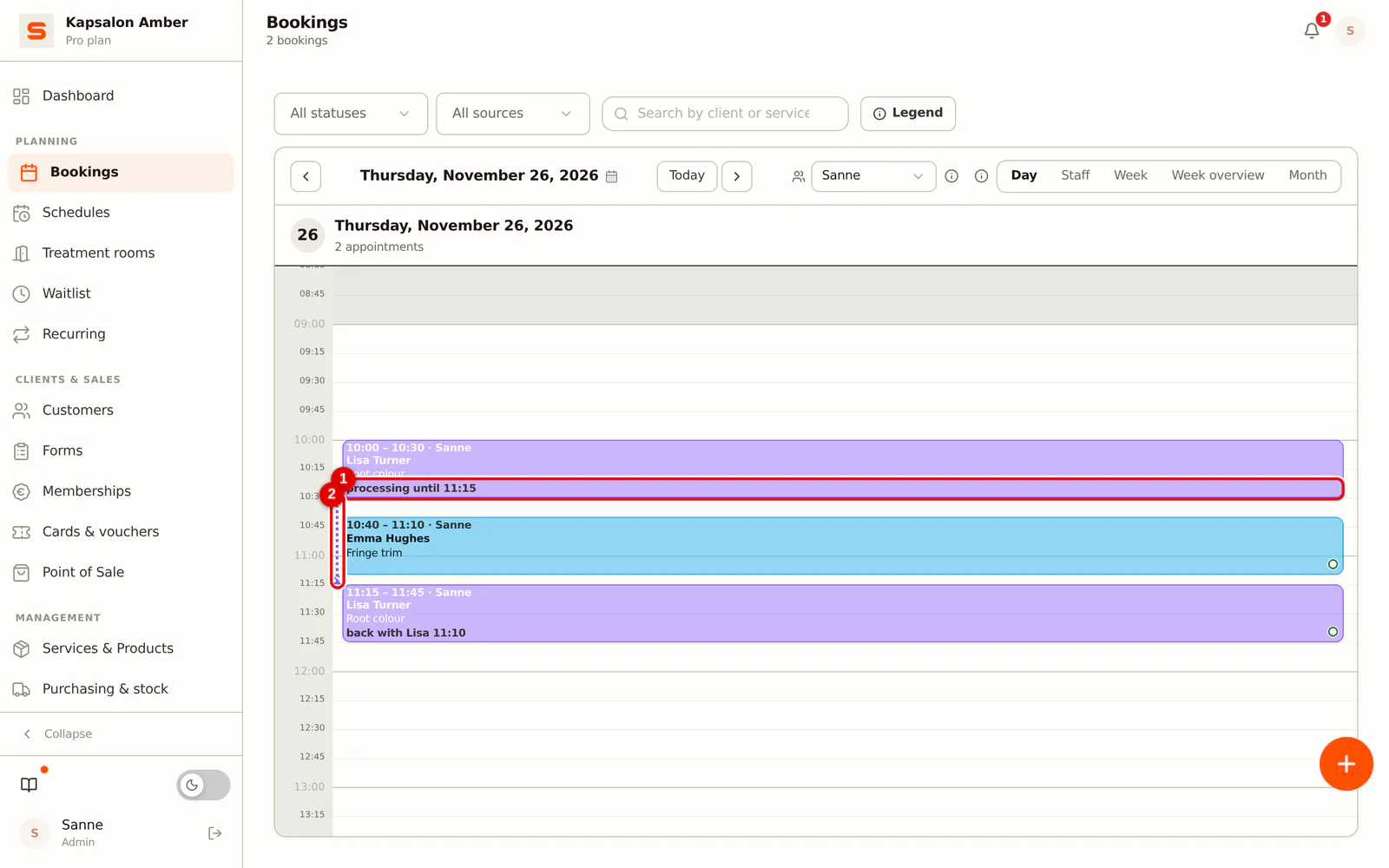
A colour appointment shows in three parts in the calendar. The middle part is the processing time: it shows how many minutes you are free. Click in that empty space to create an appointment there, just like on an empty spot in the calendar. A dotted line shows which colour client the appointment in the processing time belongs to and when you need to be back.
 (Enlarge image)
Dragging moves the whole colour appointment; an appointment in the processing time stays where it is. If the application or rinsing then lands on that appointment, Salonnare reports the clash. If you extend the colour appointment at the bottom, the rinse and style gets longer; the processing time stays the same.
-
Step 1: See the parts in the appointment details
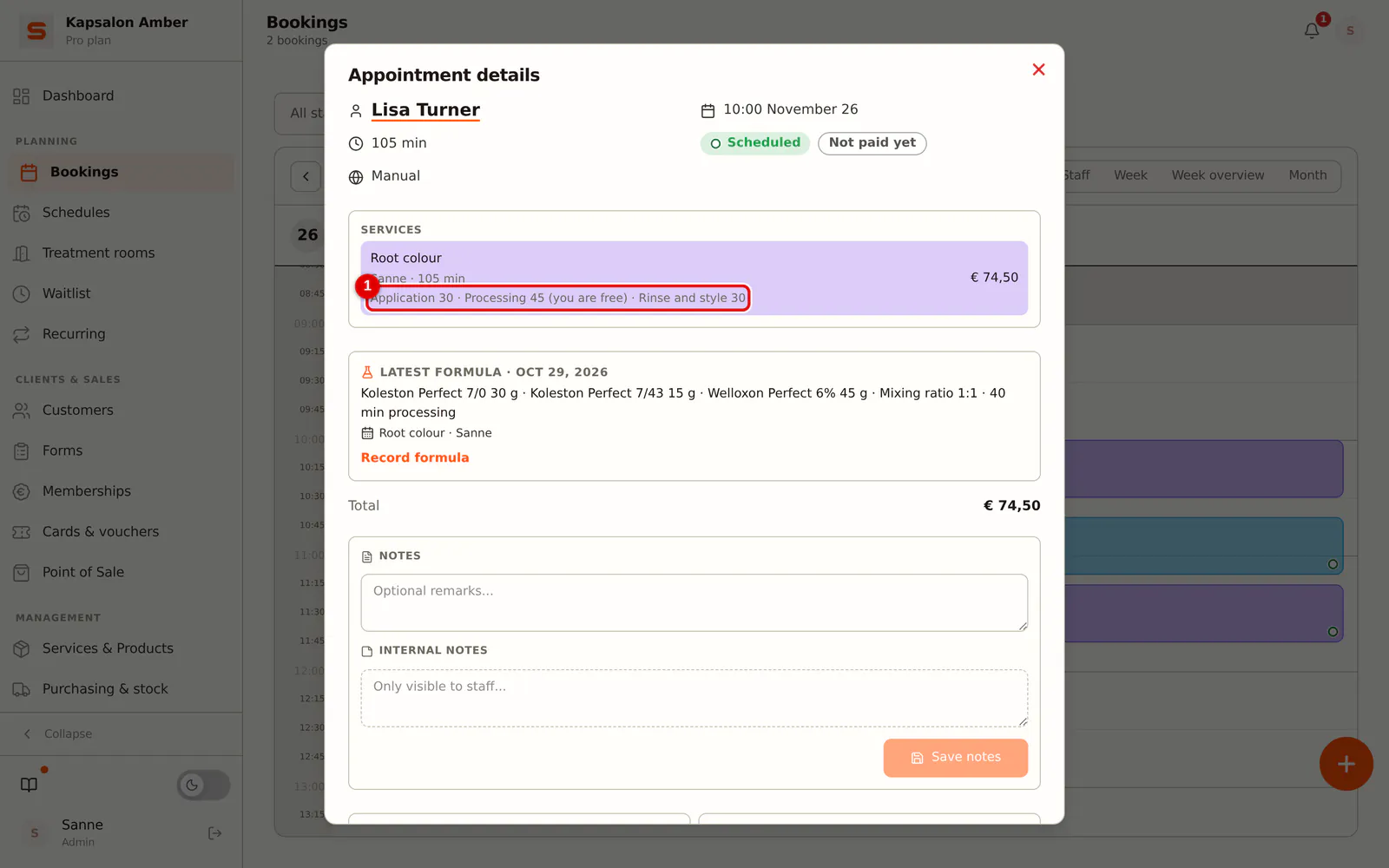
Click the appointment. Under the service you see how the time is split: Application 30 · Processing 45 (you are free) · Rinse and style 30. If you use colour formulas, you also see the client's latest formula here (see Colour formulas).
 (Enlarge image)
Changing the processing time per appointment
-
Step 1: Change the processing time in the appointment
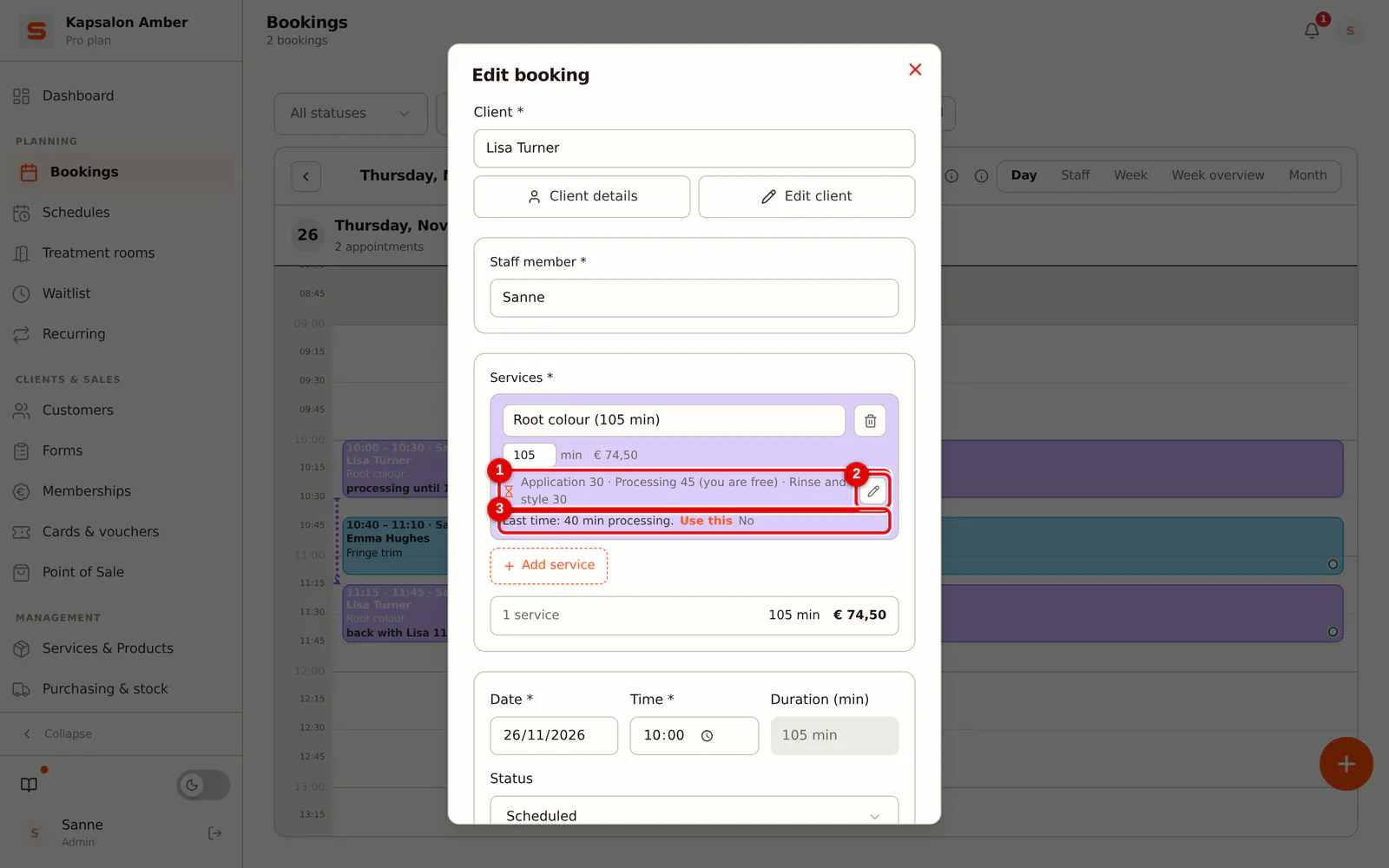
In the appointment, click Edit. Under the service you see how the time is split. With the pencil you change it for this appointment, for example when the colour needs to process longer, or you switch the processing time off for this appointment. The rinse moves along and the appointment gets longer or shorter.
If you recorded a colour formula with a processing time at a previous appointment with the same service, and it differs, you see for example Last time: 40 min processing. Click Use this to use that processing time, or No to leave it as it is.
 (Enlarge image)
If you plan something in the processing time that does not fit, Salonnare tells you who is busy when and when you are free in the processing time. Choose another time or staff member.
Back with your client
-
Step 1: Set how many minutes earlier you are back
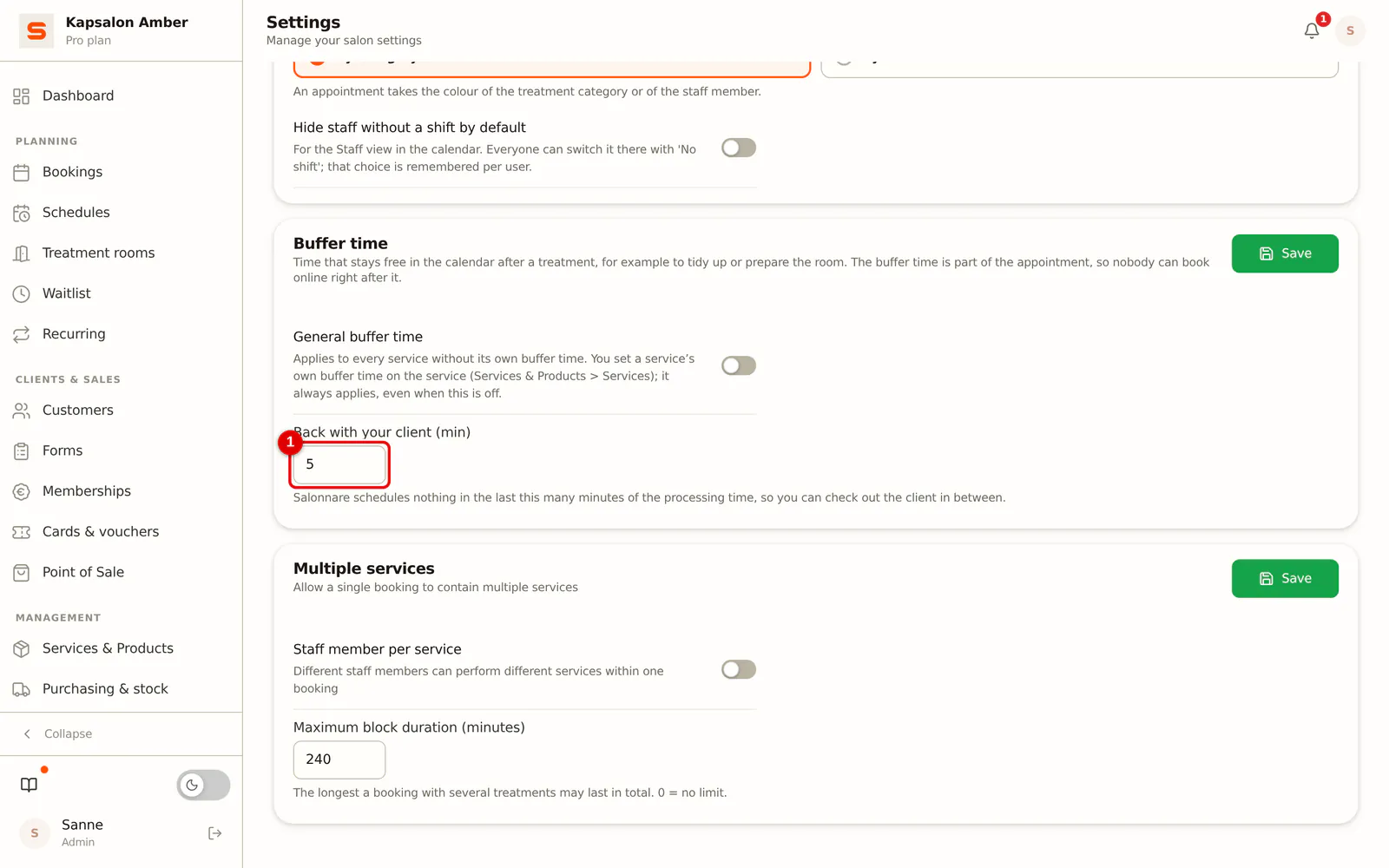
Go to Settings > Calendar and fill in Back with your client (min) (0 to 15, 5 by default). Salonnare plans nothing in that many minutes before the end of the processing time, so you can check out the in-between client before you rinse the colour.
 (Enlarge image)
Online booking during the processing time
-
Step 1: Choose whether clients can book online during the processing time
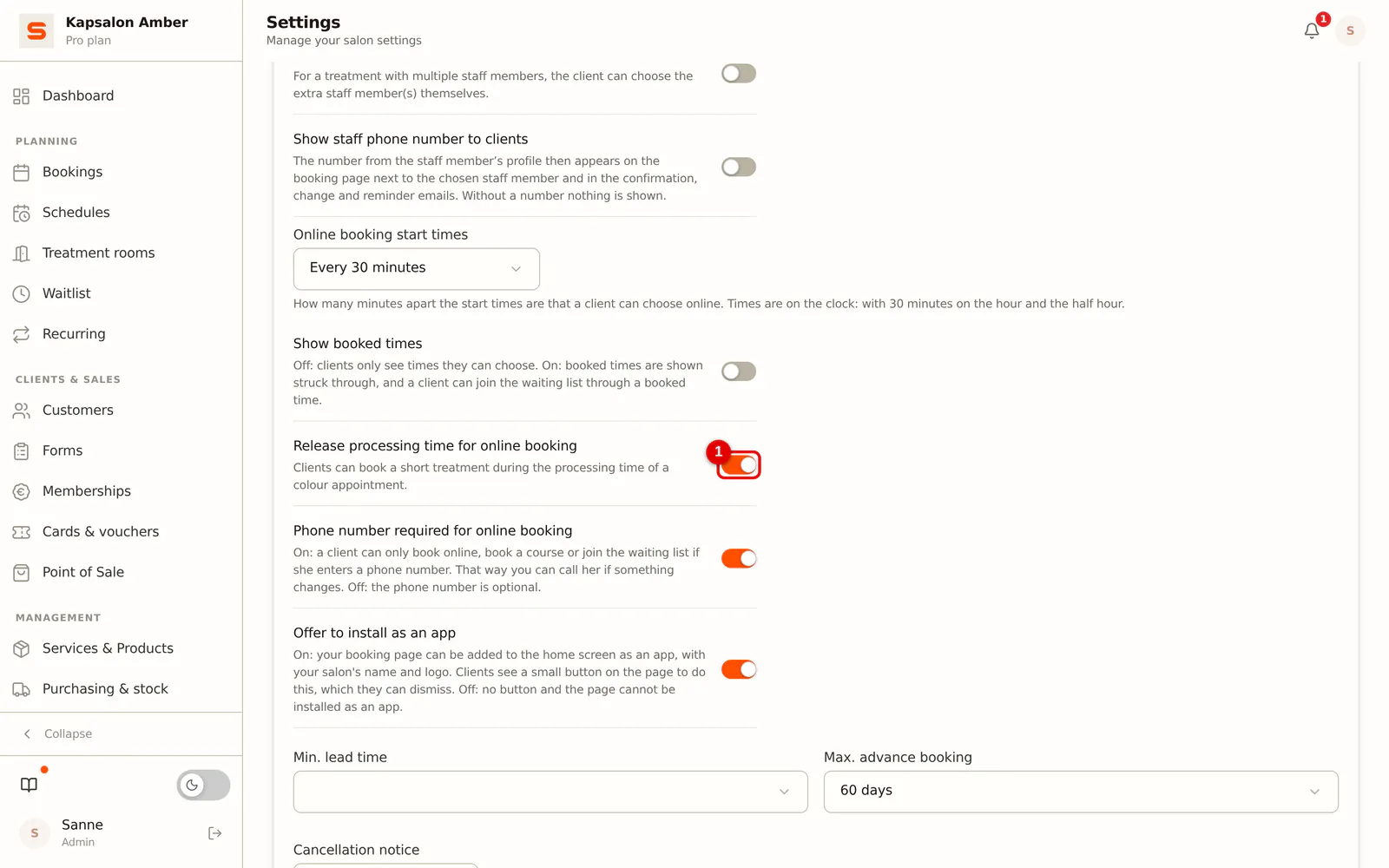
Go to Settings > Calendar > Online booking. With Release processing time for online booking (on by default) clients can book a short treatment in the processing time of a colour appointment. If it is off, only you fill the processing time from the calendar.
 (Enlarge image)
The client does not see that it is a processing time: to them it is simply a free time. Only a treatment that fits completely is offered, including the buffer time (see Buffer time) and the minutes for Back with your client.
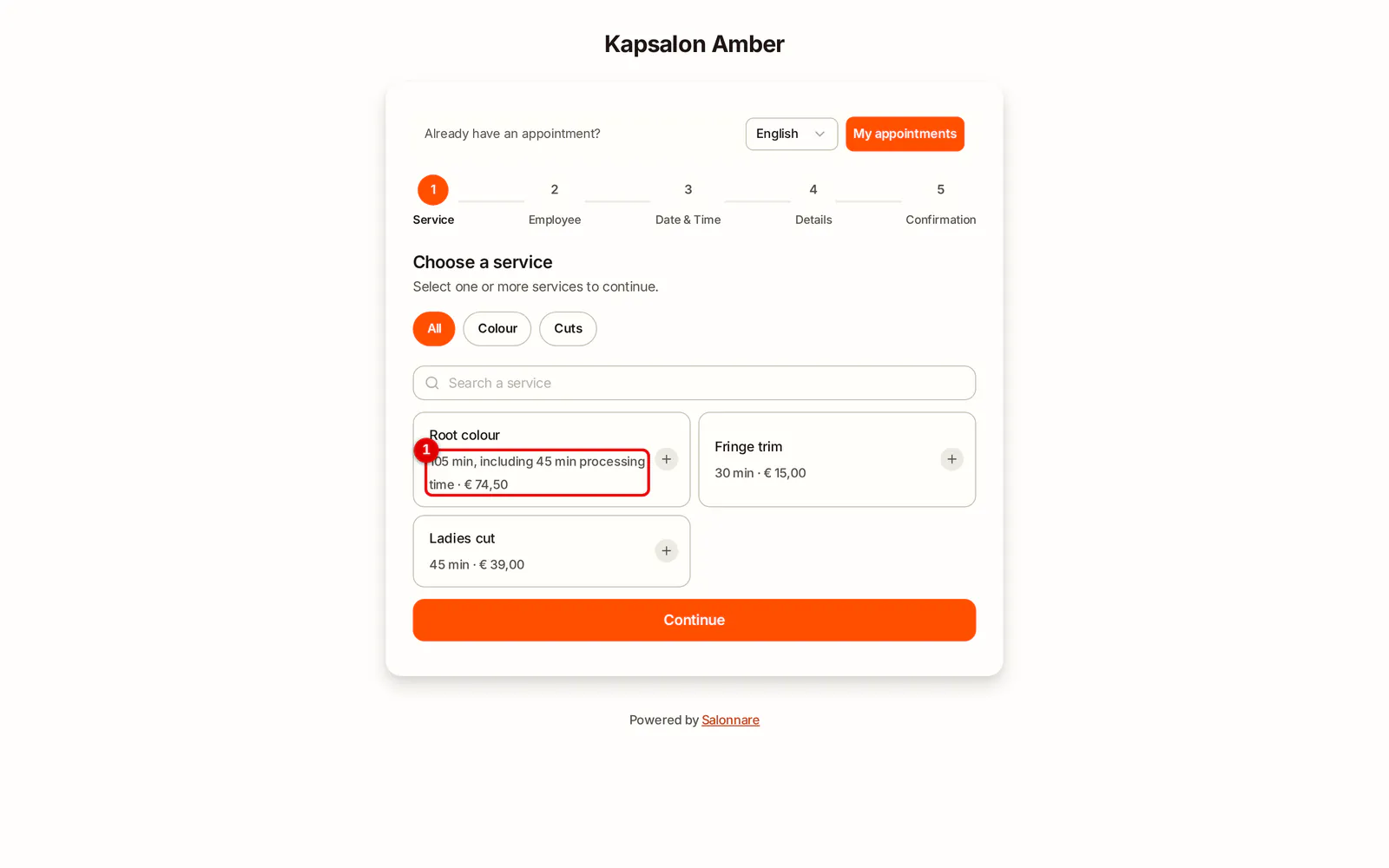
When a client books a colour service themselves, the duration says that the processing time is included, for example 105 min, including 45 min processing time. The client sits in the chair that whole time; they do not see how your time is split.
Frequently asked questions
Do I have to use the processing time? No. Without a processing time a colour service works as it always did: you are busy for the whole duration.
Can I do two colour clients at once? Yes. Start the second client during the first one's processing time, as long as the application fits in your free minutes.