

Are your prices going up on 1 January? You do not have to open every service. With Adjust prices you change the prices of all your services, one category or a few selected services at once. A preview shows what each price becomes before you save.
You find it under Services & products, on the Services tab. Only an administrator can adjust prices.
Adjusting prices
-
Step 1: Open Adjust prices
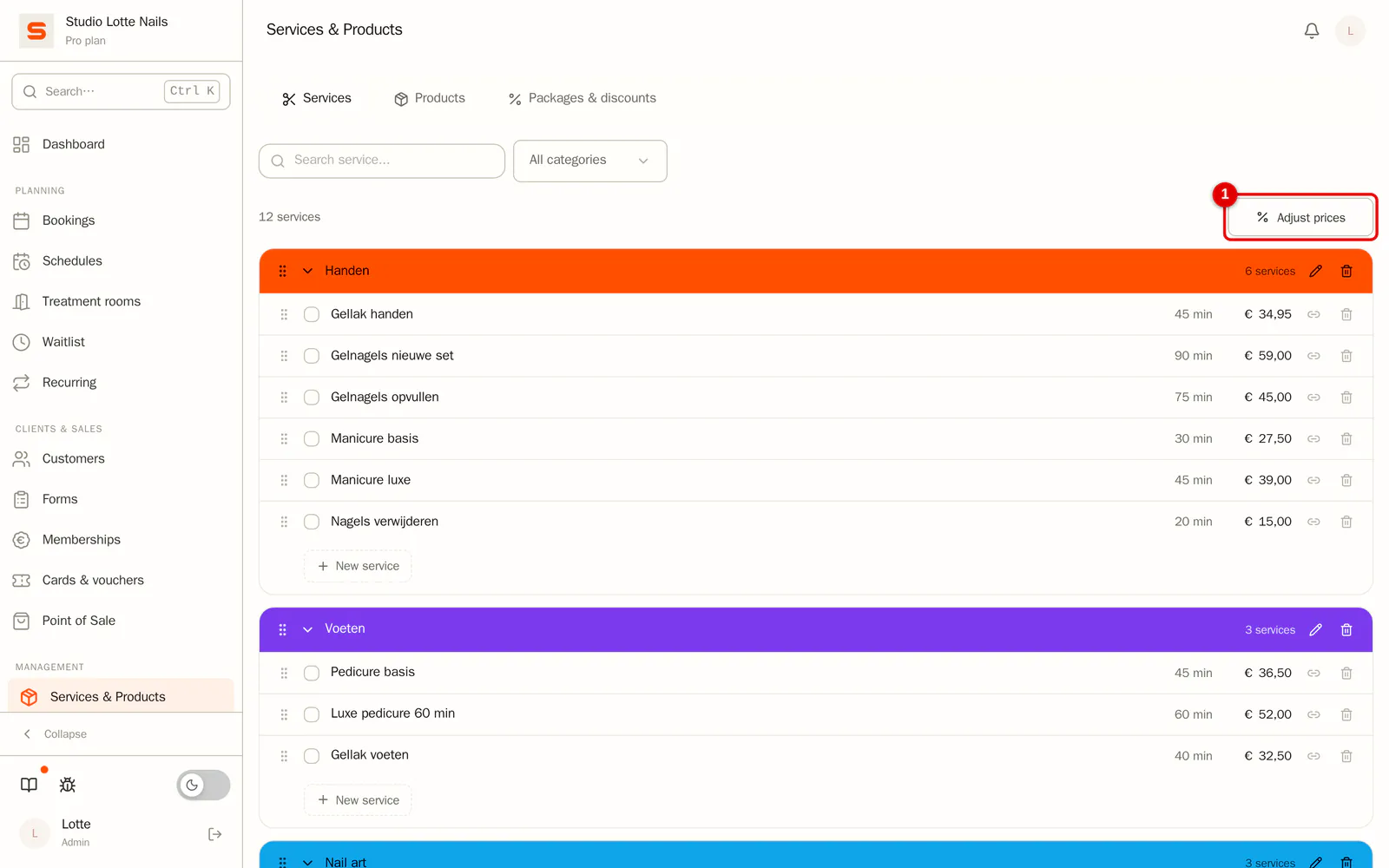
Go to Services & products > Services and click Adjust prices.
Only want to change a few services? Tick them in the list first. A bar with Adjust prices appears at the bottom; the window then opens on Selected.
 (Enlarge image)
-
Step 2: Choose the services and the amount
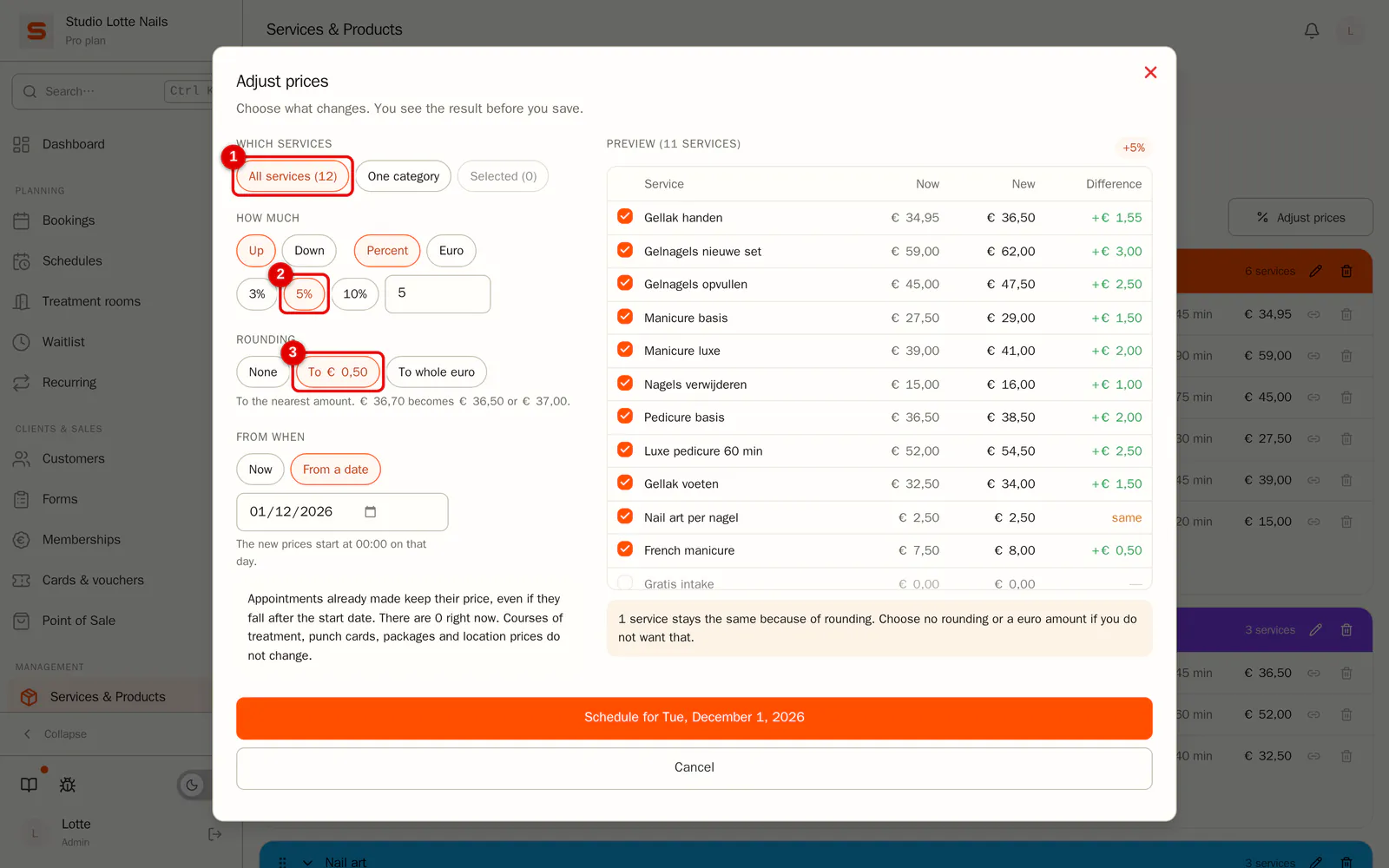
Choose:
- Which services: all services, one category or the selected ones.
- How much: Up or Down, in Percent or Euro. Click a quick choice or enter your own number under Other….
- Rounding: None, to € 0.50 or to whole euro. Salonnare rounds to the nearest amount: € 36.70 becomes € 36.50 or € 37.00.
 (Enlarge image)
-
Step 3: Choose from when
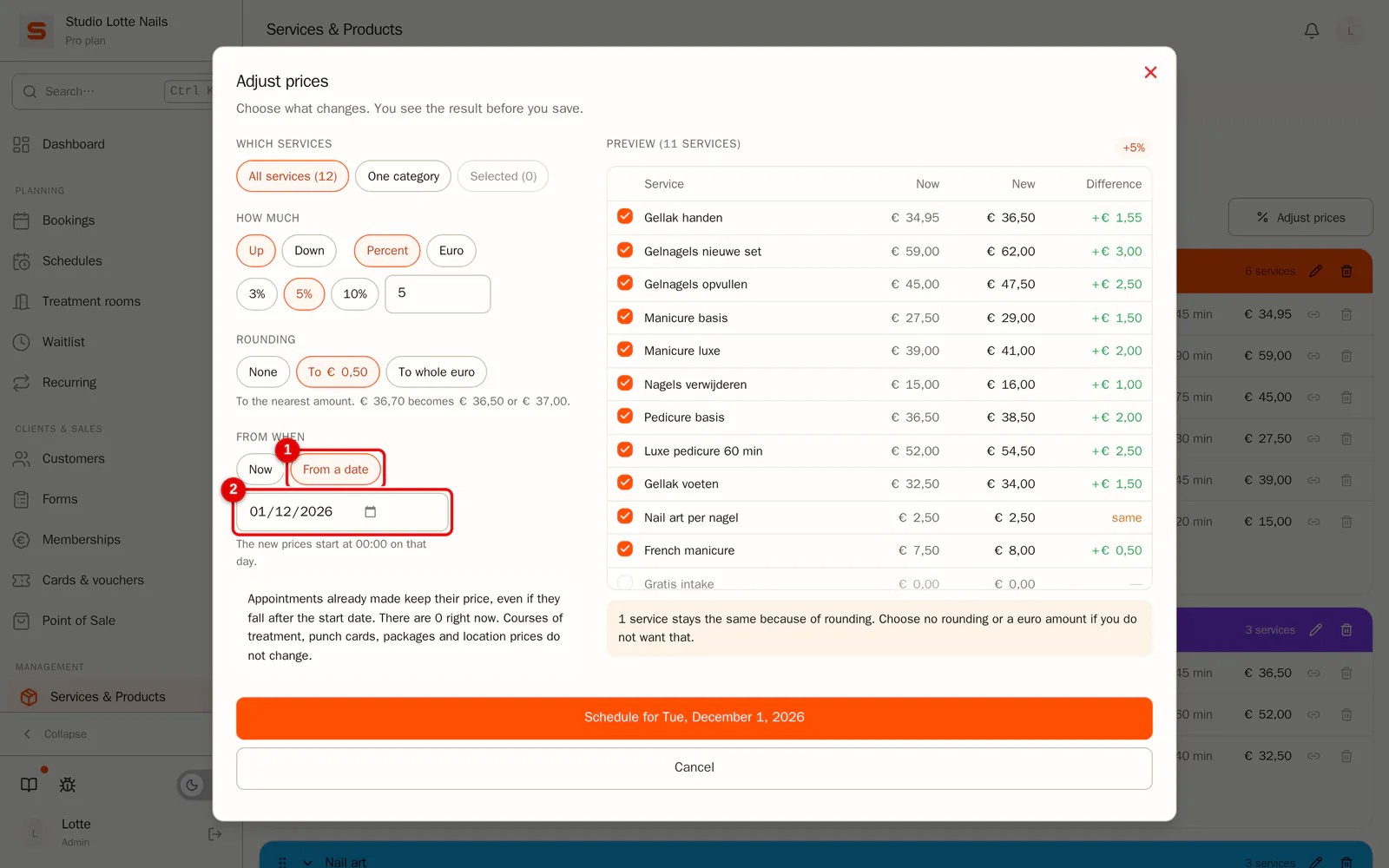
Choose Now or From a date. With a date, the new prices start at 00:00 on that day. The earliest date is tomorrow.
 (Enlarge image)
-
Step 4: Check the preview and save
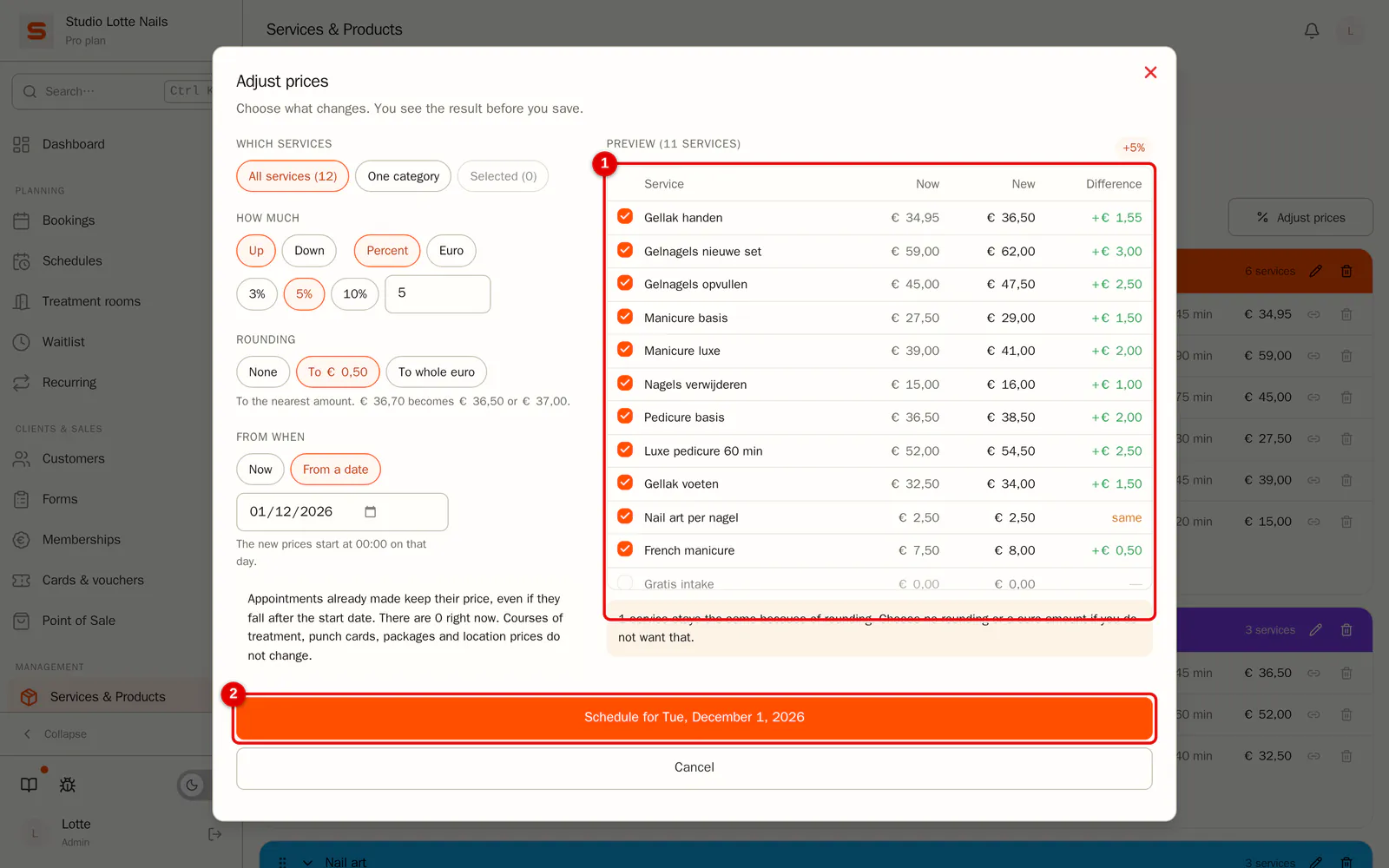
The preview shows, per service, the price now, the new price and the difference. Untick a service if it should not take part. Then click Schedule or Adjust prices now.
 (Enlarge image)
-
Step 5: View the scheduled change
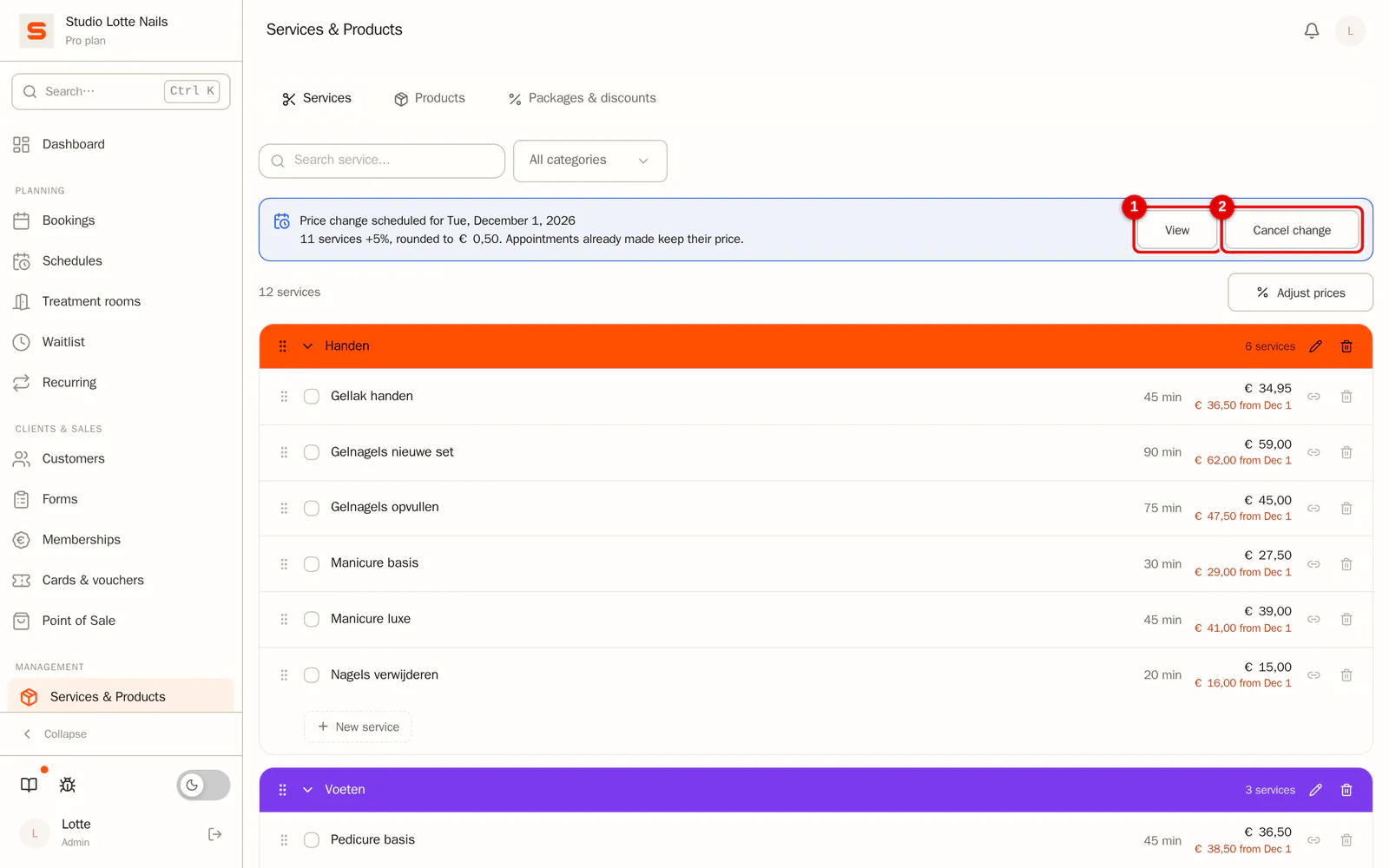
A bar above the list shows the scheduled change. View shows all old and new prices; Cancel change stops it. In the list, the new price and its date are shown under the current price.
 (Enlarge image)
What does not change
- Appointments already made keep their price, even if they fall after the start date. The window tells you how many there are now. A new appointment gets the price that applies when you make it.
- Courses of treatment, punch cards, packages and memberships have their own price and do not change.
- Own prices per location do not change. If you have more locations, tick Also adjust the own prices per location to include them.
- Archived services do not take part. A service that costs € 0 (a free intake) is off by default in the preview; tick it if you do want to give it a price. The same rule and rounding then apply: with + € 5 it becomes € 5.00, a percentage leaves it at € 0.
- Seasonal offers with a percentage automatically use the new price. A fixed offer price stays.
When a scheduled change takes effect, the admins get a notification in the bell, with how many services got the new price. The full export has the price history in a separate file.
Undo
After the change goes through, a bar Prices adjusted stays above the list for 14 days, with Undo.
- Every service goes back to its old price, except a service whose price you changed by hand in the meantime. That one stays, and the window names those services beforehand.
- Appointments made in between keep the price they were booked at.
- After 14 days it is no longer possible. Adjust the prices again, in the other direction.
What if ...
... I change a service by hand after scheduling a price change? Your manual change wins: on the start date Salonnare skips that service. After the change goes through, the bar tells you how many services were skipped.
... I archive or delete a service before the start date? That service is skipped.
... a change is already scheduled for one of the services? Each service can have one scheduled change. The window says so, and you can only save after you cancel the first one or untick those services.
... rounding leaves a price unchanged or raises it a lot? The preview marks services that stay the same because of rounding or become more than twice as expensive. Choose None for rounding, a euro amount, or untick the service.
... a price would go below zero? Then it becomes € 0.00. The preview warns you.