Gift cards
Gift cards are one of the best ways to bring in new clients. When someone buys a gift card for a friend or family member, you gain a new visitor who may become a regular. Below you will read how to sell, redeem and manage gift cards in Salonnare.
Gift cards are part of the Starter plan and higher.
Selling a gift card
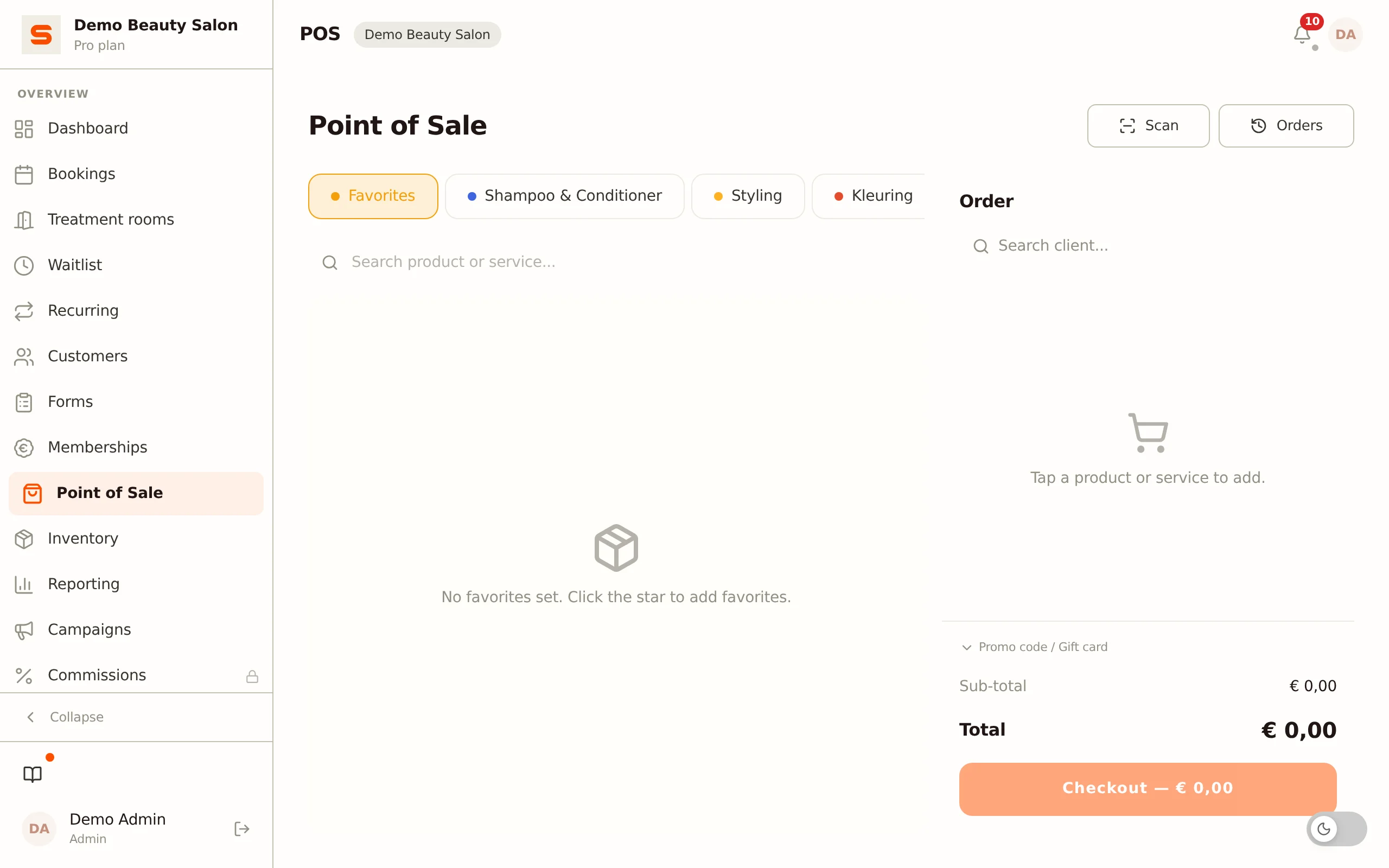
You sell gift cards through the Point of Sale.
- Open the Point of Sale from the sidebar.
- Link the client who is buying the gift card. Then you can find the card back in that client profile later, and Salonnare can email it to that client.
- Open the Promotions tab and click the Gift card tile.
- Enter the value to load onto the card and confirm.
- The gift card now appears as a line in the order. Check out as usual.
At checkout Salonnare automatically creates a gift card with a unique code and (depending on your setting) an expiry date. If you sell several gift cards at once, each card gets its own code.
If a client with an email address is linked and the Gift card row is on under Settings > Email templates, that client receives the gift card with its code by email. The email goes out under your salon's name, via Salonnare's verified sending domain. Without a linked client, or with that row off, the gift card is still created and you hand the code to the client yourself.
Selling gift cards is a great upsell during the holidays. Put a small sign at your counter to remind clients.
Redeeming a gift card
When a client wants to pay with a gift card:
- Open the Point of Sale and add the treatments or products to the order.
- At the bottom of the cart panel, open the block Discount or voucher.
- Type the unique code in the field Discount code or gift card and click Add. Prefer to scan? Click the button with the camera icon next to it and hold the QR code from the email in front of the camera -- the scanned code is applied straight away.
- The gift card balance is deducted from the order and appears under Applied as a chip showing the code.
If the order costs more than the remaining balance, the client pays the difference with another payment method. If the order costs less, the remaining balance stays on the card for next time.
A gift card can be used across several visits. The balance decreases until it reaches zero -- then the card gets the status "depleted".
Viewing a client's gift cards
If you linked the gift card to a client, you find it back in the client profile.
- Go to Clients and open the profile.
- At the bottom is the Gift cards block, showing each card's code, balance, status and expiry date.
Viewing all gift cards
Want a full overview of all sold gift cards, or to check the balance of a single code?
- Go to Clients in the sidebar.
- Click the Gift Cards button at the top.
- Search by code or client name to find the card -- you see code, balance, status and expiry date.
Setting an expiry date
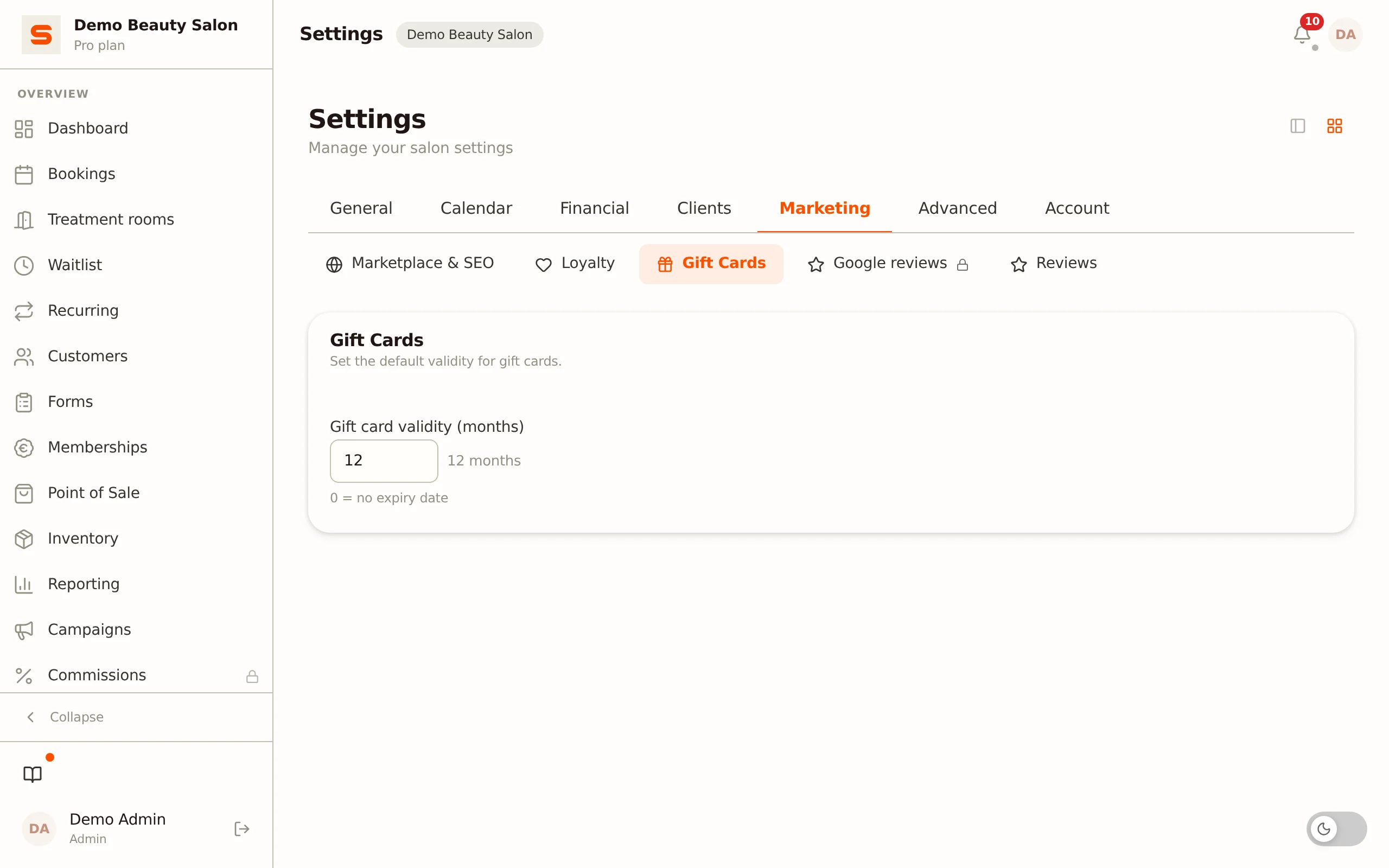
By default, new gift cards get a validity of 12 months. To change this:
- Go to Settings > Gift Cards (group Marketing).
- Set Gift card validity (months).
- Enter the number of months, or
0for no expiry.
The expiry date is shown on the gift card email. An expired gift card can no longer be redeemed.
Changing the validity period only applies to newly sold gift cards. Already sold gift cards keep their original expiry date.