

You can also hand over a gift card on paper: as a card in your salon's branding, with your brand colour and your logo (or your initials). Salonnare turns it into a PDF that you print, download or, in the app on your phone, share with your printer.
There are two sizes:
- A6: one card per sheet (148 × 105 mm).
- A4: four cards on a landscape sheet (140 × 98 mm each), to cut out.
Print a card
-
Step 1: Open the gift card
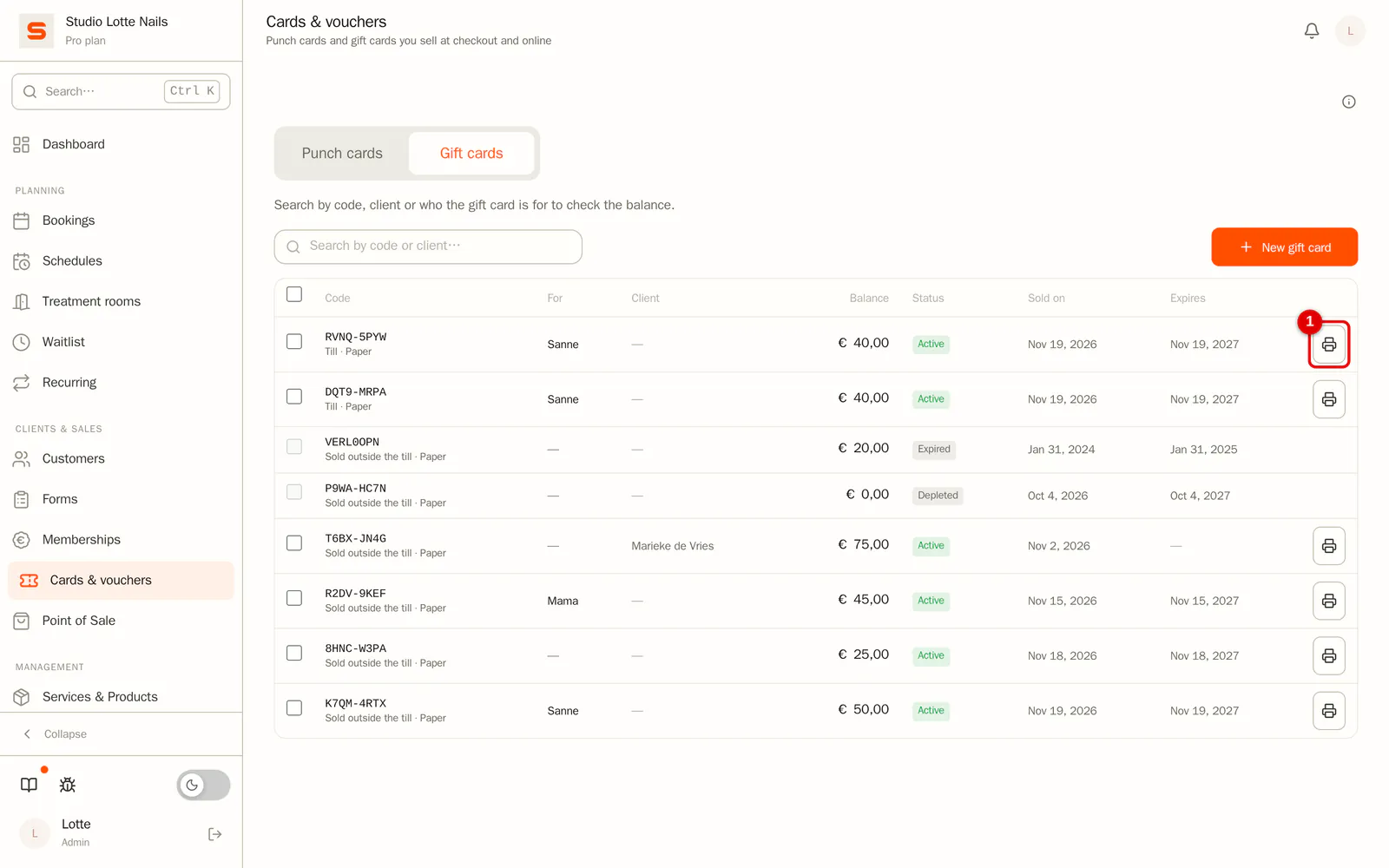
Go to Cards & vouchers and open the Gift cards tab. Click the printer button next to the gift card. It is only there for a gift card that is valid right now: not used up, not expired and paid.
 (Enlarge image)
-
Step 2: Choose what goes on the card
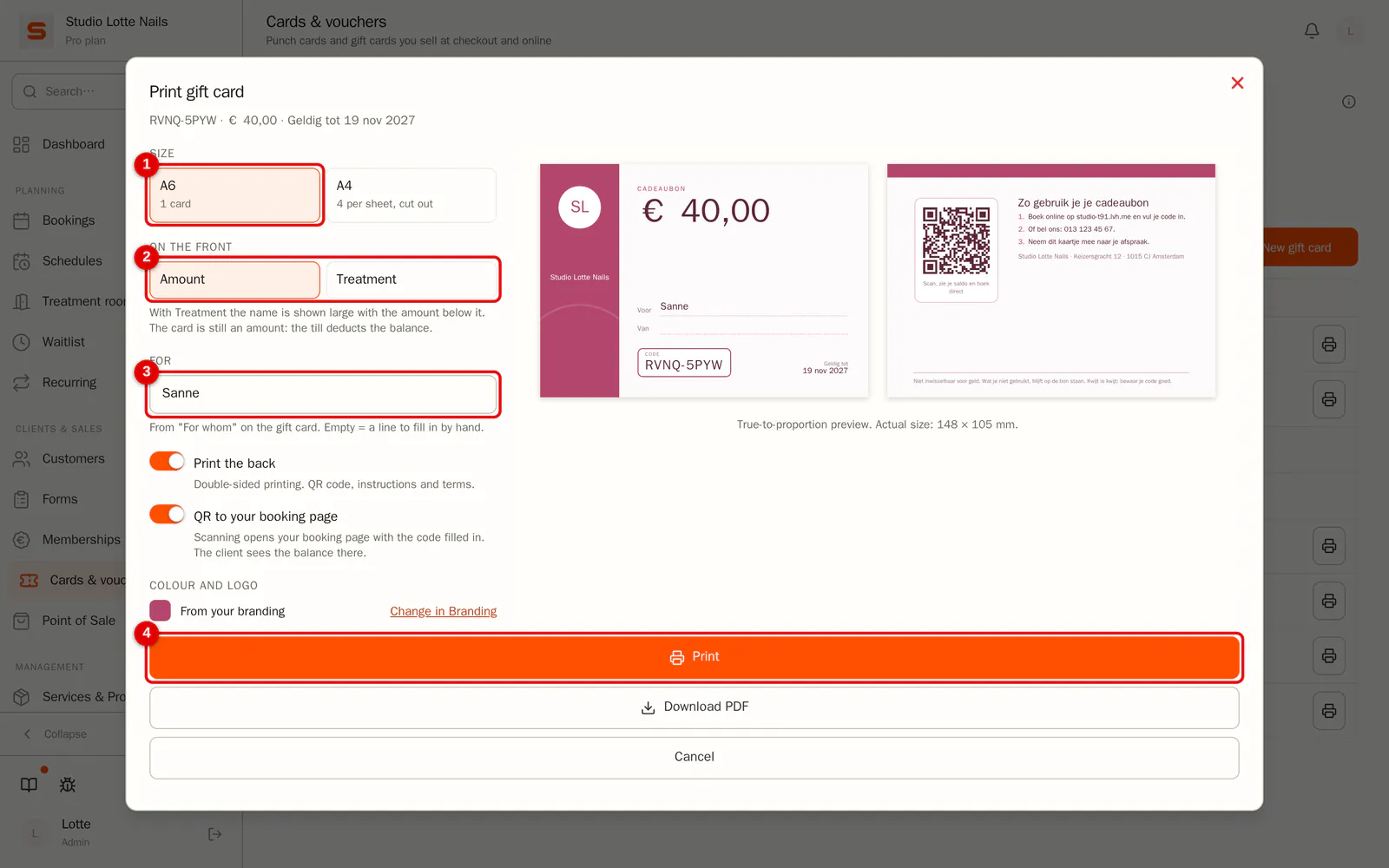
On the right you see the preview straight away, front and back. Choose:
- Size: A6 or A4.
- On the front: the Amount, or a Treatment (for example "Gel manicure"). With a treatment the name is shown large with the amount small below it ("worth € 45.00"). The gift card is still an amount: the till deducts the balance.
- For: the name from "For whom" on the gift card. If you leave it empty, there is a line to fill in by hand.
- Print the back and QR to your booking page: see below.
Click Print, or Download PDF to keep it.
 (Enlarge image)
In the app on your phone or tablet you cannot print from the screen. There is one button instead, Share or print PDF: it opens the share menu, where you choose AirPrint, your printer's app or mail the PDF to yourself.
Several gift cards on one A4 sheet
-
Step 1: Tick them and print them together
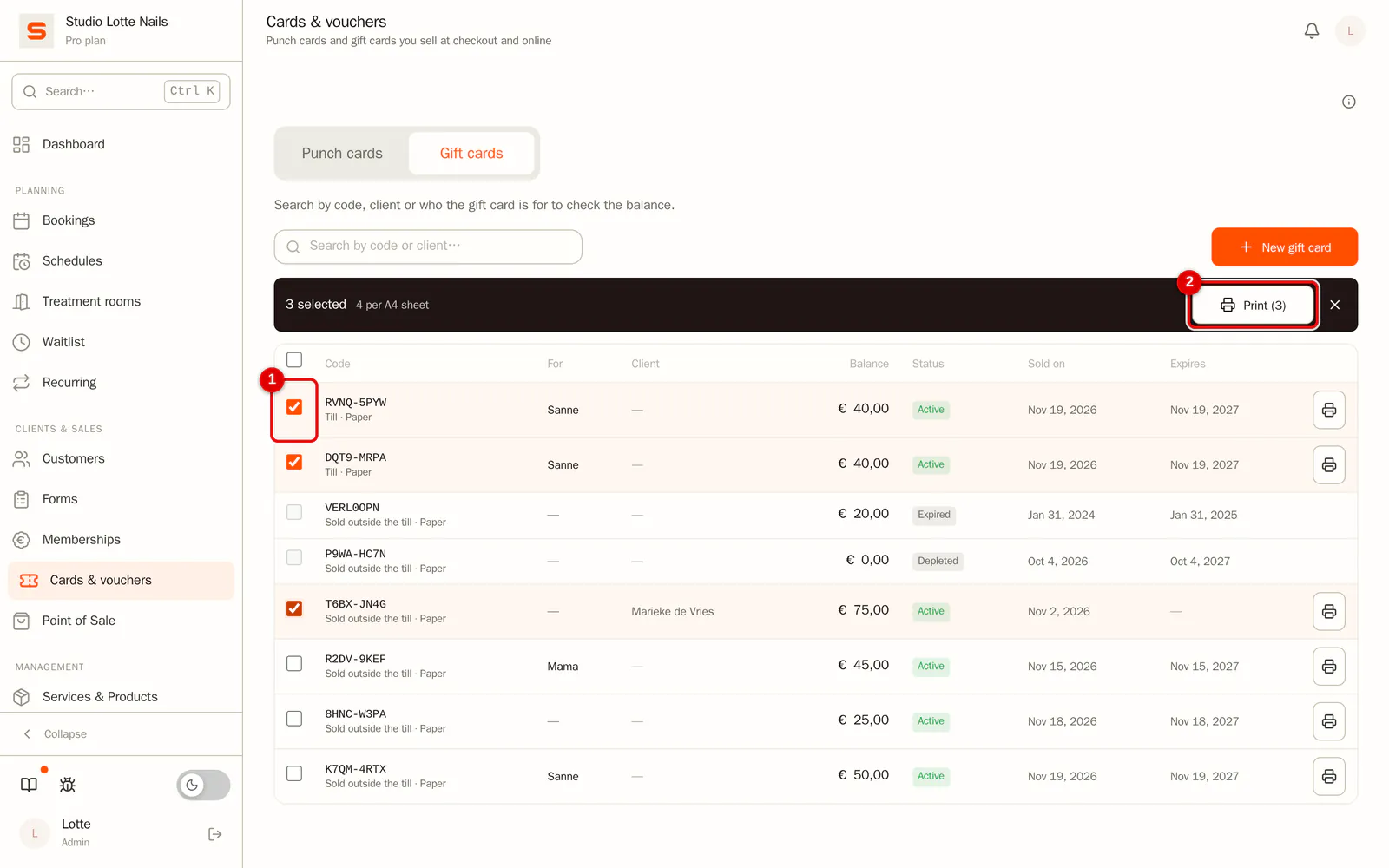
Tick every gift card you want to print (40 at most). A bar appears at the top; click Print there. Four cards go on a sheet; three gift cards leave one empty slot.
 (Enlarge image)
Print double-sided and choose flip on the short edge. The backs are mirrored on the sheet for this, so each back lands exactly behind its own front. Then cut along the dotted lines.
Right after checkout in the Point of Sale
When you sell a gift card in the Point of Sale, the code is shown after checkout. Click Card there to print a card straight away. If the receipt is not (fully) paid yet, there is no card yet: the gift card only works after payment.
What is on the card
- Front: your logo (or your initials in a circle if you have no logo), your salon's name, the amount or the treatment, "For" and "From", the code and until when the gift card is valid. A gift card without an expiry date is valid "Unlimited".
- Back: a QR code, how the client uses the gift card (book online, call, bring the card), your salon's address and the terms line.
Colour and logo come from Settings > Branding. There is no Salonnare logo on the card.
The QR code opens your booking page with the code already filled in. The client sees the balance and until when the card is valid right away, and can book an appointment directly; the gift card is ready when they confirm. Note: anyone who sees the card can use the code, just like a written code. If redeeming gift cards online is off, or the code is shorter than 8 characters (such a code only works at the till), the QR opens your booking page without the code.
Your own terms line
-
Step 1: Enter your own line
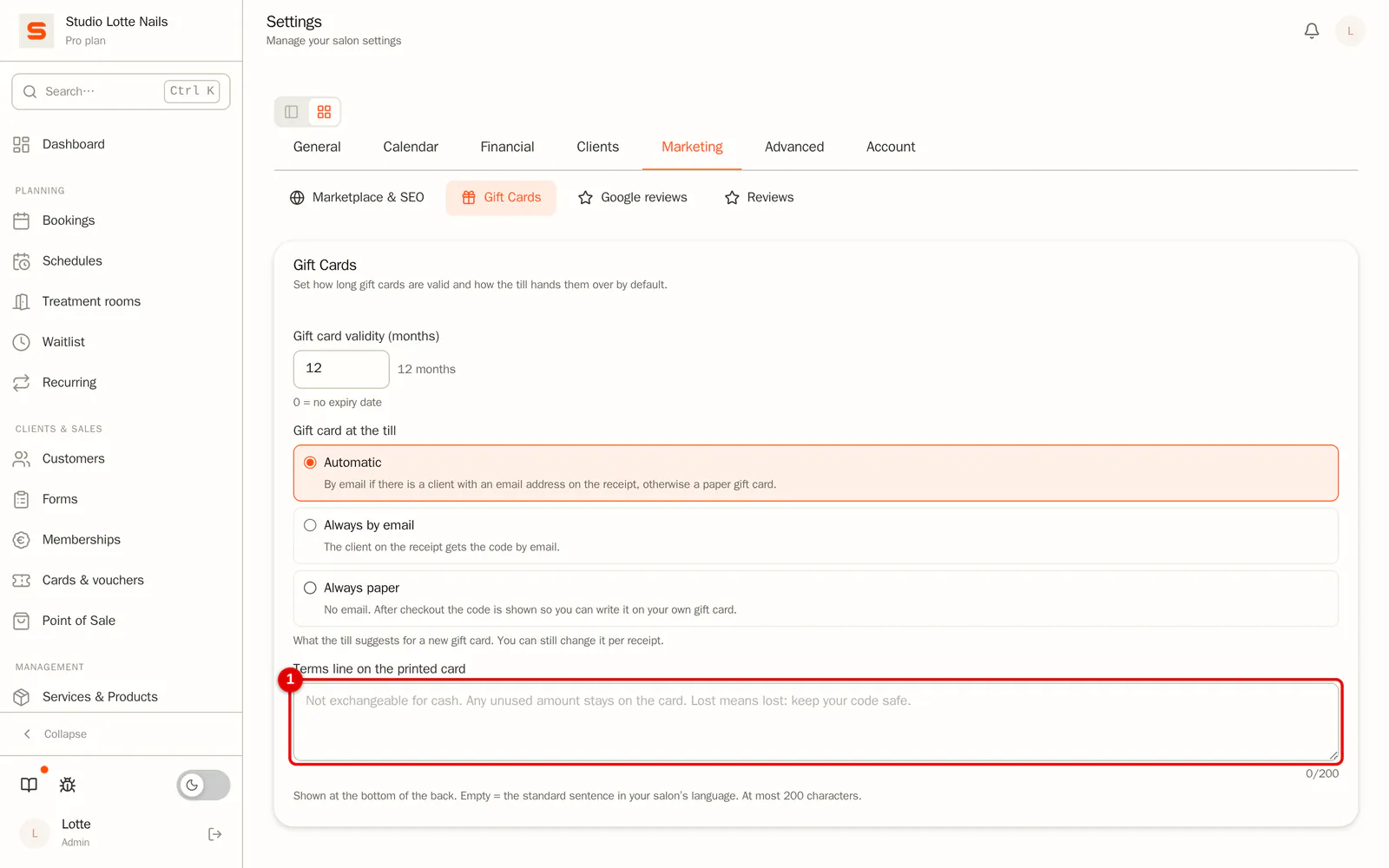
By default the bottom of the back says: "Not exchangeable for cash. Any unused amount stays on the card. Lost means lost: keep your code safe." If you want something else, go to Settings > Gift Cards and fill in Terms line on the printed card (200 characters at most). If you leave the field empty, the standard sentence comes back, in your salon's language.
 (Enlarge image)
On your phone
Tap a gift card in the list. A menu opens with Print card and Copy code.