Punch cards
A punch card is a card with a fixed number of sessions, for example 10 sessions for € 400. You decide which treatments the card covers: one treatment or several. One session is one of those treatments. The client pays for the card in one go, and one session comes off at every visit, at the POS or already when booking.
Punch cards are part of the Pro plan.
Creating a punch card
-
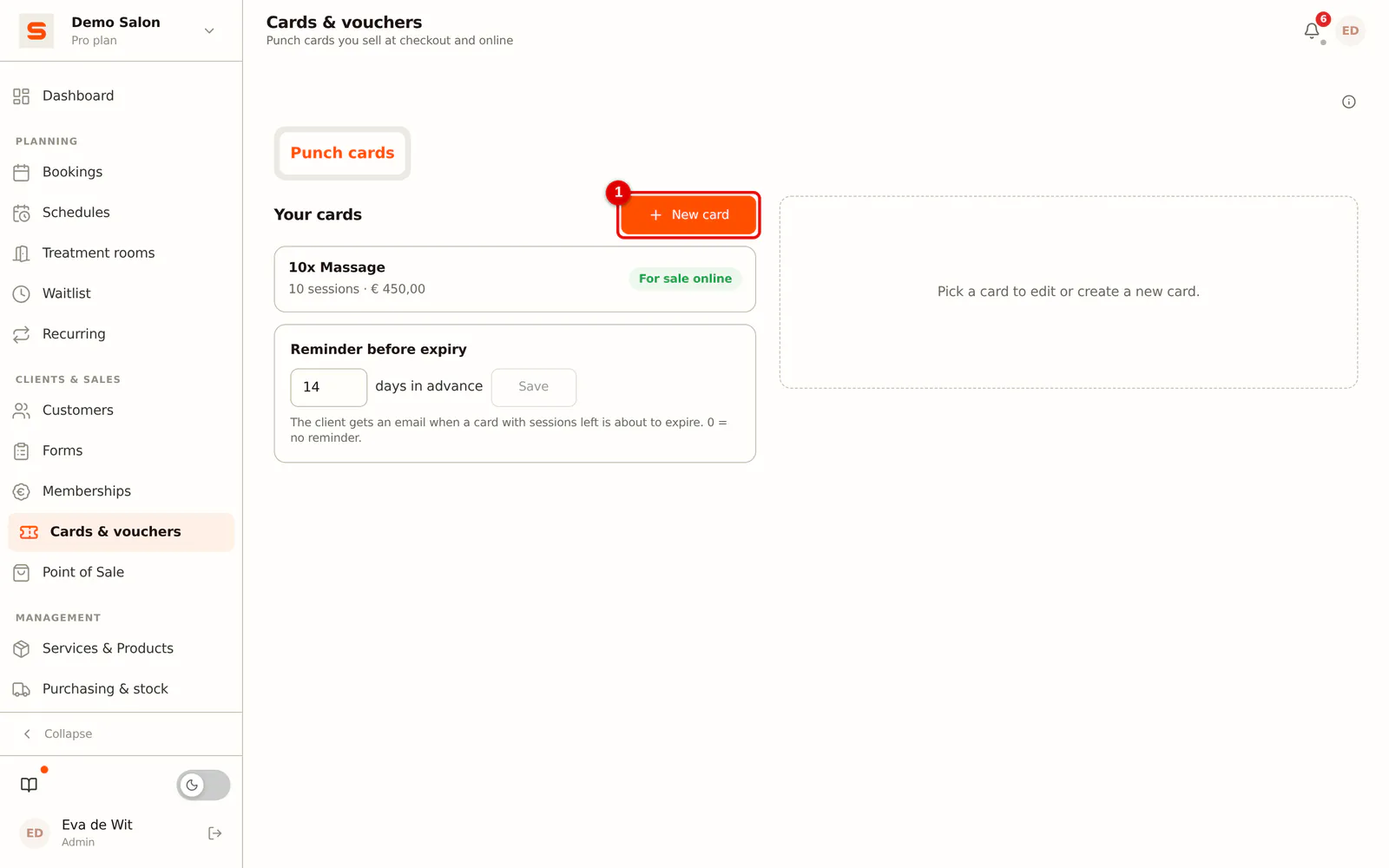
Step 1: Open Punch cards
In the sidebar, go to Cards & vouchers > Punch cards and click New card.
 (Enlarge image)
-
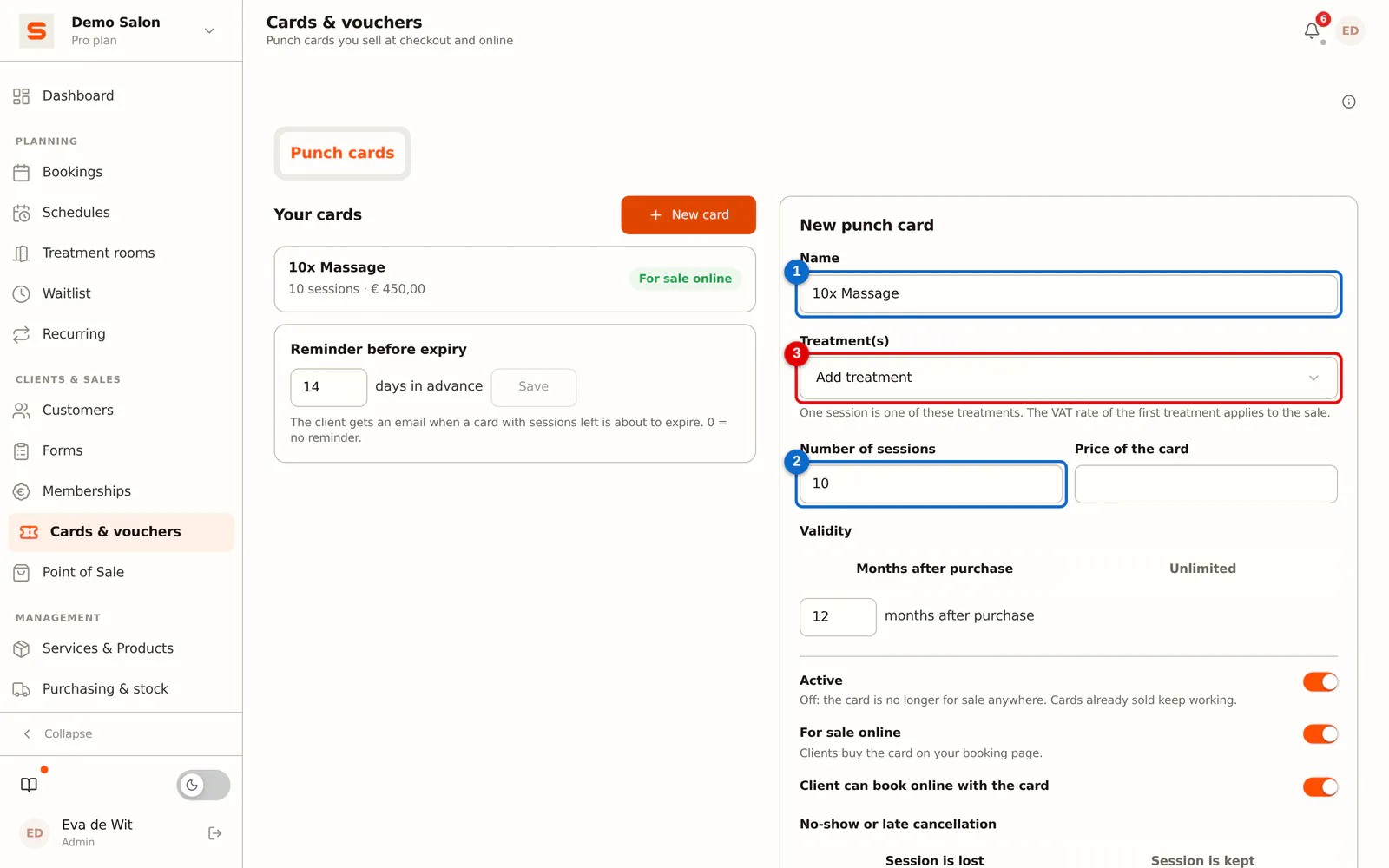
Step 2: Choose the name, treatments and number of sessions
Give the card a name, for example "10x Gel nail infill". Choose the treatments the card covers and enter the number of sessions.
 (Enlarge image)
-
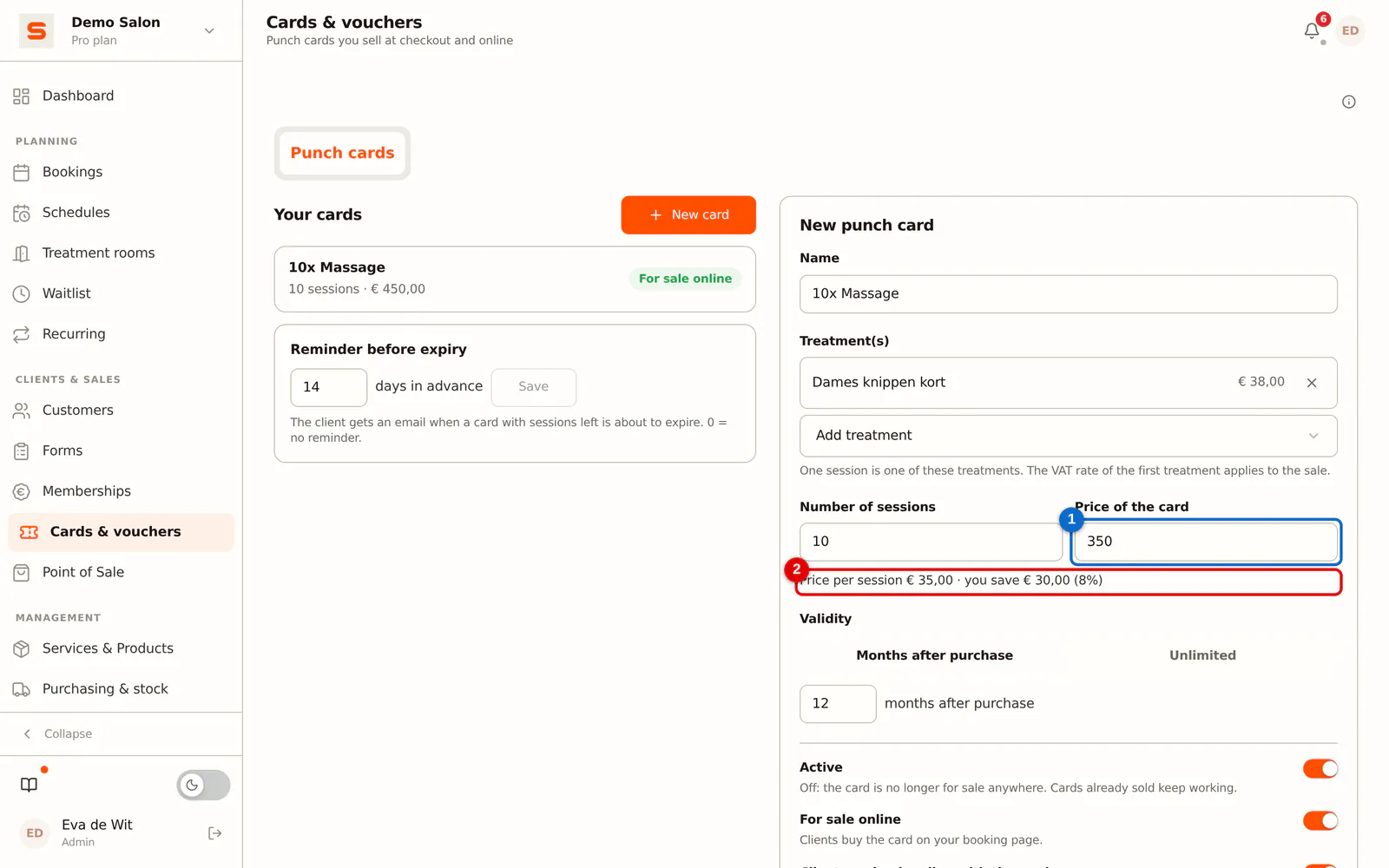
Step 3: Enter the price
Enter the price of the whole card. Below it you see what one session costs the client and how much she saves compared with the regular price.
 (Enlarge image)
-
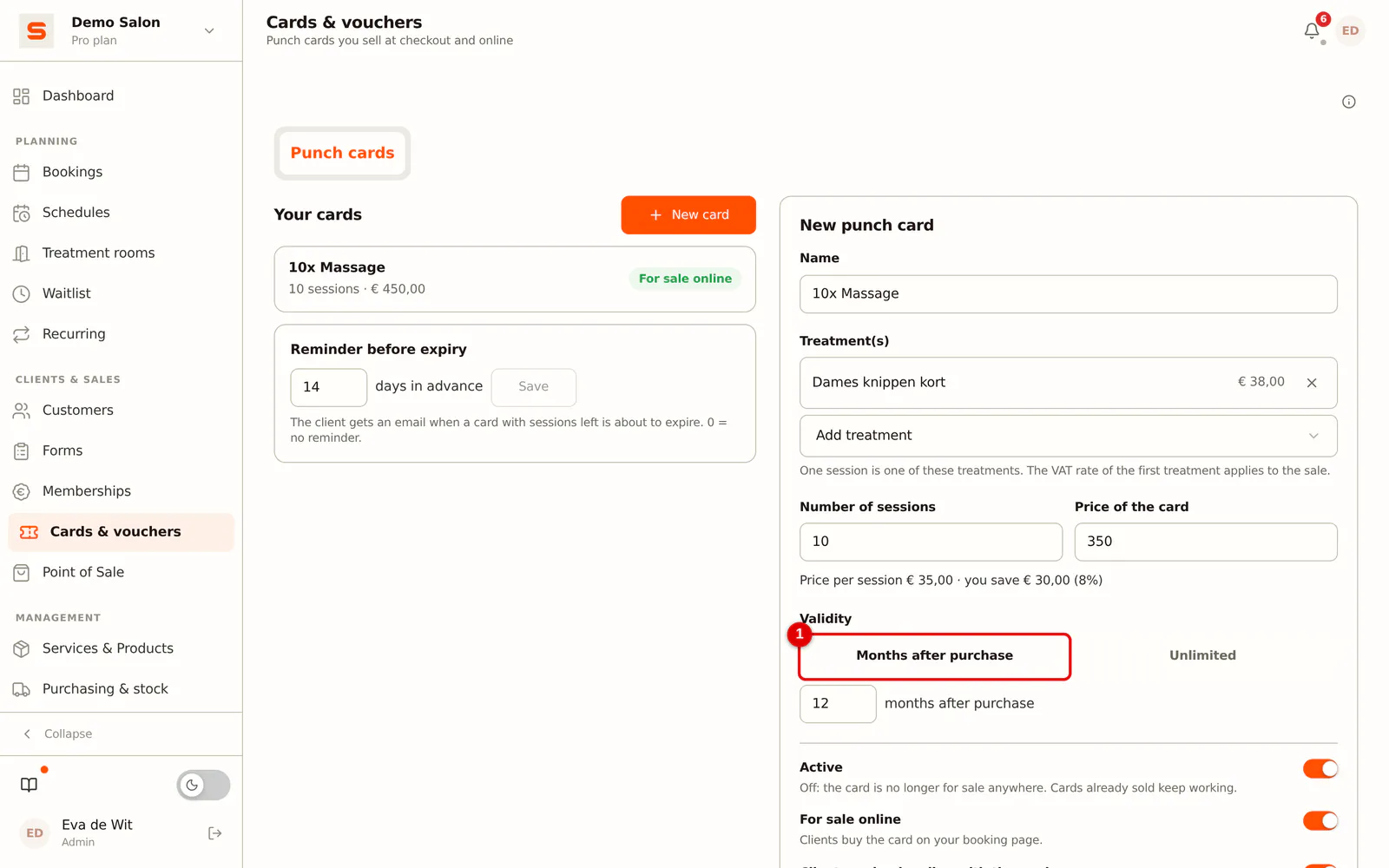
Step 4: Choose the validity
Choose how long the card is valid: a number of months after purchase, or unlimited.
 (Enlarge image)
-
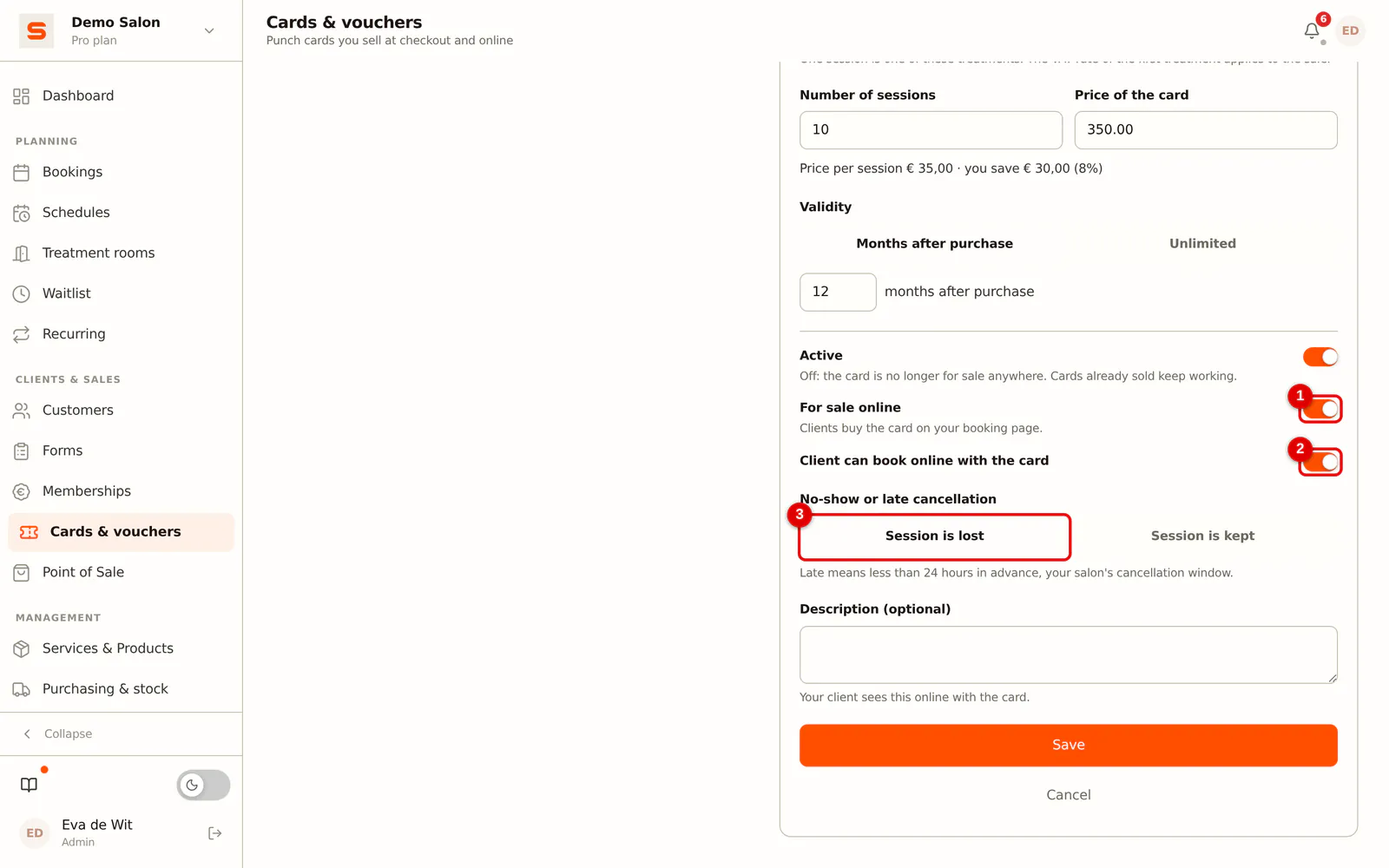
Step 5: Choose what the client can do online and what happens on a no-show
- For sale online: the card is shown on your booking page and the client can buy it there.
- Client can book online with the card: the client can make an appointment on your booking page that is paid with the card.
- No-show or late cancellation: choose Session is forfeited (default) or Session stays on the card. What counts as "late" follows the cancellation window you have already set for your salon.
 (Enlarge image)
-
Step 6: Save
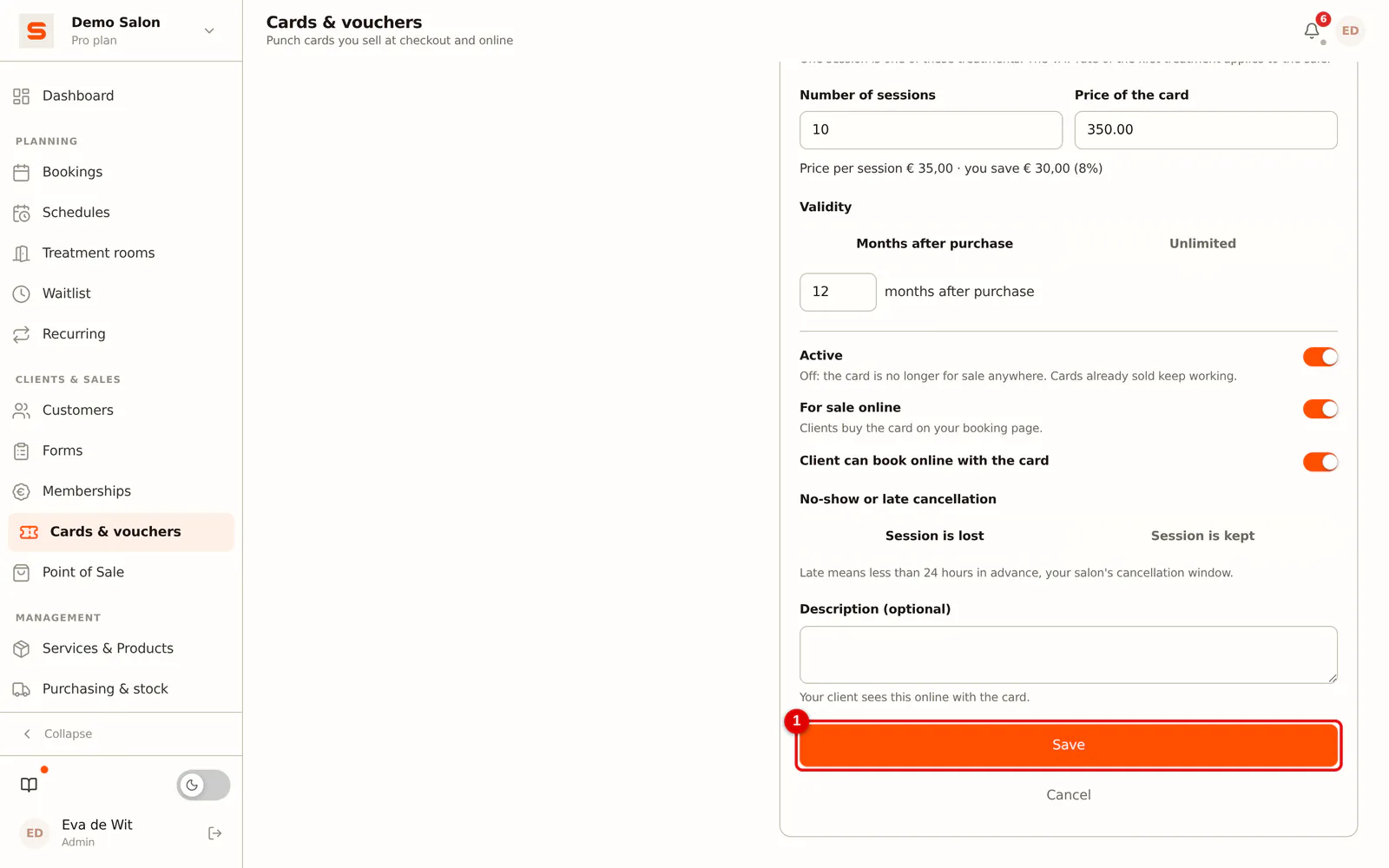
Click Save. The card is now in the list and for sale.
 (Enlarge image)
On the same page you set how many days before the expiry date the client gets a reminder email. Enter 0 and no reminder is sent.
Revenue and VAT
- Revenue and VAT count at the sale. Selling the card is a normal line on the receipt, at the VAT rate of the card's first treatment. Discounts work on that line just like on any other line.
- Using a session costs € 0.00 on the receipt: the money already came in and was booked at the sale.
- In reports and commissions a session is worth the card price divided by the number of sessions, just like a treatment course. A € 400 card for 10 sessions therefore counts as € 40 per session, and the staff member's commission is calculated on that € 40. If the receipt had a discount when the card was sold, the price after the discount counts.
Selling a punch card
At the POS
-
Step 1: Link the client
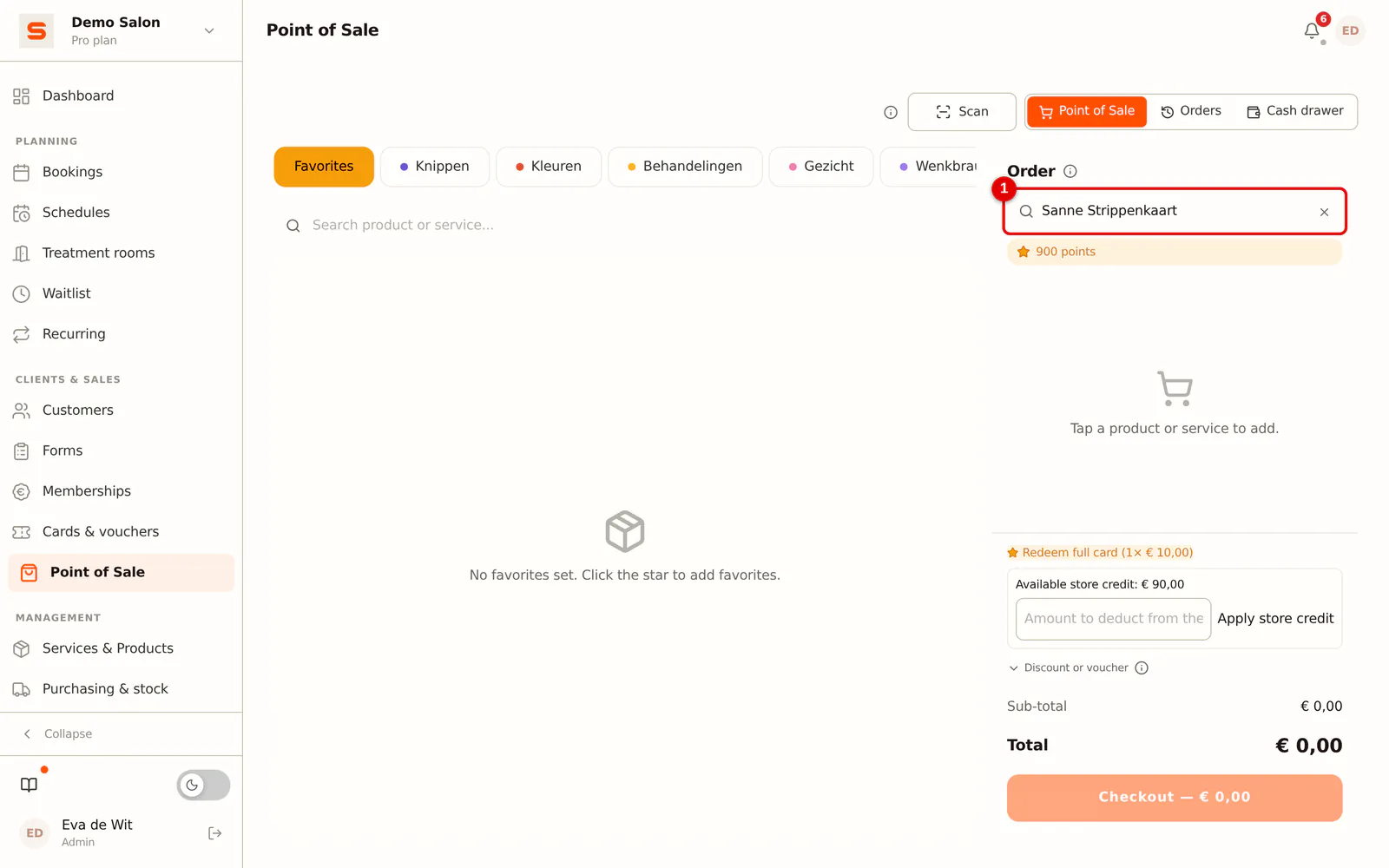
Open the POS and link the client who buys the card at the top. You cannot sell a punch card without a client: the card always belongs to a client.
 (Enlarge image)
-
Step 2: Choose the card
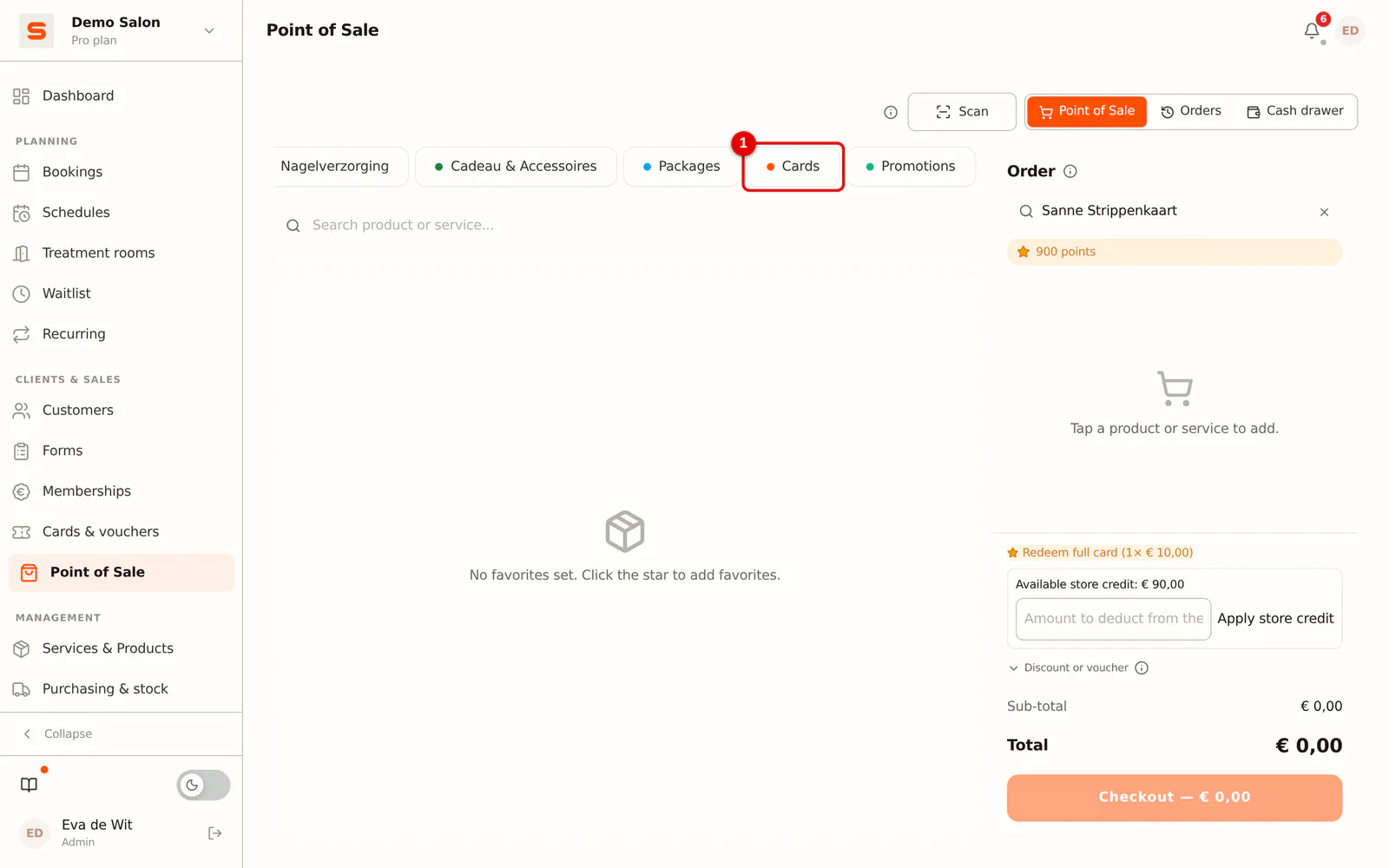
Open the Cards tab and click the punch card. It is now a line on the receipt.
 (Enlarge image)
-
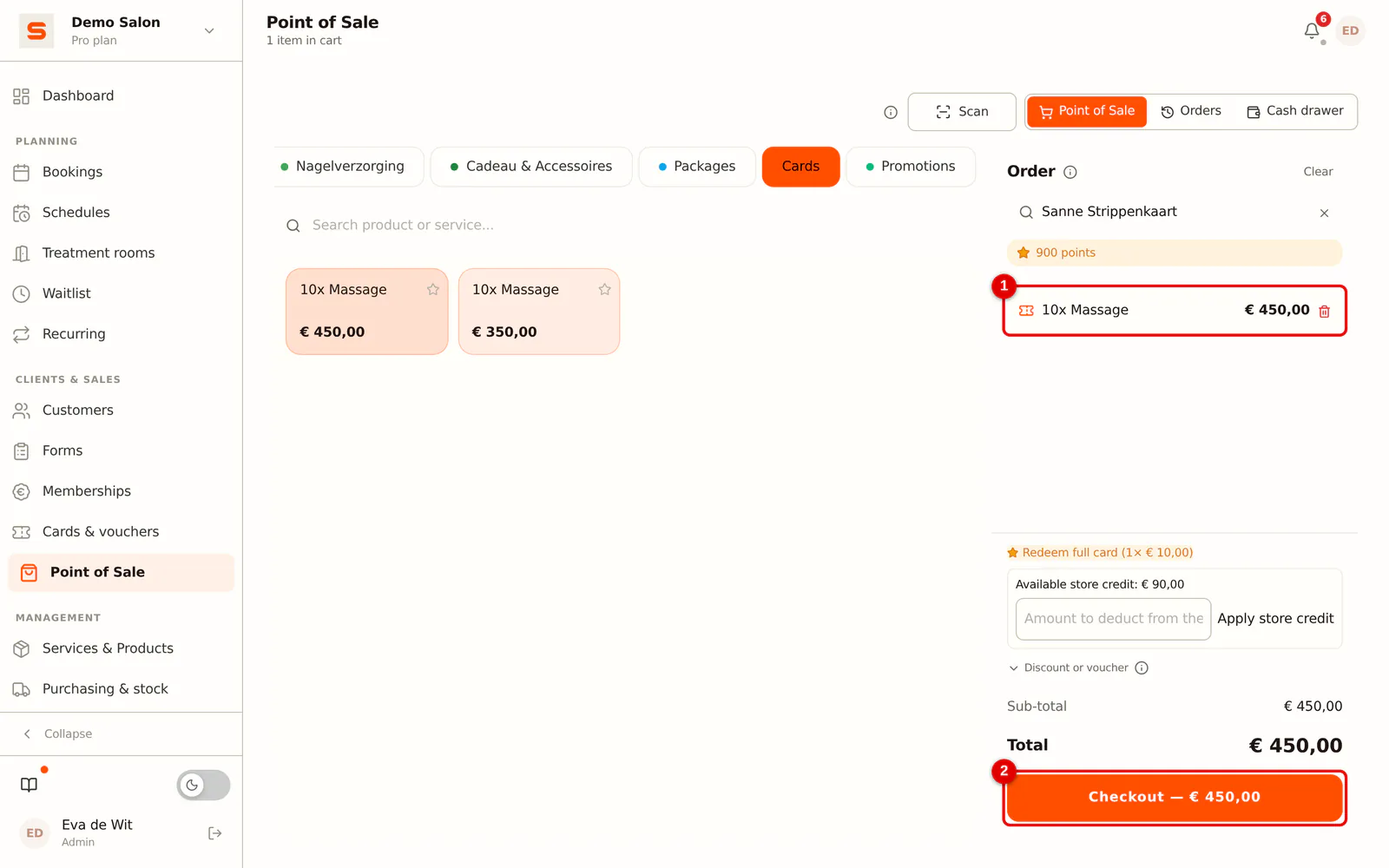
Step 3: Check out
Click Checkout and choose the payment method. As soon as the payment is complete, the card is on the client's record and she receives it by email.
 (Enlarge image)
Online
If For sale online is on, the client sees the Punch cards tab on your booking page. She chooses a card, fills in her details and pays through your salon's online payment (iDEAL, Bancontact or card, via Mollie or Stripe). After the payment the card is on her client card and she receives it by email.
Using a session at the POS
When you add a treatment the card covers to the receipt of a client with a punch card, the POS pays that line with the card automatically. The line shows, for example, Punch card · session 4 of 10 for € 0.00. Below the receipt you see how many sessions are left after checkout: After checkout: 6 sessions left.
If the client wants to pay normally this time, click Pay separately anyway: the line gets the regular price and the card stays untouched.
Products never fall under a punch card; you always charge them separately.
Booking an appointment with the card
You can link a session to an appointment when booking:
- from the client card, with Book a session on the punch card;
- in the booking editor, where you choose to pay with the card for a client who has a matching card;
- online by the client herself, if she is logged in on your booking page and the card allows online booking: she chooses With my punch card. No deposit is asked in that case.
When booking, the session is reserved, not yet deducted. Only when the appointment is checked out or completed does the session really come off. In the calendar such an appointment has the label Card, and the appointment counts as paid.
Cancellations and no-shows
- Cancelled on time (before your cancellation window starts): the session stays on the card.
- No-show or late cancellation: what happens depends on the card's rule. With Session is forfeited the session comes off; with Session stays on the card it goes back onto the card.
The punch card on the client card
The client card has a section with the client's punch cards. For each card you see:
- a ring with the balance: how many sessions are left;
- the reserved sessions: appointments for which a session is already set aside;
- the log: every purchase, used session, correction and extension, with the date and the balance afterwards.
Used-up and expired cards are collapsed, so the cards the client can still use are at the top.
Under More you find:
- Add or remove sessions by hand, with a required reason that goes into the log;
- Extend validity to a new date, or unlimited;
- Transfer to another client, for example when the card was a gift;
- Refund the sessions that are still open.
Refunding
You refund the open sessions pro rata: the card price divided by the number of sessions, times the number of open sessions. Example: a € 400 card for 10 sessions with 4 sessions left gives € 160 back. If the receipt had a discount when the card was sold, you work with what the client actually paid: with € 40 off the card is € 360, a session is worth € 36 and 4 open sessions give € 144 back. The money goes back through the original online payment (Mollie or Stripe), in cash, or as store credit for the client.
Salonnare creates a credit receipt for this, so revenue and VAT in your records are correct straight away.
Expiry
On the expiry date the balance goes to 0 and a line is added to the log. A session that was already reserved for an appointment within the validity stays usable: the client can simply pay for that appointment with the card.
Undoing a sold card
You can credit a sold punch card at the POS or cancel the receipt, but only if not a single session has been used yet. If the card has already been used, refund the open sessions from the client card (see above).
Frequently asked questions
What is the difference with a treatment course? A treatment course is the same treatment a number of times, with all sessions in the calendar straight away. A punch card is a balance of sessions the client uses whenever she likes, for one or more treatments.
Can a client have several punch cards? Yes. They are all on the client card, each with its own balance and log.
Who can create and edit punch cards? By default only the admin. In a staff member's permissions, turn on the Punch cards page if you want to give someone else that right as well.