Treatment charts overview and the to-do notification
On the Treatment charts tab under Forms you see in one list which appointments still lack a report and which reports were made recently. That way no treatment is left without a report.
You only see appointments with a service that has a template linked to it (see Setting up the treatment chart). The tab is available to administrators and staff with Access to health notes.
Using the overview
-
Step 1: Open the Treatment charts tab
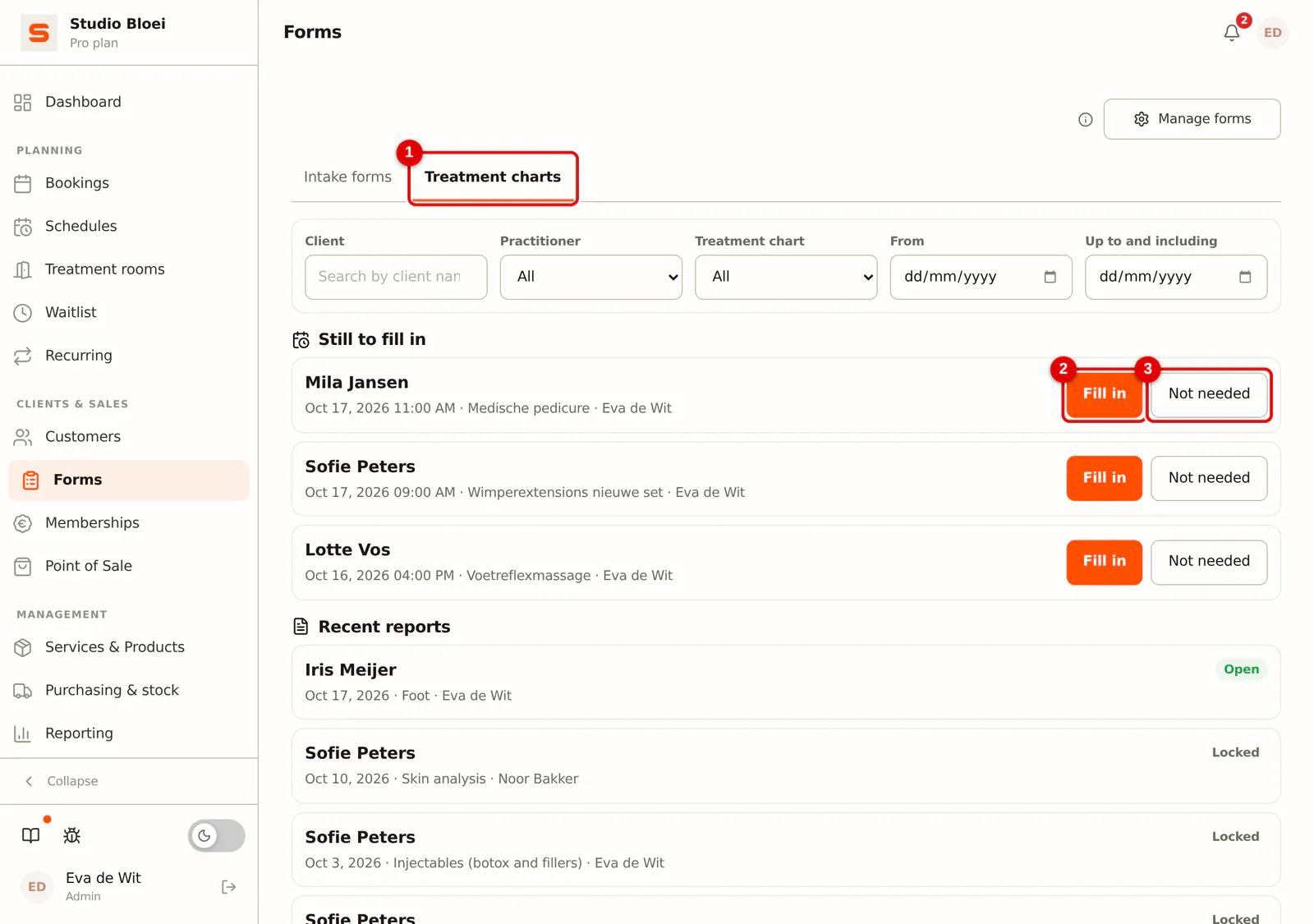
Go to Forms and choose the Treatment charts tab. Under Still to fill in are the appointments from the last 30 days that are over and don't have a report yet, with client, date, service and practitioner. Click Fill in to create a report right away; appointment and template are already filled in. If no report is needed for an appointment, click Not needed.
 (Enlarge image)
-
Step 2: Filter the lists
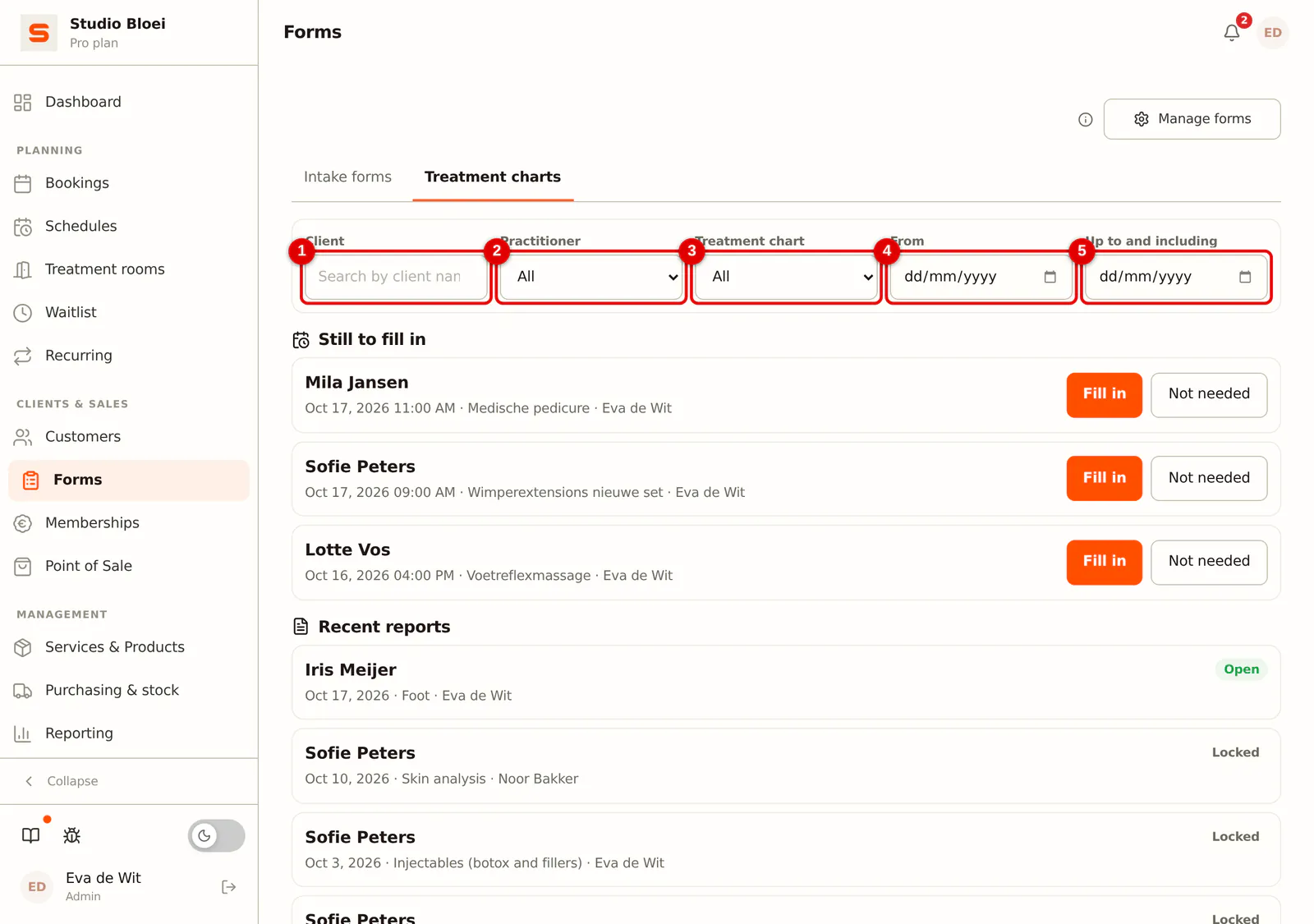
With the filters at the top you search by Client, choose a Practitioner or a type of Treatment chart, and narrow down the period with From and Up to and including. The filters apply to both lists.
 (Enlarge image)
-
Step 3: Open a recent report
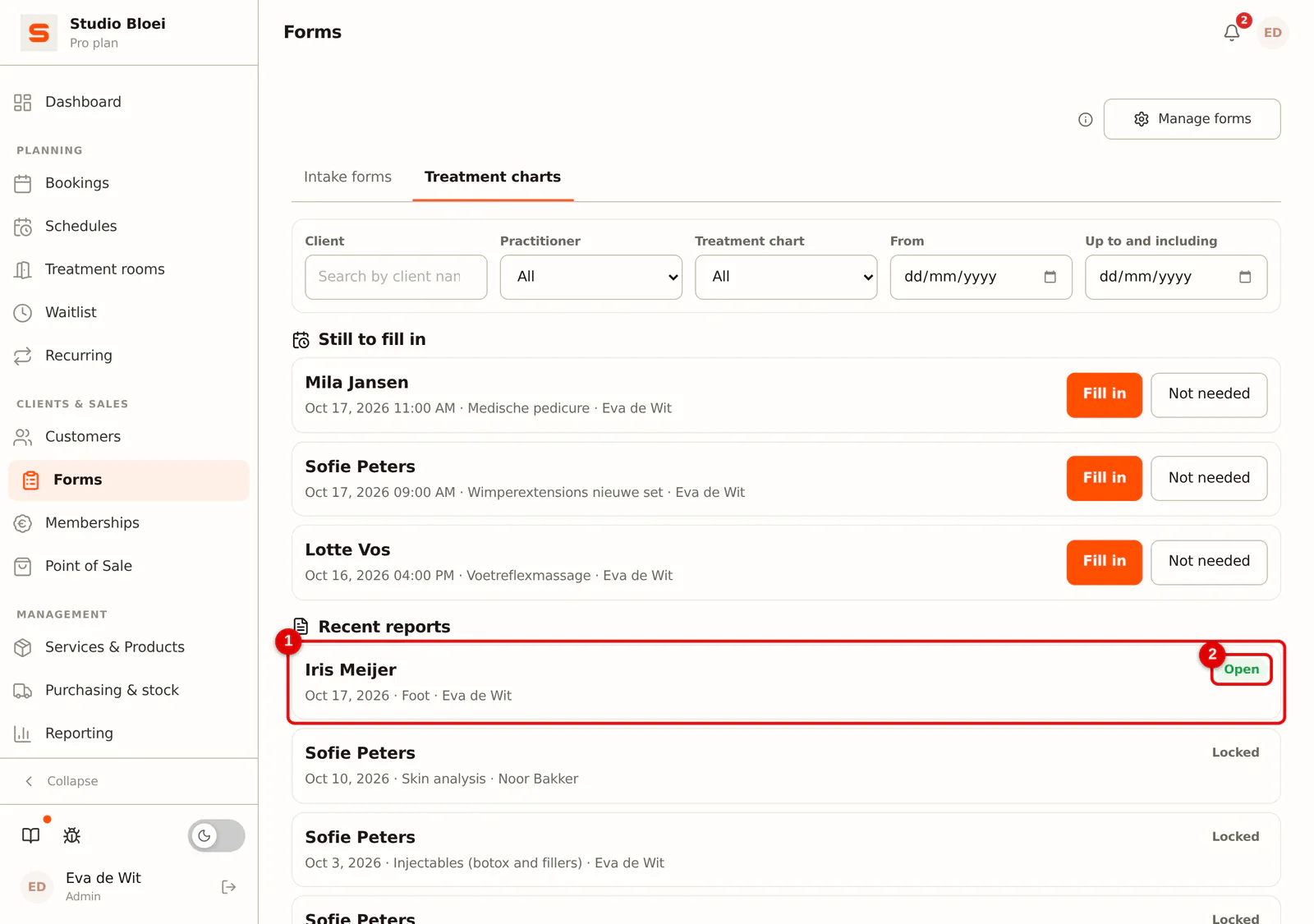
Under Recent reports are the newest reports. On the right is the status: Open (can still be changed), Locked (24 hours have passed) or With addendum. Click a report to open it. With Load more at the bottom you see older reports.
 (Enlarge image)
The to-do notification
After an appointment with a treatment chart template is over, the card Fill in treatment chart appears in the notification centre (the bell at the top right) under To handle, with the client's name, the service and the date. The card contains no health data.
- Fill in treatment chart opens a new report for that appointment right away.
- Not needed removes the card if no report is needed for this appointment.
The card goes to the practitioner of the appointment if she has access to health notes, and otherwise to everyone with that right. It disappears by itself as soon as a report for the appointment has been saved, or if the appointment was cancelled or a no-show. A card that is there does not expire: it stays until the report is saved or until you choose Not needed. Only an appointment that ended more than two days ago without a card no longer gets one; it does stay in the overview under Still to fill in for 30 days.
The card also stays after you have checked out the appointment. You usually write the report right after checkout.