Treatments per staff member
By default every staff member does every treatment. Does someone only do massages, or no nails at all? Then tick which treatments that staff member does. From then on, online booking only shows the staff members who do each treatment.
Setting it per staff member
-
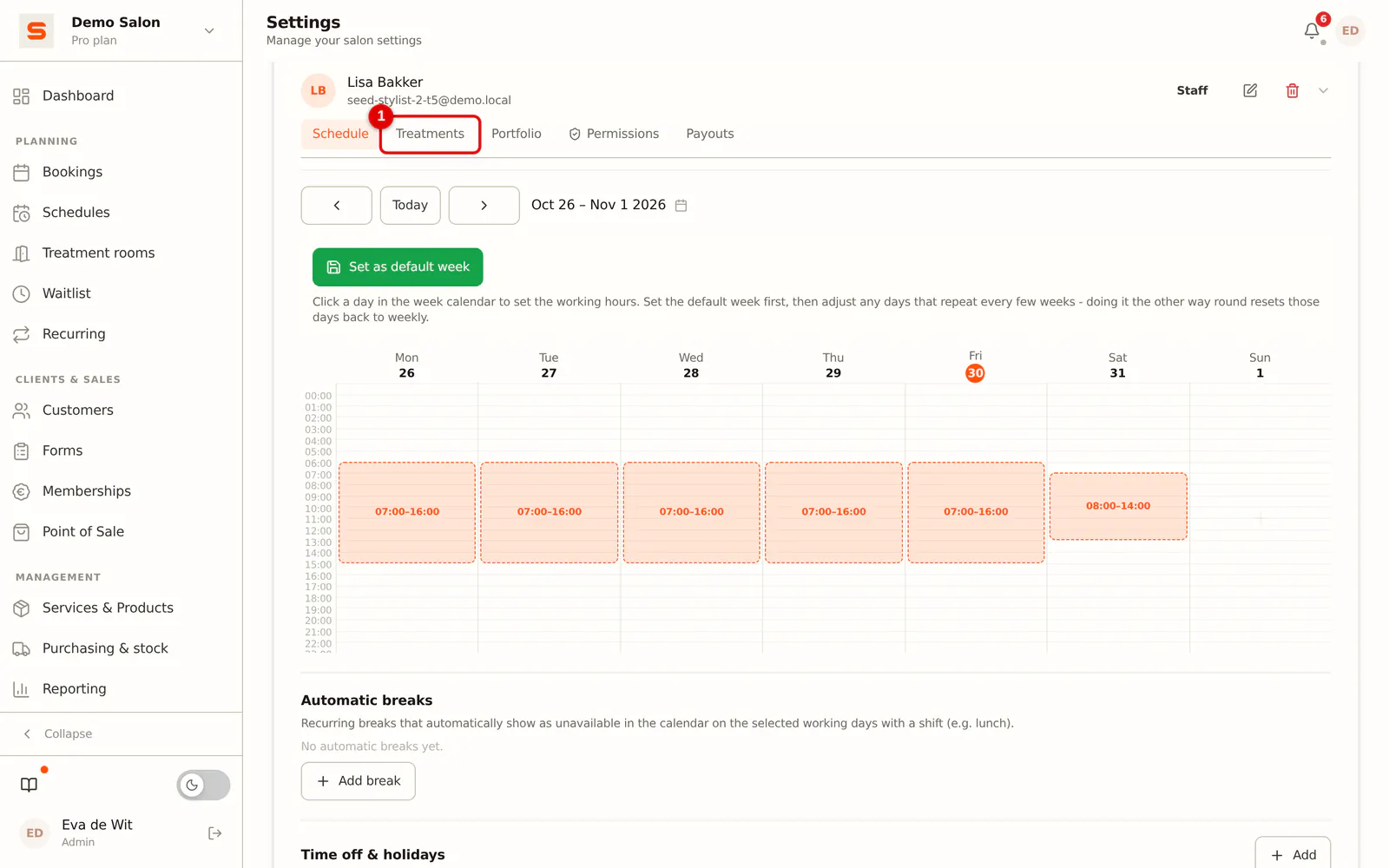
Step 1: Open the Treatments tab
Go to Settings > General > Staff, click the staff member and choose the Treatments tab.
 (Enlarge image)
-
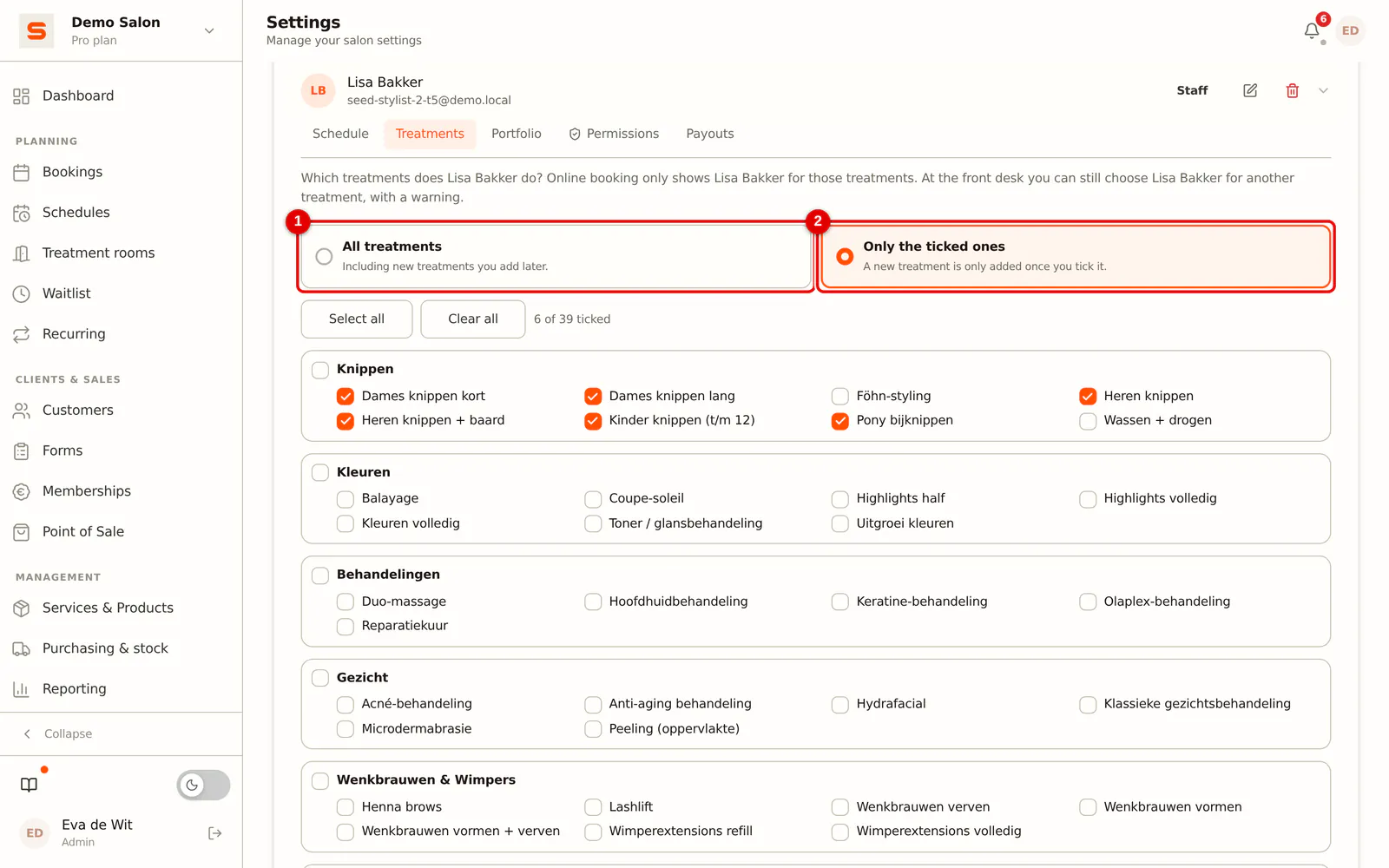
Step 2: Choose Only the ticked ones
With All treatments the staff member does everything, including treatments you add later. Choose Only the ticked ones to limit it.
 (Enlarge image)
-
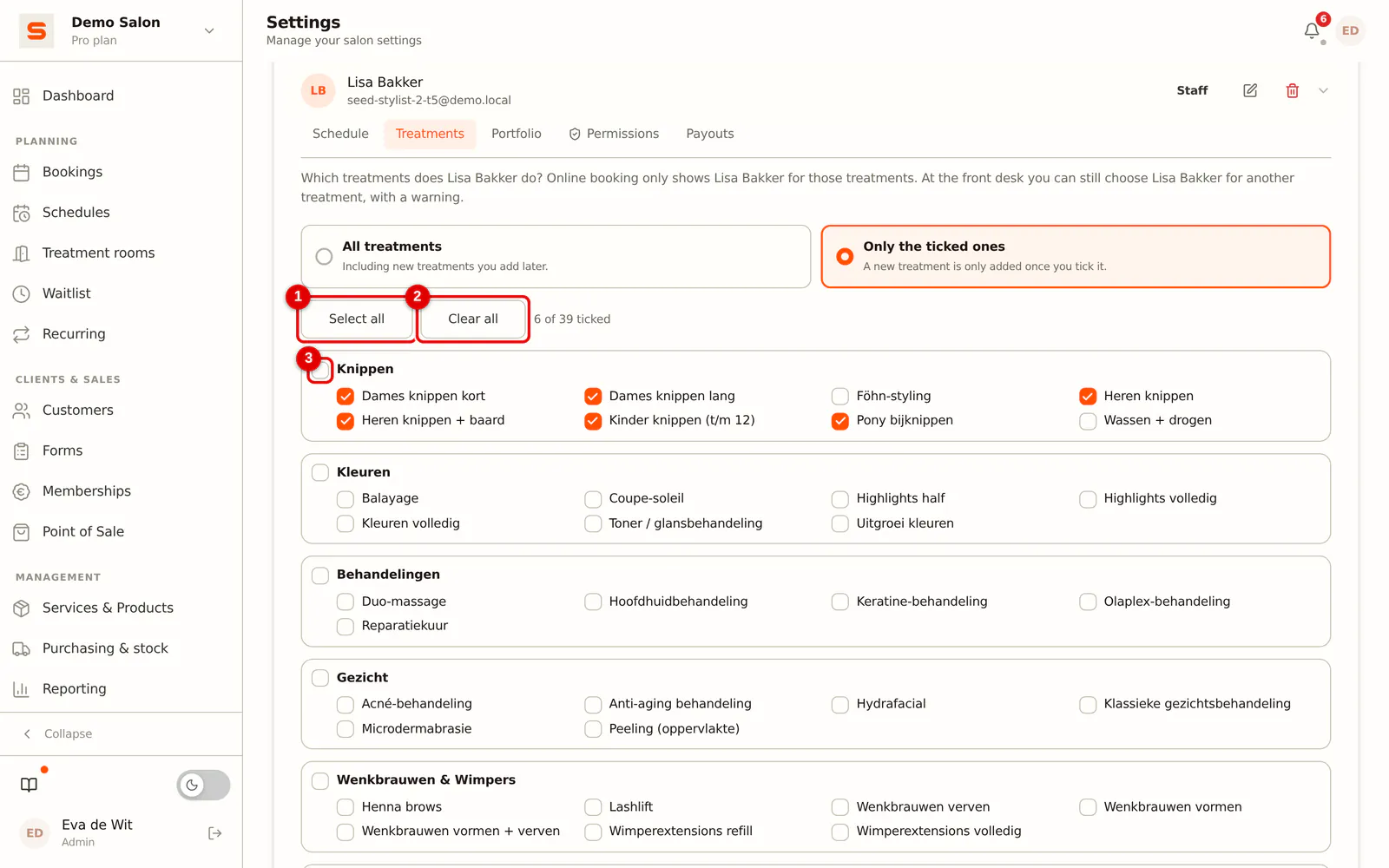
Step 3: Tick the treatments
Tick each treatment the staff member does. The tick next to a category switches the whole category on or off; Select all and Clear all do that for every treatment.
 (Enlarge image)
-
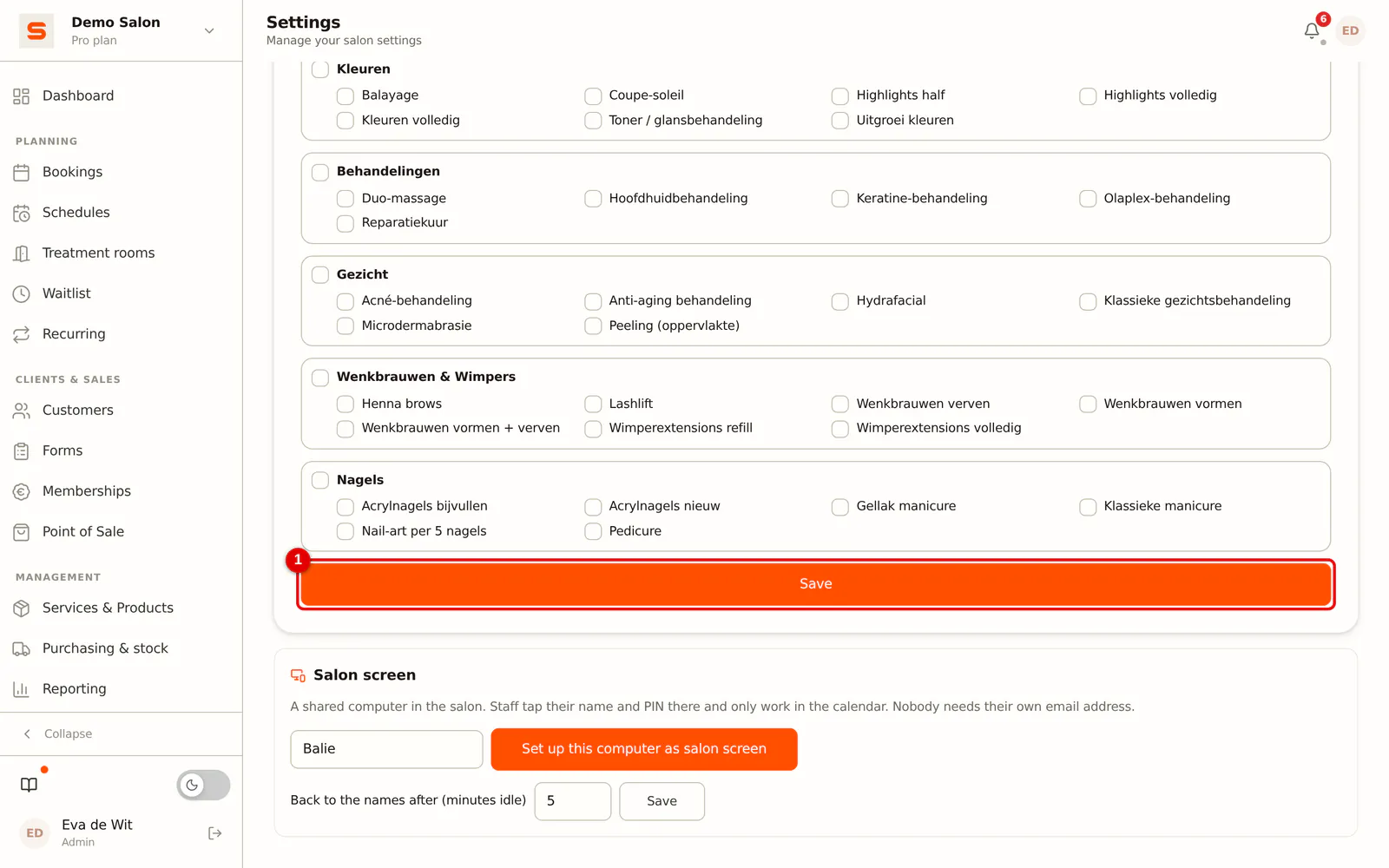
Step 4: Save
Click Save. At least one tick is needed; if you do not want to limit anything, choose All treatments.
 (Enlarge image)
If you add a new treatment later, a staff member set to Only the ticked ones does not do it yet. Tick it at the staff member, or at the treatment itself (see below).
Setting it per treatment
-
Step 1: Open the treatment
Go to Services & Products and click the treatment.
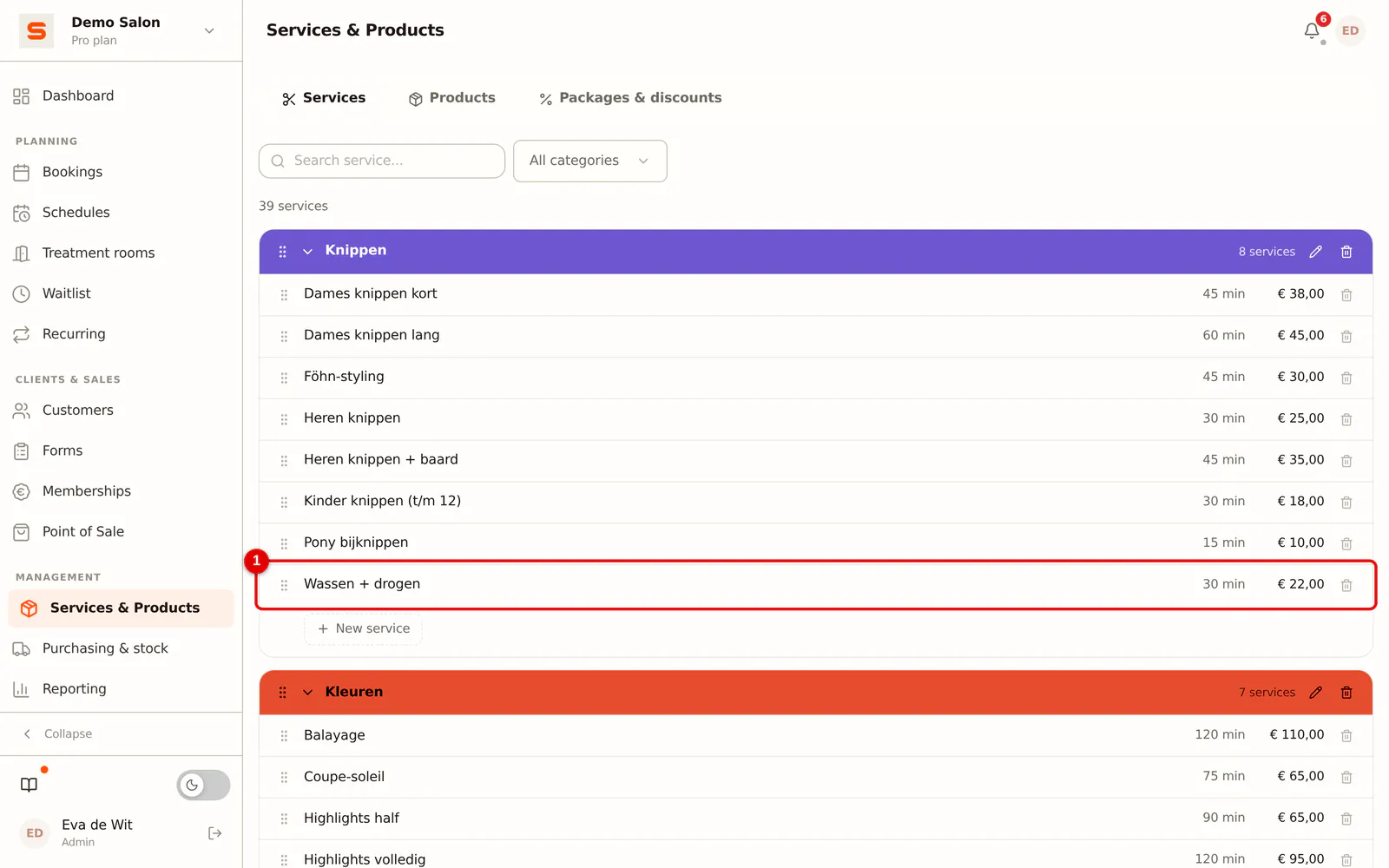 (Enlarge image)
-
Step 2: Tick who does it
Under Who does this treatment? tick the staff members and click Save. If you untick someone who did everything, they will from then on do all other treatments, but not this one.
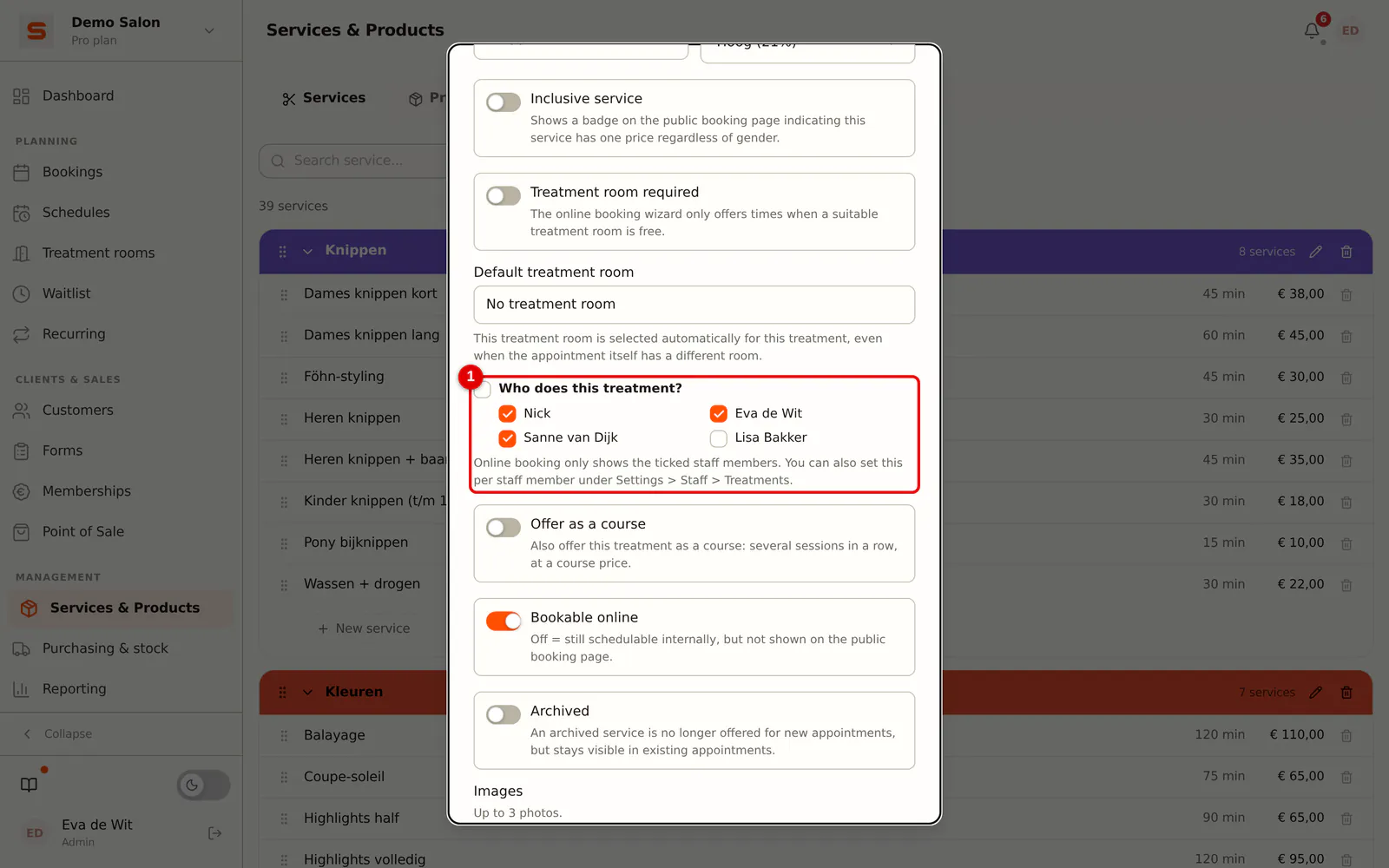 (Enlarge image)
If this is the only treatment a staff member does, you cannot untick them here: first give that staff member other treatments.
What your client sees online
-
Step 1: The client chooses a treatment
On your booking page the client chooses one or more treatments.
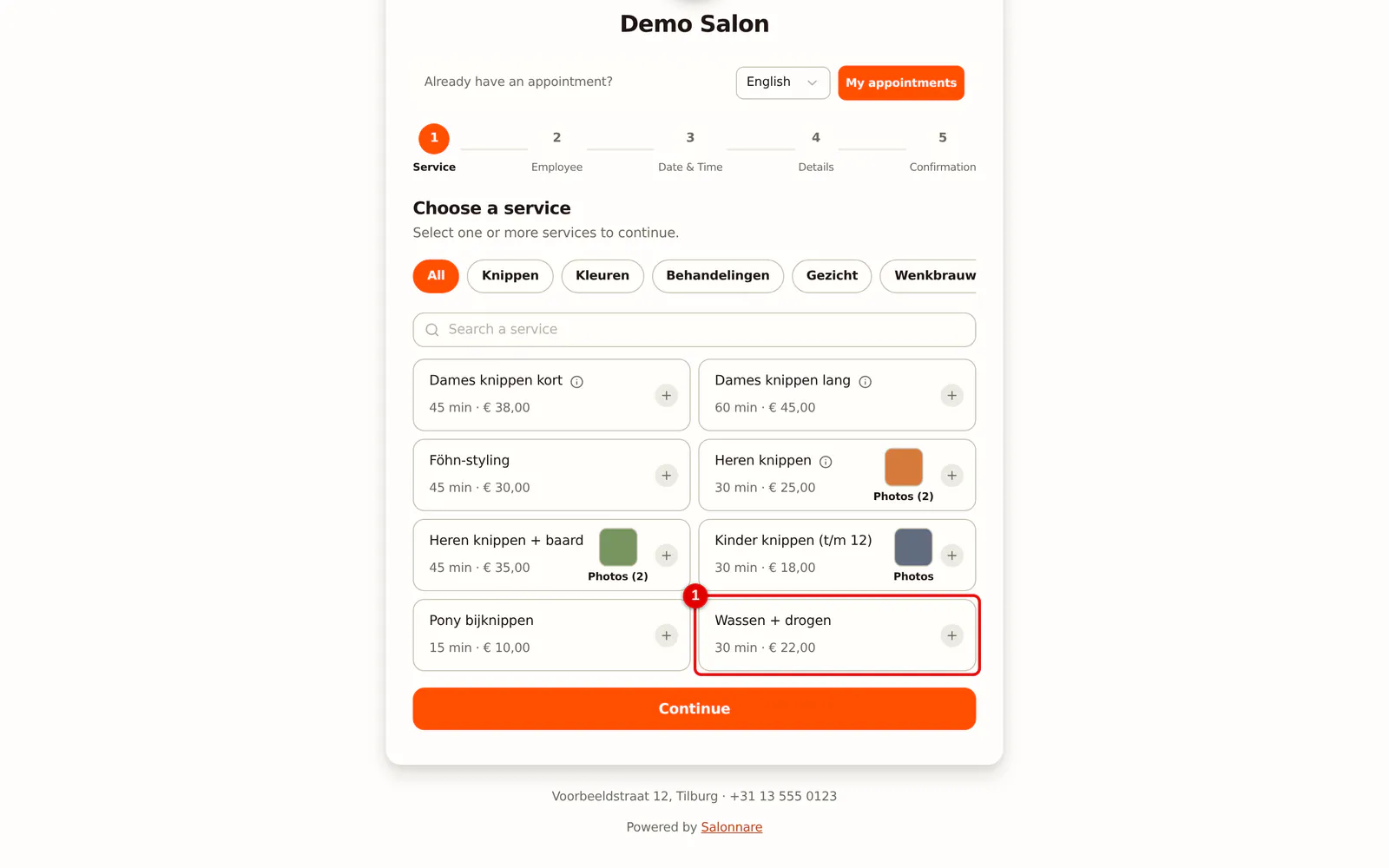 (Enlarge image)
-
Step 2: Only staff members who do the treatment
Choose an employee only lists the staff members who do the treatment. No preference also only picks from them.
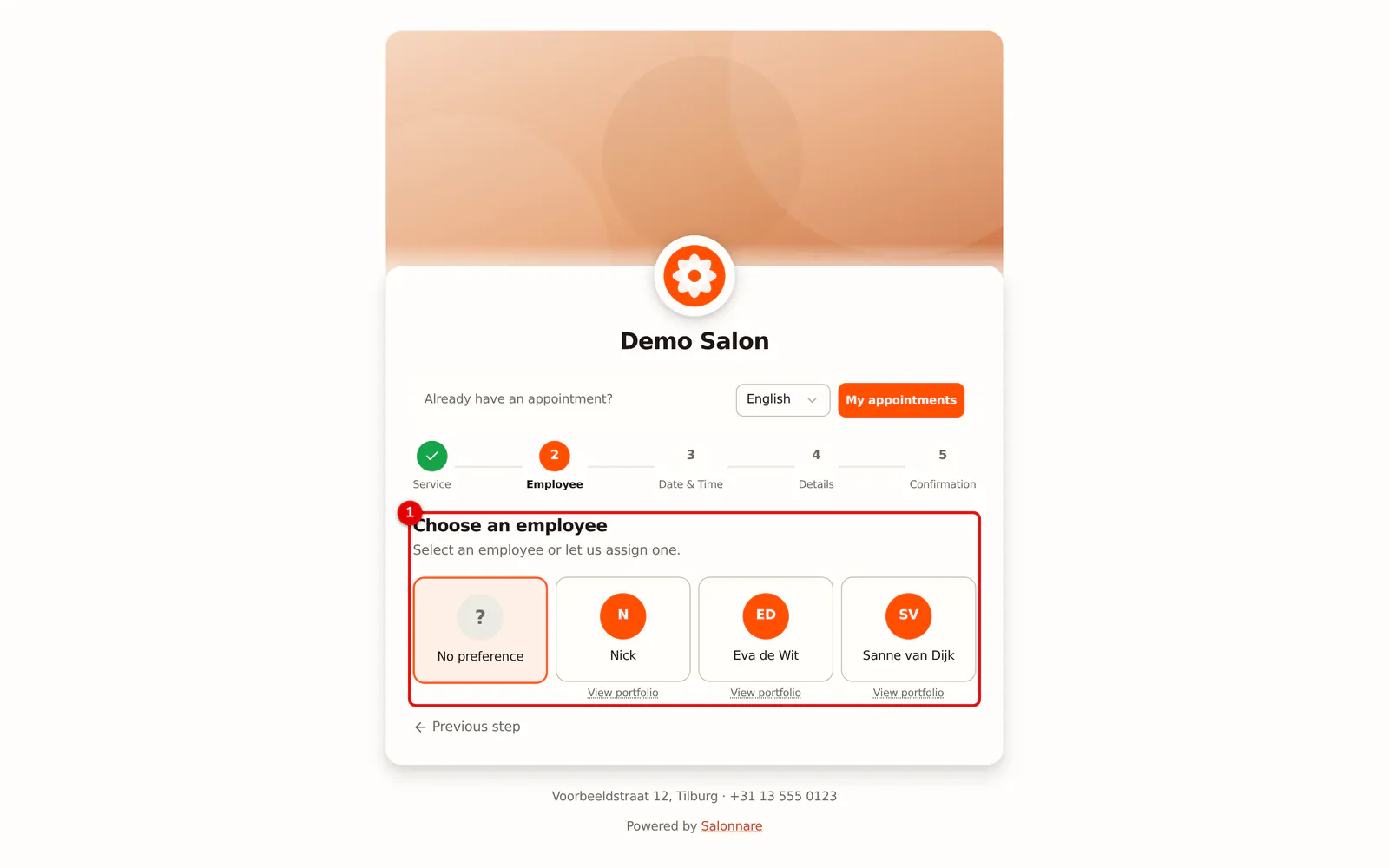 (Enlarge image)
- If the client chooses several treatments, they get a staff member who does all of them. If nobody does them together, the page says so straight away and the client can book them separately.
- If nobody does a treatment, it is shown with Not bookable online right now and cannot be chosen.
- For a treatment with two staff members at once, both must do the treatment.
At the front desk and in the calendar
-
Step 1: A staff member who does not do the treatment
In a new appointment the staff members who do the treatment are listed first. If you still choose someone else, you see a warning. Saving is allowed: you decide.
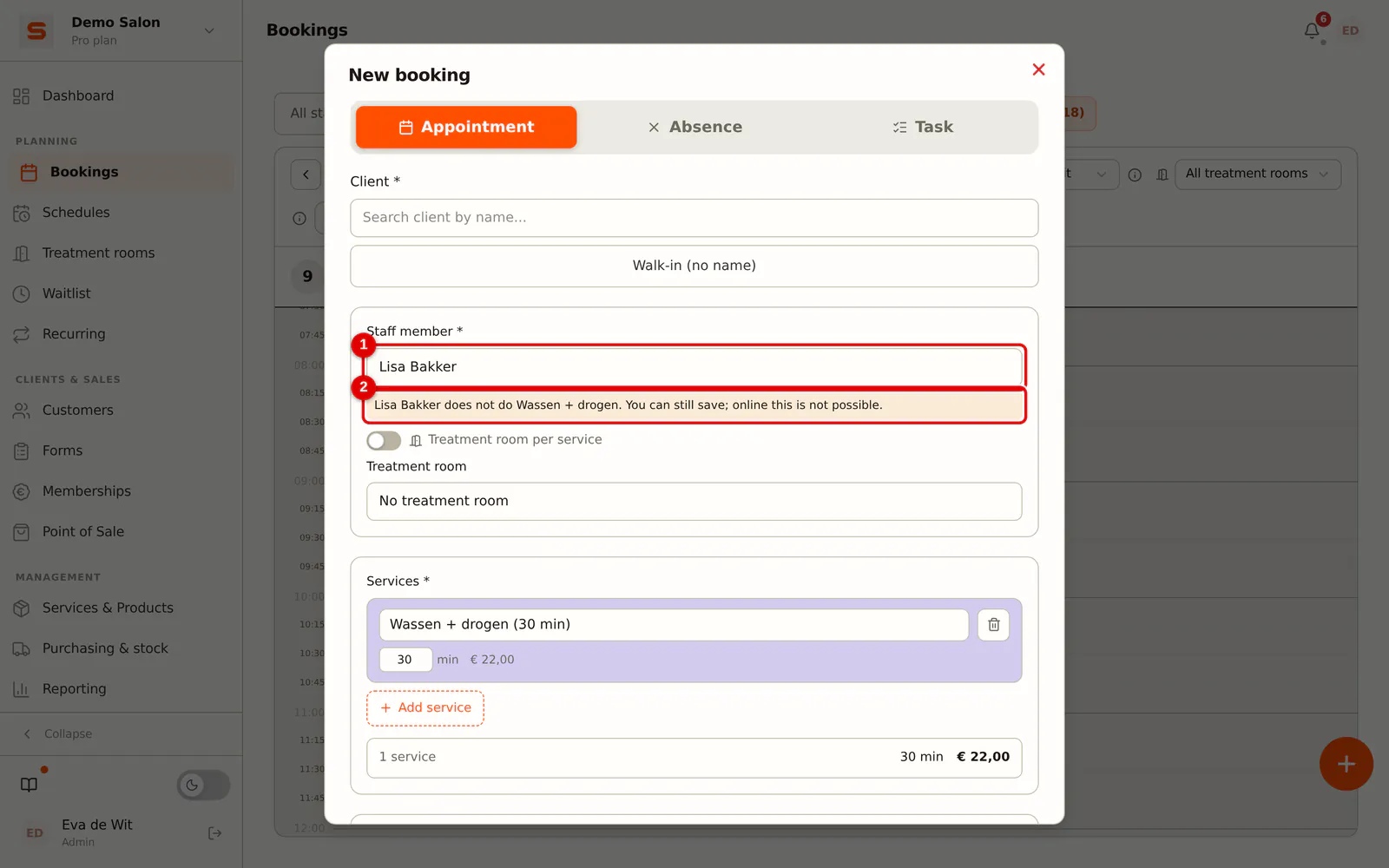 (Enlarge image)
If you drag an appointment in the calendar to a colleague who does not do the treatment, Salonnare first asks whether you want to move it anyway.
Appointments that already exist stay in place when you change a staff member's treatments. Only new online appointments follow the new setting.