Suppliers & Purchase Orders
Order your shampoo, color products or retail items from regular suppliers? With suppliers and purchase orders you keep track of what you ordered from whom, and your stock is automatically topped up as soon as an order comes in.
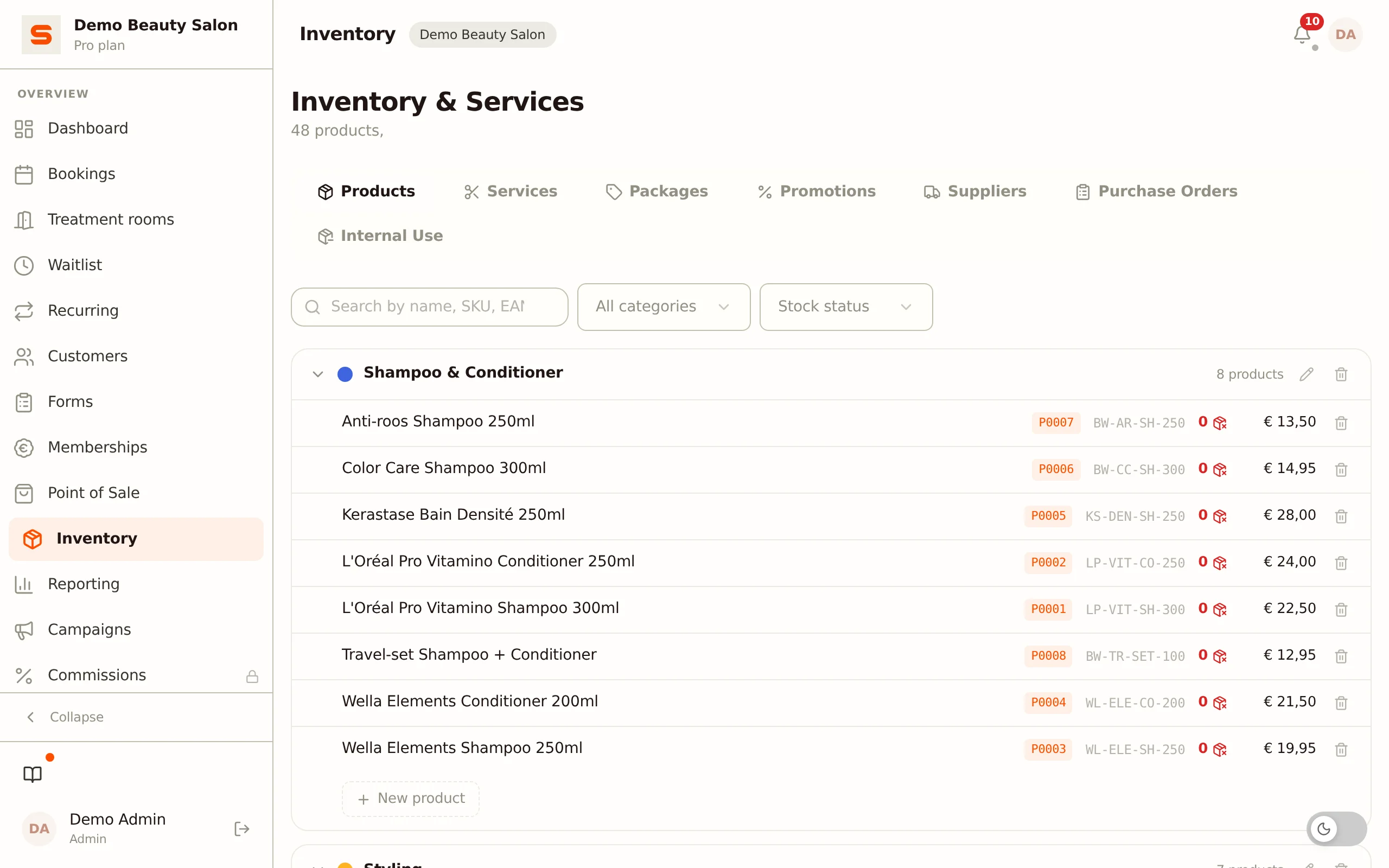
You'll find the Suppliers and Purchase orders tabs under Purchasing & stock in the sidebar, alongside Internal use. If Purchasing & stock is not in your sidebar, turn on Purchase orders under Settings > Features (group Inventory & Purchasing).
Creating a supplier
-
Go to Purchasing & stock and open the Suppliers tab.
-
Click New supplier.
-
Fill in the details:
- Name -- the supplier's name (required).
- Contact person -- your regular point of contact (optional).
- Email -- for orders and correspondence (optional).
- Phone -- phone number (optional).
- Website -- the supplier's website (optional).
- Address -- the visiting or postal address (optional).
- Notes -- free-form notes (optional).
-
Click Save.
When created, every supplier automatically gets a creditor number. That number appears on packing slips and in your accounting export. Creditor numbers, purchase order numbers and article numbers run on per salon: another salon on Salonnare never leaves a gap in your series.
Link your products to a supplier (on the product card, field Supplier). When creating a purchase order you'll then immediately see only the products of that one supplier.
Editing or deactivating a supplier
- Click a row to edit a supplier's details.
- Deactivate hides a supplier you no longer use; the history is preserved. You can Reactivate a deactivated supplier later.
Creating a purchase order
- Open the Purchase orders tab.
- Click New purchase order.
- Pick the supplier and, if you want, set the order date and expected delivery date.
- Save -- the order is created with its own order number and the order screen opens. Later you reopen that screen with Manage items on the order.
Adding products to the order
In the order screen you build up the order:
- Search or filter by category and click a product to add it. You can also use the Scan button to add a product by its barcode.
- Set the quantity per line and adjust the purchase price if needed. If a product has no purchase price yet, the line starts at 0.00 and you enter the amount here.
- Adjust the quantity with the - and + buttons, or type it in directly.
- Do you always order a product by the box or by the set? Then enter an order quantity on the product card. The line starts at that number and the + button counts up in steps of that size. You can always type a different number instead.
- The total is calculated automatically at the bottom.
- Click Place purchase order to confirm the order. The status then changes to Ordered.
Salonnare always counts in individual units: with an order quantity of 6 and two boxes, 12 ends up on the order, and that is also what gets added to your stock on receipt.
Purchase order statuses
A purchase order goes through these statuses:
- Created -- the order exists, but the products aren't confirmed yet.
- Ordered -- the lines are confirmed; you've placed the order with the supplier.
- Received -- the order has come in and stock has been updated.
- Cancelled -- the order has been called off.
Receiving an order
Once the delivery arrives, you book the order in:
- Open the Purchase orders tab and select the order.
- Choose Receive.
- Fill in the received date and optionally a packing slip number.
- You can upload a packing slip (PDF, JPG or PNG) as proof with the order.
- Confirm.
On receiving, Salonnare updates your stock automatically: every ordered quantity is added to the stock of the relevant product. So only book an order in once the goods have actually arrived.
If you later delete a received order, Salonnare automatically reverses the stock change. An order that has already been placed or cancelled can be deleted too, but you first get an extra warning: that cannot be undone.
If you move a received order back to another status (for example Ordered), Salonnare also takes the delivered quantities off your stock again. Set it to Received once more and the delivery is counted only once.
Viewing the packing slip
When a packing slip is attached to an order, you see an eye icon in its row. Click it and the packing slip opens in a window inside Salonnare: a PDF shows straight away, and so does a photo of the slip. Nothing is downloaded.
- Use Download in that window to save the file anyway.
- Use Open in a new window to view the packing slip larger, in its own tab.
- Salonnare does not show a file that is not a PDF or an image itself. You then only get the Download button.
In the app on your phone or tablet a PDF packing slip opens in your device's browser; a photo shows right in the app. Android cannot show a PDF inside an app.
Related topics
- Services & Products and stock management -- your product catalog and stock levels.
- Internal use -- write off products your team uses itself.