Salon screen
If your salon has one computer or tablet that everyone uses, you set it up as a salon screen. The salon screen shows tiles with the names of your staff. A staff member taps their own name, enters a PIN of 4 to 6 digits and then works under their own name. That way you can see in the calendar and the log who booked an appointment.
Setting up the computer as a salon screen
-
Step 1: Log in as an admin on the shared computer
On the computer that will become the salon screen, log in with an admin account.
-
Step 2: Open Staff
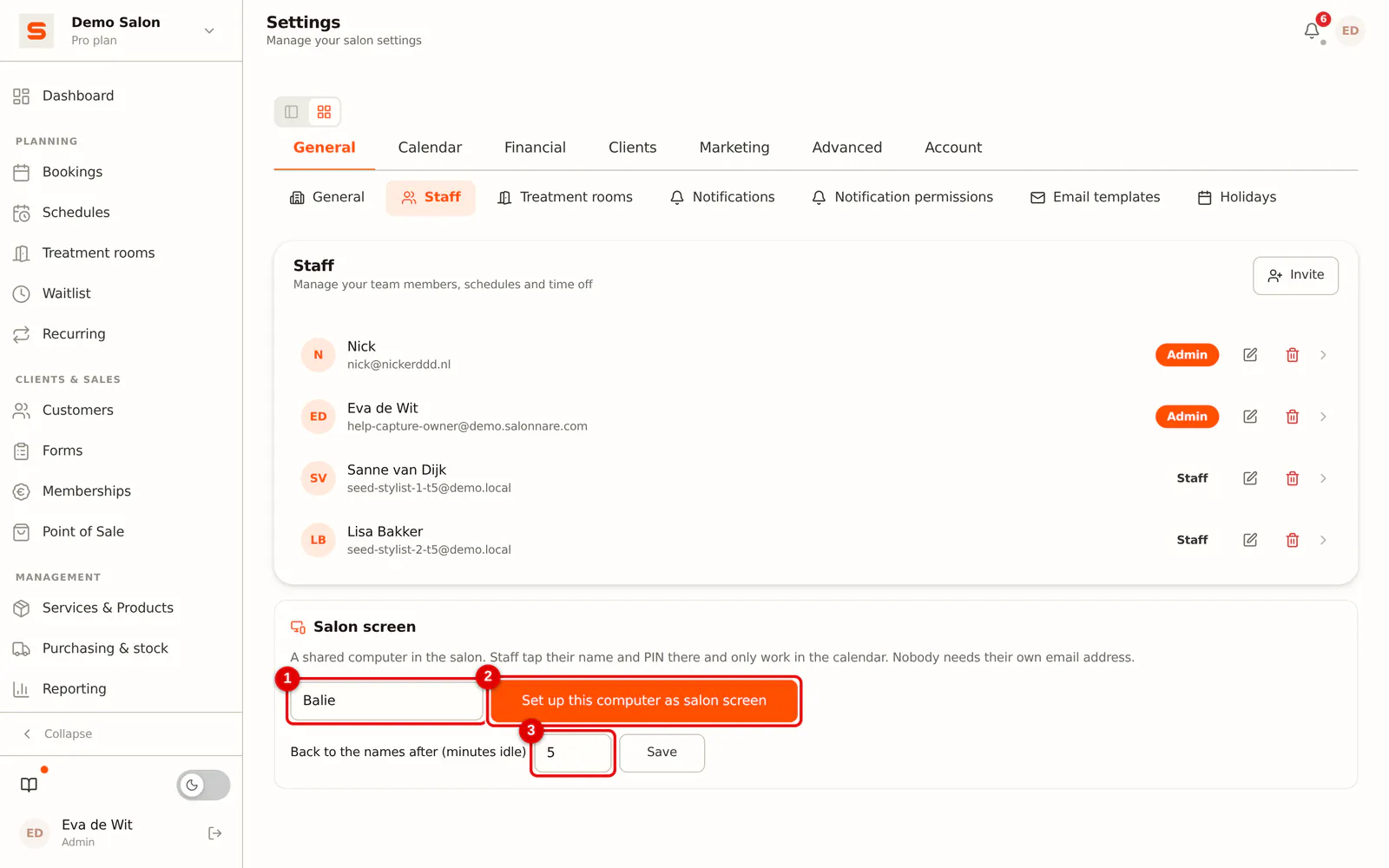
Go to Settings > General > Staff. At the top is the Salon screen block.
 (Enlarge image)
-
Step 3: Name the screen and set it up
Enter a name, for example Front desk, and click Set up this computer as salon screen.
(Enlarge image)
After that, the salon screen opens at /app/salonscherm on your salon's address. Set that address as the start page or a bookmark on the computer.
Setting a PIN
Only staff with a PIN appear on the salon screen.
-
Step 1: Open the staff member
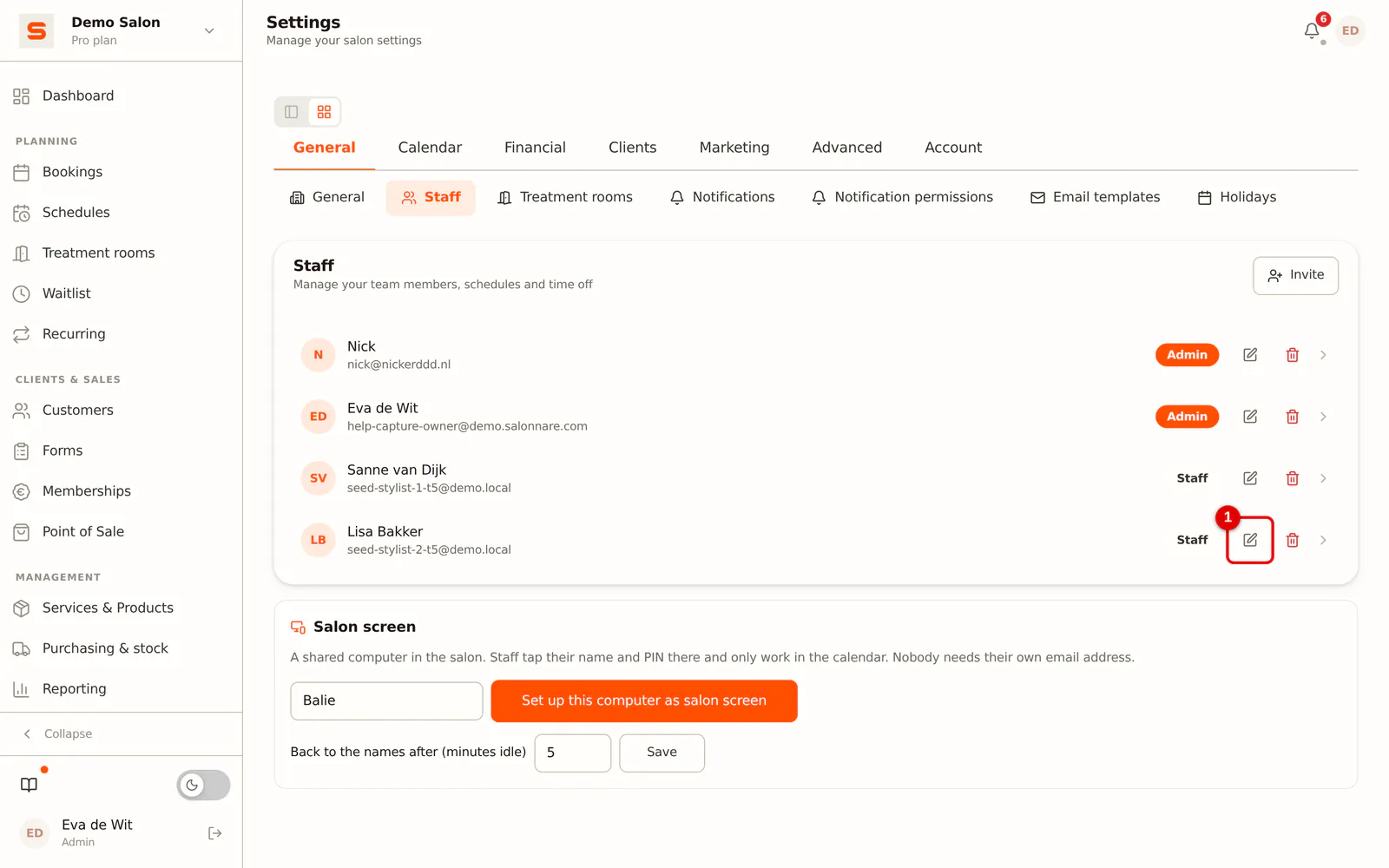
Under Settings > General > Staff, open the staff member with Edit.
 (Enlarge image)
-
Step 2: Enter the PIN twice
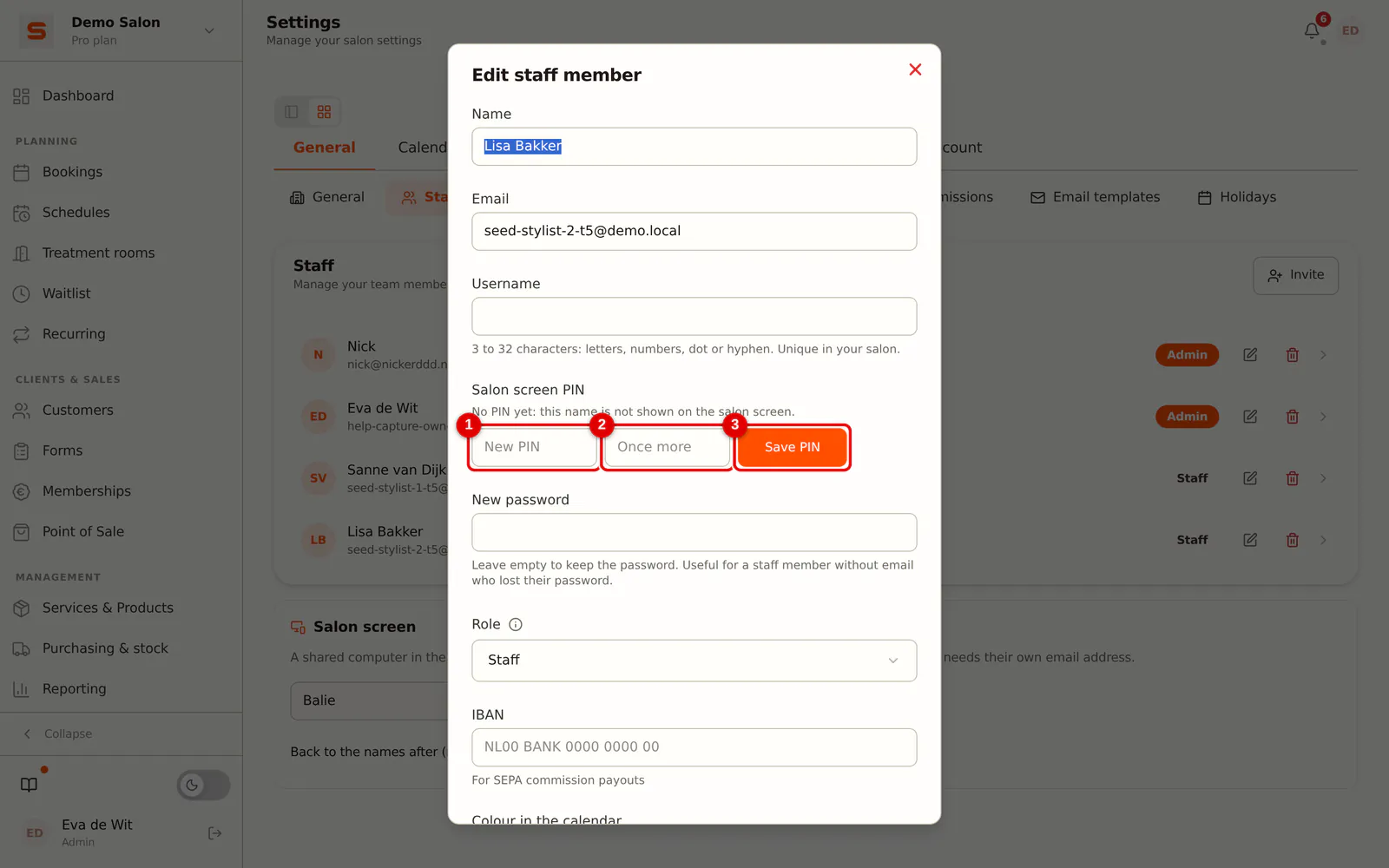
Under Salon screen PIN, enter a PIN of 4 to 6 digits, and the same one again. An obvious code such as 1234, 0000 or ascending digits is rejected.
 (Enlarge image)
-
Step 3: Save the PIN
Click Save PIN.
Staff can also set or clear their own PIN under My account, but not from the salon screen.
Working on the salon screen
- Tap your name.
- Enter your PIN and tap Log in.
- You land in the calendar. Done? Tap Switch at the top right; the next colleague then taps their own name.
If nobody does anything, the salon screen returns to the names after 5 minutes. You set that time under Settings > General > Staff, in the Salon screen block (1 to 60 minutes).
Want the salon screen to stay open? Turn on Never lock in the same block. The screen then no longer returns to the names by itself. Note: appointments and sales are then recorded under the staff member who logged in last, so switch staff members with Switch. The salon screen then stays open until 04:00 at night; after that the staff member taps their name and PIN again. The PIN is also needed again when an admin revokes the salon screen, deactivates the staff member, changes their permissions or PIN, or when the PIN gets locked.
How it is secured
- The PIN works only on a computer that an admin has set up as a salon screen. Nobody can log in with a PIN at home or on another computer.
- After 5 wrong PINs, that name is locked for 15 minutes. The salon screen says so right away on the fifth attempt, with the time the lock opens again. Logging in with a password keeps working. A wrong PIN counts for 24 hours: a typo from yesterday no longer counts today.
- If the same name is locked again within 7 days, every admin gets a notification in Salonnare and an email. It says which staff member it is, on which salon screen and when. A PIN is never included in that email.
- A session via the PIN lasts at most one hour. With Never lock on, the session extends itself on that salon screen, each time by at most one hour and never past 04:00 at night.
- Via the PIN you cannot change a password, email address or PIN.
- An admin can also have a PIN, but works with staff permissions when using it. For settings, revenue and management, log in with your password.
A name is locked
The lock opens again by itself after 15 minutes. To lift it sooner:
-
Step 1: Open Staff
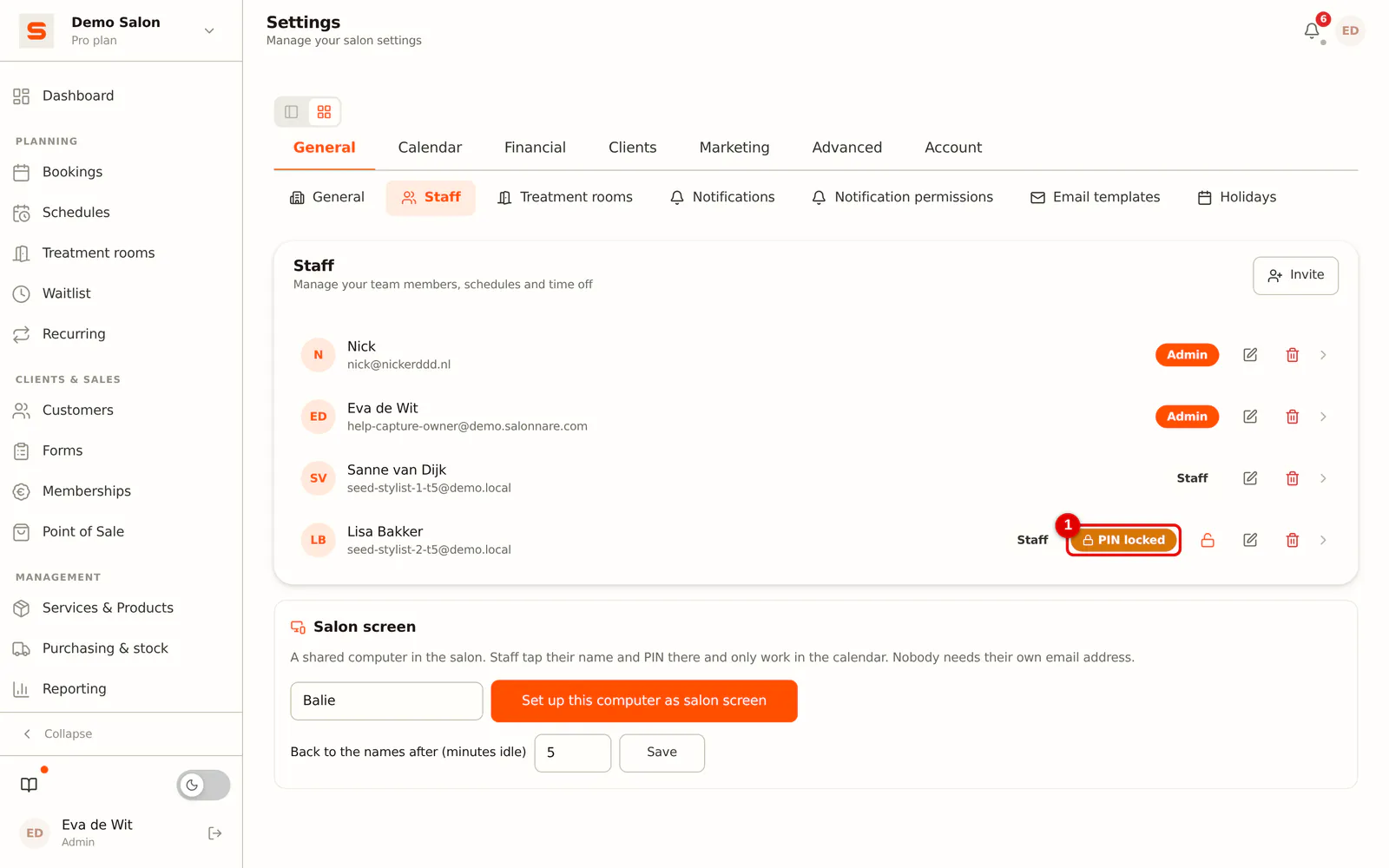
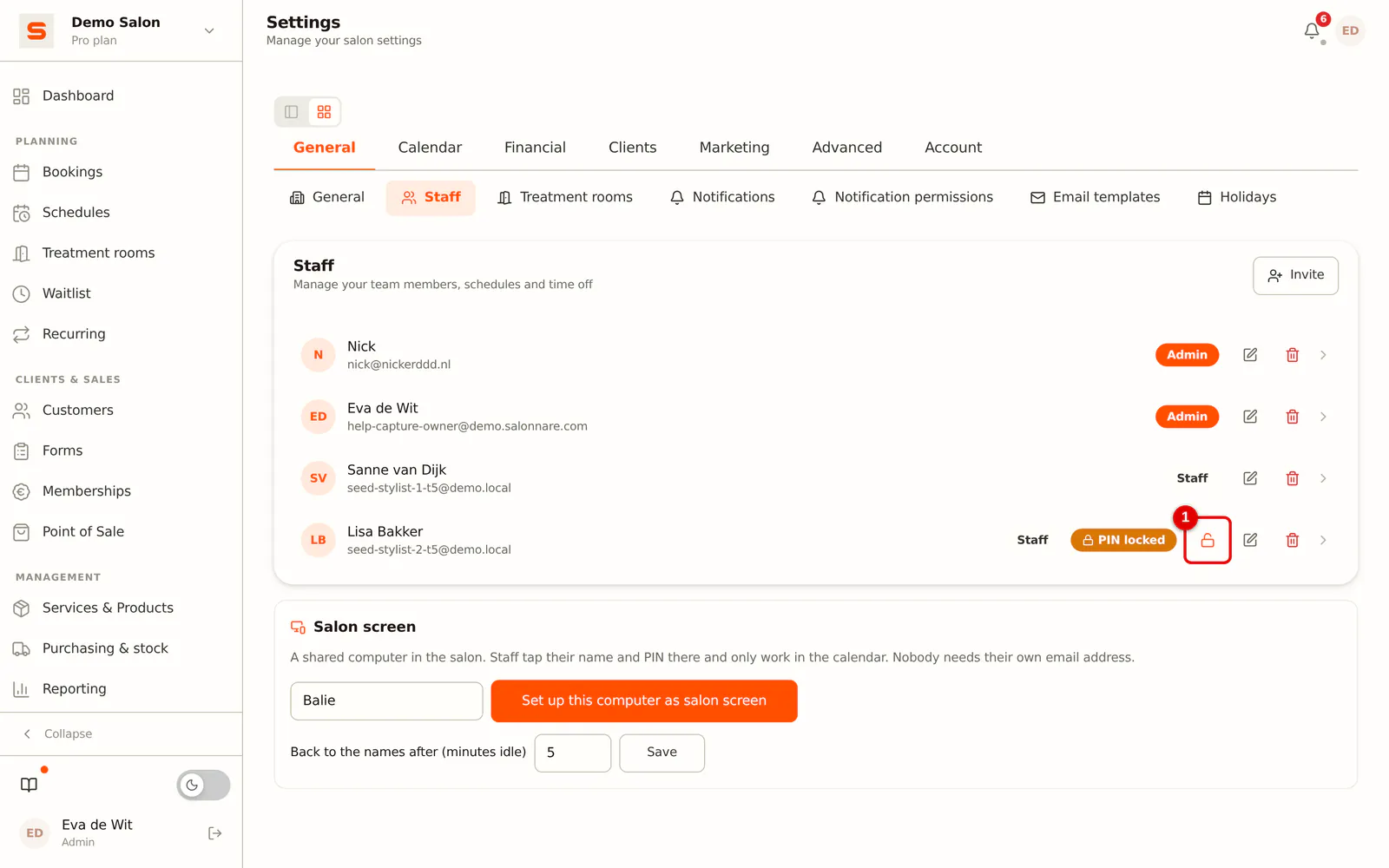
Go to Settings > General > Staff. PIN locked appears next to the name.
 (Enlarge image)
-
Step 2: Click the padlock
Click the padlock (Unlock) next to the staff member and confirm. The staff member can log in with the PIN again straight away.
 (Enlarge image)
Not sure who entered the wrong PINs, or was it not the staff member? Then set a new PIN, as in Setting a PIN above.
Revoking a salon screen
Under Settings > General > Staff, in the Salon screen block, click Revoke next to the screen and then Yes, revoke. Whoever is logged in on that screen at that moment is logged out immediately, and the PINs no longer work there.