Calendar only
With the Calendar only permissions, a staff member can:
- book, move and cancel appointments, for themselves and for colleagues;
- see the online bookings in the calendar;
- see the client's name, phone number and email address on an appointment.
The staff member sees no revenue, no point of sale, no reports, no client list and no settings.
Setting up Calendar only
For a new staff member without an email address, you choose Calendar only straight in the form (see Staff member without an email address). For an existing staff member:
-
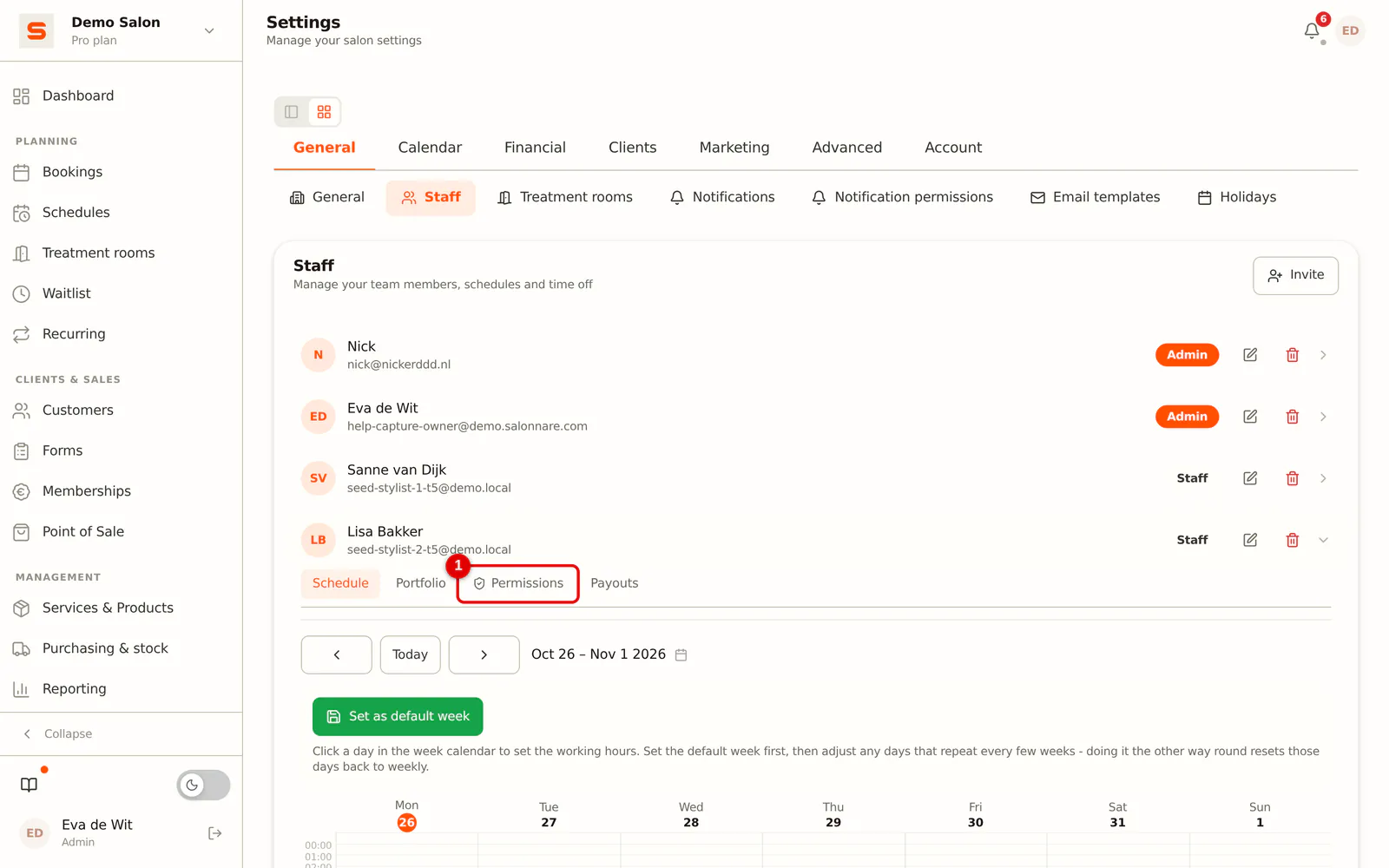
Step 1: Open the staff member's permissions
Go to Settings > General > Staff and open the staff member's permissions.
 (Enlarge image)
-
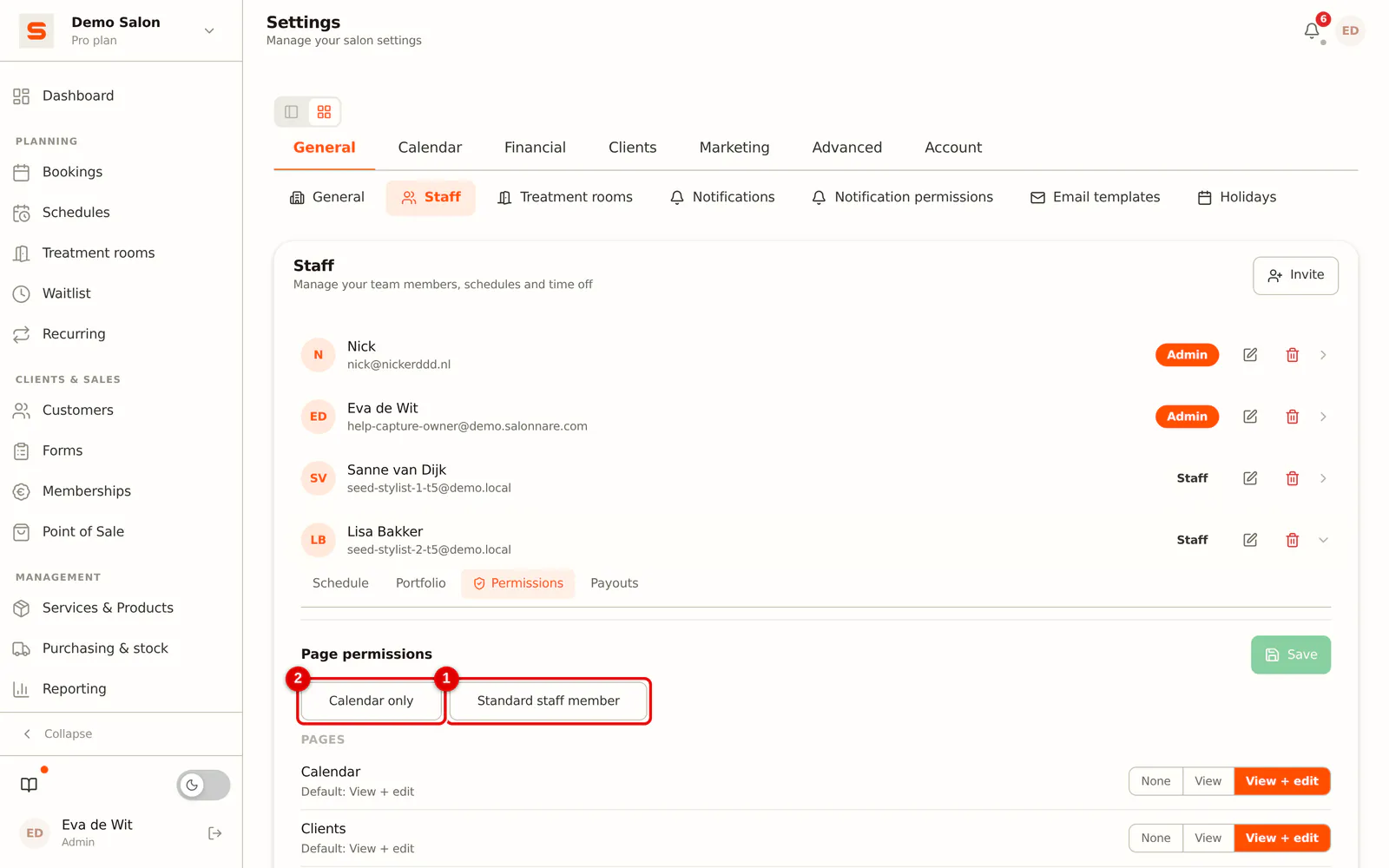
Step 2: Choose Calendar only
Click Calendar only at the top. All permissions are set in one go. To go back, click Standard staff member.
 (Enlarge image)
You can still switch individual permissions on or off afterwards; the button only sets the starting point.
Frequently asked questions
Can a staff member with Calendar only create a new client? Yes, when booking an appointment. The full client card (visits, payments, notes) stays closed.
Does this work together with the salon screen? Yes. On the salon screen, every staff member works with their own permissions.