Staff member without an email address
Not everyone in your salon has an email address they want to use for work. You create such a staff member yourself with a username and a password. No invitation is sent by email; you pass on the login details yourself.
Creating the staff member
-
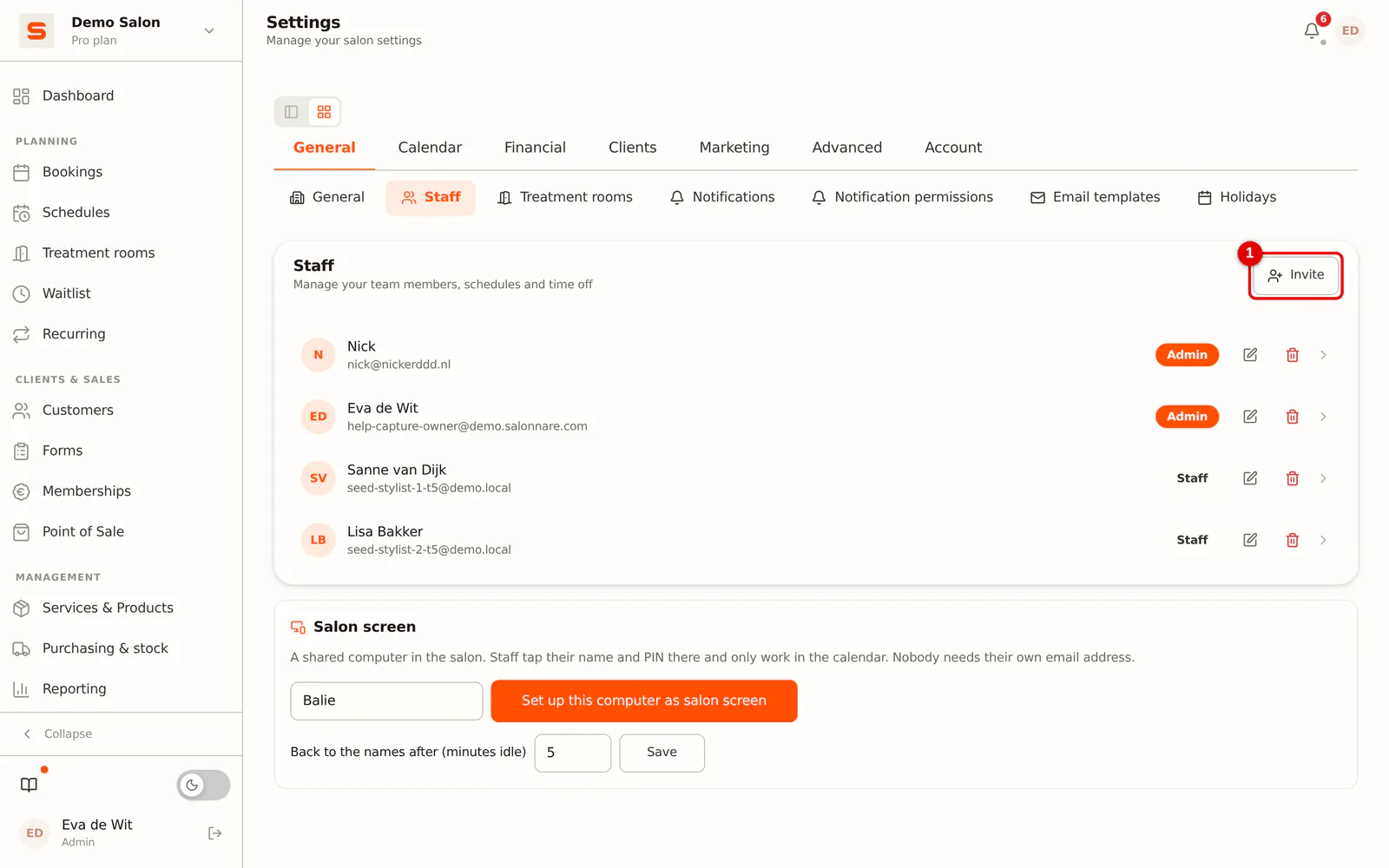
Step 1: Open Staff
Go to Settings > General > Staff and click Invite.
 (Enlarge image)
-
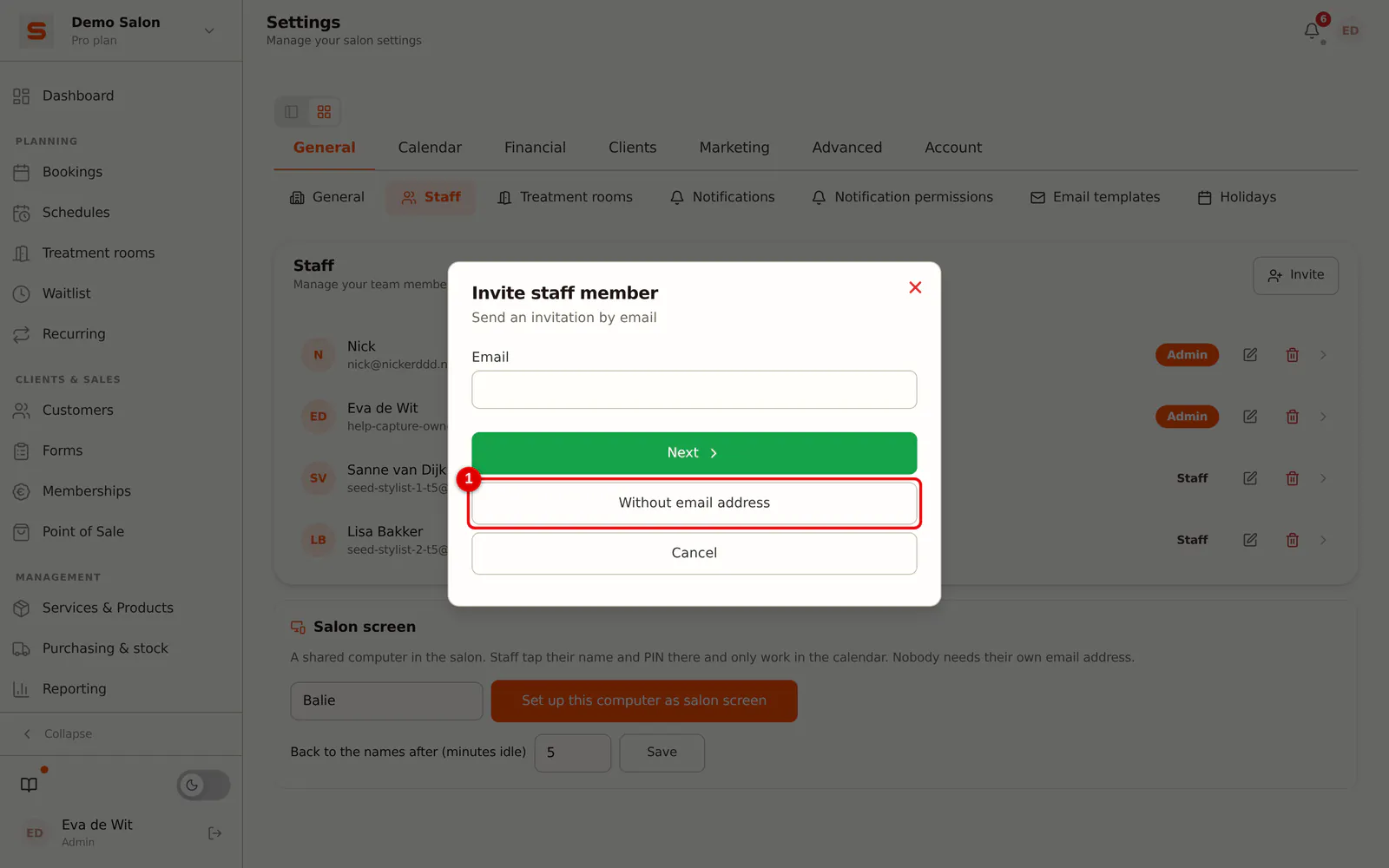
Step 2: Choose Without email address
At the bottom of the window, click Without email address.
 (Enlarge image)
-
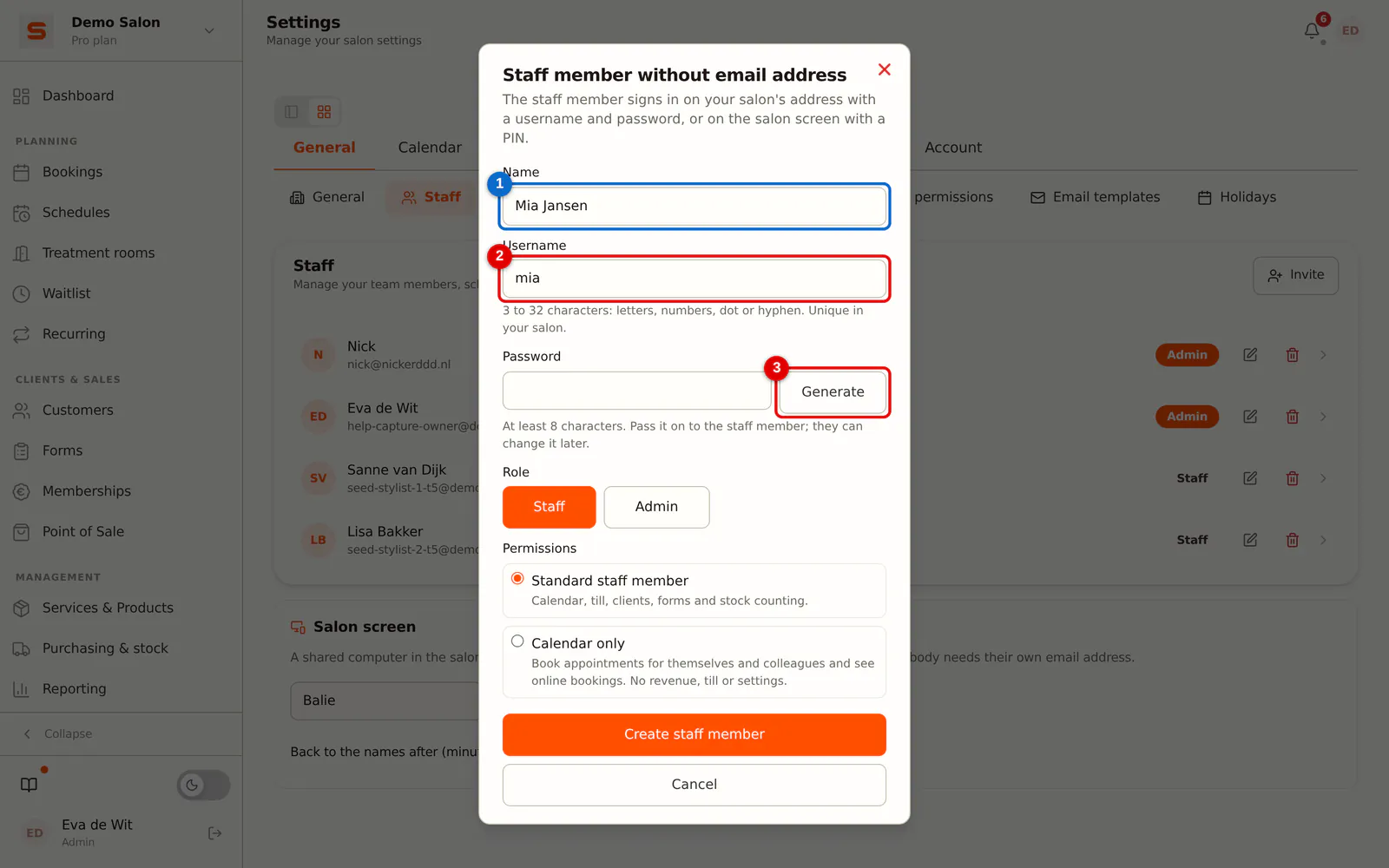
Step 3: Fill in the details
Enter the name. Salonnare suggests a username based on the name; you can change it. A username has 3 to 32 characters (letters, digits, dot or dash) and is unique within your salon.
Choose a password of at least 8 characters, or click Generate.
 (Enlarge image)
-
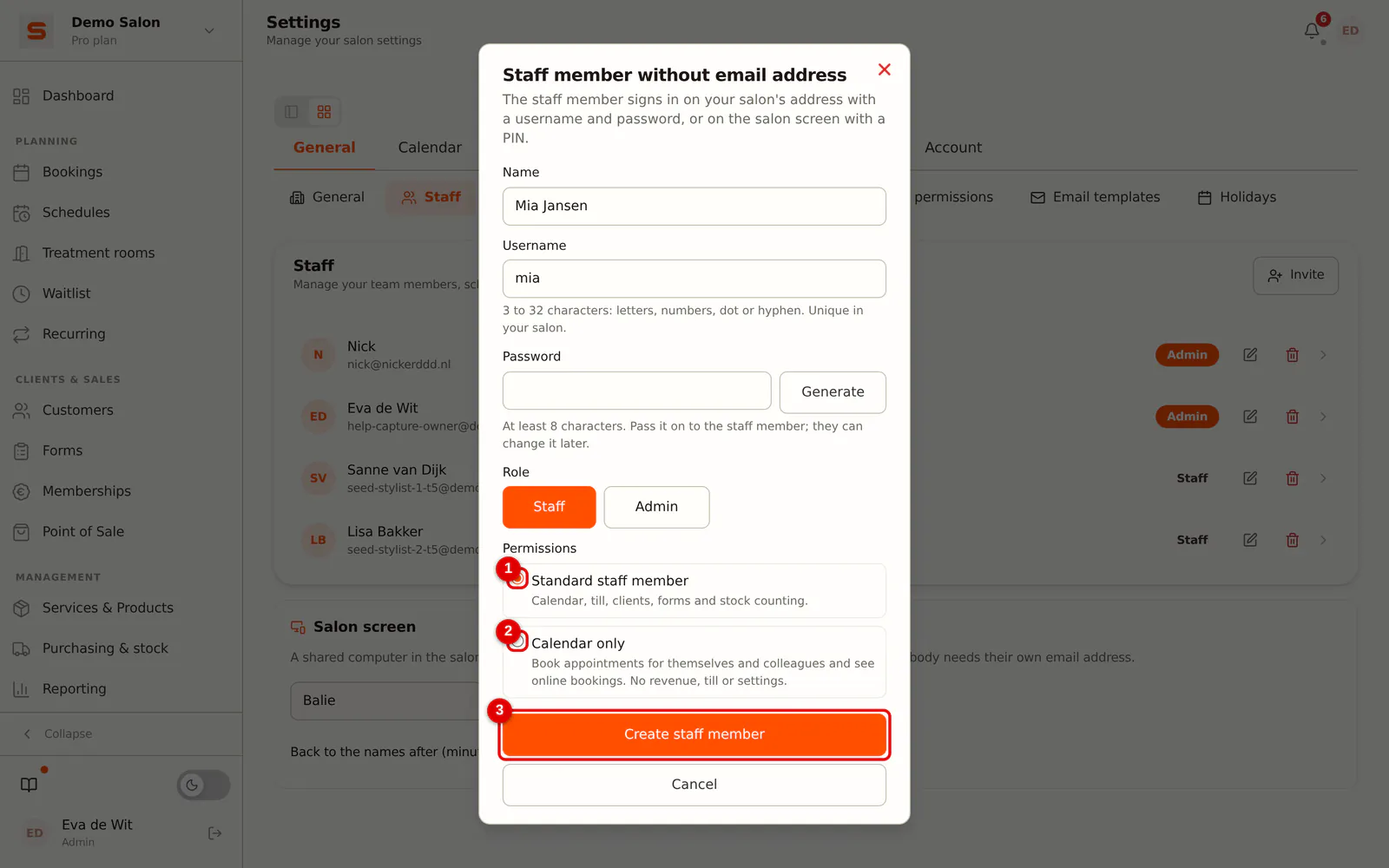
Step 4: Choose the permissions
Choose Standard staff member (calendar, point of sale, clients, forms and stock counts) or Calendar only (see Calendar only). You can also set a PIN for the salon screen right here.
 (Enlarge image)
-
Step 5: Create the staff member
Click Create staff member. Pass the username and password on to the staff member.
Logging in with a username
The staff member goes to the login screen and enters the username under Email or username. On your salon's own address (for example yoursalon.salonnare.com) that is enough. On app.salonnare.com, Salonnare then asks for your salon's address: the part before .salonnare.com, or the full address your salon uses.
Forgotten password
A staff member without an email address cannot receive a reset email. An admin sets a new password: under Staff, open the staff member with Edit, enter New password and click Save.
Adding an email address later
Open the staff member with Edit and enter an email address. From then on the staff member can also log in with that address and request a reset email themselves. If the address already belongs to another account, Salonnare tells you.
Frequently asked questions
Does a staff member without an email address receive notifications by email? No. Emails that would go to that staff member are not sent. Notifications in the app keep working as usual.
Can I change the username later? Yes, under Edit. The old username then stops working.