Colour per staff member
In the calendar you can colour appointments by category or by staff member. If you choose by staff member, everyone automatically gets a fixed colour. You can pick that colour yourself.
Colouring the calendar by staff member
-
Step 1: Open the calendar settings
Go to Settings > Calendar > Calendar settings.
-
Step 2: Choose By staff member
Set Appointment color mode to By staff member and save.
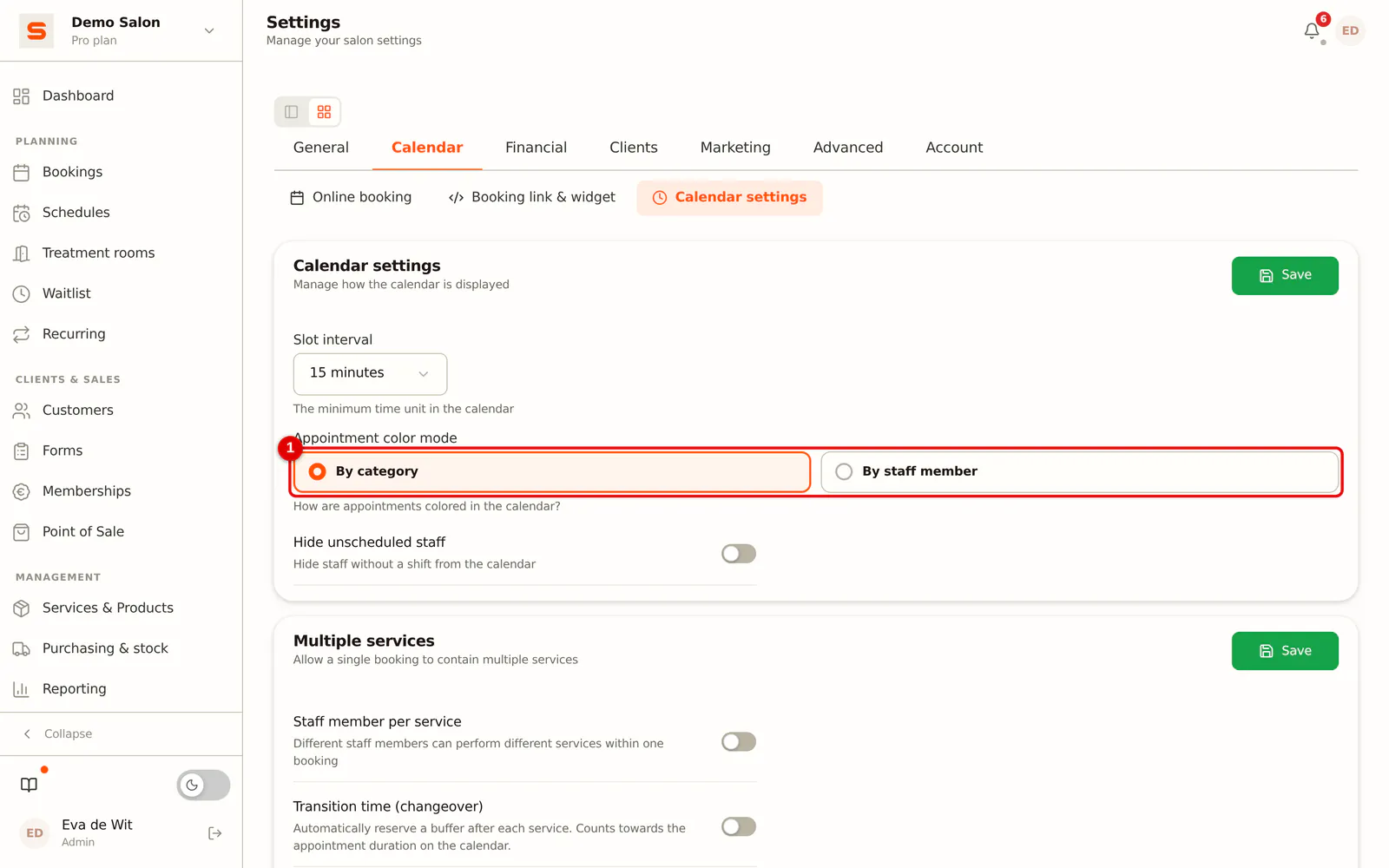 (Enlarge image)
Choosing your own colour
-
Step 1: Open the staff member
Go to Settings > General > Staff and open the staff member with Edit.
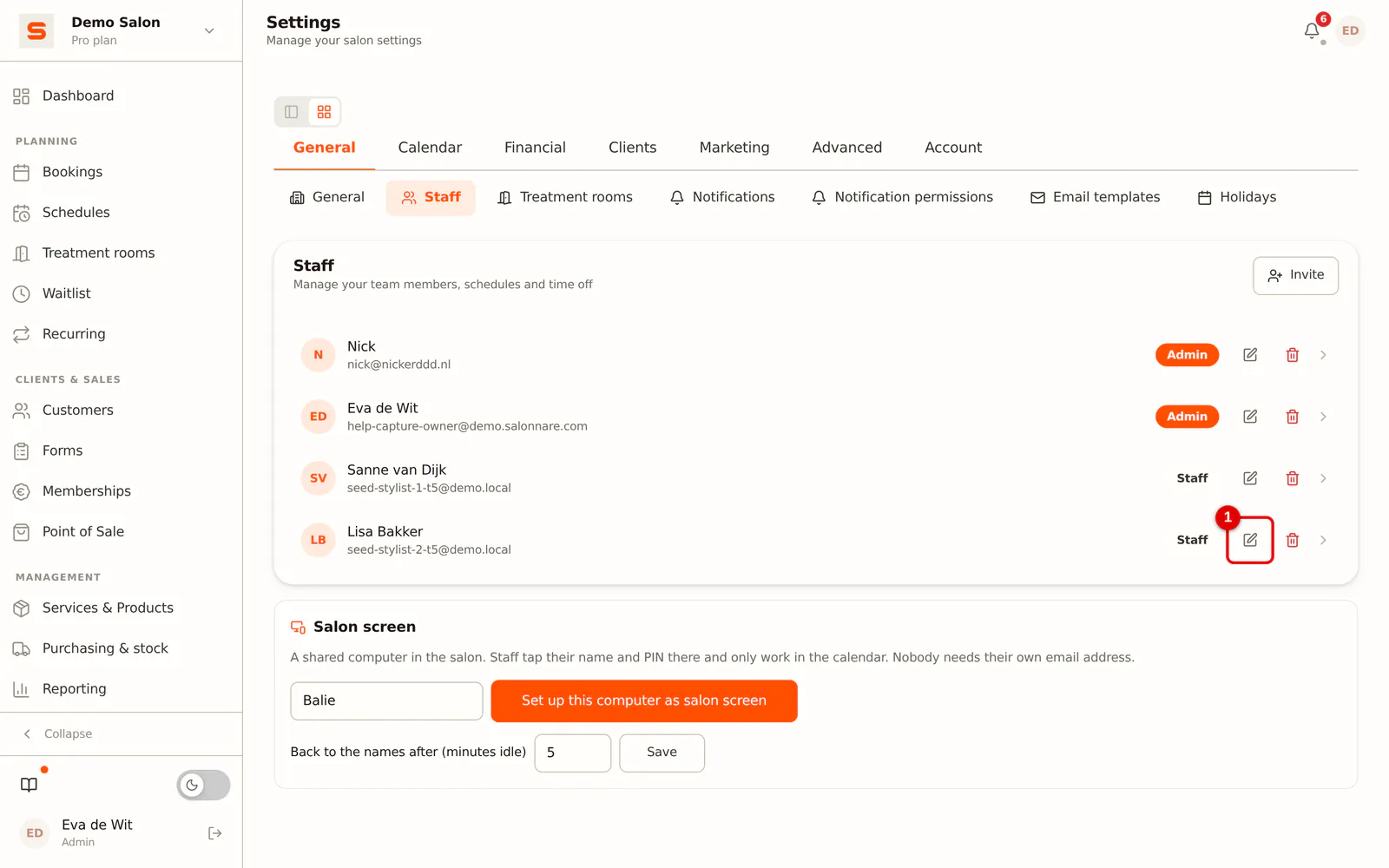 (Enlarge image)
-
Step 2: Choose a colour
Under Colour in the calendar, pick a colour from the palette, or enter a code such as
#2f7d6dunder Custom colour (hex code). With None (automatic), the staff member gets the automatic colour again.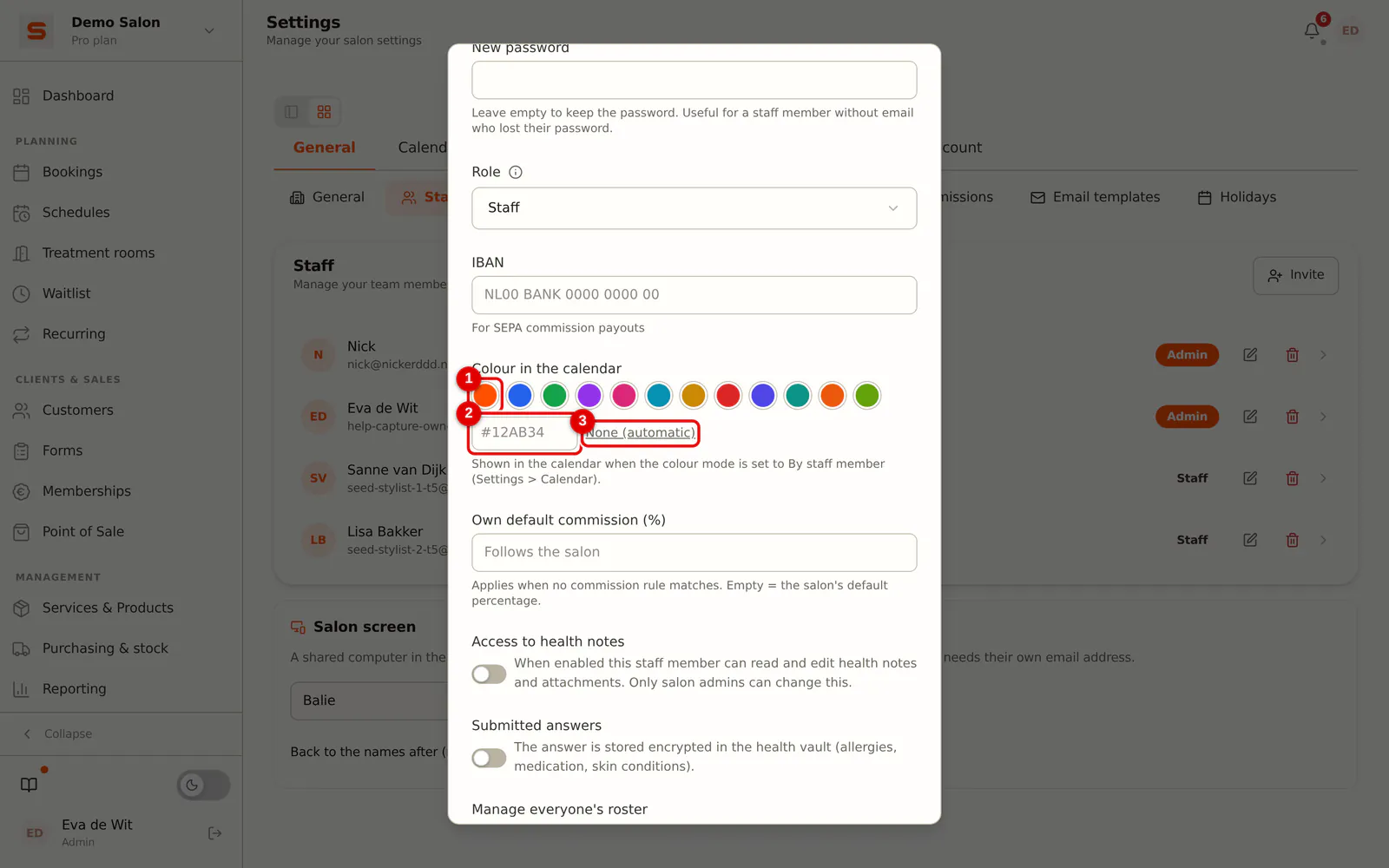 (Enlarge image)
-
Step 3: Save
Click Save. The colour shows on the appointments in the calendar and as a dot next to the name at the top of the column.
The text on an appointment always stays readable: Salonnare picks white or dark text to suit the colour.