Importing data
Switching from another system or starting with an existing client list? With CSV import you bring a large number of clients, services, products or appointments into Salonnare at once. The import runs in four steps with a built-in preview check, so you see beforehand what will be imported and what goes wrong.
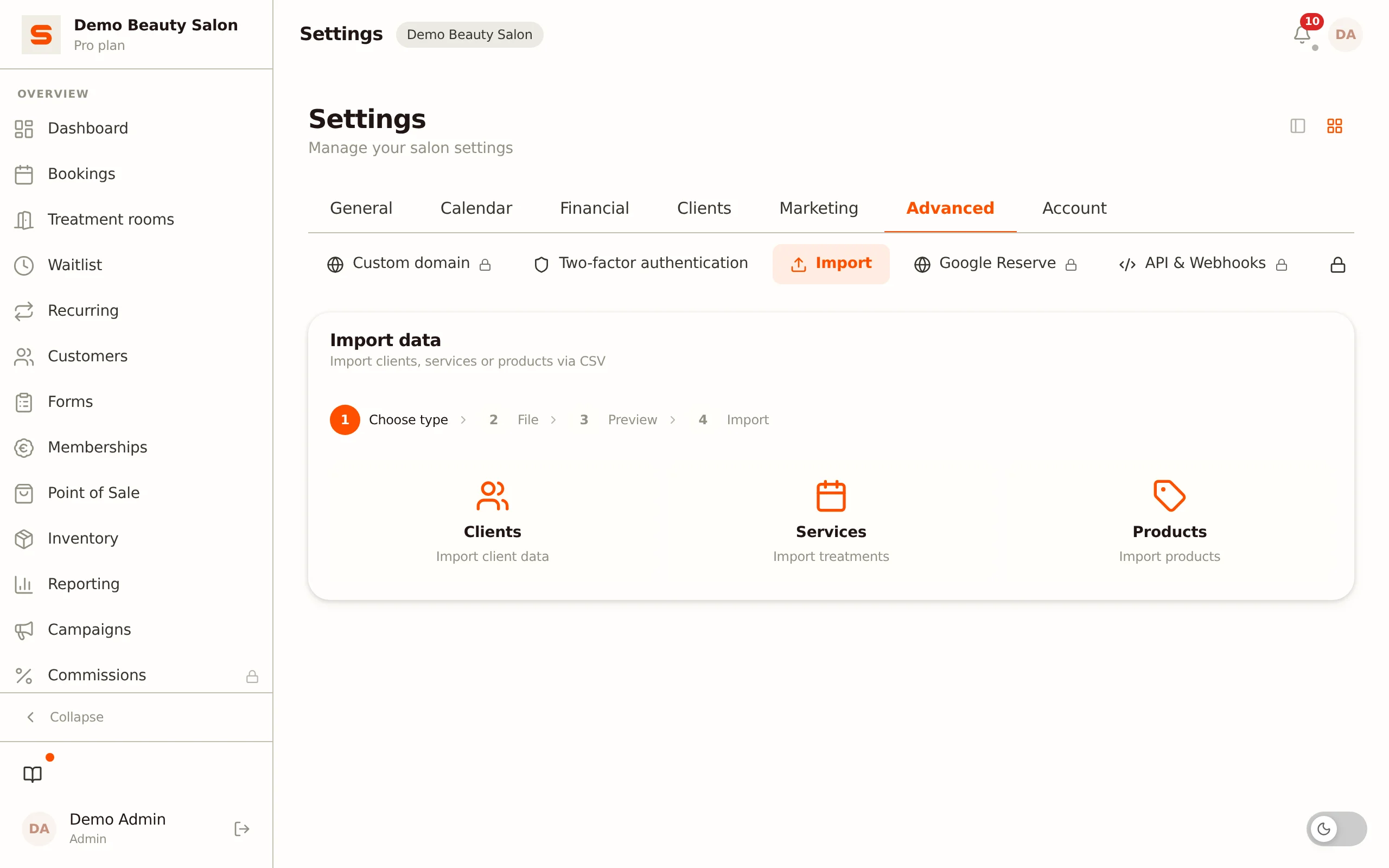
Where to find the import
- Go to Settings > Advanced > Import.
- Choose Salonnare (CSV per category) as the source. The other option, Switching from other software, is the wizard for exports from other salon software; see Switching from other software.
Only an administrator can import.
What can you import?
There are four import types:
- Clients -- client details (name, email, phone, notes, date of birth).
- Services -- treatments (name, duration, price, category, VAT).
- Products -- retail items (name, price, purchase price, stock, category, SKU).
- Appointments -- appointments of existing clients (client email, start time, duration, staff member, services, status, notes).
The four steps
Step 1 -- Choose type
Choose whether you want to import clients, services, products or appointments.
Step 2 -- Upload file
Drag your CSV file into the upload box or click to browse. Don't have a file in the right format yet? Click Download template to get an empty CSV template with the correct column headers. Fill in that template and upload it.
If you save the file from Excel, there is nothing to convert. Salonnare detects on its own whether the columns are separated by a comma, a semicolon or a tab, and also reads letters such as é and ë correctly from a file saved by a Dutch or other European version of Excel.
Step 3 -- Check the preview
After uploading, Salonnare parses your file and shows a preview with a status per row:
- Valid -- the row will be imported.
- Error -- the row has a problem (for example a missing name or an invalid email) and is skipped, with the reason shown.
- Duplicate -- the row matches an existing record.
At the top you see the counts: how many rows are valid, how many errors and how many duplicates.
Step 4 -- Import
Click Import to write the valid rows. Afterwards you see a summary: how many records were imported, skipped and how many errors there were.
Your own file (with AI assistance)
If you have an export from another system with its own column names, you do not have to rebuild it into our template first. Choose Your own file (with AI assistance) as the source. You then submit an import request, which we check and approve before anything in your data changes.
This feature is not yet enabled for everyone. If you do not see the option, it is not yet available for your salon.
How it works
- Choose the type: products, services or clients. One file per request; if you have products and clients, submit two requests.
- Upload: a CSV or Excel file (.xlsx) of up to 20 MB and 100,000 rows. Columns with payment details (such as IBAN or card numbers) are never read. A file with health data (allergies, medication, treatment reports) is rejected: that belongs in the secure health vault.
- Review the mapping: Salonnare first maps the columns by name; this also recognises the column names from the Salonnare templates (in all five languages) and common till-system headers such as "Sales price" or "In stock". Click Let AI suggest a mapping for a suggestion per column, with a short explanation why. You can then attach any column to a different field or ignore it.
- Update existing items (off by default): when this is off, the import only adds new items and leaves existing products, services and clients untouched. When you turn it on, existing items are updated with the values from your file. An empty cell never erases an existing value.
- Check: a dry run shows how many items are new, how many will be updated and which rows are skipped, with the reason. Nothing is saved yet.
- Submit: your import is checked and approved within 24 hours. Until then nothing changes in your data. Want to change something after all? Click Withdraw; the request goes back to draft.
After approval the data is written and you receive an email and an in-app notification. If the request is not approved, you see the reason with the request (and in the email). Nothing has changed; you can adjust the mapping and submit again.
What is sent to the AI?
- Optional: nothing is sent to the AI unless you click Let the AI suggest a mapping yourself. Without that click you map the columns yourself or by name, and everything stays within Salonnare.
- Clients: only the column names and a type profile per column (for example "email address", "date in the form DD-MM-YYYY", "partly empty"). The sample rows the AI sees are entirely made up. No value from your client file leaves Salonnare.
- Products and services: column names, the type profile and three sample rows. Email addresses, phone numbers, IBANs, postcodes and old dates are replaced first, and free text longer than 40 characters (such as a long description) is left out. If one column holds several email addresses, phone numbers or IBANs, the AI is not used.
- File without a header row: if the first line is not a row of column names but straight away a client or product, the file is not sent to the AI. Add a line with column names at the top, or map the columns yourself.
- The AI only suggests the mapping. Converting the rows themselves is done by Salonnare, not by the AI.
- Who provides the AI: Anthropic (Claude), in the United States. Anthropic does not use this data to train models and deletes it within 30 days; only a request flagged by their automated safety checks may be kept for up to 2 years. More in our privacy policy, the data processing agreement (article 16) and the list of sub-processors.
Each salon can request 10 AI suggestions per month. When they are used up, you map the columns yourself; submitting still works.
Marketing consent
If your file has a column with consent for newsletters or offers (yes/no), it is taken over, with the import recorded as the source. No means the client is unsubscribed from marketing email. Yes never lifts an existing unsubscribe: if a client unsubscribed themselves, that stays.
An import never sends email to your clients: no welcome email, no birthday email and no review request.
CSV format and columns
The column headers on the first line are in Dutch and must match exactly. Preferably use the downloadable template. The fields per type:
Clients
| Column | Required | Note |
|---|---|---|
naam | Yes | Client name |
email | No | Valid email address |
telefoon | No | Phone number |
notities | No | Free-text note |
geboortedatum | No | Format YYYY-MM-DD |
Services
| Column | Required | Note |
|---|---|---|
naam | Yes | Treatment name |
duur_min | No | Duration in minutes (default 30) |
prijs | No | Price (comma or dot) |
categorie | No | Name of the service category. An existing category with that name is reused (capitals and spaces at the start or end don't count), otherwise it is created. Empty = the service goes into the category Geïmporteerd |
btw_percentage | No | VAT percentage |
Products
| Column | Required | Note |
|---|---|---|
naam | Yes | Product name |
prijs | No | Sale price |
inkoopprijs | No | Purchase price |
voorraad | No | Stock quantity |
categorie | No | Name of the product category. An existing category with that name is reused (capitals and spaces at the start or end don't count), otherwise it is created. Empty = the new product goes into the category Geïmporteerd; an existing product keeps its own category |
sku | No | Article code. Empty = Salonnare creates one from the product name, as in the product form; if that code already exists, -2, -3 and so on is added. If Auto-generate SKU is switched off, the SKU stays empty |
Appointments
| Column | Required | Note |
|---|---|---|
klant_email | Yes | Email address of a client who is already in Salonnare |
start | Yes | Date and time as YYYY-MM-DD HH:MM, in your salon's time |
duur_min | No | Duration in minutes; empty = the duration of the services |
medewerker | No | Staff member's name; empty = your only or first active staff member |
diensten | No | Service names separated by commas; an unknown service is created in the service category Geïmporteerd |
status | No | scheduled, completed, no_show or cancelled (default scheduled) |
notities | No | Free-text note |
Import your clients first: an appointment with an email address Salonnare does not know is skipped as an error. No automatic emails go to clients for imported appointments (such as reminders or review requests).
If a given category does not exist yet, the import creates it automatically. Services and products get the default VAT rate if you don't specify one. If you leave prijs or inkoopprijs empty, that price stays empty -- it is not turned into 0.00.
How are duplicates handled?
Duplicates are detected on a unique field: for clients on the email address, for products on the SKU and for appointments on the combination of client and start time. (Services have no duplicate check.) A duplicate appointment is always skipped. When a client or product row matches an existing record, you choose in the preview step what happens:
- Skip -- leave the existing record unchanged.
- Update -- update the existing record with the data from the CSV file.
With Update, an empty cell means: leave it alone. For a client, phone, notes and date of birth then stay as they are; for a product, the price, purchase price, stock and category. Salonnare always takes the name from the file.
A product without a SKU in your file has nothing to compare against, so it is always added as a new product. If you import the same file twice, give your products a SKU.
Common errors
- Name is required -- every row must have a name.
- Invalid email address -- the email is not in the correct format.
- Invalid date of birth -- use
YYYY-MM-DD. - Invalid price or duration -- use a number; for prices a comma or dot is allowed.
This per-category import covers clients, services, products and appointments. Switching from other salon software and want to bring absences along too, or do you have the export files of your old system? Then use the migration wizard: see Switching from other software. Receipts or gift cards cannot be imported via CSV -- you create those in the app or keep them in your previous bookkeeping.
Want to grow your client list further afterwards? See Managing clients. For your service offering, see Services.