Comparing with the previous report and adding to it
At a follow-up treatment you want to see what has changed. The treatment chart puts the report next to the previous one with the same template, and shows before and after photos on top of each other. A report is locked 24 hours after it was created; if you want to record something after that, you add an addendum.
Comparing with the previous report
-
Step 1: Switch on comparing
Open the report and tick Compare with previous report at the top. To the right of it you choose which earlier report you compare with; by default that is the previous report with the same template.
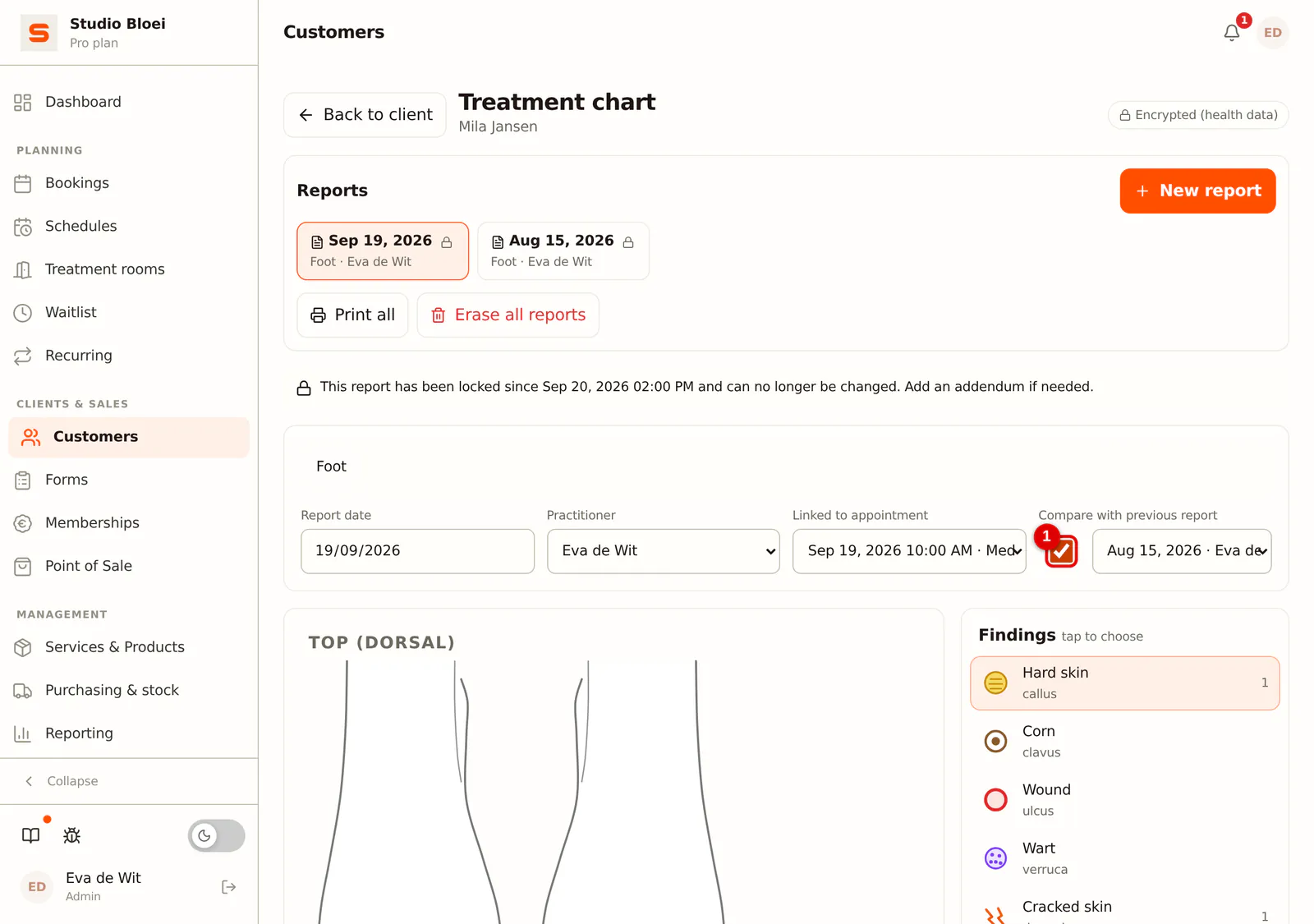 (Enlarge image)
-
Step 2: Look at the difference
The findings of the previous report are now shown dotted on the drawing. Below the drawing, Salonnare counts what is New, what Remained and what is Gone, and names the findings that are gone. In the lists, too, you see what changed compared with last time.
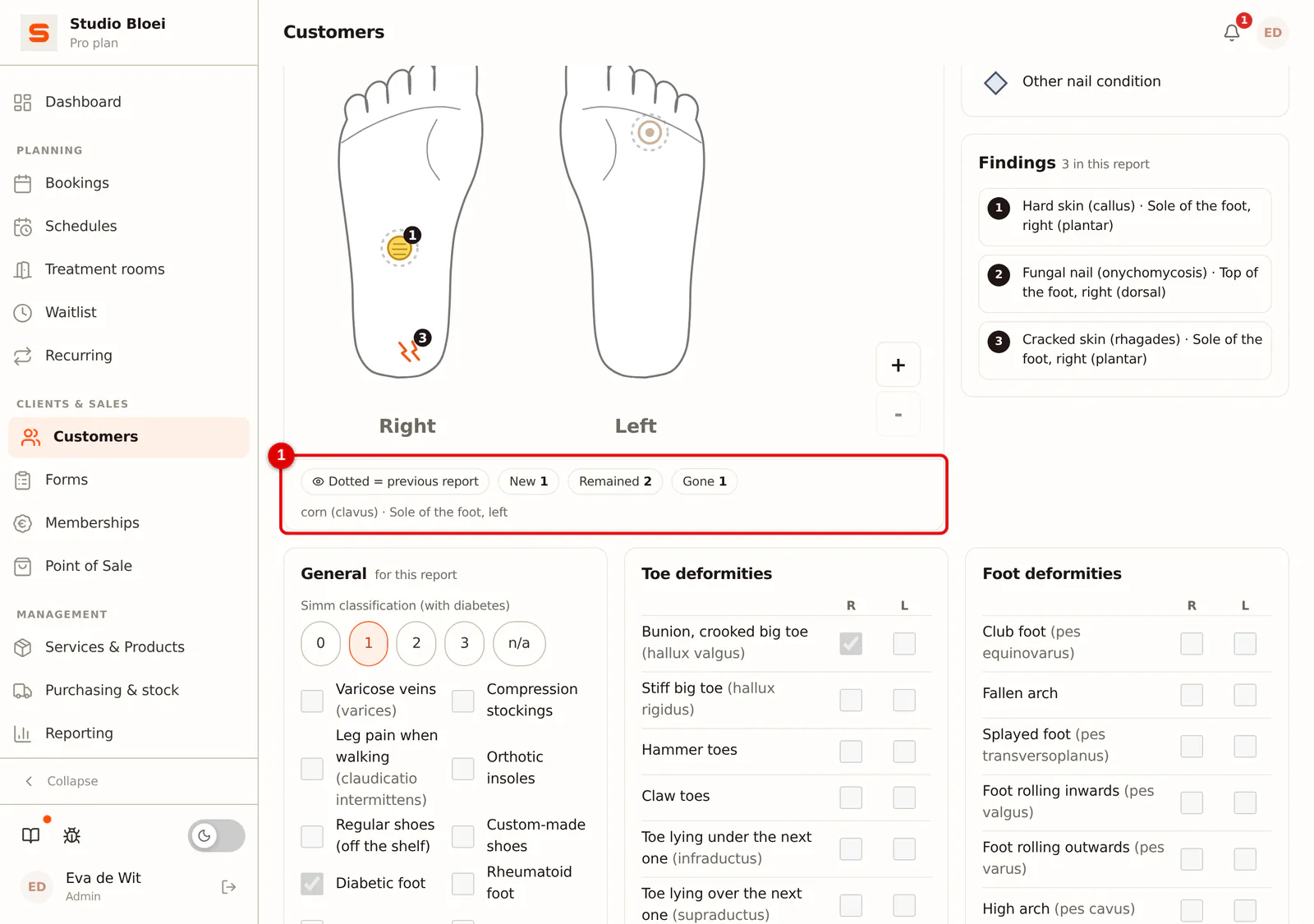 (Enlarge image)
Comparing before and after photos
-
Step 1: Open the comparison
If a side has both a before and an after photo, click Compare for that side.
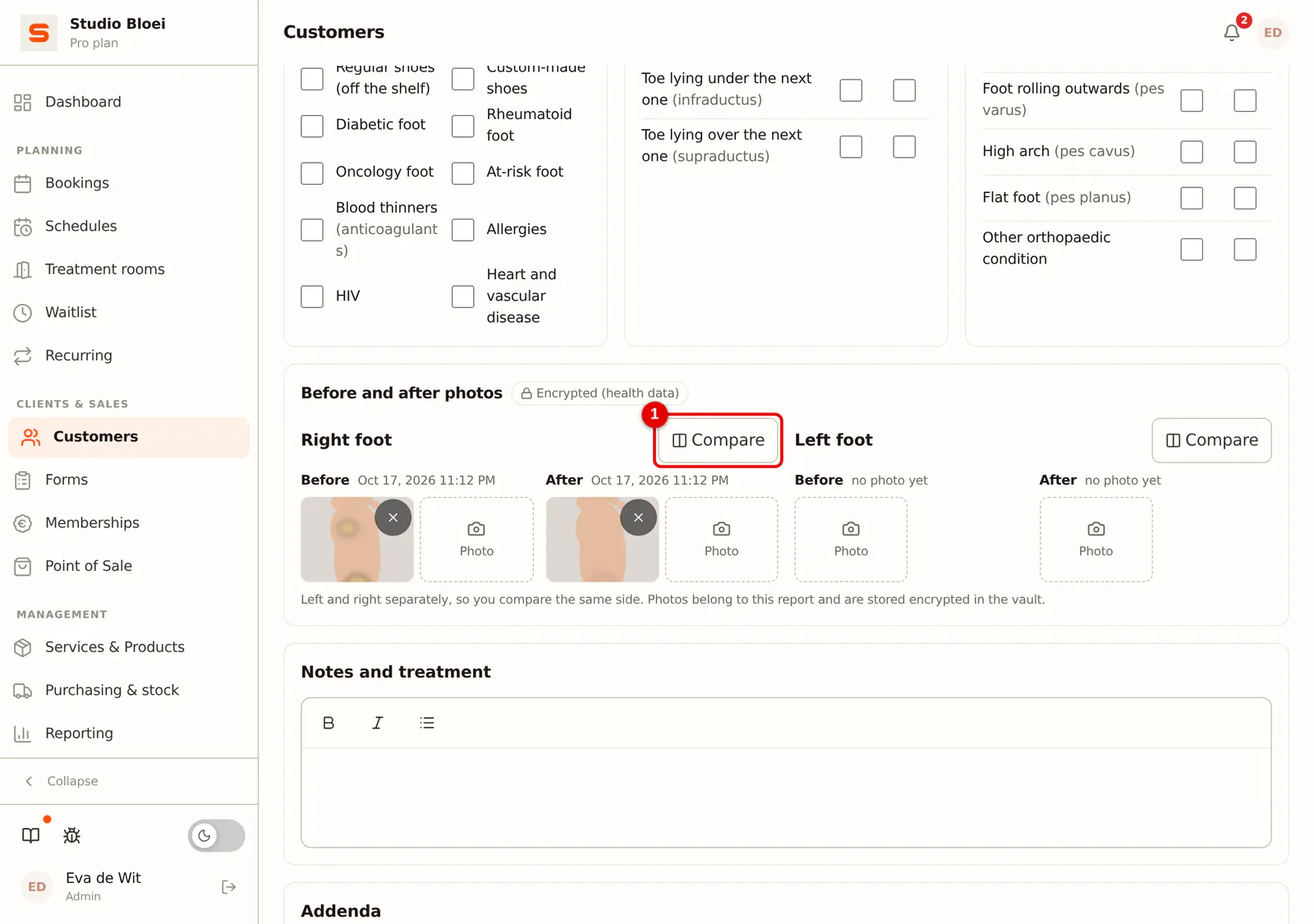 (Enlarge image)
-
Step 2: Choose slider or side by side
With Slider the two photos lie on top of each other and you move the line back and forth to see the difference. With Side by side they are shown next to each other.
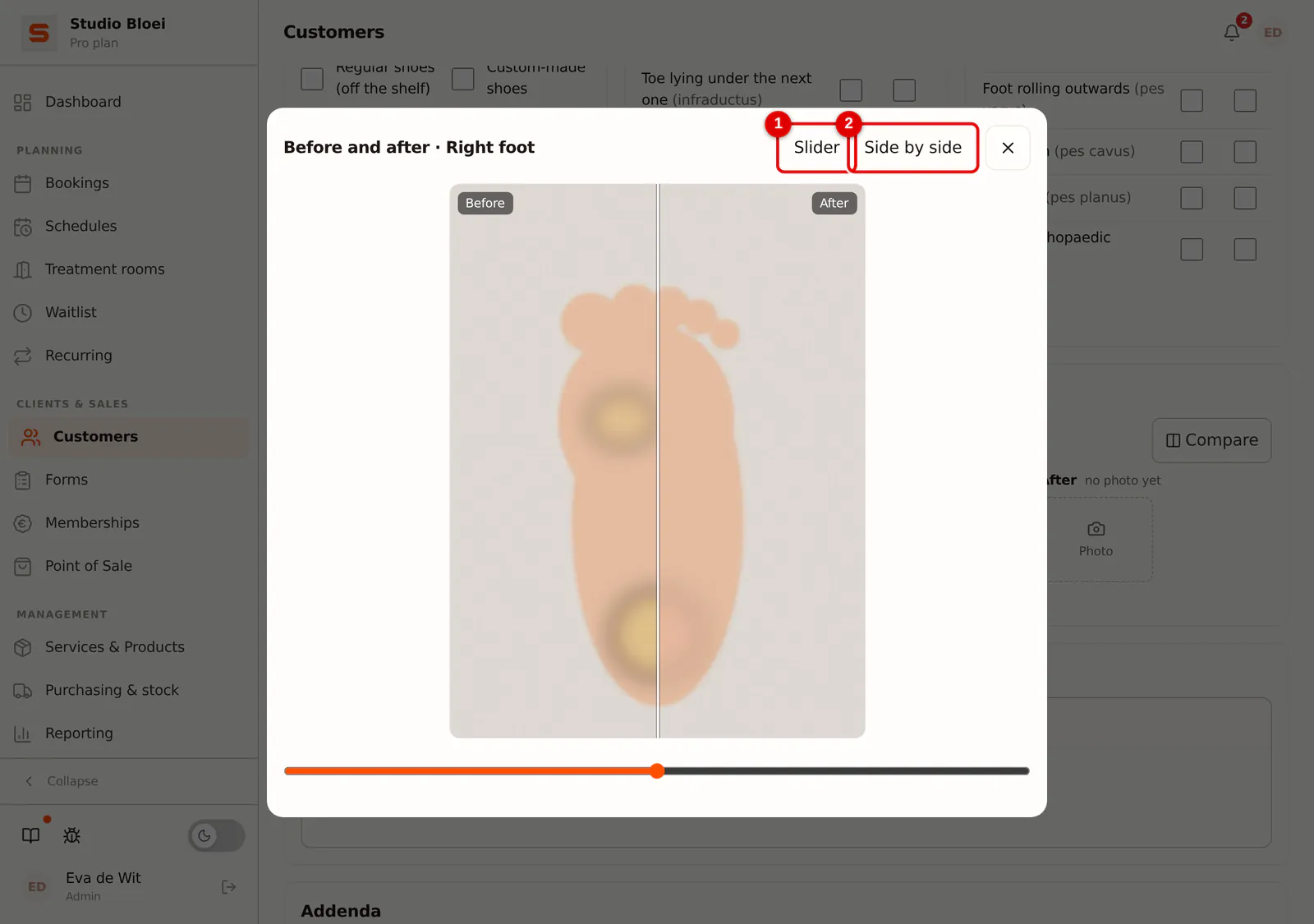 (Enlarge image)
Adding an addendum
-
Step 1: See until when you can make changes
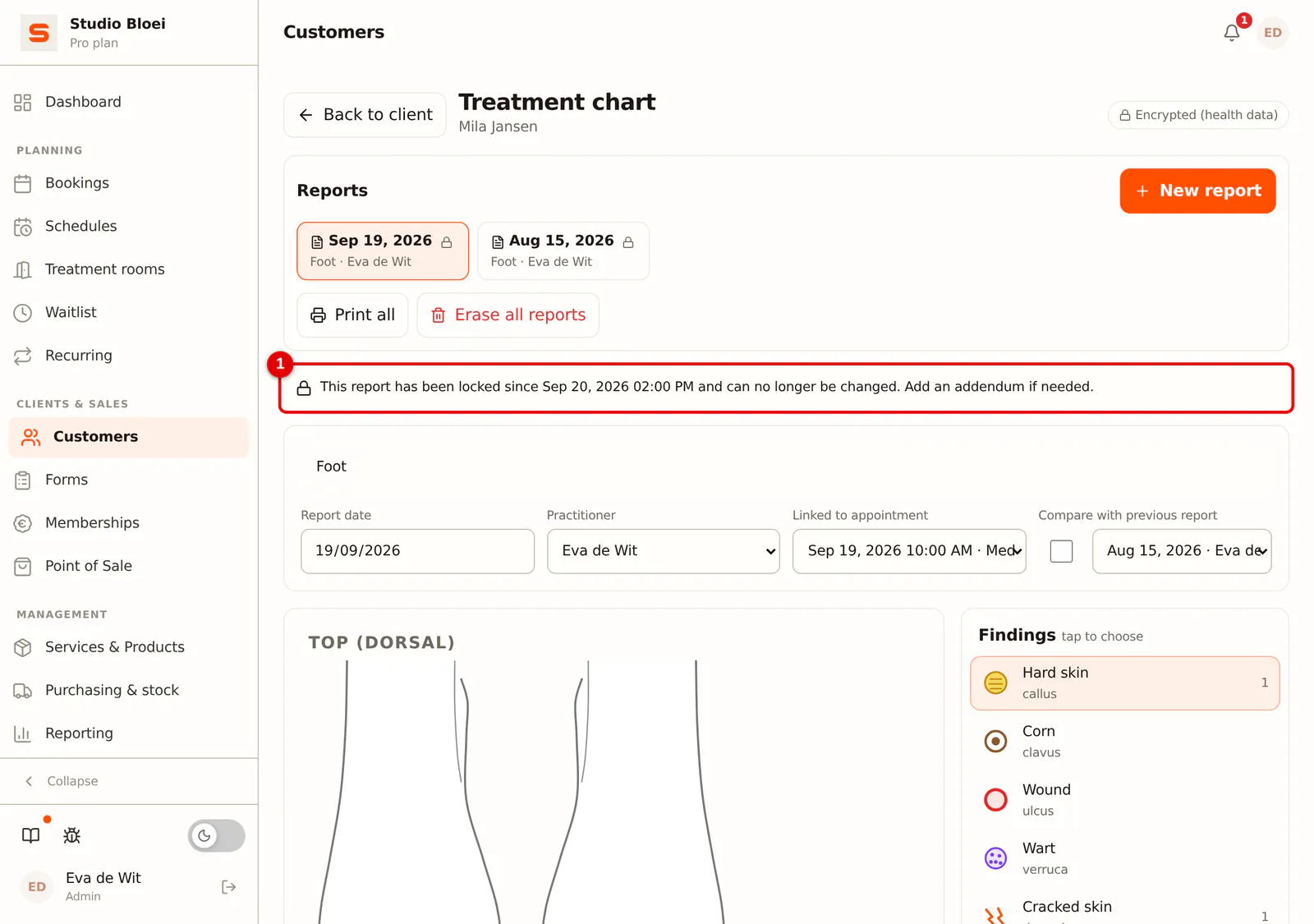
At the top of a report you see until when you can change it. After 24 hours it says This report has been locked since with the date and time; the report itself can then only be read. In the list of reports you recognise a locked report by the padlock.
 (Enlarge image)
-
Step 2: Add an addendum
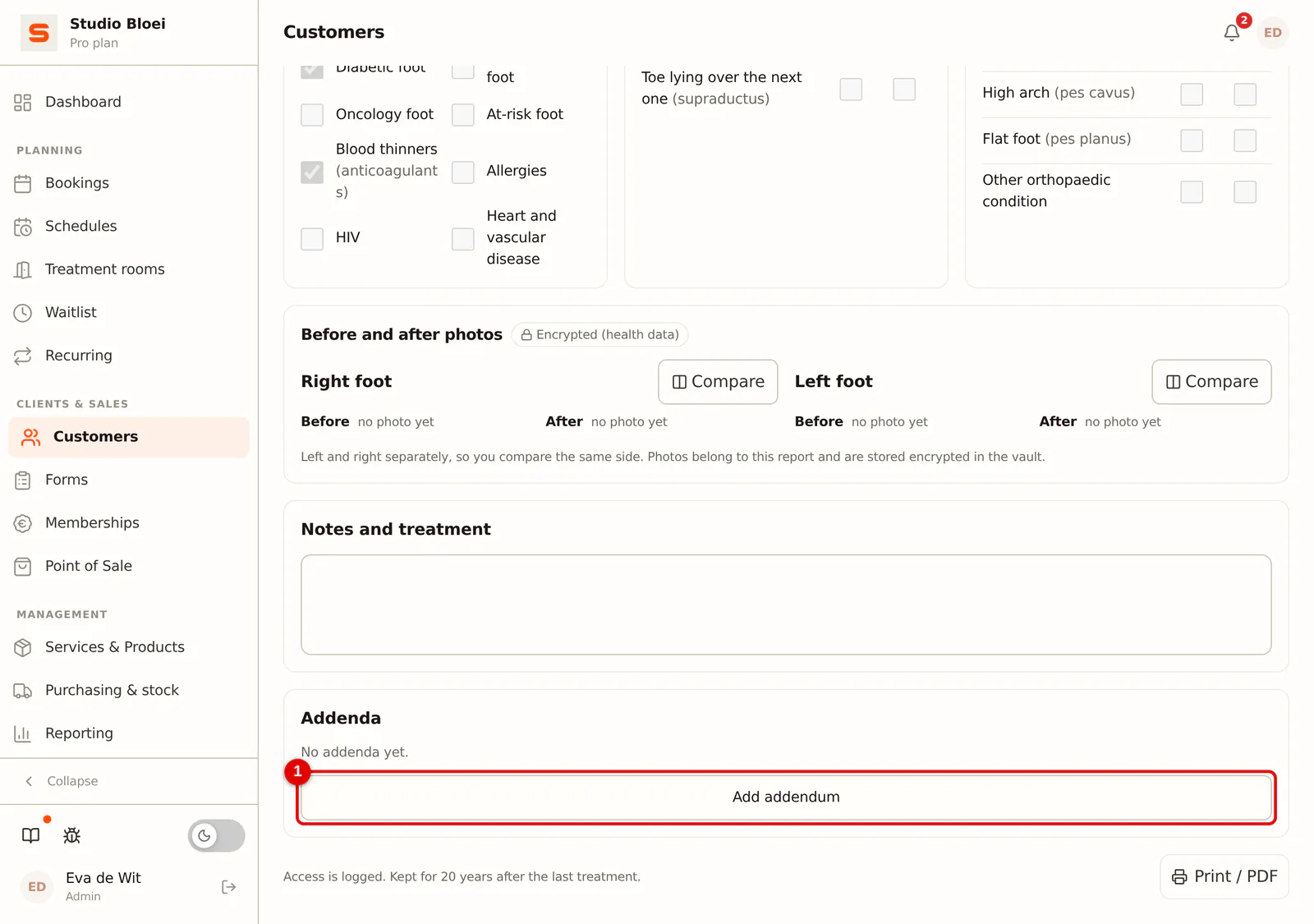
Scroll to Addenda and click Add addendum.
 (Enlarge image)
-
Step 3: Write the addendum and save
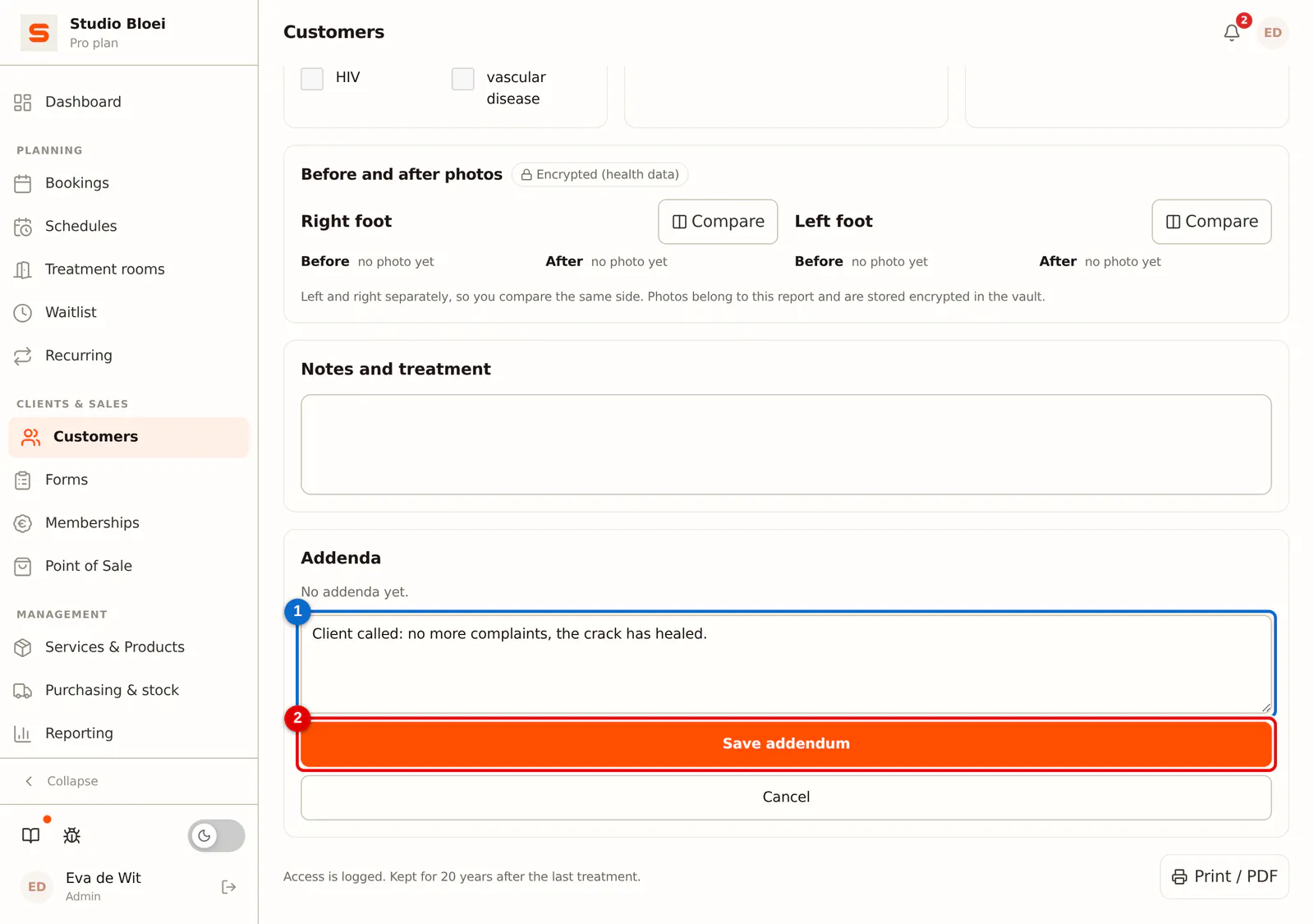
Type what you want to add, for example how things went after the treatment, and click Save addendum. The addendum is added as a separate line below the report, with your name and the date and time.
 (Enlarge image)
Frequently asked questions
Why is a report locked after 24 hours? A treatment report is a record. This way nobody can change anything afterwards unnoticed; whatever becomes known later is visible as an addendum, with name and time, below the report.
Can I change or delete an addendum? No. If something isn't right, add a new addendum with the correction.