Recording injectables
With the Injectables (botox and fillers) template you record per injection point which product you used, how much and from which batch. Salonnare adds everything up per product, so your traceability is complete.
Botox and fillers are reserved procedures: only a doctor may perform them, or a qualified practitioner on a doctor's instructions. The treatment chart records what was done; it does not grant any authorisation.
Placing injection points
-
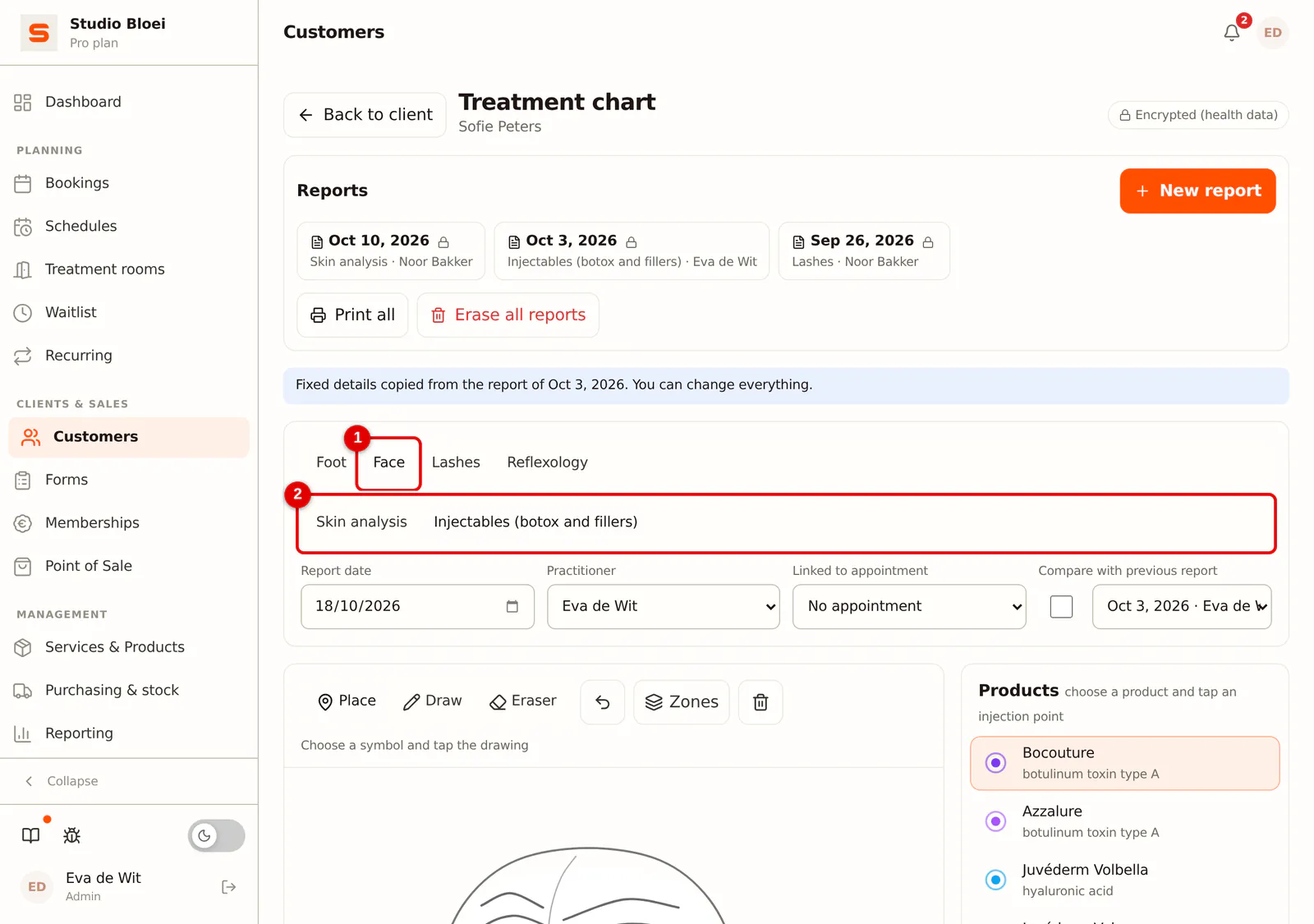
Step 1: Choose Face and then Injectables
Open a new report (see Filling in a treatment chart). Under the template choose Face and below it Injectables (botox and fillers). With Skin analysis you create a skin report in the same tab.
 (Enlarge image)
-
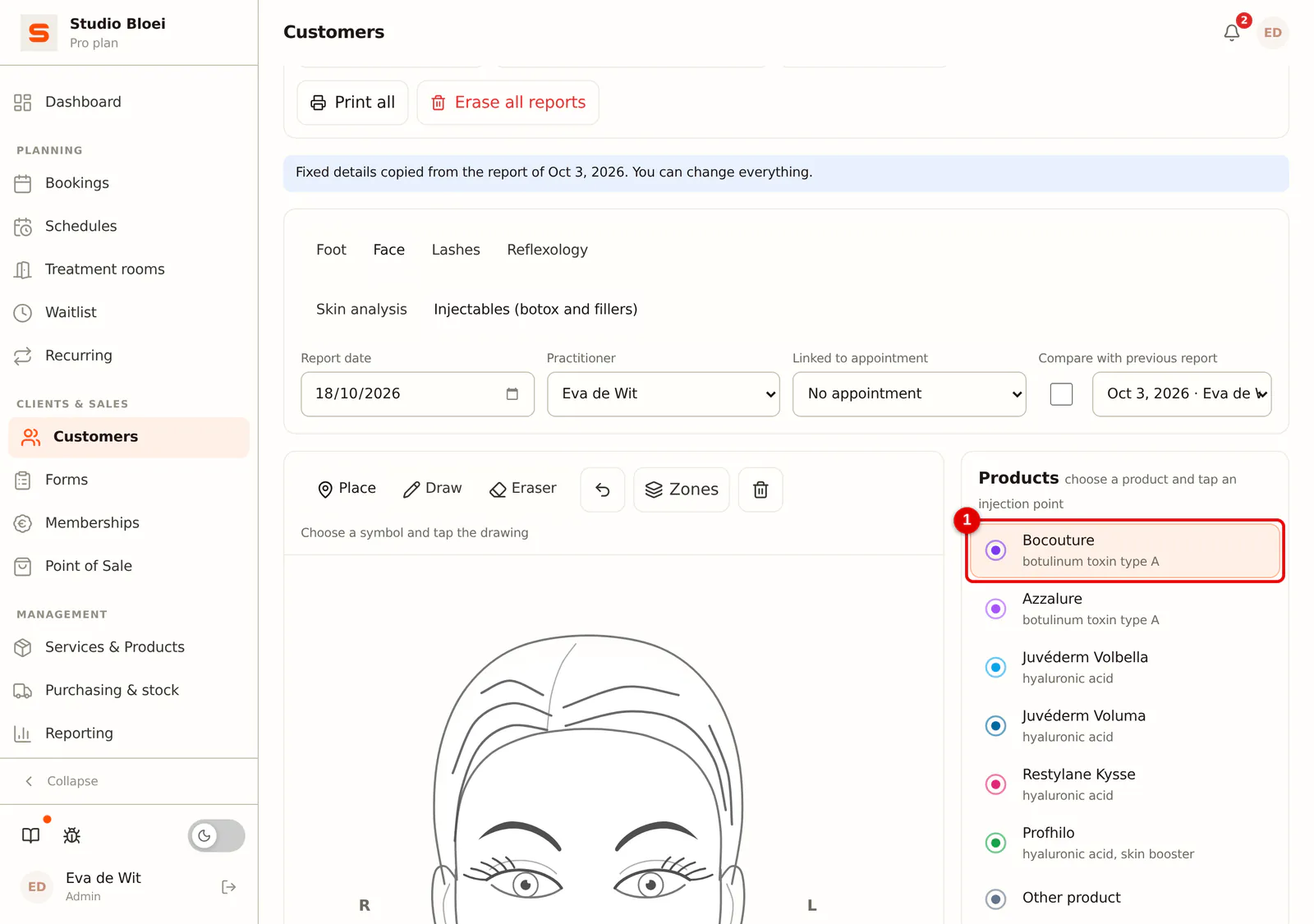
Step 2: Choose the product
On the right under Products, choose the product you use. If your product isn't listed, choose Other product and fill in the name, or add the product under Settings > Clients > Treatment chart (see Setting up the treatment chart).
 (Enlarge image)
-
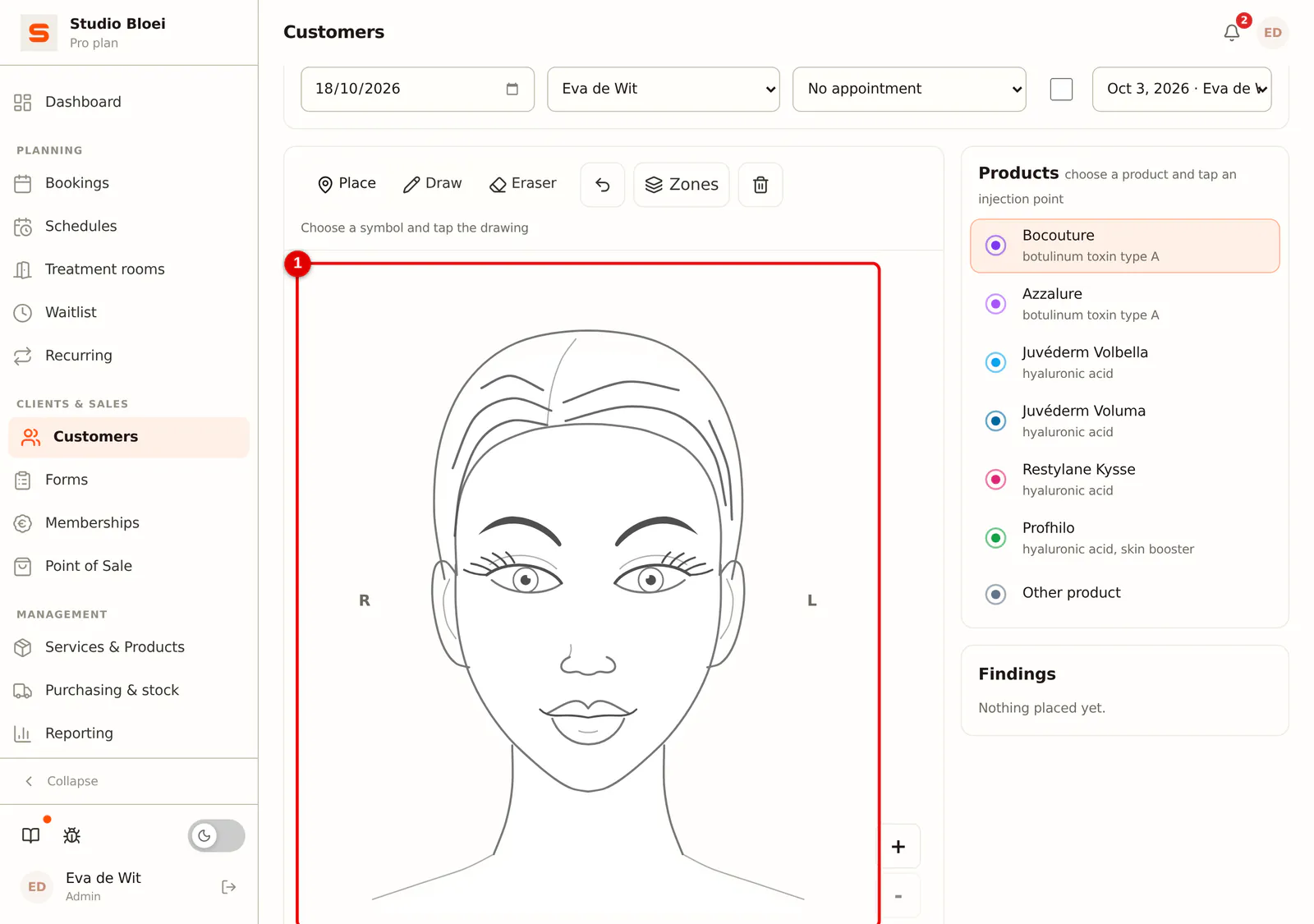
Step 3: Tap the injection points
Tap each spot on the drawing where you inject. Each point gets a number and the zone, such as Forehead or Lips. With Zones above the drawing you make the zones visible.
 (Enlarge image)
-
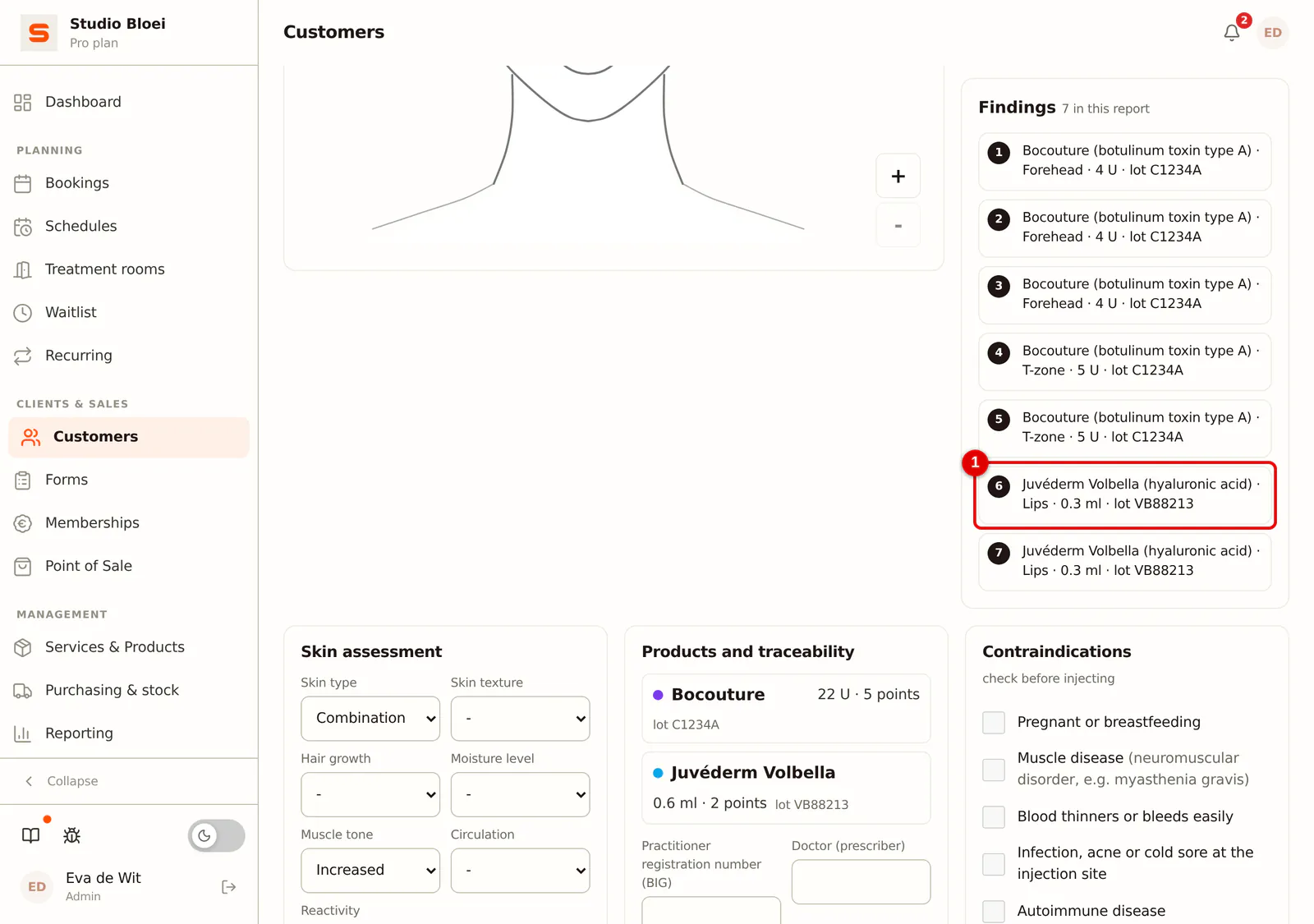
Step 4: Open a point
On the right all points are listed one below the other, with product, amount and lot number. Click a point to open it.
 (Enlarge image)
-
Step 5: Fill in amount and lot number
Fill in the number of units (U) or ml under Amount, and the number from the package under Batch or lot number. If you then place another point with the same product, Salonnare copies the lot number of the previous point.
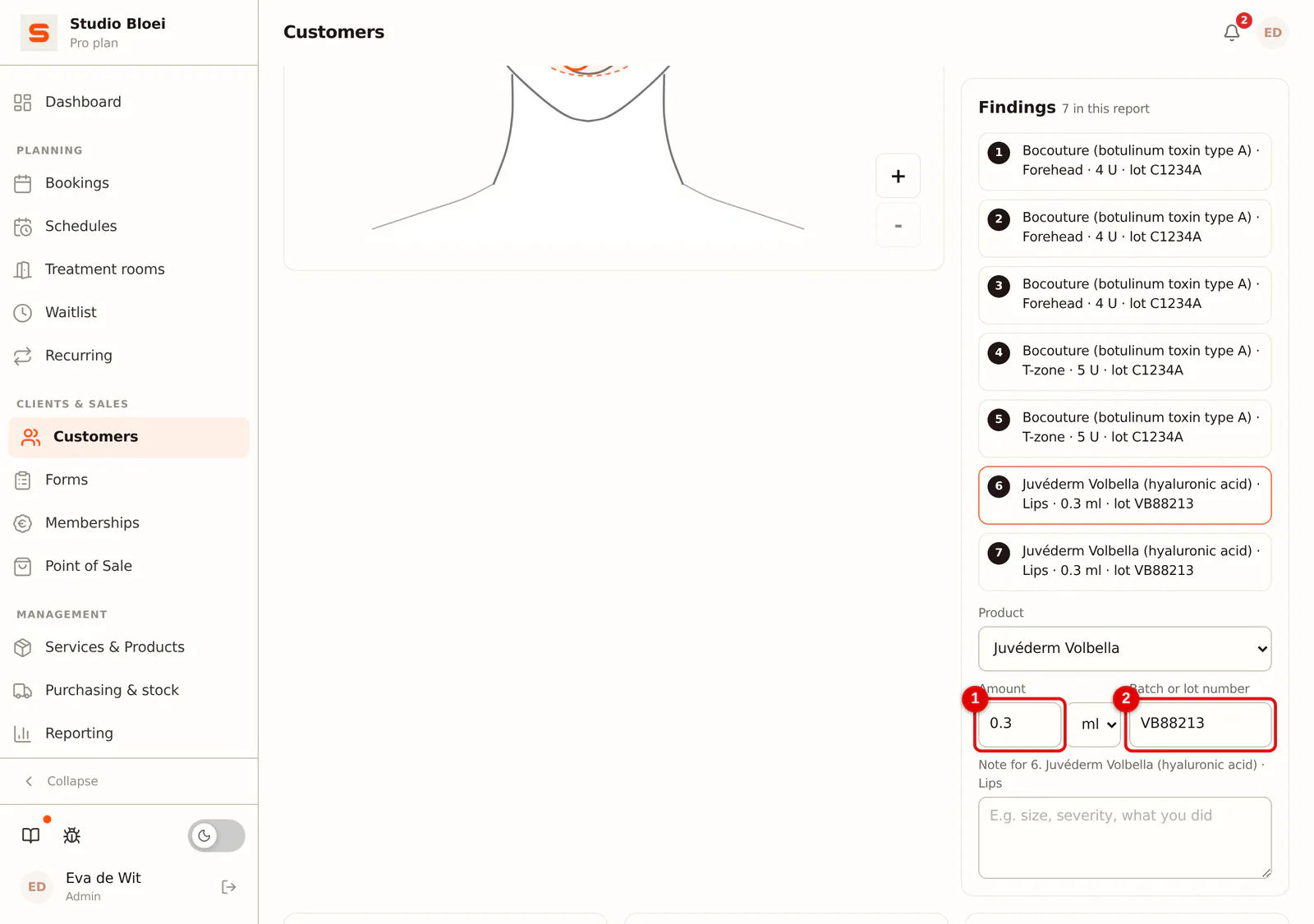 (Enlarge image)
-
Step 6: Check the total per product
Under Products and traceability you see the total and the number of points per product, with the lot numbers. If a point is missing its lot number, it is shown here. Also fill in the Practitioner registration number (BIG) and the Doctor (prescriber).
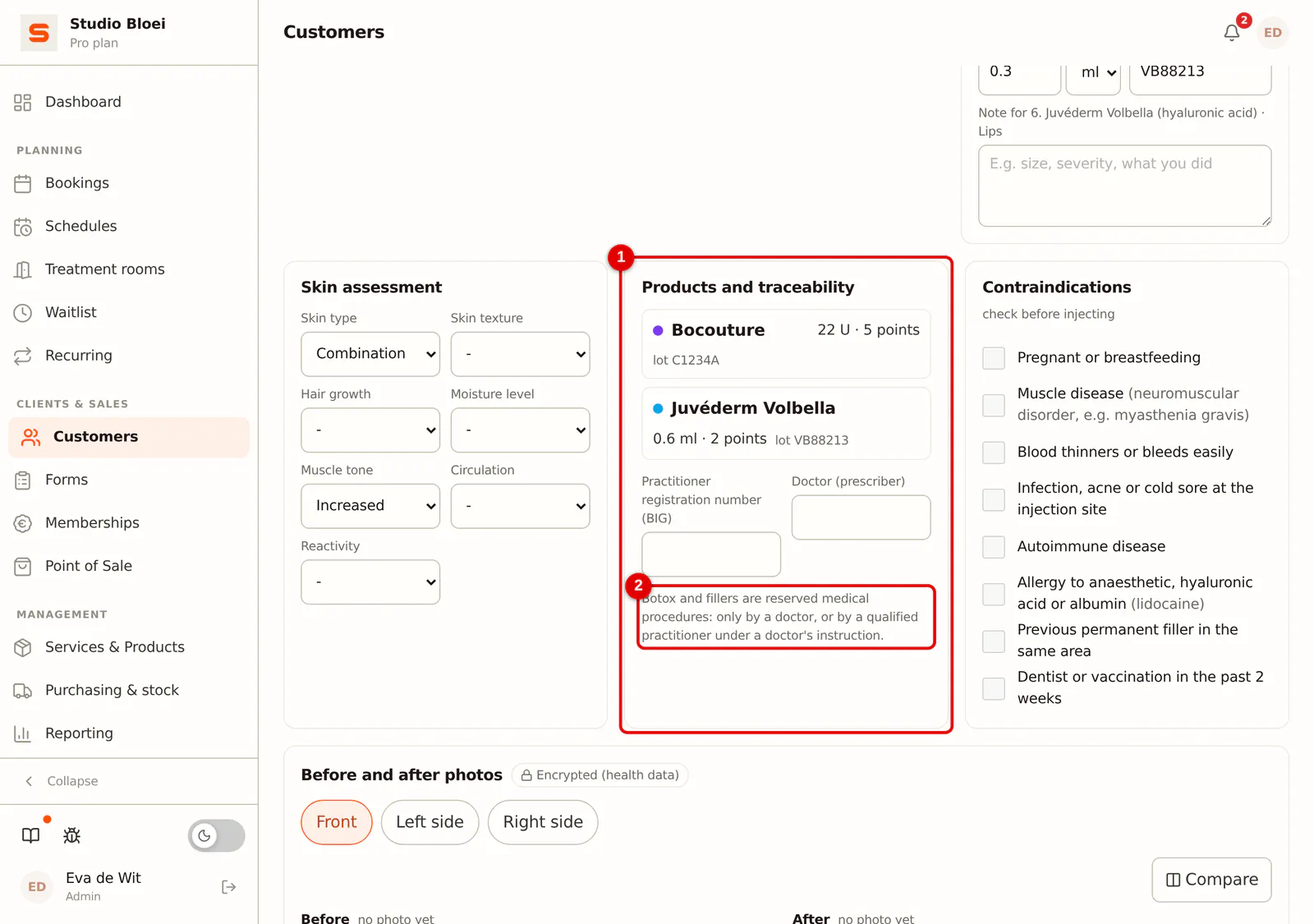 (Enlarge image)
Also go through the Contraindications, such as pregnancy or blood thinners. What you tick there is shown as Note: in the appointment details at this client's next appointment. Under Skin assessment you record skin type, muscle tone and other characteristics. Save the report with Save report.